How Can You Convert GPT to MBR without Data Loss Using Command Prompt?
What do GPT and MBR mean?
GPT (GUID Partition Table) and MBR (Master Boot Record) are two partition styles used on hard drives, each with its own distinct characteristics. While MBR has been the traditional partition style for decades, GPT is a newer, more flexible alternative that offers improved support for large drives and multiple boot configurations.
▸ GPT (short for GUID partition table)
The modern standard layout for partition tables on newer systems' hard drives uses UEFI instead of BIOS, allowing for unlimited partitions and full use of large hard disks (over 2TB), but is limited to 128 by the OS in practice.
▸ MBR (short for Master Boot Record)
The Legacy BIOS mode is used to make it compatible with modern systems, unlike GPT. MBR can only create a maximum of four primary partitions or three primary partitions and one extended partition, but it is compatible with a larger number of systems and setups than GPT.
Due to their different features and functions, you'll need to choose between GPT and MBR for your system to recognize the drive. If using an older operating system or 32-bit Windows OS, MBR is the correct choice.
How can I convert GPT to MBR without data loss using Command Prompt?
Yes, it is possible to convert a GPT disk to MBR without data loss using the Command Prompt in Windows. You can use the command "convert mbr" to convert a GPT disk to MBR, but this will erase all data on the disk. To avoid data loss, you can use the command "convert mbr" with the "/force" option, but this is not recommended as it may still result in data loss.
The Command Prompt can only convert an empty disk from GPT to MBR, or MBR to GPT, requiring deletion of existing partitions, resulting in data loss. To convert GPT to MBR without losing data, backing up the disk is necessary.
Backing up your data is the only way to ensure you don't suffer from data loss when converting between GPT and MBR using command prompt.
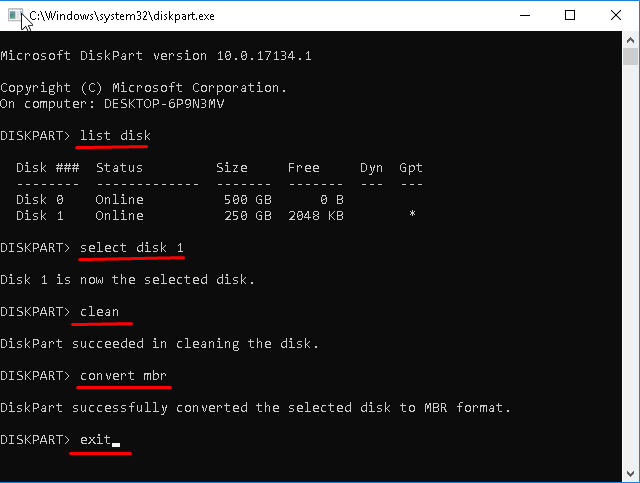
Step 1. To convert a GPT disk to MBR, open the Command Prompt as an administrator by pressing "Win + R", typing "cmd" in the Run window, and clicking "OK". Alternatively, during the Windows installation process, press "Shift + F10" to open the Command Prompt, then type "diskpart.exe" and press "Enter".
Step 2. Type "list disk" and hit Enter.
Step 3. Type "select disk n" (n is the number of the disk you want to clean).
Step 4. This will delete all partitions and data on the selected disk. Be careful when using this command. If you're sure, type "clean".
Step 5. Type "convert mbr".
Step 6. Type "exit".
To restore the backup image to the previous disk, simply boot from the Windows installation media, navigate to the "System Image Recovery" option, and select the backup image you want to restore. This will overwrite the current data on the disk, so make sure you have backed up any important files before proceeding. The process will then copy the backed-up system image back onto the disk, effectively converting the disk from GPT to MBR. Note that this method assumes you have a backup image created before attempting to convert the disk.
Alternative to convert GPT to MBR within 3 steps
The only way to avoid data loss when converting between GPT and MBR using the command prompt is to back up all data beforehand, as the conversion will delete all partitions. This process is lengthy and time-consuming, so it's recommended to use third-party software like Qiling Disk Master Professional Edition to convert without deleting partitions or data.
Step 1. Install and launch Qiling Disk Master Professional. You can download the Professional Demo version to try it first.
Step 2. To convert a disk to MBR, click on the disk you want to convert in the main window, then select "Convert to MBR" from the right column. (Note: This will erase all data on the disk.
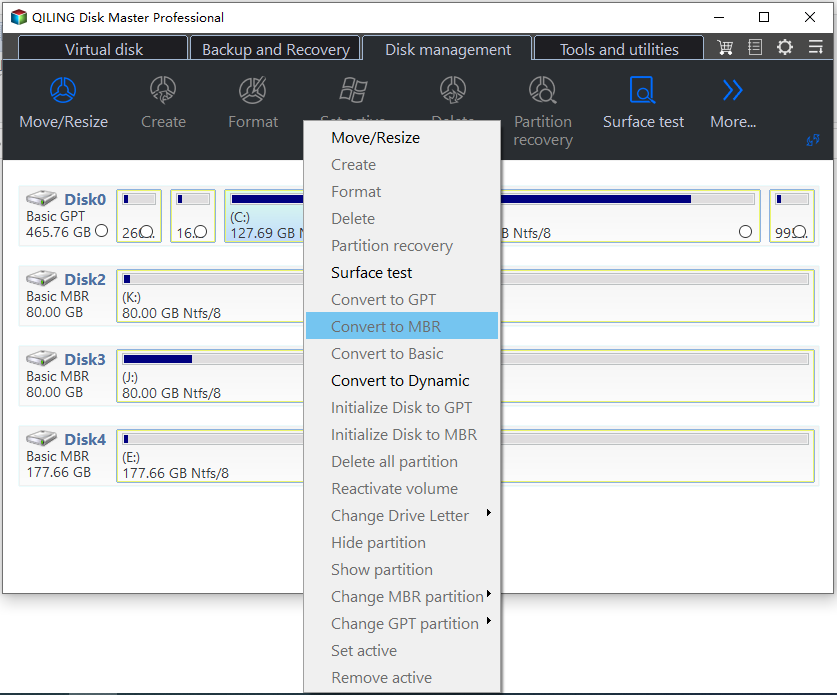
Step 3.Wait to conver it to MBR.
Qiling Disk Master allows users to convert partition styles between GPT and MBR when needed, making it easy to switch between the two in the future. If you need to convert your system disk between GPT and MBR partition styles, you can follow a simple 3-step process as long as your PC can boot up successfully. This feature is particularly useful for users who may need to convert their drives in the future.
Qiling Disk Master is compatible with many Windows operating systems including Windows 11/10/8.1/8/7/XP/Vista (all editions) and Windows Server OS like Server 2022, 2019, 2016.
Bonus: How to convert GPT to MBR during Windows installation
If you're unable to boot your computer normally or need to convert your disk during Windows installation, you can create bootable media using Qiling Disk Master and enter WinPE mode, which will allow you to perform the conversion. This will be explained in the next part.

Summary
Converting from GPT to MBR without data loss is possible using the command prompt, but requires backing up data first. If not backed up, data will be lost due to the "clean" command. Alternatively, using Qiling Disk Master allows for direct conversion between GPT and MBR without deleting partitions or wiping the drive.
Qiling Disk Master offers a range of useful functions in Disk Management, including converting FAT32 to NTFS without data loss, merging partitions, converting logical to primary partitions, converting dynamic disks to basic ones without deleting volumes, deleting extended partitions, cloning MBR and GPT disks, resizing and moving partitions, and more.
Related Articles
- Is There Any Way to Fix Google Play Insufficient Storage Error
This guide explains Is There Any Way to Fix Google Play Insufficient Storage Error with clear steps, key checks, and practical tips. - How to Fix Pen Drive Showing Write-Protected Error
Learn how to Fix Pen Drive Showing Write-Protected Error with clear steps, key checks, and practical tips. - Will I Keep the Windows License After Format? I Need Answers
Learn how to keep the Windows License After Format I Need Answers safely, including what to check before formatting, wiping, or deleting data. - Windows 10 Won't Read SD Cards Unless I Reformat Them
This guide explains Windows 10 Won't Read SD Cards Unless I Reformat Them with clear steps, key checks, and practical tips. - How to Fix Dell Laptop Won't Turn On | 2024 New💡
If your Dell laptop won't turn on, this guide is here to help. Learn about the common issue of a Dell laptop not powering on and discover the possible causes and solutions to get your laptop up and running again. - Should I Select Disk Cleanup Compress Your OS Drive? Your Answer Is Here [2024 Full Guide]
Choosing 'Disk Cleanup Compress Your OS Drive' can help free up space on your drive, but it's essential to understand what happens when you compress your OS drive under disk cleanup. This article provides specific instructions and guidance on this process, so keep reading to learn more.
Products
Articles & Tutorials
- Data Recovery
- Data Backup
- File Recovery
- File Backup
- File synchronize
- System Backup and Restore
- Disk and Partition Clone
- Technical articles
- Disk Master Help
- Windows Deleted File and Disk Recovery Tutorials
- Windows File and Data Recovery Tutorials
- More Windows Tutorials for Install, Security, Files, and PC Tips
- Windows Boot, Repair, and Recovery Environment Tutorials
- Windows Backup Tutorials
- Windows Restore Tutorials
- Windows Clone and Migration Tutorials
- Windows Server Backup, Recovery, and Management Tutorials
- Windows Disk, Partition, and Storage Management Tutorials