How to Convert System Disk to GPT without Losing Data?
Quick Navigation:
- When need to convert system disk to GPT?
- Convert system disk to GPT without losing data via MBR2GPT.exe
- Convert MBR system disk to GPT without data loss via professional software
- Summary
When need to convert MBR system disk into GPT?
The two popular partition schemes for hard drives are MBR and GPT, with GPT being a newer standard that offers more options than the traditional MBR partition table. GPT is now required, along with UEFI, for Windows 10 users who want to upgrade to Windows 11 via the "Check for Update" feature.
The GPT partition table has a "Protective MBR" that protects data on the disk from being overwritten when using old tools, making it more compatible than MBR. However, sometimes you might want to convert a system to GPT without losing data, which can be necessary due to various factors such as the need for a larger partition size or to take advantage of GPT's features.
▶ Disk capacity of your hard drive: It's recommended to use GPT style for disks larger than 2TB, as the MBR table can leave unallocated space on the left side of the drive. This is a common issue as disk storage continues to increase, making spacious drives more common.
▶ Maximum primary partition numbers: The MBR partition table has a distinct limit, allowing for up to 4 primary partitions or 3 primary plus unlimited logical drives, whereas GPT supports up to 128 primary partitions.

If you're forced to convert your boot drive from MBR to GPT, such as when installing Windows 11, you can do so without losing data by using a third-party tool like Qiling Partition Master, which can convert the system disk to GPT style while keeping all data intact.
Convert system disk to GPT without losing data via MBR2GPT.exe
If you're experiencing issues with MBR and GPT conversion, there are programs available to help you solve the problem. One such program is MBR2GPT.exe, which is embedded in Windows OS after the Windows 10 Creator's Update v1703. This program, located in the Win\System32 directory, can be run in Command Prompt and is designed to convert system disks to GPT without modifying or deleting data on the disk, making it a useful tool for converting MBR system disks to GPT without losing data.
▶ Within Windows: type "mbr2gpt /convert /allowfullos".
Note: To convert a UEFI system to a BIOS system, type `mbr2gpt /convert /disk 0 /allowfullos` in the command line, replacing 0 with the number of the system disk (usually 0).
▶ Within Windows PE: type "mbr2gpt /convert /disk n".
- Tip:
- After converting your system to UEFI, you'll need to change the BIOS mode from legacy to UEFI, so ensure your computer's motherboard supports UEFI mode.
Here are the reasons why a simple thing might not work as expected:
✍ The feature only works in Windows 10 version 1703 and later. If you're running an earlier version of Windows 10 or a different Windows OS like Windows 7 or 8, it won't be available.
✍ The script converts only system disks and does not function on data disks.
✍ It works through command prompt which may not be easy to use for common users.
To make things easier and viable, you can try the second solution.
Convert MBR system disk to GPT without data loss via professional software
Qiling Disk Master Professional is a tool that allows users to convert MBR to GPT and vice versa without deleting partitions or volumes, making it a great utility for disk management.
The software is compatible with all Windows versions, including Windows 11, 10, 8/8.1, 7/Vista, and XP, and allows creating bootable media to convert the system disk to GPT without booting Windows. It has a user-friendly graphical interface suitable for both beginners and experts, and can be downloaded to see how to convert a boot drive from MBR to GPT.
Converting an MBR boot disk to GPT can be done in two parts using this software: MBR to GPT conversion and Legacy to UEFI configuration. Before proceeding, it's essential to backup any important files to a safe place to prevent data loss due to inappropriate operations or unexpected accidents. Once backed up, the software can be used to complete the conversion process.
Note: To convert a computer to a bootable USB drive without using Windows OS, you need to create a bootable USB drive first, boot up your computer with the USB flash drive, and Qiling Disk Master is preinstalled.
Section 1: Convert MBR to GPT without reinstalling Windows
1.1 Install and launch Qiling Disk Master. Right-click the system disk and select "Convert to GPT" or click the disk and choose "Convert to GPT" from the right column.
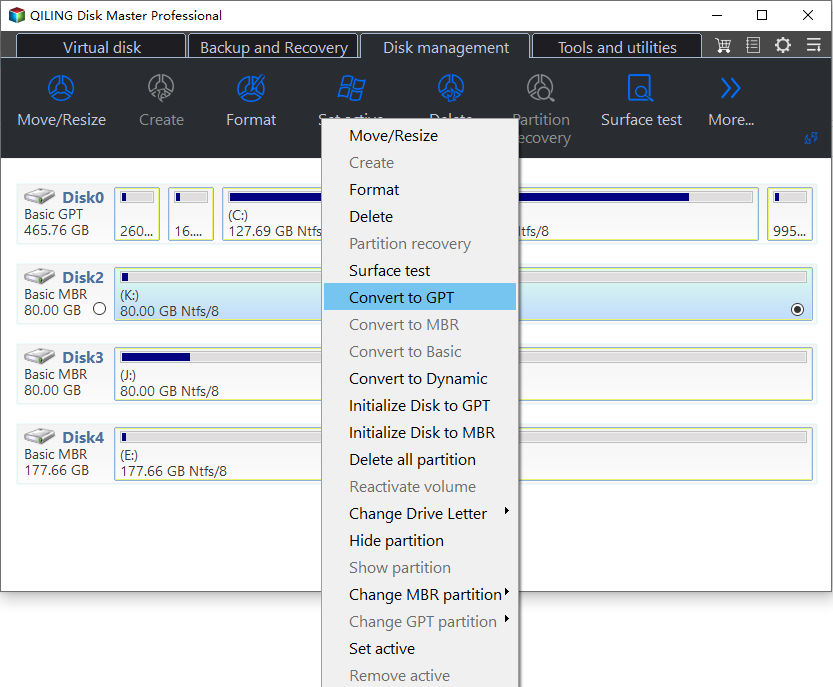
1.2 Finally, Waiting to convert MBR system disk into GPT.
Please note that this process will be done after a reboot. When the progress completes, shut down your computer.
Section 2: Enable UEFI boot mode in BIOS
2.1 Once start up the computer, keep tapping Del on a desktop or F2 on a laptop to bring out the BIOS menu. If the BIOS update doesn't work, you can press the Esc key to enter the full menu, where you can find the BIOS option.
2.2 Navigate to the Boot tab and you can switch from Legacy to UEFI here.
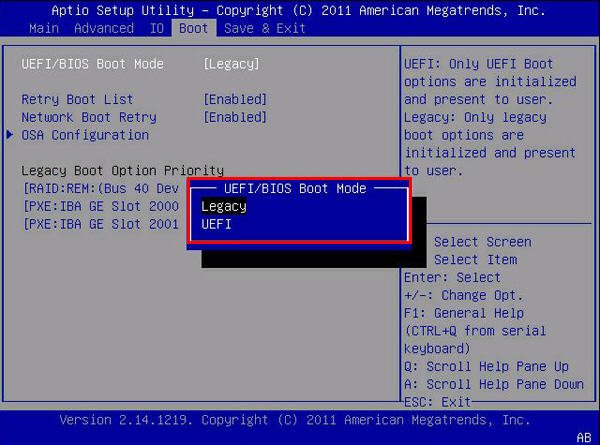
2.3 Press F10 to save changes and exit BIOS.
Important: To ensure your computer supports UEFI boot mode, check your computer's BIOS settings. Typically, you can enter the BIOS settings by pressing a specific key during boot-up, such as F2, F12, or Del.
Summary
We can convert system disk to GPT without losing data thanks to great utilities, and converting MBR to GPT on data disk is also available with Qiling Disk Master Professional, making it a good choice for company or enterprise users.
Qiling Disk Master offers more possibilities compared to other tools. It allows for quick hard drive partitioning, writing zeros to wipe data on a hard disk, changing serial numbers, and managing hard drives from the command prompt. Additionally, its Server edition enables converting a system disk to GPT without data loss on Server 2012, among other features. Further exploration is recommended to discover more.
Related Articles
- How to Copy Games from PC to USB or Pen Drive Efficiently
Learn how to Copy Games from PC to USB or Pen Drive Efficiently with clear steps, key checks, and practical tips. - How to Clone OS from HDD to SSD Windows 11/10 Easily
With the help of Qiling Partition Master, you can easily clone OS to SSD on Windows 11/10 without reinstalling. Cloning operating system to SSD can improve your computer performance in many aspects, like faster startup process and quicker application response. - Create Windows 10 Recovery USB (Including Windows 11, 8.1, 7)
Learn what a Windows recovery USB is, how it differs from a repair disc or system image, and how to create one for Windows 10/11 recovery. - How to Create Volume/Partition Using Diskpart? [Full Guide]
Diskpart is a built-in Windows disk utility. This guide shows how to create partitions and manage common volume types with Diskpart commands. - MBR2GPT Disk Layout Validation Failed | 3 Proven Fixes
It's a common issue that users receive MBR2GPT Disk Layout Validation Failed message when they try to convert MBR to GPT. In this article, we will show you how to resolve this problem in three reliable ways. - How Do I Format Disk to exFAT in Command Prompt
This guide explains How Do I Format Disk to exFAT in Command Prompt with clear steps, key checks, and practical tips.
Products
Articles & Tutorials
- Data Recovery
- Data Backup
- File Recovery
- File Backup
- File synchronize
- System Backup and Restore
- Disk and Partition Clone
- Technical articles
- Disk Master Help
- Windows Deleted File and Disk Recovery Tutorials
- Windows File and Data Recovery Tutorials
- More Windows Tutorials for Install, Security, Files, and PC Tips
- Windows Boot, Repair, and Recovery Environment Tutorials
- Windows Backup Tutorials
- Windows Restore Tutorials
- Windows Clone and Migration Tutorials
- Windows Server Backup, Recovery, and Management Tutorials
- Windows Disk, Partition, and Storage Management Tutorials