Computer Stuck in Windows 7 System Restore - How to Fix It Easily (5 Ways)
- Common Situations of Computer Stuck in System Restore
- How to Fix Computer Stuck in Windows 7 System Restore
- Method 1. Force Restart Your Computer
- Method 2. Restart Your Computer with an Installation Disc
- Method 3. Run an SFC Scan
- Method 4. Run Chkdsk from Command Prompt
- Method 5. An Easier and Better Way to Backup and Restore System
- Summary
Common Situations of Computer Stuck in System Restore
Some users choose to restore their Windows system to Windows 7 using a recovery key or disc, but may encounter issues, such as the computer getting stuck in the system restore process, due to crashes or system failures.
- Display "Windows is loading files".
- Please wait while your Windows files and settings are being restored. System Restore is restoring the registry.
- Display"system restore is initializing files please wait".
The "stuck in system restore" error can be caused by a computer being powered off during the system restore process, resulting in the process getting stuck after a reboot, or by issues with the system image, such as incorrect files or an incomplete integration of the system image.

How to Fix Computer Stuck in Windows 7 System Restore
If your computer is stuck in Windows 7 system restore, there are several methods you can try to fix the issue. You can use Windows' built-in repair tool or choose a reliable third-party software to help you. Trying different methods until the problem is solved may be necessary.
Method 1. Force Restart Your Computer
If your System Restore is stuck, try forcing a restart by pressing the power button for over 10 seconds to shut down the computer, and then restart it again. This may resolve the issue.
Method 2. Restart Your Computer with an Installation Disc
If your computer won't boot, try using the Windows 7 installation disk to run a Startup Repair. If you don't have the disk, contact the computer manufacturer to request one, as it may have come preinstalled. To perform a Startup Repair, insert the disk, restart your computer, and follow the on-screen instructions. If you're unable to boot, you may need to contact a professional for further assistance.
Step 1. Insert your windows installation disc and restart your computer.
Step 2. Choose your language settings, and then click Next.
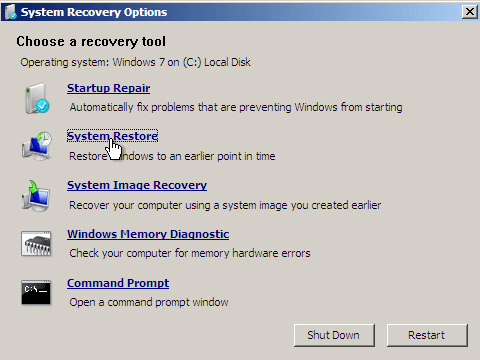
Step 3. Click "Repair your computer" and then choose "Troubleshoot" >"Advanced options" > "System Restore" to perform a system restore again.
Method 3. Run an SFC Scan
If method 2 doesn't help, you may check if system restore not working in Windows 7 problem is caused by any missing or damaged system files using the sfc /scannow command line, which can still repair corrupted system files. To do this, open the command prompt as an administrator, type "sfc /scannow" and press Enter, then follow the on-screen instructions to complete the scan.
Step 1. Boot the computer from the Windows 7 installation disk, then select "Command Prompt" from the "System Recovery Options" to open the Command Prompt.
Step 2. In the Command Prompt window, type the following command, and then press "Enter"
sfc /scannow
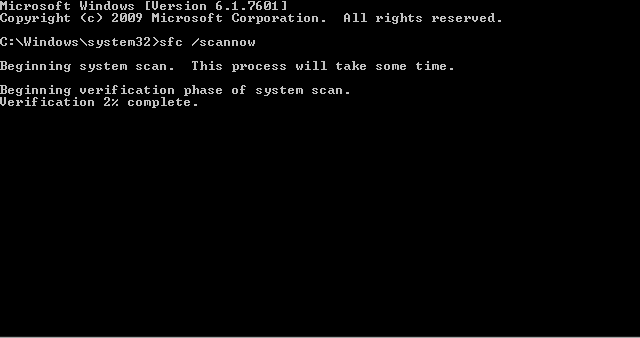
Step 3. Follow the on-screen instructions and complete the scan.
Note: To fix corrupted system files, SFC (System File Checker) may require a Windows installation DVD and could potentially delete some of your saved files, especially if it needs to make more than minor repairs.
Method 4. Run Chkdsk from Command Prompt
To troubleshoot the issue, you can run a Check Disk utility to scan the hard disk for bad sectors, which might have caused the problem.
Step 1. Boot the computer from the Windows 7 installation disk and then select "Command Prompt".
Step 2. In the command prompt window, type the command "chkdsk /r" and press "Enter".

Step 3. This will locate the bad sectors in the hard disk and recover readable information from it.
Note: While performing Error-Running a ChkDsk on the hard drive can sometimes result in data loss if any bad sectors are found and the system attempts to repair them. The process of checking the drive and repairing any damaged sectors can lead to the loss of data available on those sectors.
Method 5. An Easier and Better Way to Backup and Restore System
In addition to the four methods mentioned, you can also use the reliable third-party software Qiling Disk Master, whose one-key recovery feature can restore your system when your computer is stuck in Windows 7 system restore or other operating system problems. This method is easier and has the advantages of being able to recover your system quickly and efficiently.
- Easy to operate: It's less complicated than reinstalling the system and doesn't require preparation of any software or media.
- Protect backup image: It is able to compress or encrypt backup image.
- Schedule Backup: It can automatically back up the system on a regular schedule, such as daily, weekly, or monthly, to ensure data safety and prevent loss.
- Emergency key: This software allows you to back up your system and generates an emergency key to help with restoration. It supports both F11 and A recovery keys, as well as boot menus at system startup.
You can download Qiling Disk Master and install it on the computer, then follow the graphic tutorial below.
Step 1. To enter the recovery environment, start up your computer and press A or F11. The interface will resemble the picture below, where you simply click on OneKey System Recovery.

Step 2. Choose the restore methods. Qiling Disk Master provide two methods to let you restore system.
- Restore system by using the image file in Qiling Disk Master.
- Restore system by selecting a system image file.
When using OneKey Recovery, selecting the recommended option will automatically create a system recovery partition on the system disk, allowing you to choose the first option.

Step 3. Choose the destination To restore the system, you can start by selecting the default destination as the original system partition. However, if you want to restore the system to a different location, you can click on the "Restore to other location" option in the left corner to change the path. Once you've chosen the new location, click "Proceed" to continue with the system restore.

Step 4. The system restore process is currently running, allowing you to perform other tasks while it completes.
Restoring your system is a straightforward process that won't leave your computer stuck in system restore. This means you can quickly and easily recover your system without the frustration and wasted time that can come with it.
Summary
If your Windows 7 system is crashing or stuck in System Restore, don't worry! You can try using Windows' built-in repair tool or system checker, or opt for a reliable third-party software like Qiling Disk Master. This tool not only helps you fix the issue but also generates an emergency key to ensure you can recover your system multiple times, making it a great solution for repeated crashes or stuck situations.
Related Articles
- Windows 10 System Restore Stuck on Initializing or Restoring︱Fixed
You will learn 4 ways to fix Windows 10 System Restore stuck issue and one safer way to protect your system. Get them right now! - How to Do a System Restore When the Computer Won't Boot
In this article, you are going to learn how to perform system restore when the computer won't boot as well as why computer won't boot when using a system restore point. - 5 Quick Fixes to Startup Repair in Windows 7 Not Working
This guide explains 5 Quick Fixes to Startup Repair in Windows 7 Not Working with clear steps, key checks, and practical tips. - How to Set Up a Server to Server File Transfer Successfully
Copying files from one server to another is a fairly frequent task that system administrators face. Learn how to do it using Qiling Disk Master. - Copy or Back Up Program Files(x86) to External Hard Drive in Windows 10/8/7
Qiling Disk Master is the top-rated Windows program backup software that allows you to backup the entire Program Files folder to an external drive, USB, network drive, or cloud storage, ensuring your important program data is up-to-date even after a reinstall. - How to Backup Quick Access in Windows 10 [ 2022 Update]
The Quick Access location is a feature in Windows 10's File Explorer, and sometimes users want to backup quick access for data security. To resolve this issue, Qiling Disk Master software can be used, among other solutions.
Products
Articles & Tutorials
- Data Recovery
- Data Backup
- File Recovery
- File Backup
- File synchronize
- System Backup and Restore
- Disk and Partition Clone
- Technical articles
- Disk Master Help
- Windows Deleted File and Disk Recovery Tutorials
- Windows File and Data Recovery Tutorials
- More Windows Tutorials for Install, Security, Files, and PC Tips
- Windows Boot, Repair, and Recovery Environment Tutorials
- Windows Backup Tutorials
- Windows Restore Tutorials
- Windows Clone and Migration Tutorials
- Windows Server Backup, Recovery, and Management Tutorials
- Windows Disk, Partition, and Storage Management Tutorials