Best 3 Software for One Click System Backup
Need Best Software for One Click Backup
You can use Qiling Disk Master, a one-click backup software, to create a system image of your Lenovo computer, including all installed programs, settings, and files. It allows you to back up your system to an external drive, network location, or cloud storage, and even schedule automatic backups. This way, you can restore your computer to its current state in case of any issues, without having to reset it to factory settings. You can download a free trial version to see if it meets your needs.
Lenovo provides a factory image and Lenovo OneKey Recovery, a one-key recovery software that allows you to create a user backup, including installed programs and saved data.
There are other brand-specific software programs, such as Backtracker for Asus, that can be used on their respective brand of computers, in addition to the software provided by Brand Computer.
For managing and protecting multiple computers, especially those from different brands, an all-in-one backup and restore software is necessary. Qiling Disk Master is a great choice for this purpose.
Best One Key Backup Software for Lenovo - Lenovo Onekey Recovery
For Lenovo users, you can easily back up your system with the built-in Lenovo Onekey Recovery, which contains a factory image and allows you to make a customized system backup. This means you can choose to factory reset your Lenovo desktop or restore from a user backup at an earlier date, making it a convenient and user-friendly option.
To create Lenovo one-click backup, please open Lenovo Onekey Recovery in the following 4 ways first.
#1: From the desktop icon: If you've already installed it and created a shortcut on your desktop, simply double-click the icon in Windows.
#2: From the Start menu. To open Lenovo OneKey Recovery, click on "Start" in the bottom left corner of the screen, then select "All programs" from the menu, followed by "Lenovo" and finally "Lenovo OneKey Recovery".
#3: From the Novo button. To enter the BIOS settings in Windows, you can press the Novo button, which is typically located on the upper left corner of the Top, near the Power button. This will take you to the BIOS settings.
#4: From startup. If you haven't powered on the machine yet, press the Novo Button at startup to access Lenovo Onekey Recovery.
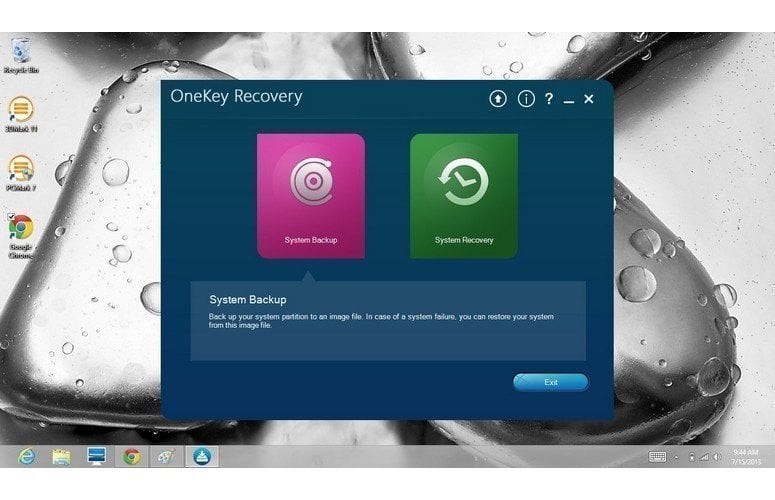
After entering Lenovo OneKey Recovery, follow the steps below:
Step 1. Choose "System Backup" to start one key recovery backup.
Step 2. Select a backup destination on Windows, then click Next.
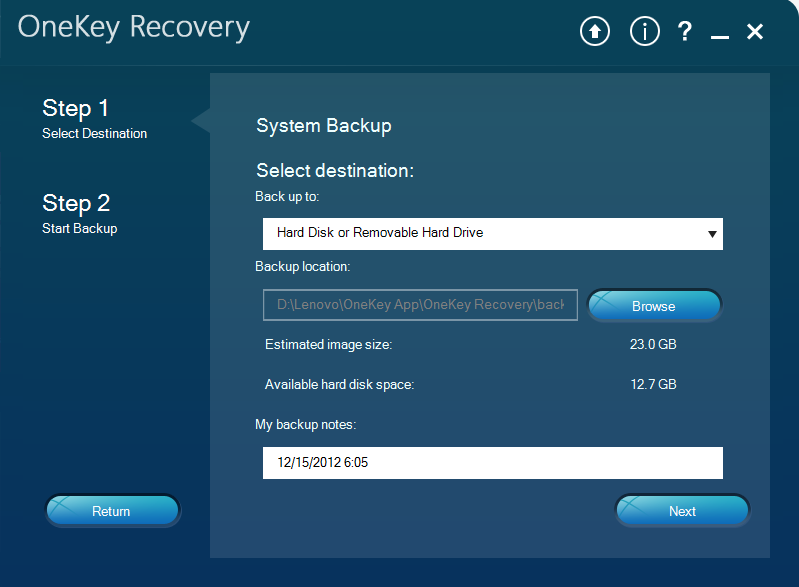
Step 3. Confirm the one key backup and click "Start" to back up your Lenovo. Wait until it finishes.
Best One Click Backup Software for ASUS - Asus Backtracker
Asus provides users with Asus Backtracker to create a one-click backup, which can be downloaded and installed separately.
- It requires a USB flash drive no small than 16GB.
- The Asus notebook with Windows 8 or 8.1 preloaded only works with the original software.
- The Asus recovery partition is backed up, excluding the default programs, music, movies, and personal files.
If you're using an Asus notebook with Windows 8 or 8.1 preloaded, follow these steps to create a one-click backup: [insert steps here].
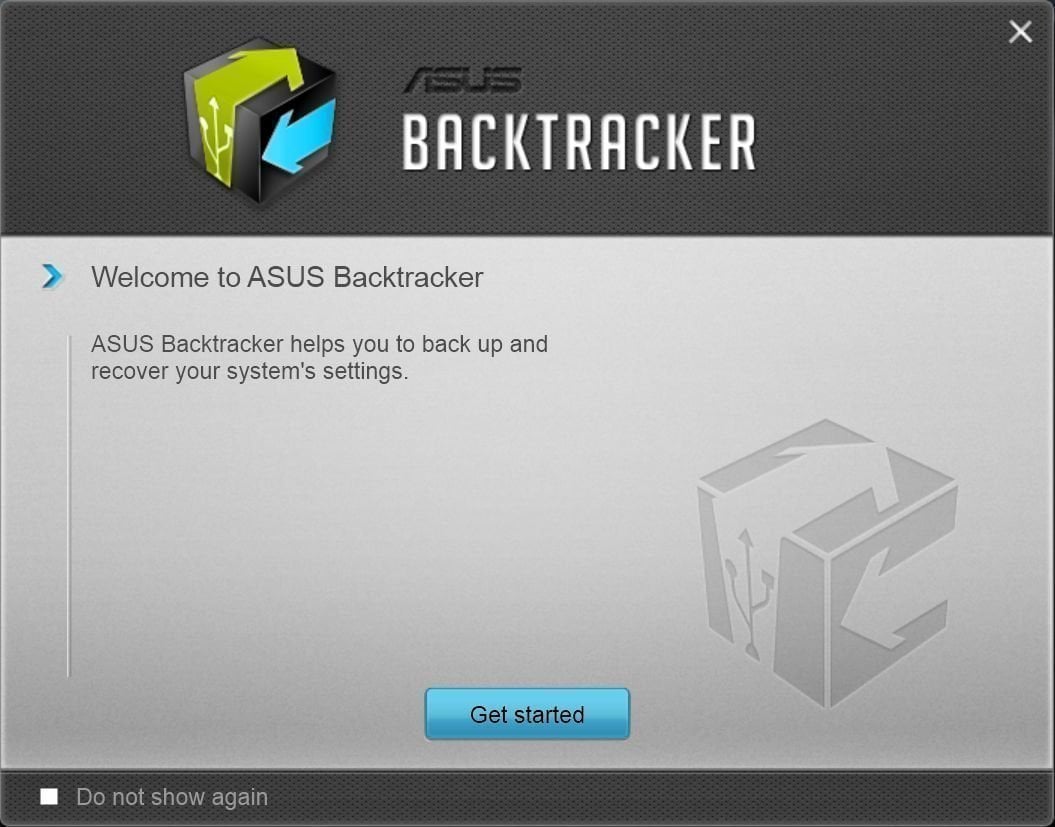
Step 1. Open Backtracker and click "Get Started".
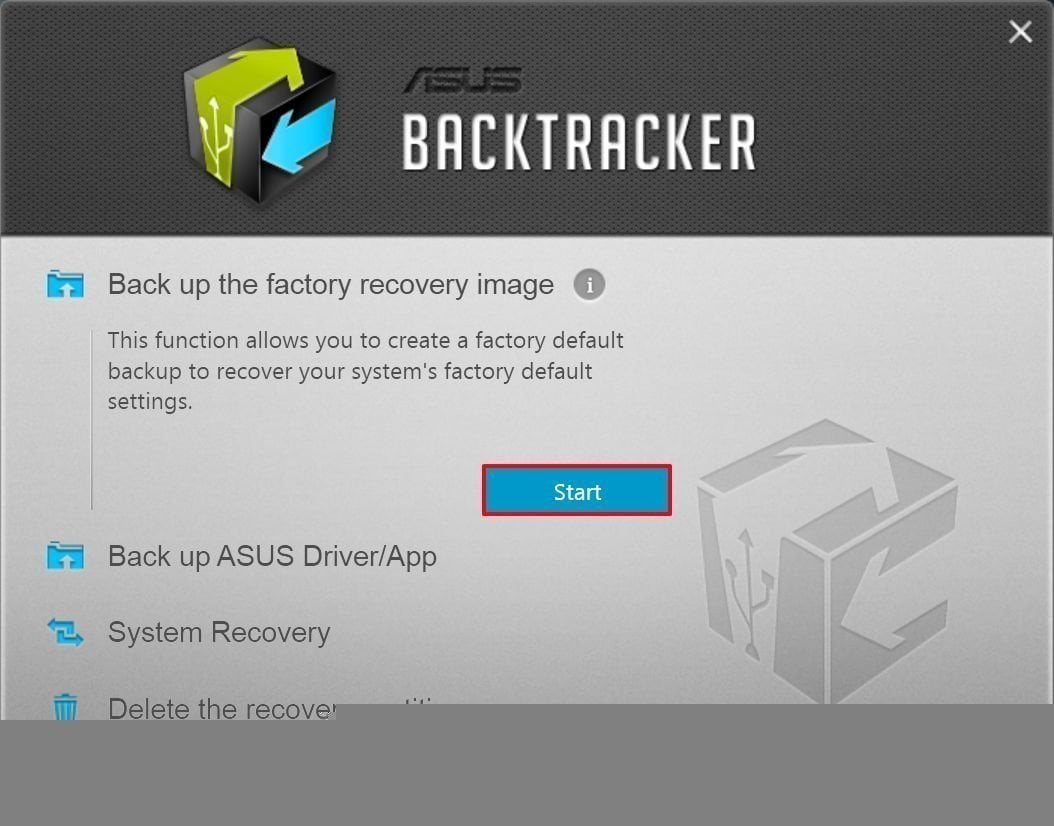
Step 2. Click Start under the back up the factory recovery image.
Step 3. Select your USB flash drive as destination to save system image files.
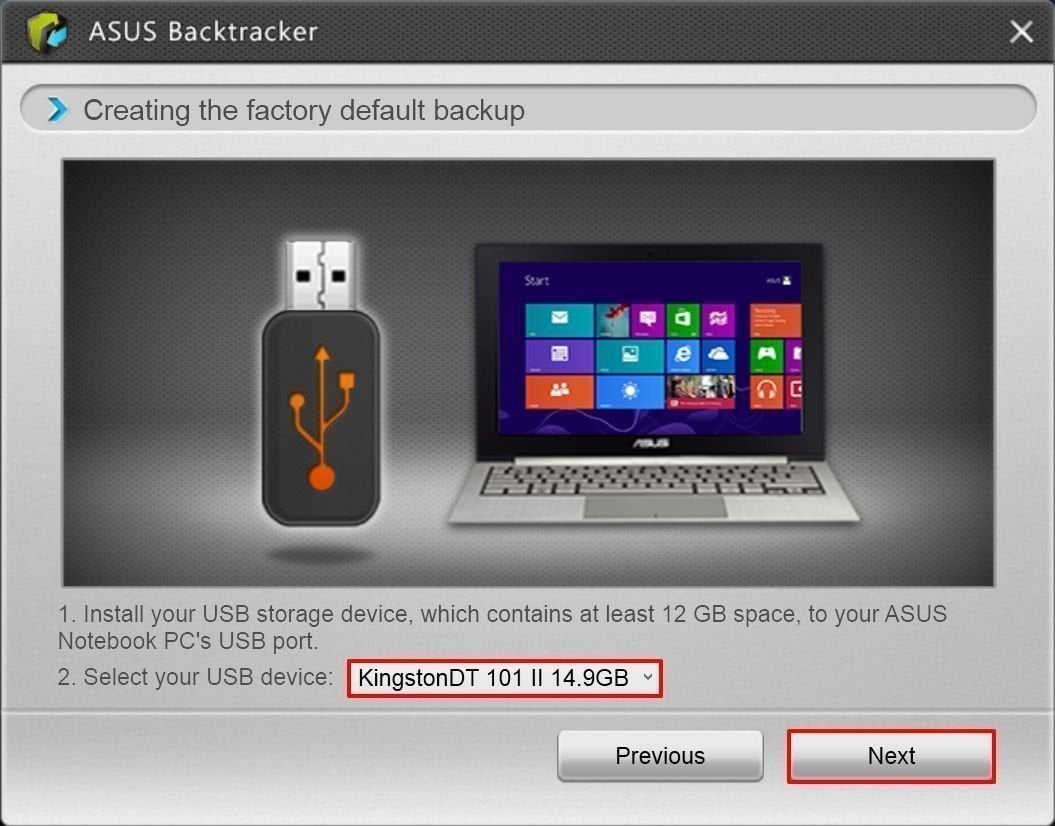
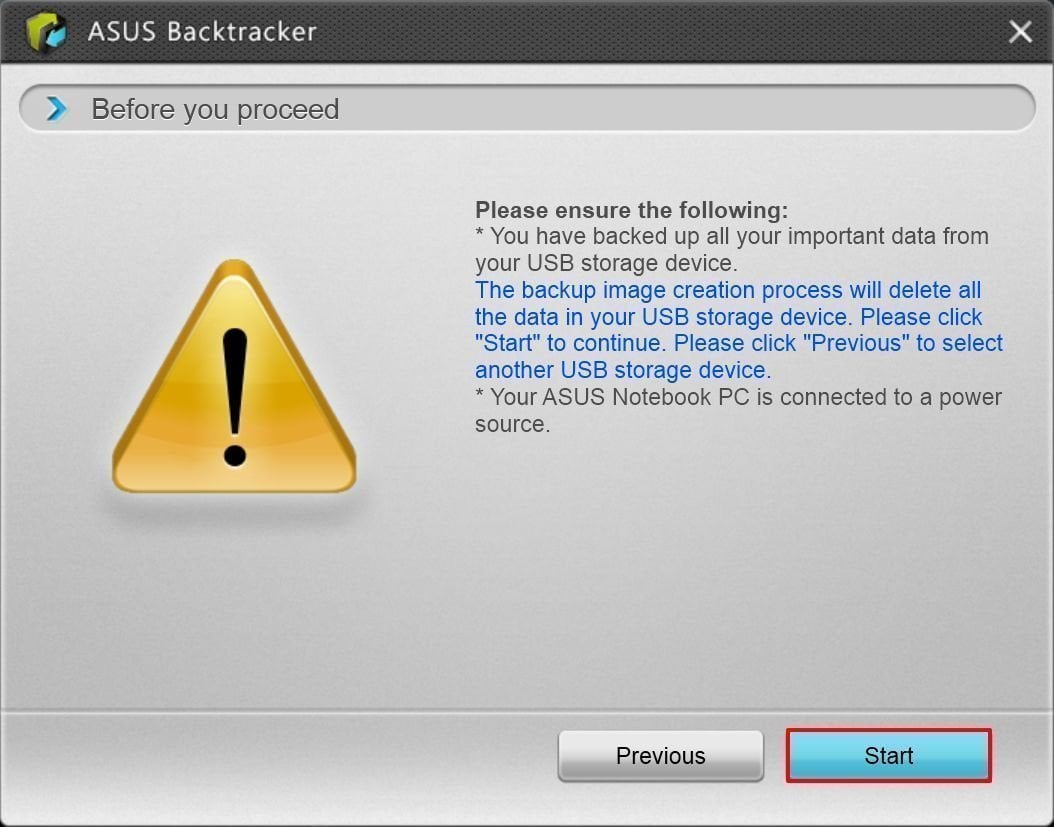
Step 4. Pay attention to the notices and click "Start" to initiate the 1 click backup process. Wait for it to complete and then exit.
Best One Click Backup Software for All Brand Computers - Qiling Disk Master
Except for the above software, you can still seek help from other brand snap-in one key backup software, like Dell, HP, Acer, Sony, Toshiba, Samsung, etc. Here are two problems in the following:
- It can be challenging to manage backups for multiple computers, especially when they are from different brands, making it complicated to keep track of and ensure all data is properly backed up.
- The backup task is not automatic, meaning that if you forget to create a user backup one day, you may be at risk of data loss.
To resolve the questions of which backup software supports various Windows versions, the best choice is to use an all-in-one backup software like Qiling Disk Master, which supports Windows 11, 10, 8, 7, XP, and Vista, as well as Windows Server 2003, 2008, 2012, 2016, 2019, 2022, and their R2 versions.
- It supports all brands of computers, including Lenovo, ASUS, WD, Acer, and more.
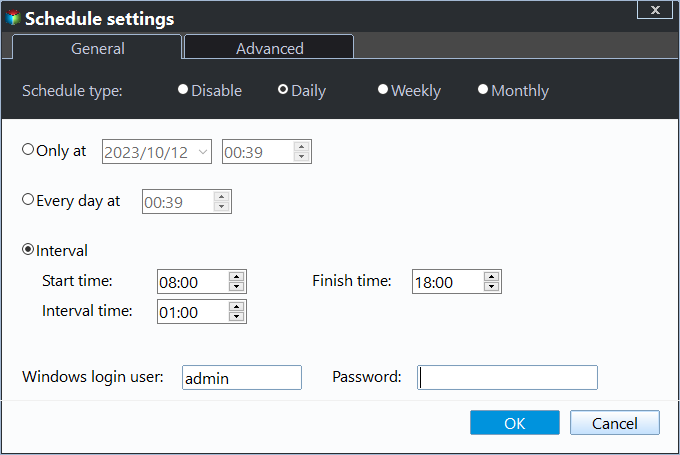
- It can create a one-click backup on a daily, weekly, or monthly basis to update changes.
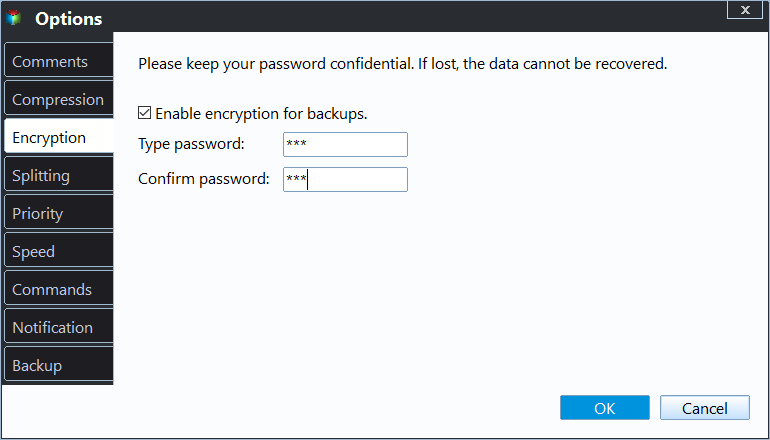
- It allows you to compress and encrypt backup images to prevent unauthorized access.
- The software is able to boot from a recovery key or boot menu and restore the entire system, including the operating system, installed programs, and personal data, at the next startup.
Download Qiling Disk Master and protect everything on the computer. If you have multiple computers, check the edition comparison page and select one more suitable edition.
Step 1. In its main interface, select "System Backup".

Here, you can set many useful features to make this task more flexible, such as compressing or encrypting the system image using the Backup Options at the bottom.
The device allows users to schedule changes made since the factory default, keeping them from being lost. This can be set to keep changes from the factory default to the present, between the previous backup and the next one, or on a daily, weekly, or monthly schedule.
Tip: To free up disk space, you can use Lenovo OneKey Recovery to backup your system to an external hard drive, rather than occupying too much space on your internal disk.
Step 3. Then, click "Proceed" and wait for it finishes.

Note: The greyed-out partitions are unavailable because there is not enough space to create a recovery partition.
Conclusion
While the three methods mentioned can help with a key backup system, they have limitations. The first two methods are limited to their own brand computers, and the second method only works for Asus Notebooks in Windows 8/8.1, backing up only the recovery partition.
This software is highly capable and supports all computer brands and Windows systems, including all editions. It allows for automatic and continuous backup of system, programs, and data on the system partition. For protecting multiple PCs, the software offers a Technician or Customization option.
Related Articles
- How to Do One Click Recovery System Easily (2 Ways)
You will learn 2 useful one click recovery system methods whether you want to factory reset a computer or restore to previous status. - Disk Master – Easiest Way to Backup System to Recovery Partition
Disk Master enables you to easily backup system to recovery partition, and perform onekey recovery when error occurs. However, most of Disk Master tools are integrated in specific brands of PCs. - How to Create System Backup in Windows 10 Easily (3 Steps)
You will learn how to easily create a system backup in Windows 10/11 and previously Windows 8.1/8/7/XP/Vista. And it can save your computer in a disaster recovery. - A Disk Read Error Occurred on a Laptop | 4 Fixes + 1 Tip
This tutorial analyzes the issue that a disk read error occurred on a laptop and provides effective solutions to the error. Prime backup software is offered for system recovery. - How to Create a Mirror Image of My Computer on Windows? Best Solutions
Resolve create a Mirror Image of My Computer on Windows Best Solutions with focused Windows checks and practical repair options. - How to Create a Schedule to Backup User Files[Step-by-Step Guide]
Learn how to back up Create a Schedule to Backup User Files with practical steps, storage tips, and safer recovery planning.
Products
Articles & Tutorials
- Data Recovery
- Data Backup
- File Recovery
- File Backup
- File synchronize
- System Backup and Restore
- Disk and Partition Clone
- Technical articles
- Disk Master Help
- Windows Deleted File and Disk Recovery Tutorials
- Windows File and Data Recovery Tutorials
- More Windows Tutorials for Install, Security, Files, and PC Tips
- Windows Boot, Repair, and Recovery Environment Tutorials
- Windows Backup Tutorials
- Windows Restore Tutorials
- Windows Clone and Migration Tutorials
- Windows Server Backup, Recovery, and Management Tutorials
- Windows Disk, Partition, and Storage Management Tutorials