How to Repair A Corrupted Word Document in Windows 11/10
Quick Navigation:
- How do I know if my Word file is corrupted?
- What causes a Corrupted Word Document?
- How to Fix an Unreadable Word document
- How to Open and repair an Unopenable Word file
- How to Fix Word Won't Save Document
- Repair Corrupted Word Documents Online
- Steps:
- Recover Corrupt Word Documents with Data Recovery Software
- Steps:
- Tips for preventing word file corruption in the future
- Conclusion
- FAQ
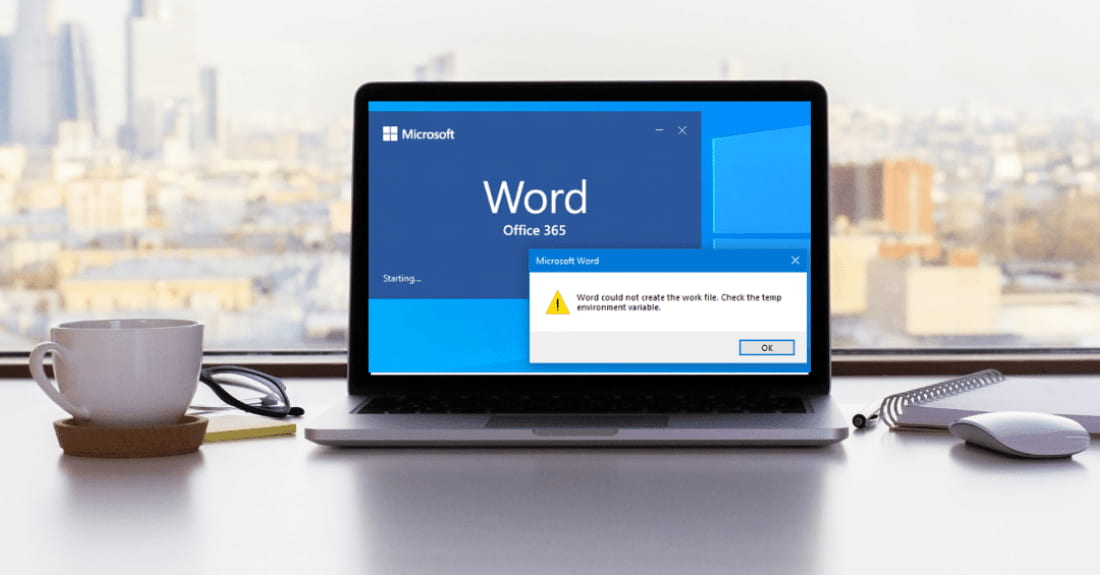
Microsoft Word is a word processing application that enables users to create, edit, and format various types of documents, including letters, reports, and books, with its built-in features.
If your Word files become corrupted, - this page offers some effective solutions to fix them on Windows 11, 10, 8, and 7. You can read on to learn more about the fixes that work perfectly to recover corrupted Word documents.
How do I know if my Word file is corrupted?
- ⏳ If your system has stopped responding while opening a Word document, it's likely due to a compatibility issue with the document's format or a resource-intensive process running in the background. To troubleshoot, try closing other resource-intensive programs, restarting your computer, or using the "Safe Mode" to open the document. If the issue persists, consider updating your Word application or reinstalling it.
- ⁉️ The layout & format of the Word doc keeps changing.
- 📑 The Word doc appears with a lot of unreadable files.
- 💢 An "Unspecified error" message appears.
- ⛔ The Doc/Docx file can't load in Word.
What causes a Corrupted Word Document?
To repair a corrupted Word document, you need to identify the file first, and then determine the cause of the corruption. This will help you apply the specific solutions to fix the issue. Corruption of Word files can occur due to various reasons, and understanding the underlying cause is crucial to finding the right solution.
- 🔡 Repeated renumbering in the existing document pages.
- 🔁 The repetition of "Redoes" on a page can cause it to break due to the excessive text or formatting issues, potentially leading to a corrupted document.
- 🖥️ Your system suddenly crashes.
- 👽 Any malware or virus infection occurs.
- ⚠️ The word document is not saved correctly.
- 🔌 Sudden power outages.
- ⚙️ Forcing system updates can cause files to disappear from the system after a restart, as the system may overwrite or delete files that were not compatible with the updated system. This can result in the loss of important data, making it essential to back up files regularly to prevent data loss.
- 🚫 Sometimes, your system's hardware failure could be the cause.
To fix a corrupted Word file, you can try using the built-in recovery feature in Microsoft Word, which can sometimes recover a partially corrupted file. If that doesn't work, you can try using a third-party file recovery tool, or even try to recreate the file from scratch using a template. Additionally, you can also try to use a cloud-based storage service like OneDrive or Google Drive to access and edit the file, as they often have built-in recovery features. If none of these methods work, you can also try to contact Microsoft support for further assistance.
How to Fix an Unreadable Word document
Here are four ways to help you fix corrupt word documents:
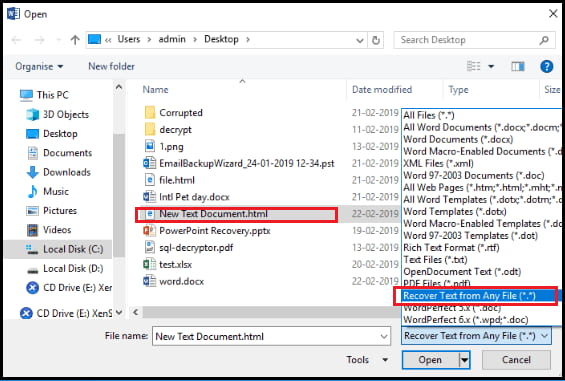
To fix a corrupted Word document, you can try using the "Recover Text from Any File" option. This feature allows you to recover text from a damaged Word document, even if the file is no longer usable. By using this option, you may be able to salvage some or all of the content from the original document, which can be a lifesaver if you've lost important work due to a corrupted file.
Note: This method is limited in its ability to recover formatted documents or documents containing graphics, drawing objects, or non-text elements.
- To open Word, go to the Word File and select "Open" while the software is launching.
- You selected the "Browse" option and navigated to the Word file with the unreadable word document.
- To recover text from a corrupted Word document, click on the "All Word Documents" drop-down menu and select "Recover Text from Any File". Then, click on "Open" and wait for the file to open, allowing you to access the text within.
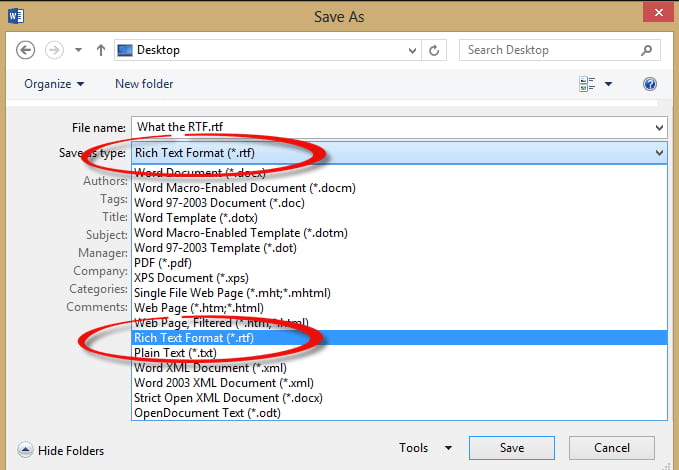
To repair a corrupt Word file, try changing the document format to plain text (RTF) and then save it. This can sometimes recover the file's contents. After saving as RTF, you can then reopen the file in Word and save it in the original Word format.
- Run word, and open the corrupted file.
- After opening the file, go to the Ribbon, select Save As, and click on Other Formats.
- To save a document in Rich Text Format, select the file type as Rich Text Format (*.rtf or *.txt), save the file, and then close it.
- To convert the RTF file to a Word document, go to the new RTF file and select the Save as option. Then, choose the Word document format, rename the file, and save it.
To solve corrupted Word files, you can try copying the contents of the file into a new Word document, excluding the last paragraph, as it may contain the corrupted data that's causing the issue. This can help you recover the rest of the content and potentially salvage some of the work. The last paragraph is often the culprit behind corrupted Word files, so by excluding it, you may be able to recover the bulk of the content.
- First, create a new document.
- To fix a corrupted word in Microsoft Word, create a new blank document, then paste the contents of the corrupted file into the new document. This will often resolve the issue with the corrupted word.
To fix corrupted documents in Word, close the Templates and Add-Ins dialog box by pressing Alt+F11, then press Ctrl+Shift+F11 to open the Document Recovery Task Pane, and select the corrupted document to recover it. Alternatively, you can press Alt+F11, then press Ctrl+S to save the document, and then press Alt+F11 again to close the dialog box. This will help resolve issues with corrupted documents in Word.
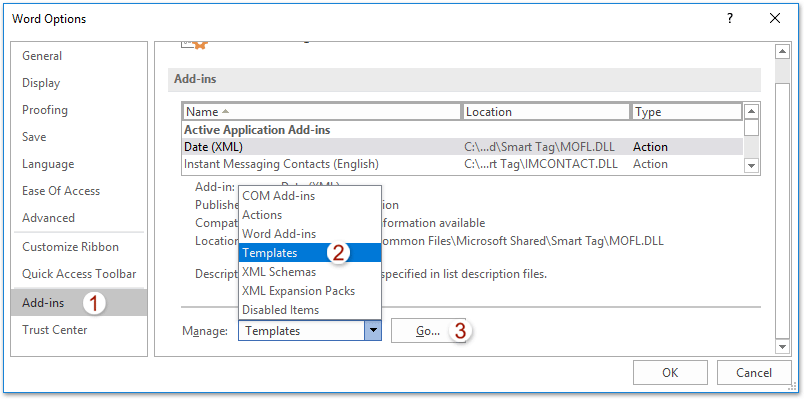
- Open the document in Word, then click on the File menu and select Options.
- To access the templates, click on "Add-Ins" in the options, then select "Templates" in the "View and Manage Office Add-Ins" in the "Manage" box and click on "Go".
- The templates to be used are listed in the Document Template Box. Check the list and select the template named "Normal.dotm" to open it.
- To close the Templates and Add-Ins dialog box and exit Word, click on the "Ok" button. This will dismiss the dialog box and terminate the Word application.
- To verify that the method fixes the corrupted Word file, open the file by clicking on the "Ribbon" and then selecting "Options". This will allow you to view the file's contents and confirm that the method has successfully recovered the corrupted file.
How to Open and repair an Unopenable Word file
If your Word document becomes corrupt and can't be opened, it's not always deleted forever! There are several reasons why a Word document might become damaged or its template corrupted, but we have solutions to help you recover it.
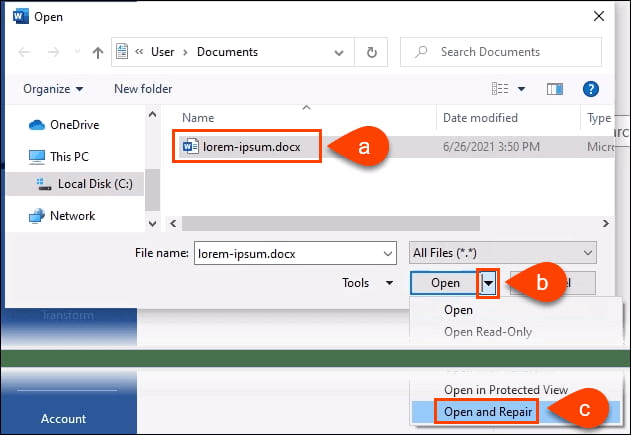
To repair corrupted Word documents, users can utilize the "Open and Repair" command in Microsoft Word. This feature allows them to open a damaged file and automatically attempt to repair it, potentially recovering the document's content and layout. By using this command, users can minimize data loss and restore their original document.
- To open a Word file, navigate to File > Open, then select Browse and choose the location or folder where the file is stored, avoiding the "Recent" option which doesn't lead to the "Open Dialog Box."
- After opening the file, click on the down arrow next to the "Open" option, then select "Open and Repair" from the menu.
To fix the issue of an unopenable Word file, you can try running Word in safe mode or prohibiting the running of automatic macros. This can be done by holding down the Ctrl key while opening Word. If this doesn't work, you can also try disabling macros in the Trust Center settings.
If a Word document contains macro commands that cause issues when opening, you can hold down the Shift key and double-click the file in Windows Explorer to prevent the macro from running, allowing you to open the document.
How to Fix Word Won't Save Document
To resolve the issue of Word suddenly not saving, try closing and reopening Word, or restarting your computer. If the problem persists, try saving the document in a different format, such as .txt or .pdf, to preserve the content.
There are too many junk files in the system, causing insufficient system disk space and preventing the save operation. To resolve this, clear the junk files: if you've used system optimization software, delete them directly with that software; if not, go to C:\Documents and Settings\Administrator\Local Settings\Temp to manually delete the junk files.
2. The system's temp environment variable has been modified, and it needs to be reset to its default value to resolve the issue.
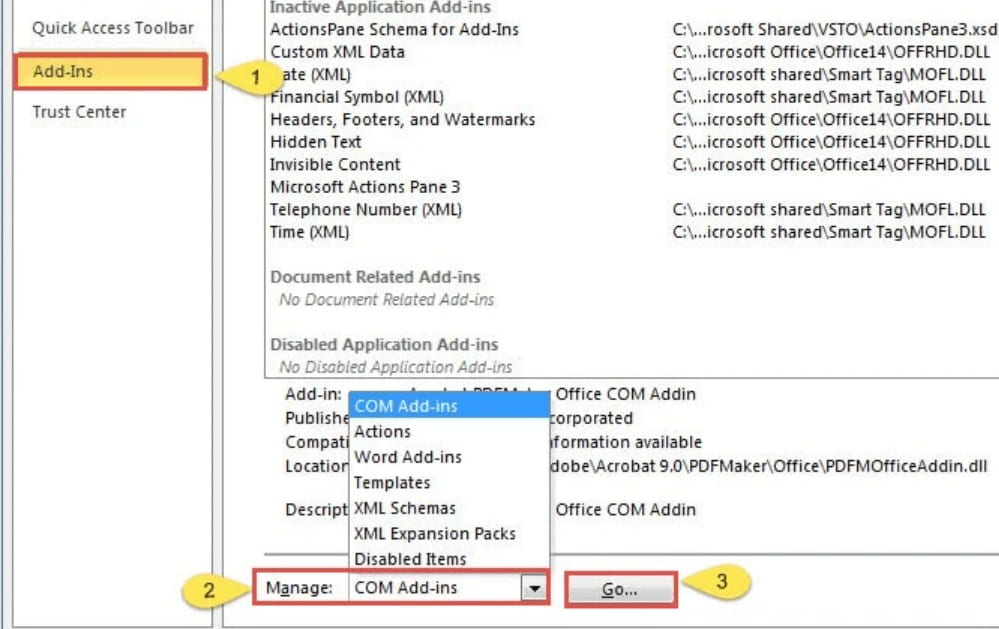
- Navigate to: File > Options > Add-ins
- Click the "Go" button to the right of "Manage: COM Add-ins" in the Excel Options window.
- In the COM Add-Ins dialog box, uncheck all add-ins and click the OK button.
- Go back to Word again, then copy everything you wrote.
- To resolve the issue, you can try restarting Word and creating a new document. Paste the contents of the old document into the new one and save it.
Repair Corrupted Word Documents Online
The OnlineFile.Repair tool allows you to repair a corrupted Word document by uploading the file to the service using any web browser, analyzing the file, and extracting and saving the maximum text data. This method enables you to receive your corrupted Word doc instantly, and it's a convenient solution that can be accessed from anywhere. However, to get the best out of this solution, it's worth considering the advantages and disadvantages of this method.
- Advantages:
- Download, installation, or configuration is not required.
- It supports doc, Docx, dot, dotx & RTF files.
- Can recover ASCII document or Unicode encoding document.
- Uses different text search algorithms.
- It repairs text, formatting, table, bulleted list, embedded graphics, charts, drawings, and many other things.
- It fixes most of the Microsoft word errors.
- Disadvantages:
- This service can't restore hyperlinks & images.
- This online service is limited to only text recovery from corrupted or damaged files.
- Cannot recover data from password-protected & encrypted files.
- Since it is an online service, the security of your document is vulnerable.
- Applicable Scenarios/Users:
- When none of your offline or built-in Word doc recovery systems works to recover your corrupted Word document.
- If your document contains data like graphics, drawings, etc., that can't be recovered by your system's built-in Word doc recovery method.
- To avoid the risk of corrupted word document deletion during offline recovery.
- If you don't want to recover the corrupted Word doc manually.
- If your system is completely virus infected & no application or program runs correctly.
Steps:
- You should choose the text file option and provide your email address when selecting the file.
- After hitting "Next" and waiting for the file recovery process to complete, download the recovered Word file.
- The recovered text will be saved to a new file with a .docx extension, which is the new file format of Microsoft Office.
If the tool doesn't help you, you can also go to check the other repair corrupted word files online tools.
Recover Corrupt Word Documents with Data Recovery Software
With Qiling data recovery software, you can recover a corrupt Word file from any situation, regardless of its content or whether it was backed up. This software supports over 1000 file types and can repair corrupt Word documents of any file format.
Steps:
- 1. Download and install Deep Data Recovery on your PC. 2.
- To restore corrupted Word documents, follow these steps: After that, target the file types such as corrupt word docs you want to restore. Next, select the "Go to Settings" option to see the supported file types to recover, then uncheck all options except "Document" and confirm.
- Select the disk containing the corrupted Word document and the software will scan it to recover the file.
- After scanning, you'll get a list of found Word documents. Preview the list and select the document you want to recover. Then, click on the "Recover" option to save the recovered Word document on your system.


Tips for preventing word file corruption in the future
To avoid corrupting Word documents, take precautionary measures such as regularly saving your work, closing Word properly, and avoiding abrupt shutdowns. This will help prevent file corruption and make it easier to recover your data if issues arise.
- 🏷️ Use the same software version while transforming files between different applications.
- ☂️ Keep a consistent backup of the file for future recovery.
- 🔍 When using the secure transfer protocol, you can verify the integrity of the received data to ensure its accuracy.
- 🔋 To avoid sudden power outages, you must use UPS.
- 🆕 Always use the latest version of Microsoft office.
- ✅ Avoid using "Track Changes" often for collaborative editing.
- 🆎 Instead of using direct formatting like bold, italics, font change, etc., it's better to define character, paragraph, and other styles, as this approach makes it easier to maintain consistency and make changes throughout the document.
- ➡️ Instead of using the drag & drop editing option, it's better to go for cut & paste.
- 📜 Save documents in the latest .docx format.
Conclusion
If your Word documents are suddenly corrupted, it's best to use Deep Data Recovery software to recover them quickly with just a few clicks. This software can also help you fix corrupted Docx files, regardless of the file type or corruption situation, making it a reliable solution for recovering your important documents.
FAQ
-
There are four built-in options in your system that help you to recover unreadable content in Word.
- Without updating links, open the unreadable document in draft mode.
- In a new document, insert the existing one as a file.
- Create a link to the corrupt document.
- Try the "Recover Text from Any File" converter.
-
While using the "Open and Repair" command, you can repair a corrupted Word document 2010.
-
In Word 2007, hit on the Office option > Open > Open dialog box > choose corrupt file > hit on the down arrow > Open menu > "Open & Repair".
-
While running the System File Checker tool (SFC.exe), you can make the file uncorrupt in Windows 11.
-
While using the OnlineFile.Repair online free Word document recovery software services or tools. You can open corrupt Word documents online for free.
Related Articles
- Best Free SanDisk SD Card Recovery Software
- Free Microsoft Word Data Recovery Software Download
- Top 10 Best Pen Drive Recovery Software
- SD Card Recovery for Android Phones
This guide explains Best Free SanDisk SD Card Recovery Software Free Microsoft Word Data Recovery Software Download Top 10 Best Pen Drive Recovery Software SD Card Recovery for Android Phones with clear steps, key checks, and practical tips. - How to Recover Shift Deleted Excel Files from Windows PC
Learn how to Recover Shift Deleted Excel Files from Windows PC with clear steps, key checks, and practical tips. - How to Recover Shift Deleted Word Documents
You can recover Shift deleted Word files using either Deep Data Recovery or by restoring them from auto backup files in Windows 10/8/7/XP.
Products
Articles & Tutorials
- Data Recovery
- Data Backup
- File Recovery
- File Backup
- File synchronize
- System Backup and Restore
- Disk and Partition Clone
- Technical articles
- Disk Master Help
- Windows Deleted File and Disk Recovery Tutorials
- Windows File and Data Recovery Tutorials
- More Windows Tutorials for Install, Security, Files, and PC Tips
- Windows Boot, Repair, and Recovery Environment Tutorials
- Windows Backup Tutorials
- Windows Restore Tutorials
- Windows Clone and Migration Tutorials
- Windows Server Backup, Recovery, and Management Tutorials
- Windows Disk, Partition, and Storage Management Tutorials