How to Get Back Deleted WhatsApp Messages on Computer/iPhone
My friend asked me how to retrieve deleted WhatsApp messages, as she knows I'm familiar with techniques for dealing with data loss issues. I'm happy to share that my methods are quite simple and straightforward. To get back deleted WhatsApp messages on computer and iPhone, I can guide her through the process, which I'll outline briefly.
If other Android files are missing too, compare this with Android phone memory recovery.
- Quick Navigation
- Part 1. How to Get Back Deleted WhatsApp Messages on Computer
- Part 2. How to Get Back Deleted WhatsApp Messages on iPhone
Part 1. How to Get Back Deleted WhatsApp Messages on Computer
Here are the simple steps to recover deleted WhatsApp messages, photos, and other attachments using Deep Data Recovery:
Step 1. Click the download button to download Deep Data Recovery software, which has versions for Mac and Windows PC. Install the correct version for your computer's OS, just like installing other software.
Step 2. Launch Deep Data Recovery, select the drive where the deleted WhatsApp messages are located, and click "Scan" from the window.

Step 3. The file recovery software wizard quickly scans for deleted WhatsApp messages and displays them in a window, sorted into categories on the left side. From there, you can select, preview, and recover the deleted messages.

Part 2. How to Get Back Deleted WhatsApp Messages on iPhone
I'll focus on a safe and trustworthy way to recover deleted WhatsApp messages, without mentioning general methods that may restore your iPhone to a previous backup, potentially deleting recent messages, photos, apps, and videos. Instead, I'll provide a solution that specifically targets WhatsApp messages.
Method #1. Scan iPhone for Deleted WhatsApp Messages
Step 1. You can download the iPhone WhatsApp messages recovery software, iPhone Data Recovery, by clicking the download button. Install it on your computer to get back the deleted messages, but note that there is no app that can truly recover deleted messages unless using desktop software.
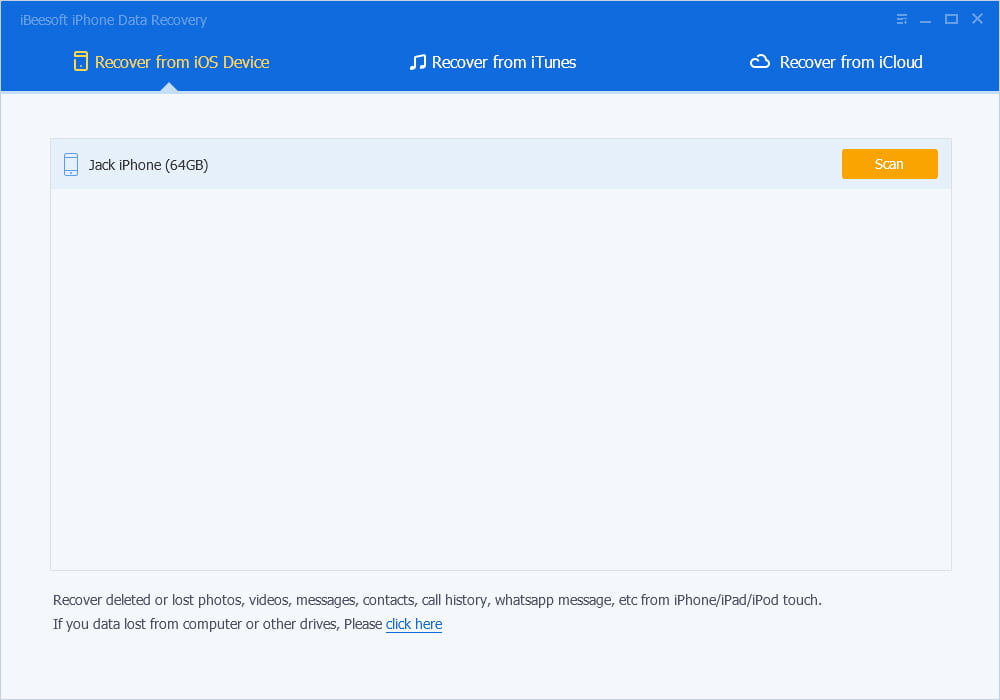
Step 2. Connect your iPhone to your computer using a USB cable and launch Qiling iPhone Data recovery. The software will detect your iPhone and allow you to click "Recover from iOS", which will initiate a scan of your iPhone for deleted WhatsApp messages. Click "Scan" to begin the process.
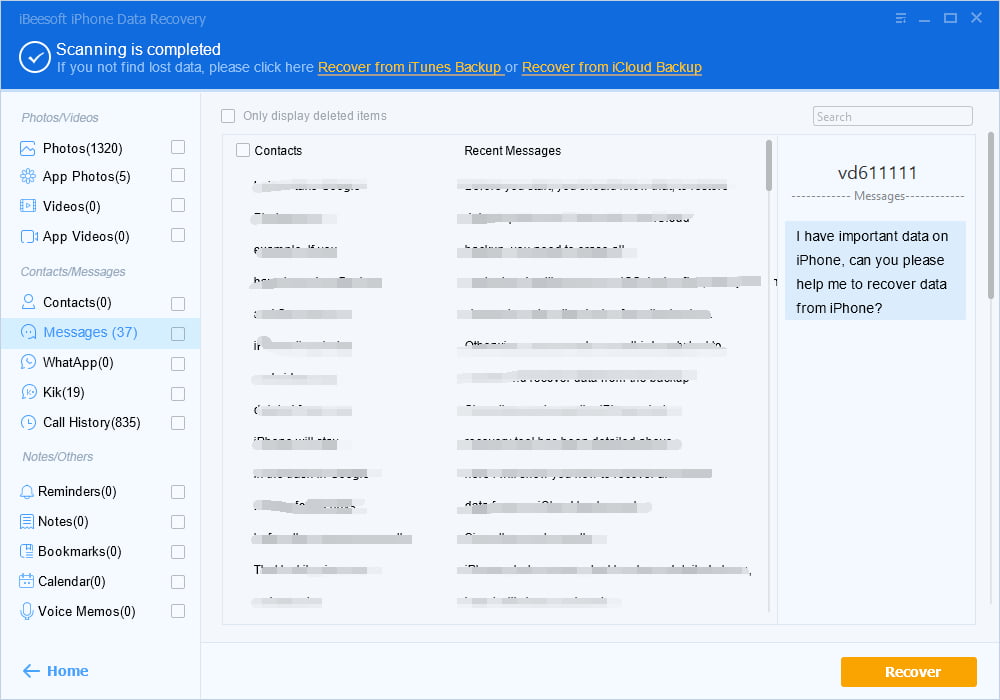
Step 3. From the result window, you can see the deleted WhatsApp messages. Select the ones you want to recover and click "Recover" to get them back.
Method #2. Get Back Deleted WhatsApp Messages from iCloud Backup File
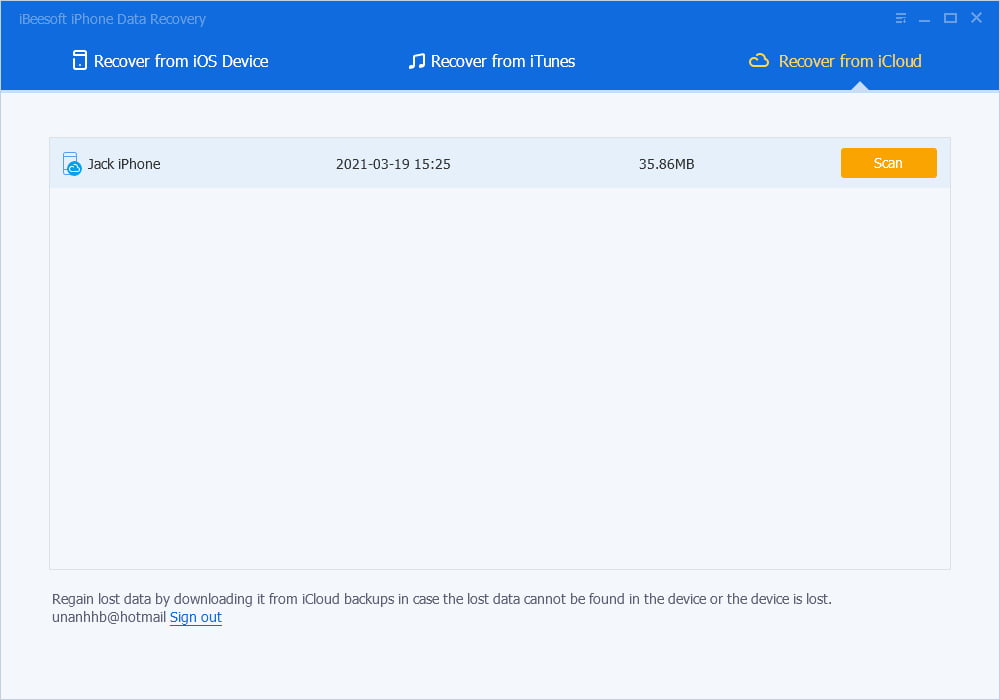
Step 1. Before deleting your WhatsApp messages, make sure you've backed them up to iCloud. If you've done so, install Qiling iPhone Data Recovery on your computer and select the "Recover from iCloud" option.
Step 2. To recover deleted WhatsApp messages, sign in to your iCloud account and let the software detect the backup files. Select the backup file containing the deleted messages and click "Scan" to proceed.
Step 3. After scanning, find the deleted WhatsApp messages, select them and click "Recover" to get them back to your computer.
Method #3. Get Deleted WhatsApp Messages Back from iTunes Backup
Step 1. To recover WhatsApp messages, you need to have backed up the messages before deletion, just like with iCloud backup files. Then, install Qiling iPhone Data Recovery and click "Recover from iTunes".
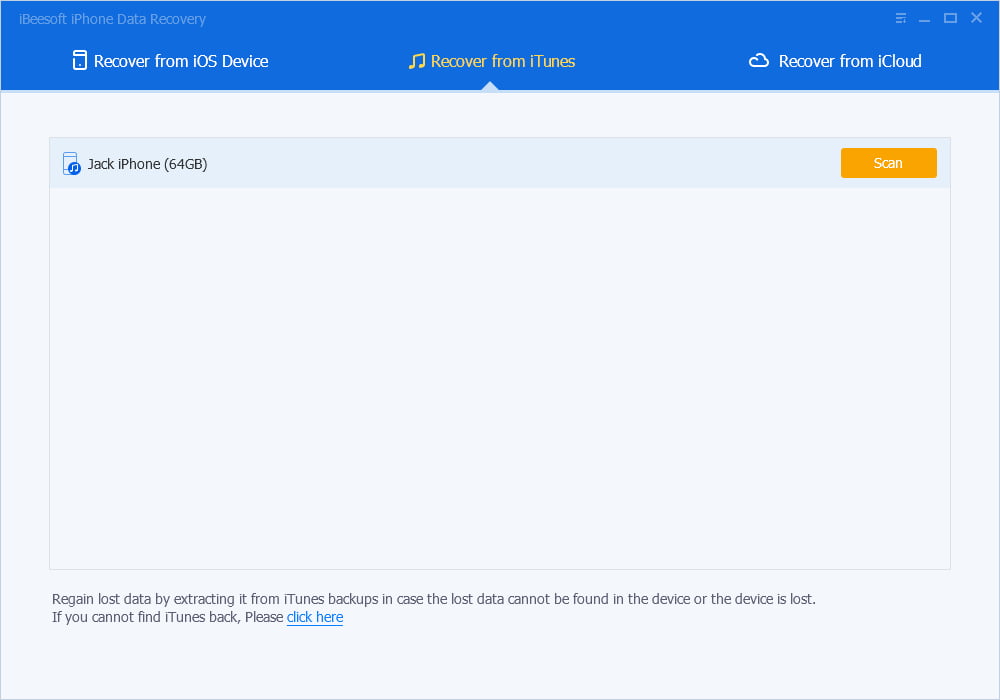
Step 2. Select the iTunes backup file that contains your deleted WhatsApp messages and click "Scan" to let the software find the deleted WhatsApp messages.
Step 3. After finding the deleted WhatsApp messages and attachments in the result window, select them and click on the "Recover" button to save them.
Related Articles
- How to Recover Call Recording from Automatic Call Recorder on Android Phone
- How to Recover Deleted Pictures from Panasonic Lumix
- How to Restore WhatsApp Backup from SD Card
- Convert RAW to NTFS without Losing Data
- 3 Ways to Recover Chrome Browsing History
- How to Recover Backup/Restore PS5
- Recover Unsaved/Deleted Notepad Files in Windows 10/11
Products
Articles & Tutorials
- Data Recovery
- Data Backup
- File Recovery
- File Backup
- File synchronize
- System Backup and Restore
- Disk and Partition Clone
- Technical articles
- Disk Master Help
- Windows Deleted File and Disk Recovery Tutorials
- Windows File and Data Recovery Tutorials
- More Windows Tutorials for Install, Security, Files, and PC Tips
- Windows Boot, Repair, and Recovery Environment Tutorials
- Windows Backup Tutorials
- Windows Restore Tutorials
- Windows Clone and Migration Tutorials
- Windows Server Backup, Recovery, and Management Tutorials
- Windows Disk, Partition, and Storage Management Tutorials