How to Recover Unsaved Word Document in Windows 11/10
Quick Navigation:
- When Might You Need to Recover An Unsaved Word Document?
- Five Ways to Recover An Unsaved Word Document
- Method 1. Recover with Document Recovery
- Step-by-Step Guide:
- Method 2. Check the AutoRecovery Folder
- Step-by-Step Guide:
- Method 3. Search for Word Backup Files
- Step-by-Step Guide:
- Method 4. From Manage Document
- Method 5. Restart Word to Check AutoRecover
- Method 6. Recover from Temporary Files
- Step-by-Step Guide:
- Method 7. Use Software to Recover Unsaved Word Files
- Your Safe & Effective Unsaved File Recovery Software
- Step-by-Step Guide:
- Tips on Preventing Your Word Files from Losing
- Conclusion
- FAQ

To recover an unsaved Word document, try to reopen the application and look for the "Recover Unsaved Work" or "Recover Previous Session" option, usually found in the File menu. If that doesn't work, check if the document's autosave feature has saved a temporary copy. You can also try using the Windows Task Manager to find the Word process and kill it, then reopen the application to see if the document is restored. If all else fails, you can try using a third-party recovery tool or contact Microsoft support for further assistance.
Recovering unsaved files can be a frustrating experience, but there are solutions and tips to help prevent such problems. Understanding the importance of saving files regularly, using version control software, and being mindful of file autosave settings can make a big difference. Additionally, knowing how to recover unsaved files using built-in features like autosave and version history, as well as third-party software, can help minimize data loss.
When Might You Need to Recover An Unsaved Word Document?
- ⏳ Unexpected computer crashes or sudden power outages can be devastating, leaving you at risk of losing critical work and progress.
- 🌎 Document sync failed due to network issues.
- 🎎 Copy unsaved Word files to another location.
- 📀 Insufficient disk space to perform save operation.
- 📈 The number of temporary files exceeds the limit.
- 🏷️ Document Object Error/Add-In Issue.
! Whatever the situation may be at your side, we are here to guide you with five ways to recover an unsaved document in Windows 11/10/8.
Five Ways to Recover An Unsaved Word Document
Method 1. Recover with Document Recovery
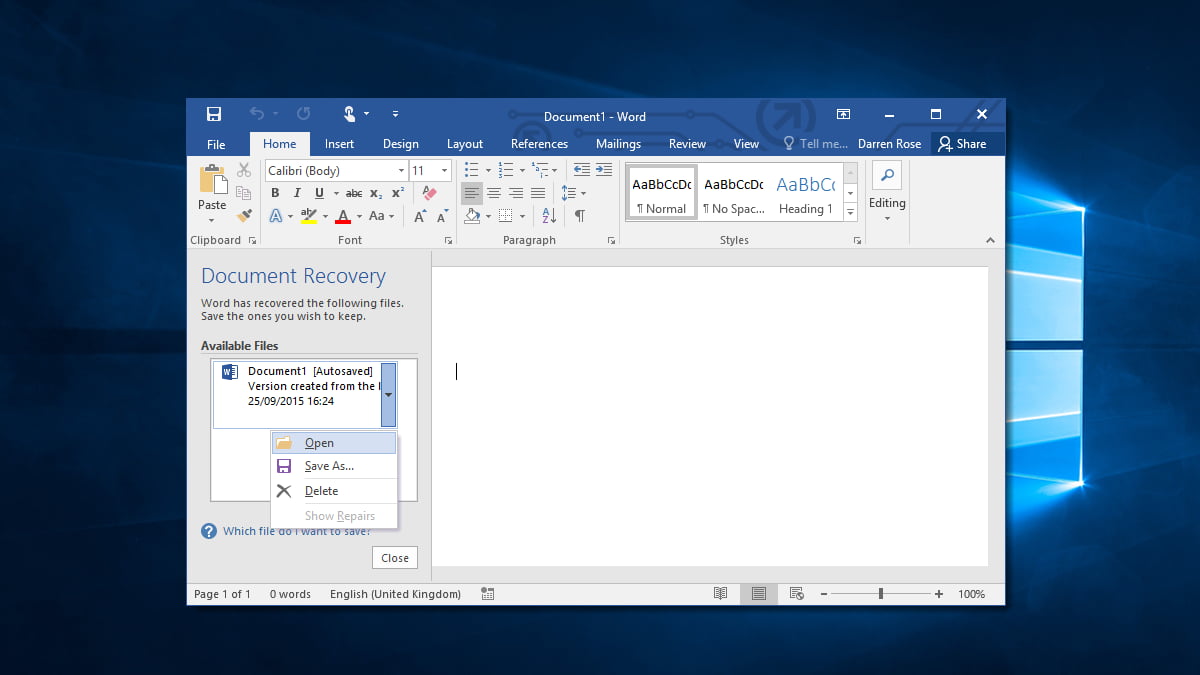
If you're experiencing frequent crashes or closings of Word, you may see an automatic restoration of unsaved files, which can be found in the left section of the Word document under Document Recovery. You can try to restore the unsaved Word document, and this process can also recover unsaved Excel and PowerPoint files.
Step-by-Step Guide:
- Relaunch the Microsoft Word program on Windows PC.
- A pop-up in the left panel informs you that a Word document has been automatically recovered.
- You can reopen a closed file by double-clicking on it, but it will only reopen to the version saved with the last Ctrl + S command. If you want to reopen to a previous version, you can't do that with this method.
Method 2. Check the AutoRecovery Folder
If you've enabled the Auto-save feature in MS Word, you can easily recover an unsaved file in Windows 11, 10, and more, thanks to the built-in functionality that automatically backs up your Word file.
Step-by-Step Guide:
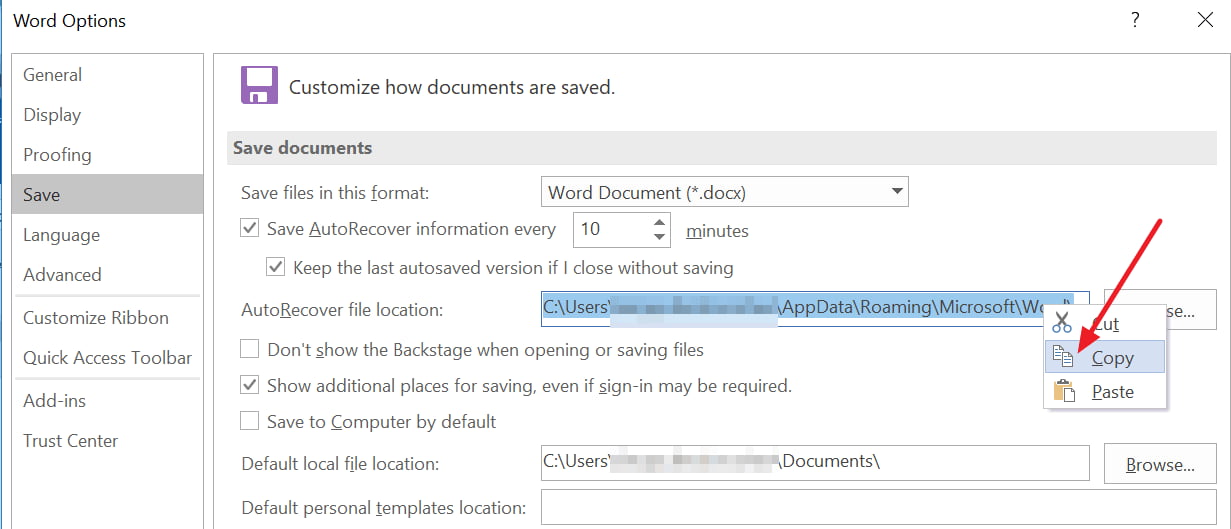
- In Word, go to File > Options > Save and copy the AutoRecover location.
- Paste the AutoRecover location you have copied in step 1 to File Explorer. To do this, click on the address bar in File Explorer, right-click, and select Paste.
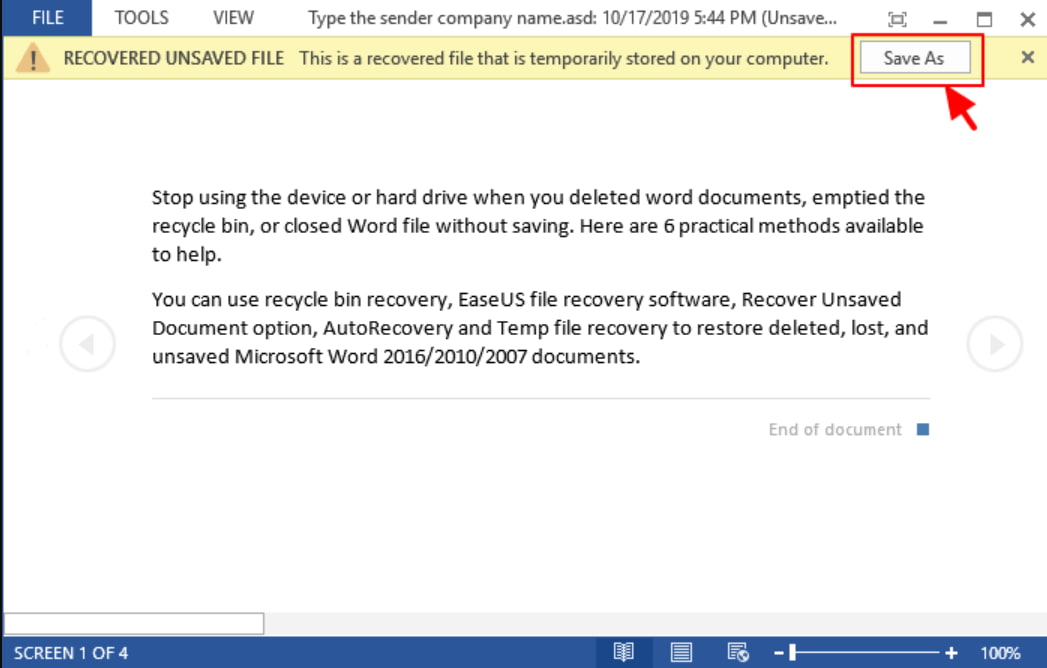
- Find the AutoRecover .asd file, open it with Microsoft Word, and save the unsaved document to your computer.
Method 3. Search for Word Backup Files
Microsoft Word backup file names end with a ".wbk" extension, and selecting the Backup Copy option may reveal unsaved Word documents through a backup copy of the file.
Step-by-Step Guide:
- To open a WordPad file in Windows, start by tapping on the Start button. This will open the search box, where you can type in the file extension .wbk. Once you've done that, tap on the Enter button to search for the file.
- To locate a missing file, look for any document or file name that starts with a prefix or mentions "Backup of" followed by the missing file name. Tapping twice on the related file will automatically open it.
The followint are URLs that unsave file is in.
- 🔹 C:\Users\Your Computer Username\AppData\Roaming\Microsoft\Word
- 🔹 C:\Users\Your Computer Username\AppData\Local\Microsoft\Office\UnsavedFiles
Method 4. From Manage Document
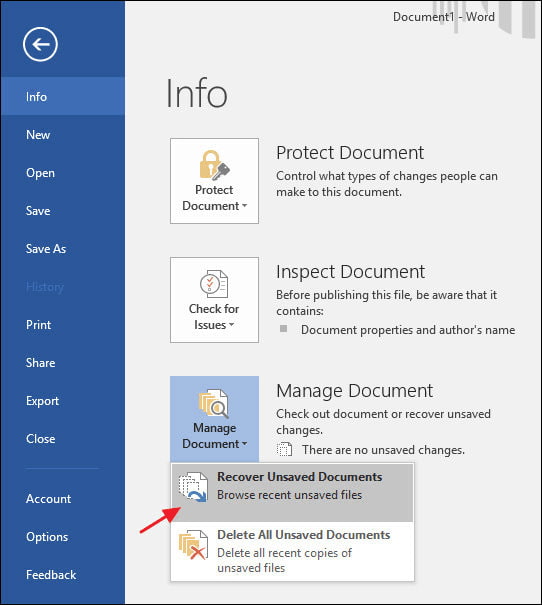
- To recover unsaved Word documents, open Word, go to File, then Info, and select Manage Document. From there, choose Recover Unsaved Documents.
- To recover your unsaved work, find the file in the open folder and open it again in Word. This will allow you to access and continue working on the document.
Method 5. Restart Word to Check AutoRecover
If you've been working on a Word document and it hasn't been saved, you can try to recover it by closing and reopening Word. When you restart Word, it will automatically look for any unsaved files and display them in the Document Recovery task pane, where you can recover the missing document.
This method can also be applied to recover unsaved Illustrator files when you open the Adobe Illustrator app.
Method 6. Recover from Temporary Files
If you're unable to recover your unsaved Word document using the built-in options, you can try searching for temporary files with a .asd extension. These files are created when you work on a document in Word and may contain unsaved data. You can follow the steps to find and recover these temporary files.
Step-by-Step Guide:
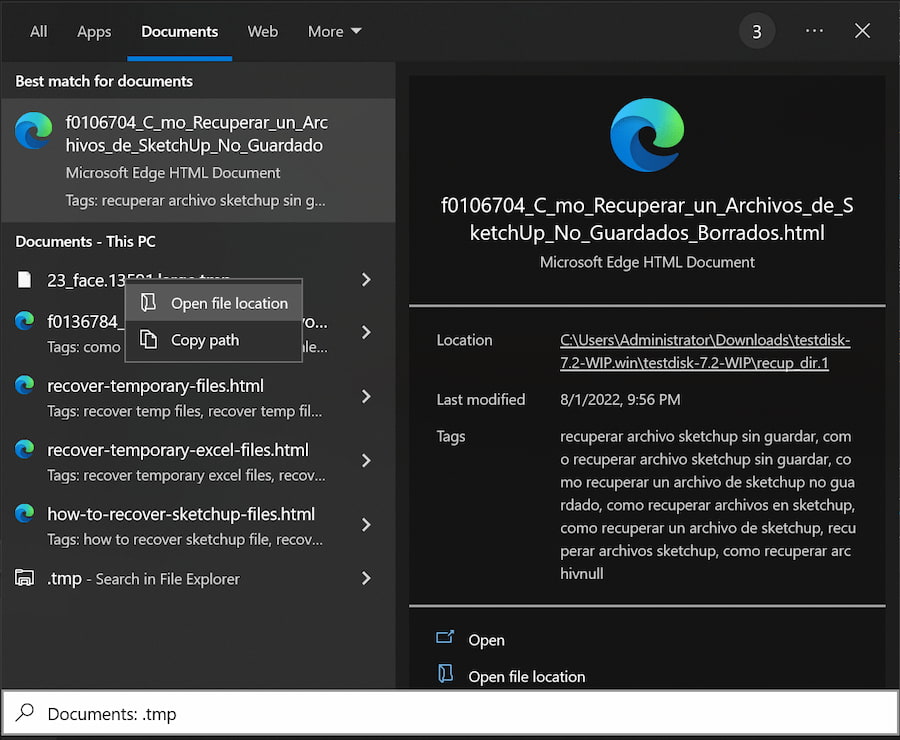
- To create a temporary file, enter ".tmp" in the search box, and press Enter. This will generate a temporary file with a unique name, which you can use for testing or other purposes.
- To select the "Documents" tab and browse for a temporary file with a filename that matches an unsaved document, you can follow these general steps: Open the application or software that you are using, click on the "Documents" or "Files" tab to view a list of saved documents, look for a temporary file with a filename that matches an unsaved document, select the temporary file and open it to view its contents. However, the specific steps may vary depending on the application or software you are using.
- Once the target file is found, right-click and select "Open file location" in one paragraph:
- Choose to open it with Word.
Method 7. Use Software to Recover Unsaved Word Files
If the above methods don't work, you may need a dedicated software for backup and recovery to instantly retrieve your lost document, especially one with a simple and interactive interface that can recover data quickly.
Your Safe & Effective Unsaved File Recovery Software
- your Word file can be recovered even if it's been lost due to accidental deletion, drive formatting, Windows OS reinstall, virus attack, or system crash.
- Besides retrieving lost Word docs from Windows 11/10 internal hard drives, it can also recover files from USB flash drives and other external hard drives.
- The interface is simple and easy to use, with built-in navigation that eliminates jargon, making it simple for users to recover permanently deleted files in Windows 11, 10, 8, and 7.
Step-by-Step Guide:
- Start downloading and installing the software on your system.
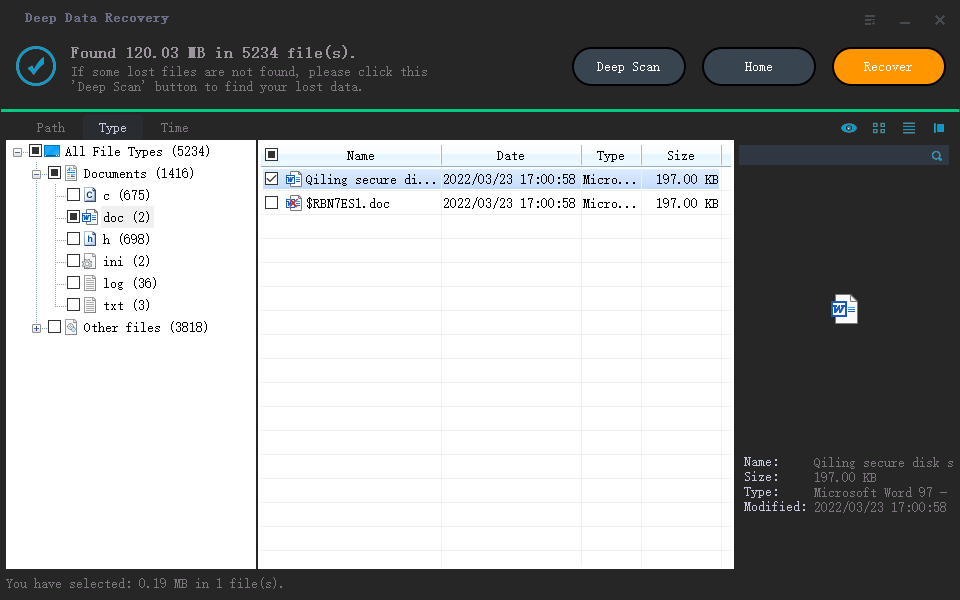
- Once you've launched the software, you can filter files to be scanned, which helps shorten the time needed for the scan process. For example, you can go to the settings and select which files to dissect, allowing you to skip unnecessary files and speed up the scan.
- To scan for missing files, select the folder or hard drive you want to scan, and connect any external devices such as SD cards or Android devices to your system. Then, hover your mouse over the hard drive and click on the "Scan" option. This will initiate the scanning process, allowing you to recover any missing files.
- The software allows you to review recoverable files before recovering them, giving you a chance to select and save the desired files. During the scanning process, you can view the details of recoverable files and choose the ones you want to recover. Once you've selected the target files, simply tap on the 'Recover' option to save them on your system.

Tips on Preventing Your Word Files from Losing
If you have Word files that are crucial to you, it's essential to take precautions to prevent them from being deleted or unsaved. This is especially true if you have multiple users accessing your PC, as accidental file removals can occur at any time. To avoid such mishaps, consider implementing measures to safeguard your important files.
- 🔍 To keep your data secured, it's essential to maintain strict access control to your PC, avoiding frequent unauthorized access. Implement multiple security measures at all levels to ensure the integrity and confidentiality of your data.
- ⚙️ Configuration of settings for permissions allows you to set permissions for any person or user trying to access your crucial files, giving you control over who can view or modify them.
- 🛎️ To hide files, select the files you want to hide, right-click on them, and choose the "hide" option from the context menu. This will make the files invisible in the file explorer, but they will still be accessible through the "show hidden files" option.
- 🖋️ Using the Command Prompt can help secure your files by preventing unauthorized deletion or access, including restricting others from viewing sensitive files like Word documents. This ensures that your crucial files remain safe from unnecessary deletion or prying eyes.
- 🔐 To protect your files, you can use a third-party tool that offers password protection, safeguarding them against viruses, spyware, and malware.
- 📑 To avoid losing your Word files, you can either enable the Autosave feature, which will automatically save your files at set intervals, or make it a habit to manually save your files every 8 to 10 minutes. This ensures that your work is regularly backed up and can be retrieved if needed.
- ⛱️ Regularly updating your antivirus software is essential to ensure you have the latest protection against emerging threats.
- 🌀 Online backup facility is essential for securing your files at all times. This involves backing up your data online, ensuring that your files are safe even in the event of hardware failure, theft, or other disasters.
Conclusion
To recover unsaved Word documents, you can try using Temporary files, document recovery, Auto recovery, searching for backup files, or using a Word recovery software like Qiling. These solutions can help you recover your files in different situations, and may be effective even if one or two methods don't work.
FAQ
-
Yes, you can get back your Word document that you could not save in time by using the recovery option from temporary files or applying document recovery. Alternatively, you can use the Auto recovery folder and search for backup files.
-
You can find the unsaved Word documents using options like Open or File. Alternatively, you can also find your Word documents by tapping on the option/button of Recover Unsaved Documents in the bottom section of List for Recent files.
-
You can go ahead by tapping on File > Info. Then make a selection of labeled files given under Manage Documents. Then, in the top section of the bar in the File, you will be able to make a selection for Restoring it. Finally, it will help in overwriting the saved versions of the File.
-
Check the following methods and follow the given steps:
Method 1. Recover with Document Recovery: Start > Type doc name in Search box > Enter > Tap twice on the required file from documents listed.
Method 2. Search for Word Backup Files: Tap on Start button > Type .wbk in search box > Enter > Locate prefix 'Backup of' for file > Tap on required file for two times.
Method 3. Check the AutoRecovery Folder: Tap on File tab > Options > Save > Click the "Browse" button next to the "AutoRecover file location" option
Method 4. Recover from Temporary Files: Open File Explorer > Navigate to C:\Users\User\Appdata\Local\Microsoft\Office\UnsavedFiles > Select your Word file > Copy your selected file > Paste the file in required location.
Method 5. Use Deep Data Recovery software: Complete downloading and installing software > Select the folder or drive for the scan process > Complete previewing and recovering files.
-
You can check a deleted Word document in the recycle bin on your PC. If you are unable to find it, make use of Deep Data Recovery software to get instant recovery of your deleted word documents.
- Download and install Deep Data Recovery to your PC
- Launch it and select the folder where files are missing to start scanning
- Preview found Word files
- Save the target file to the drive
Related Articles
- Why C Drive Is Full and How to Make Space
Let's find out the answer to 'How to solve c drive full problem?'. There can be multiple reasons behind this issue for instance, an excessive amount of software. - The Top 10 Data Recovery Services in Bay Area, CA Near Me
In the Bay Area, there are many data recovery services available. These nearby companies can assist you in recovering almost any type of mistakenly lost, deleted, or damaged digital material. We provide a list of recovery services and their contact information for your convenience. - Chicago Data Recovery Services [HDD, SSD, RAID]
This passage will give you detailed information about ten Chicago data recovery services. We will provide the address, numbers, and working hours to help you get full information. - SD Card Data Recovery with SD Card Recovery App
This guide explains SD Card Data Recovery with SD Card Recovery App with clear steps, key checks, and practical tips. - How to Show Hidden Files in USB on Windows PC/Mac
Learn how to Show Hidden Files in USB on Windows PC/Mac with clear steps, key checks, and practical tips.
Products
Articles & Tutorials
- Data Recovery
- Data Backup
- File Recovery
- File Backup
- File synchronize
- System Backup and Restore
- Disk and Partition Clone
- Technical articles
- Disk Master Help
- Windows Deleted File and Disk Recovery Tutorials
- Windows File and Data Recovery Tutorials
- More Windows Tutorials for Install, Security, Files, and PC Tips
- Windows Boot, Repair, and Recovery Environment Tutorials
- Windows Backup Tutorials
- Windows Restore Tutorials
- Windows Clone and Migration Tutorials
- Windows Server Backup, Recovery, and Management Tutorials
- Windows Disk, Partition, and Storage Management Tutorials