[Solved] Can't Find Recycle Bin in Windows 10/8 – 2 Solutions
If you're having trouble finding or opening the Recycle Bin in Windows 8 or 10, it's an easy fix. Simply follow the guide to locate the Recycle Bin, and if you've emptied it, you can use a tool like Deep Data Recovery to retrieve permanently deleted files.
To get the Recycle Bin back on your Windows 10 desktop, go to the Start menu, type "Recycle Bin" in the search bar, and select the "Show the Recycle Bin on the desktop" option. Alternatively, you can right-click on the desktop, select "Personalize," then click on "Themes" and finally toggle on the "Show recycle bin" option. This should restore the Recycle Bin to its original location on your desktop. If you're still having trouble, you can also try searching for "Recycle Bin" in the Start menu and pinning it to the taskbar or desktop. This should resolve the issue and have the Recycle Bin visible on your desktop once again.
The recycle bin is a storage space on a computer where deleted files are saved, allowing users to recover them if needed, and permanently delete them when no longer required.
If you are unsure what happens after deletion, read where deleted files go before trying recovery.
- Quick Navigation
- 2 Solutions to Fix "Can't Find Recycle Bin in Windows 10/8"
- How to Recover Files from Recycle Bin
2 Solutions to Fix "Can't Find Recycle Bin in Windows 10/8"
The recycle bin is a useful feature for Windows PC, but some users have reported that it disappears in Windows 8 and 10, making it impossible to restore deleted files or drag and drop files into it. This issue can be frustrating, but fortunately, there are two ways to solve the problem, which are covered in this article.
Solution #1. Set up Desktop icon settings
To fix the issue of not being able to find the Recycle Bin in Windows 10 and 8, you can simply access the Desktop icon settings, which is the simplest and most widely used method. To do this, right-click on an empty area of your desktop, select "Personalize" from the context menu, then click on "Themes" and finally select "Desktop icon settings". From here, you can toggle the switch next to "Recycle Bin" to turn it on.
1. To access the desktop icon settings, click the Windows icon at the bottom left, select "Settings" from the pop-up list, then go to "Personalization", followed by "Themes", and finally "Desktop icon settings". Alternatively, you can right-click on your desktop, select "Personalization", then "Themes", and choose "Desktop icon settings".
2. To enable the "Show recycle bin" option, first put the check mark before the checkbox for Recycle Bin, then click "Ok".
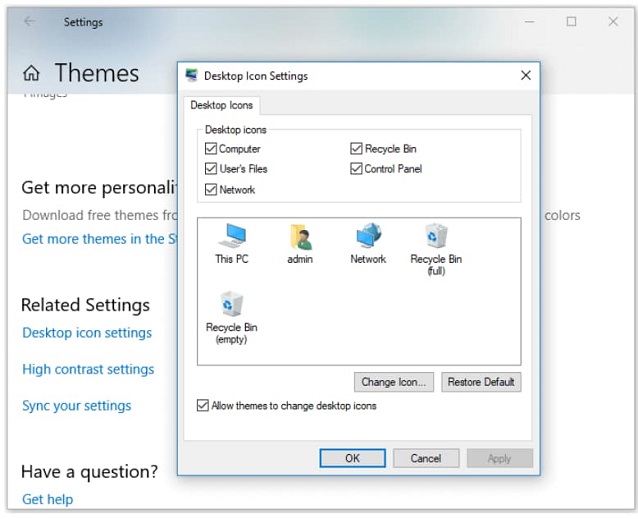
The issue of the "This PC" or "My Computer" icon disappearing can be resolved by checking the box for the computer before the checkbox for the computer. This simple step can help restore the icon's visibility.
Solution #2. Restore desktop icons by adding a shortcut
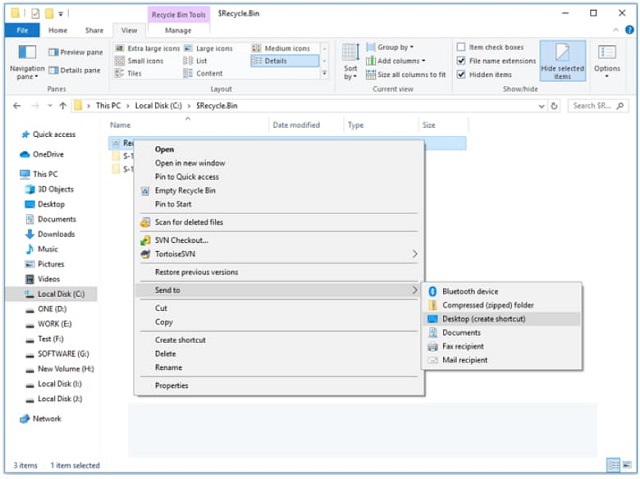
To fix the problem of "can't find recycle bin in Windows 10", you can create a shortcut to the desktop or a folder directory, just like you would for any other software tool. This will allow you to easily locate the recycle bin and access it whenever needed.
1. To access the "Options" in "This PC" (or "My Computer" in older versions), click on "This PC" (or "My Computer") and then go to the "View" menu at the top. From there, select "Options" to open the settings.
2. In the "Options" window, click the second tab "View", then check "Show hidden files, folders and drives" and deselect "Hide protected operating system files".
3. To find the "$Recycle.Bin" folder on your computer, go to "This PC", open the "C drive" and look for the "$Recycle.Bin" folder.
4. To move the Recycle Bin to the desktop, open the folder, right-click on the "Recycle Bin" icon and choose "Send to" > "Desktop (create shortcut)".
How to Recover Files from Recycle Bin
If you're unable to access the Recycle Bin or can't open it in Windows, you may have already emptied it, resulting in lost files. However, you can still recover deleted files from the Recycle Bin using a professional software like Deep Data Recovery, which can help you retrieve files even after they've been emptied.
Recover Files from Recycle Bin – Deep Data Recovery
- Recover files lost from the recycle bin efficiently, regardless of the reason behind their deletion, whether it was accidental, intentional, or due to emptying the bin.
- Quick Scan offers fast recovery from the recycle bin, while Deep Scan provides more thorough results.
- The software supports various file types, including videos, images, audio files, documents, and more, allowing for the recovery of deleted files from the recycle bin in just three simple steps.
Download data recovery software to recover files from the Recycle Bin.
Step 1. Download recycle bin data recovery software
To recover data from the recycle bin, click the DOWNLOAD button to get the recycle bin recovery software on your Windows PC, install it, and it will be fully compatible with your Windows OS, including Windows 10, Windows 8, and Windows 7, etc.
To recover deleted files on Windows, you can use a data recovery software like Deep Data Recovery Wizard. This tool can scan your computer's hard drive, SD cards, and other storage devices to find and recover deleted files. It supports recovery of various file types, including documents, photos, videos, and more.
If files were removed without entering Recycle Bin, see how to delete files without Recycle Bin and what that means for recovery.
Step 2. Select file types and hard drive to recover
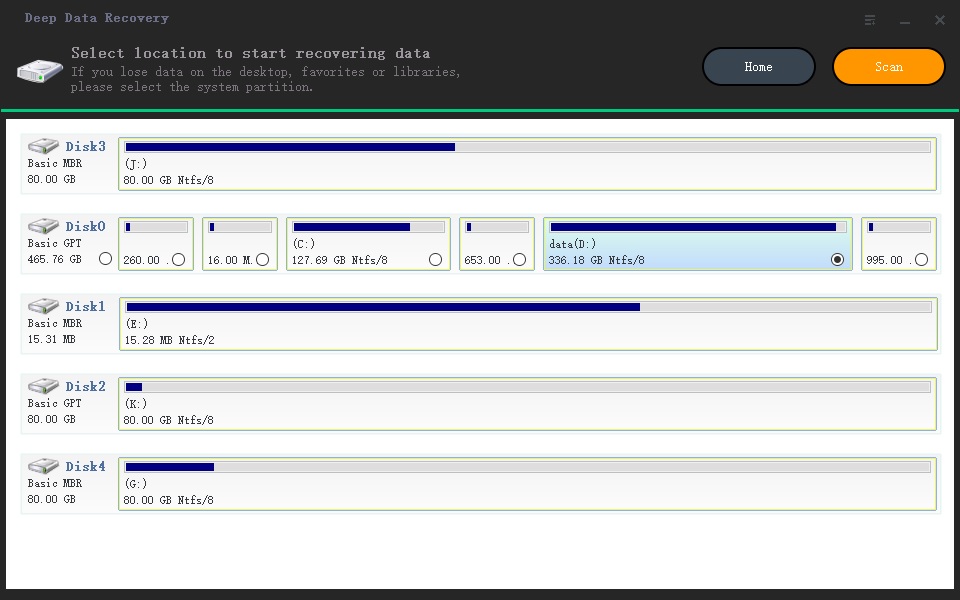
Launch the recycle bin data recovery software. From the first window, you can select or deselect file types to scan, then click "Next". Next, select the system drive as the destination to scan for deleted files from the recycle bin, as all files in the recycle bin were previously on the desktop, and click "Scan".
Step 3. Recover files deleted from recycle bin
Wait until the scanning process is finished, then select the file category on the left side, check out the file details on the right side, and click "Recover" to save deleted files.
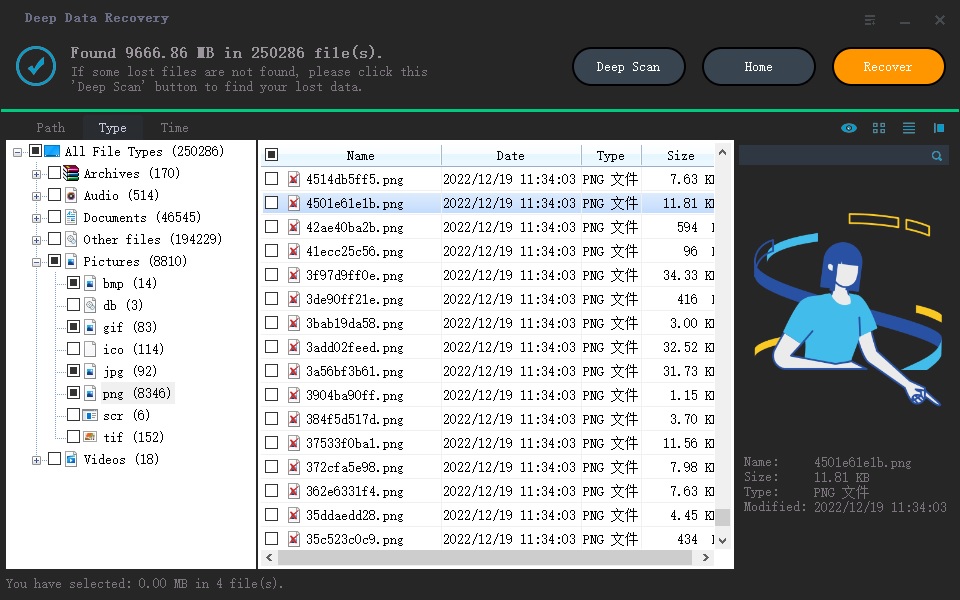
The software's default scanning mode is Quick Scan, while the Deep Scan mode is located in the result window. You can try the Deep Scan to find more files on your recycle bin. This software can help you recover deleted files from the recycle bin, even if it has been emptied, allowing you to retrieve your lost files.
Related Articles
- Recover Deleted Sticky Notes in Windows 10/7/8/Vista
- Fix Recycle Bin Corrupted in Windows 8/7/10
- Fix Deleted Items Not Showing up in Recycle Bin
- How to Recover Files from External Hard Drive Without Formatting
The best way to recover files from external hard drive without formatting is by using Deep Data Recovery. It only takes three steps to restore hard drive data. If your external hard drive gets corrupted, repair the corrupted external hard drive with the methods below. - Western Digital External Hard Drive Data Recovery Software Free Download
Western Digital External Hard Drive Data Recovery software is a professional tool that allows users to recover lost or deleted files from Western Digital external hard drives efficiently, making it a simple process to retrieve files. - Where Do Photos/Pictures Go After Recently Deleted on Mac/Windows/Android Phone/iPhone
Deleted photos from the recently deleted folder are stored in the device's storage, varying by device type: Mac/Windows PC (computer storage), Android (internal storage), and iPhone (iCloud storage).
Products
Articles & Tutorials
- Data Recovery
- Data Backup
- File Recovery
- File Backup
- File synchronize
- System Backup and Restore
- Disk and Partition Clone
- Technical articles
- Disk Master Help
- Windows Deleted File and Disk Recovery Tutorials
- Windows File and Data Recovery Tutorials
- More Windows Tutorials for Install, Security, Files, and PC Tips
- Windows Boot, Repair, and Recovery Environment Tutorials
- Windows Backup Tutorials
- Windows Restore Tutorials
- Windows Clone and Migration Tutorials
- Windows Server Backup, Recovery, and Management Tutorials
- Windows Disk, Partition, and Storage Management Tutorials