Learn How to Repartition Hard Drive in Windows 10, 8, 7
About Hard Drive Storage
A hard drive is a storage device where data and files are saved, and users can utilize it by creating a drive. Many users partition their hard drive into two or more partitions to classify and store different types of data, reducing the risk of data loss. If the operating system partition crashes, a new system can be installed to repair it without affecting other partitions. However, if all data is stored on the operating system partition and it's attacked by a virus or can't be accessed, recovering data can be a time-consuming and frustrating task.
Question about How to Repartition a Hard Drive
To install Windows 7 on the same disk as Windows Vista, you'll need to create a new partition for Windows 7. Since there's no unallocated space, you can shrink the existing Vista partition to free up some space. You can use the built-in Disk Management tool in Windows to shrink the Vista partition and create a new partition for Windows 7. Alternatively, you can use a third-party partition manager tool to help you with the process.
To manage your files efficiently, you can create multiple partitions on your computer. This will allow you to categorize and separate different types of files, making it easier to find and access the files you need. You can create separate partitions for work files, personal files, and other categories, depending on your specific needs. This will help you stay organized and avoid cluttering your main drive with unnecessary files.
When faced with hard drive issues, many people turn to Disk Management, but it's limited in its ability to repartition drives. Fortunately, it's still possible to repartition a hard drive into desired sizes while keeping data safe and without reinstalling the operating system. This can be achieved using a third-party tool, such as Qiling Disk Master, a professional Windows partition manager.
Partition Manager to Repartition a Hard Disk
Qiling Disk Master Professional (PA Pro) is a powerful solution that allows users to experience various disk management features, including resizing, merging, splitting, and allocating free space, as well as cloning, copying, and managing dynamic disks. It supports hardware RAID and Windows operating systems, including 32-bit and 64-bit versions, and ensures complete data protection during operations. This utility is designed to help users easily repartition a hard drive, making it a useful tool for junior users to manage their disk.
How to Repartition a Hard Drive without Losing Data with Partition Assistant?
Here are the steps to repartition a hard drive in Windows without losing data:
To begin, you need to free download Qiling Disk Master Professional (PA Pro) (size: 18.4MB)
1. Install Qiling Disk Master and run it as an administrator to access the Windows partition manager main interface.
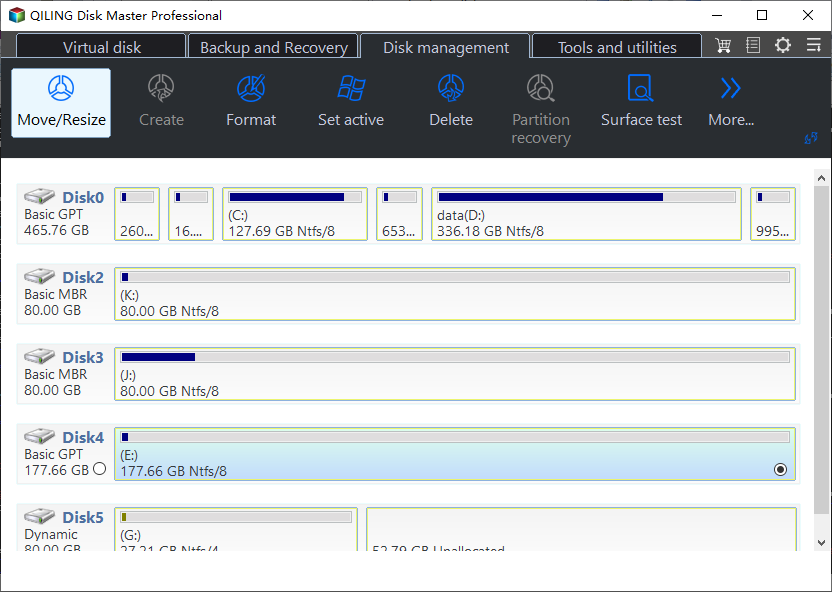
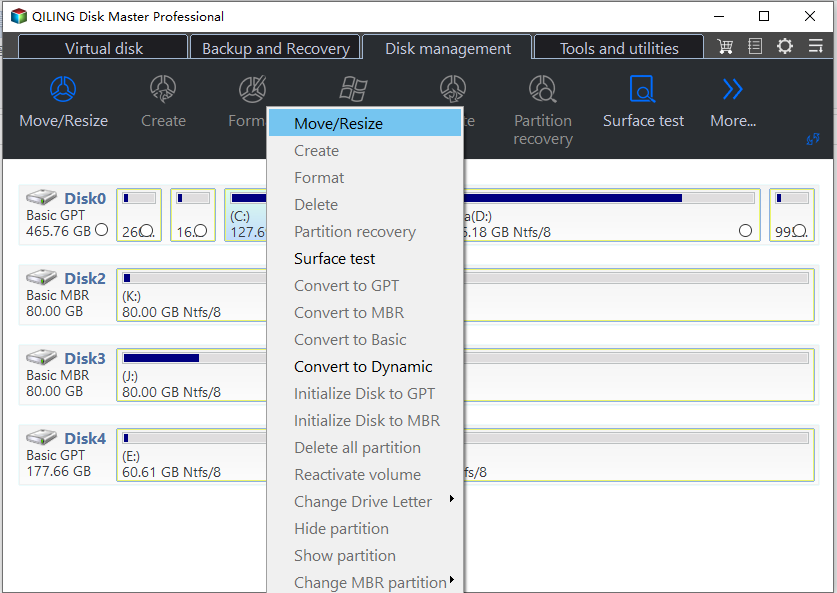
2. Right click on the C: drive you want to repartition and select Resize/Move Partition from the shortcut menu.
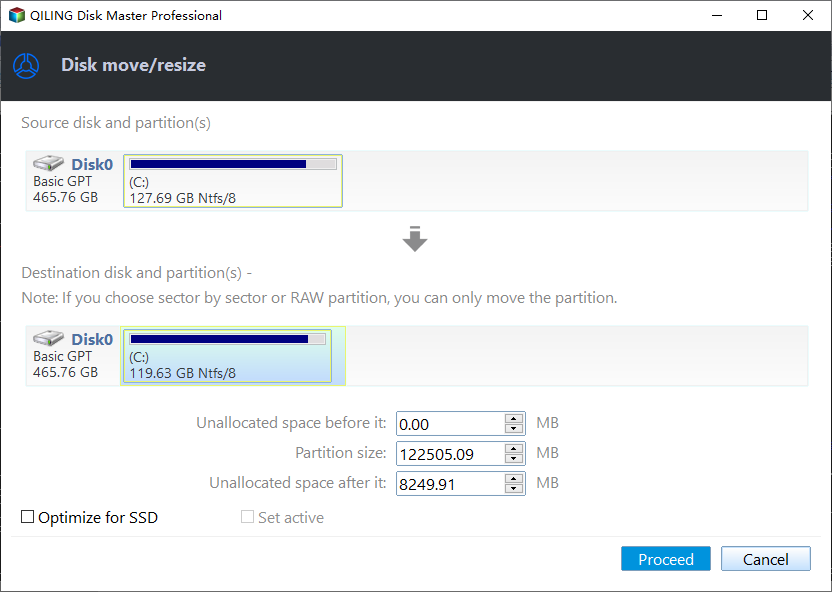
3. To free up space on your C: drive, you can shrink the partition by moving the slider bar to the left, effectively releasing unallocated space. Once you've made the desired adjustment, click "Proceed" to save the change. This will modify the partition size without deleting any data.
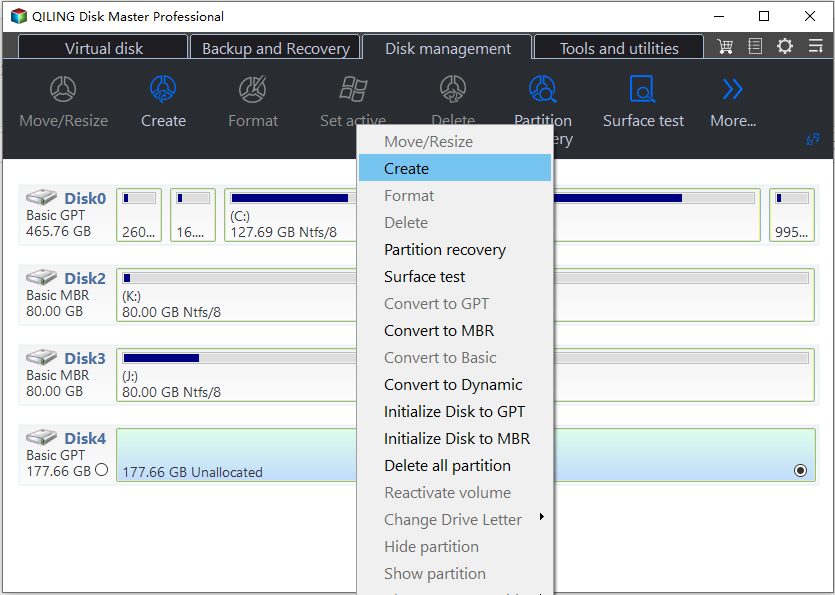
4. After shrinking the C: drive, we can create a new partition in the unallocated space to store classified data. To do this, right-click on the unallocated space and select the "Create Partition" option, which will guide you through specifying the new partition's information in a new window.
5. Click "Proceed" button to change the operations to physical disk.
P.S. The software will require you to restart your computer to perform the operations in a PreOS mode, allowing for the shrinking of the system drive.
Qiling Disk Master Server Edition is a server partition magic for Windows Server 2000/2003/2008/2012, while Qiling Disk Master Professional (PA Pro) is a good choice for personal users or business PC owners running Windows 8.1/8/7/2000/XP/Vista.
 Buy Qiling Disk Master Professional (US$ 39.00 only)
Related Articles
- How to Fix Windows 10 File System Error (-2018375670) [Step-by-Step Guide]
This article provides the newest and easiest ways to fix Windows 10 file system error (-2018375670) and introduces a professional tool to help check bad sectors and file system errors. - 9 Best Tips to Troubleshoot Windows 7 Is Running Slow
Your Windows 7 slows down all of a sudden because you have many apps, programs, web browsers, and so on open at once. To trouble Windows 7 running slow, I have provided you with useful solutions in this guide. You can optimize the system and get better performance after trying these solutions. - Windows 11 Install: Windows Cannot be Installed To This Disk GPT
If you are not able to upgrade because of Windows 11 install: windows cannot be installed to this disk GPT error, then here is how you can fix it. You can either change to UEFI or change the Partition File style. It will allow you to upgrade to Windows 11 without loss of data. - 8 Solutions to Fix NTLDR Is Missing in Windows 10/8/7
This guide explains 8 Solutions to Fix NTLDR Is Missing in Windows 10/8/7 with clear steps, key checks, and practical tips. - How to Partition Western Digital Hard Drive on Windows 11/10/8/7
To partition your Western Digital hard drive on Windows 11/10/8/7, you can use a tool like Qiling Disk Master or the built-in Disk Management feature. This will allow you to easily and quickly partition your hard drive. - Password Reset Disk Windows 7: How to Create and Use
Products
Articles & Tutorials
- Data Recovery
- Data Backup
- File Recovery
- File Backup
- File synchronize
- System Backup and Restore
- Disk and Partition Clone
- Technical articles
- Disk Master Help
- Windows Deleted File and Disk Recovery Tutorials
- Windows File and Data Recovery Tutorials
- More Windows Tutorials for Install, Security, Files, and PC Tips
- Windows Boot, Repair, and Recovery Environment Tutorials
- Windows Backup Tutorials
- Windows Restore Tutorials
- Windows Clone and Migration Tutorials
- Windows Server Backup, Recovery, and Management Tutorials
- Windows Disk, Partition, and Storage Management Tutorials