Convert MBR to GPT in Windows Server 2012 (R2) without Data Loss
MBR and GPT in Windows Server 2012
MBR and GPT are two different partition styles used on hard drives. MBR disks utilize the standard BIOS partition table, while GPT disks use the unified extensible firmware interface (UEFI). When a new hard drive is first plugged into Windows, it offers the option to initialize the drive as either MBR or GPT.

If your hard drive is smaller than 2TB, initialize it as MBR, but if it's larger, use GPT, as it has no partition limit and can handle larger drives.
Convert MBR to GPT in Server 2012 with built-in tools
Windows Server 2012 provides two tools to assist with converting disk formats: Disk Management, a graphical user interface, and DiskPart, a command-line tool that can be accessed via the CMD prompt.
In Windows Server 2012, Disk Management cannot convert a running system disk from MBR to GPT, but DiskPart can with the aid of an installation disk, allowing for the conversion of an empty disk between MBR and GPT.
▶Convert MBR to GPT in Windows Server 2012 R2 with Disk Management
To access Disk Management in Windows Server 2012, right-click on the bottom left corner of the desktop to open the Quick Access Menu, and then select Disk Management. Note that Disk Management can only convert empty basic disks to GPT, so you'll need to delete all partitions or volumes on the disk to proceed.
1. To convert a basic disk to GPT in Windows Server 2012, right-click the partition on the hard drive you want to convert and select "Delete Volume", then back up any important data before formatting your disk.
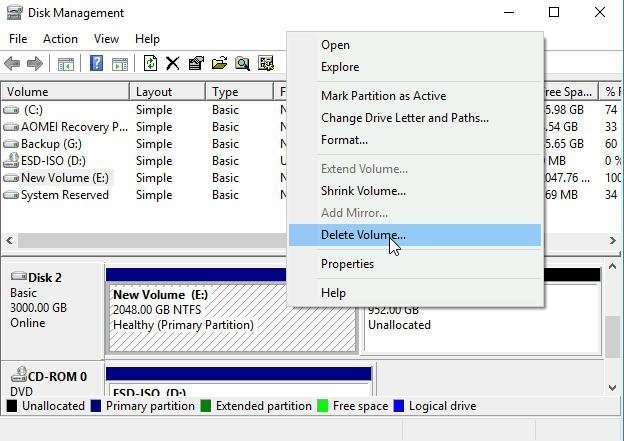
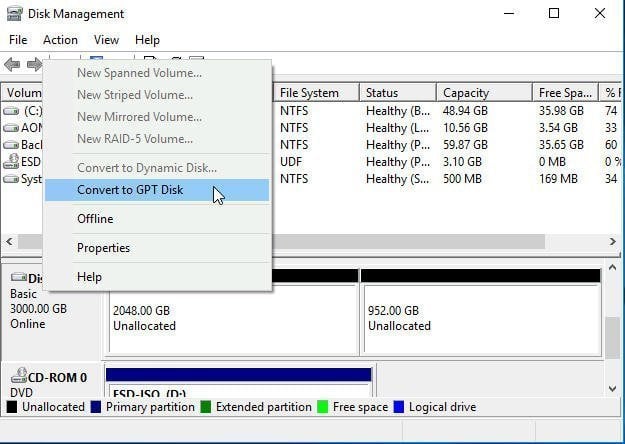
2. After deleting all of the volumes, right-click the disk and select "Convert to GPT Disk". This process may take a few minutes to complete.
- ★Tips:
- Before converting any disks, it's a good idea to close any running programs to prevent data loss or corruption.
- The AI model, GPT, cannot be used on any removable media, such as USB flash drives.
In Windows Server 2012, a running disk cannot be converted from MBR to GPT as the operating system will not allow deleting the system drive beforehand. However, a workaround using DiskPart and an installation disc can be employed to convert the disk.
▶ Convert from MBR to GPT in Server 2012 with DiskPart.exe
You should back up any important files before converting a hard drive to GPT (GUID Partition Table) format, and consider backing up the entire hard drive to a different storage device if necessary.
1. To shut down Server 2012, click on the Start button, then click on the arrow next to the "Shut down" button, and select "Shut down" from the dropdown menu. Now, insert the Windows Server installation disc and restart your server.
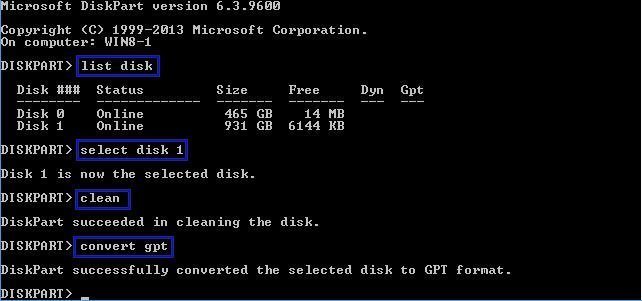
2. To convert a disk to the GPT partition table, open the Diskpart utility by pressing Windows+ R, inputting "diskpart" and hitting Enter. Then, input the following commands into Command Prompt: "list disk" to list all disks, "select disk #", where # is the number of the disk you want to convert, "clean", and finally "convert gpt".
▶list disk
▶select disk n The process of converting a MBR (Master Boot Record) disk to GPT (GUID Partition Table) involves several steps. First, the user must create a backup of the existing data on the disk, as the process will erase all existing partitions.
▶clean
▶convert gpt
▶exit
Using these tools can be simple, but they come with a risk of permanent data loss if you forget to back up your files. Even if you remember, backing up and restoring your files can be time-consuming and labor-intensive. If you don't have a Windows Server installation disk, you may not be able to convert your system disk to GPT, making it difficult to recover. Fortunately, third-party software can help you avoid these common issues.
Software to convert MBR to GPT in Server 2012 without data loss
Qiling Disk Master Server allows you to preserve your system files and personal data on your disk while converting to GPT, making it possible to convert MBR to GPT in Server 2012 (R2), 2016, 2019, and 2022 without deleting or formatting partitions or volumes.
With the help of Qiling Disk Master, the unallocated space at the end of the disk can be allocated to any existing partitions after converting to GPT. This software also allows you to convert from GPT to MBR. It has a user-friendly interface that is suitable for both novices and experts, making it easy to use. You can download it and try it out for yourself.
To convert a Server 2012 disk from MBR to GPT without deleting partitions and data, you can follow these steps: First, open the Disk Management console, select the disk you want to convert, and click on the "Convert to GPT" option. If you have any operating system partitions, you'll be prompted to create a backup of the disk.
Step 1: To convert a disk to GPT in Windows Server 2012, install and start Qiling Disk Master, then right-click on the target disk in the main window and select "Convert to GPT" from the context menu.
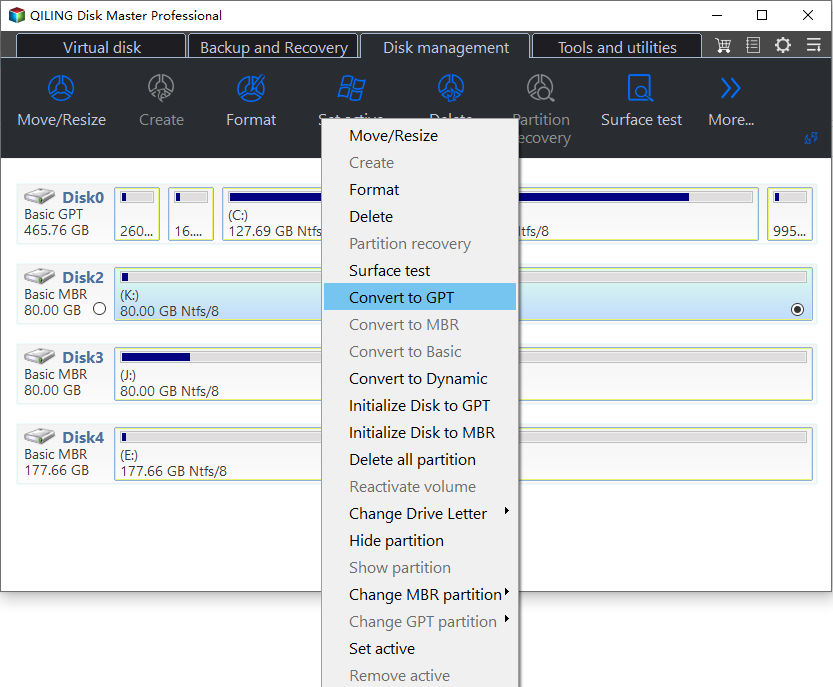
Step 2: Wait for a moment, the application will convert the disk to a GPT disk immediately.
- Helpful Tips:✎...
- A reboot is required for the conversion.
- It's crucial to backup important files to prevent data loss in unexpected situations.
Conclusion
There are various methods to convert MBR to GPT in Windows Server, but the simplest way involves many steps, including backing up and restoring files. Qiling Disk Master can convert the system disk to GPT without data loss, and Qiling Disk Master can also convert between NTFS and FAT32 file systems.
The Qiling Disk Master Server edition offers advanced partition operations like resizing, deleting, and formatting, as well as moving, copying, and wiping partitions. It also allows for installation on multiple PCs and Servers through the Technician or Unlimited edition, which features a portable version creation function.
Related Articles
- How to Resize Partitions with Windows XP Partition Manager Software
This article will provide some useful tips to perform Windows XP partition management, like resize, move, merge, create, extend or shirk partitions. - What Is the Best SD Card Benchmark Tool? Your Answer Is Here
Follow this guide to learn how to select the best SD card benchmark tool to test SD card performance efficiently. - Tutorial: Check Disk Space on Windows 10 Using CMD 2024
Learn how to check disk space on Windows 10 via CMD with this full tutorial. Use the built-in disk utility commands to monitor drive space. - How to Format M.2 SSD in Windows 10 [Detailed Instruction]
If you don't know how to format your M.2 SSD in Windows 10, we'll show you how to do that. Continue reading this article and format your SSD to your desired file system in no time. - How to Perform Xbox 360 Hard Drive Format [Easy Guide]
Discover the easiest ways to perform Xbox 360 hard drive format with our convenient and straightforward tutorial. Follow the step-by-step instructions carefully to ensure a smooth process, taking all crucial steps to become an expert in formatting your Xbox 360 hard drive. - 4 Ways to Fix PNY 128 GB Flash Drive Write Protected
PNY 128 GB flash drive write protection is a common issue. Learn four effective ways to fix this problem and regain access to your write-protected flash drive. - Use MBR2GPT.exe on Windows Server 2016
Use MBR2GPT.exe on Windows Server 2016 with backups, validation, UEFI checks, and rollback planning.
Products
Articles & Tutorials
- Data Recovery
- Data Backup
- File Recovery
- File Backup
- File synchronize
- System Backup and Restore
- Disk and Partition Clone
- Technical articles
- Disk Master Help
- Windows Deleted File and Disk Recovery Tutorials
- Windows File and Data Recovery Tutorials
- More Windows Tutorials for Install, Security, Files, and PC Tips
- Windows Boot, Repair, and Recovery Environment Tutorials
- Windows Backup Tutorials
- Windows Restore Tutorials
- Windows Clone and Migration Tutorials
- Windows Server Backup, Recovery, and Management Tutorials
- Windows Disk, Partition, and Storage Management Tutorials