Enable Shadow Copies in Windows Server 2019
Shadow Copies, also called Previous Versions, can keep point-in-time snapshots of shared folders. They are useful when users accidentally overwrite or delete files. However, Shadow Copies are not a full backup because snapshots stay on the server volume and can be lost if the disk fails.
What Shadow Copies can and cannot do
Shadow Copies help restore earlier versions of files on NTFS volumes. They do not replace server backup, disaster recovery, or offsite copies. Use them for quick file rollback, and use a backup plan for hardware failure, malware, or system corruption.
Enable Shadow Copies in Windows Server 2019
Step 1. Sign in with an administrator account and open File Explorer.
Step 2. Right-click the volume that stores shared data, choose Configure Shadow Copies, and select the target volume.
Step 3. Click Settings. Choose where shadow copy storage will be kept and set a maximum size so snapshots do not consume the whole volume.
Step 4. Click Schedule and set snapshot times that match business activity. Common choices are before work starts and around midday.
Step 5. Click Enable, then create the first shadow copy. Test restoration from a shared folder by opening Previous Versions.
Disable or clean up Shadow Copies
Open the same Shadow Copies window, select the volume, and choose Disable if you no longer need snapshots. To reclaim space without disabling the feature, reduce the storage limit or delete older copies after confirming a full backup exists.
Back up server files for real protection
 Qiling Disk Master Server
Create scheduled server backups so Shadow Copies are supported by independent recovery copies.
Step 1. Open Qiling Disk Master Server and choose File Backup for shared folders or System Backup for server recovery.

Step 2. Select the shared folders, application data folders, or system volume that need protection.
Step 3. Choose a separate destination, such as another disk, NAS path, or secure external storage.

Step 4. Set a schedule and retention rule so old backup versions are cleaned automatically.
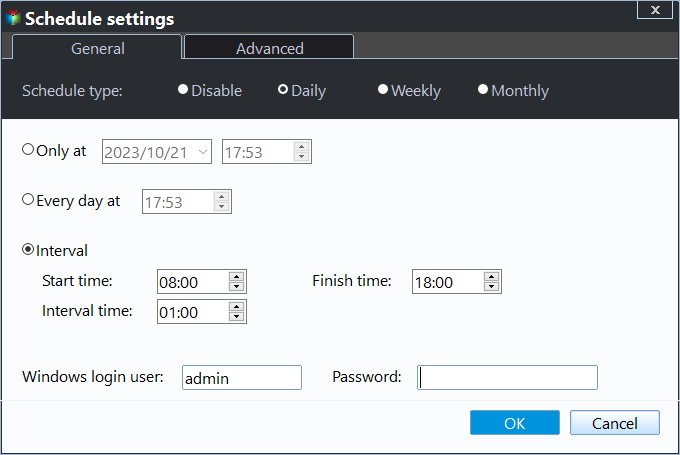
Step 5. Click Proceed and test restoring a sample file after the first backup finishes.
Conclusion
Shadow Copies make daily file recovery faster, but they should work together with a reliable backup. Configure storage limits, test Previous Versions, and keep independent backups for server-level protection.
Related Articles
-
Delete Shadow Copies in Windows Server 2012 R2
Clean old shadow copies when snapshot storage grows too large on a Windows Server volume. -
Backup Files in Windows Server 2019
Create file backups for Server 2019 so snapshots are supported by independent recovery copies.
Products
Articles & Tutorials
- Data Recovery
- Data Backup
- File Recovery
- File Backup
- File synchronize
- System Backup and Restore
- Disk and Partition Clone
- Technical articles
- Disk Master Help
- Windows Deleted File and Disk Recovery Tutorials
- Windows File and Data Recovery Tutorials
- More Windows Tutorials for Install, Security, Files, and PC Tips
- Windows Boot, Repair, and Recovery Environment Tutorials
- Windows Backup Tutorials
- Windows Restore Tutorials
- Windows Clone and Migration Tutorials
- Windows Server Backup, Recovery, and Management Tutorials
- Windows Disk, Partition, and Storage Management Tutorials