How to Restore SSD to Peak Performance in a Few Minutes
SSD running slow after an excessive usage
After using a solid-state drive (SSD) for a while, you may notice a decrease in performance, with write speeds slowing down to as low as 1/4 of the original speed after 18 months. To restore your SSD's peak performance, you can try running a disk cleanup, disabling and re-enabling the drive, or using a tool like CCleaner to clear out temporary files and other data. Additionally, you can also consider running a full disk format, but be aware that this will erase all data on the drive. Regularly running these maintenance tasks can help keep your SSD running at its optimal speed.
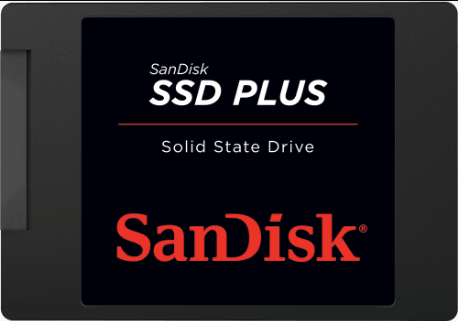
Why SSD performance decreases?
When you delete a file from a solid-state drive (SSD), it only removes the table of contents entry, leaving the actual data blocks intact. This is because NAND flash memory, which SSDs use, requires data to be erased before new information can be written over it. This means that deleted files can still occupy space on the SSD until they are specifically erased or overwritten.
Modern SSDs avoid performance degradation by using techniques such as garbage collection, over-provisioning, and the TRIM command, which identify and delete unneeded data blocks, reserve extra storage for future use, and notify the drive to erase unnecessary data, respectively.
Garbage collection may not run constantly, and some operating systems may not work well with the TRIM command, which can be a problem, especially for Windows XP users that don't support the command. However, if you're using Windows 10, 8, or 7, you don't need to worry about this issue.
You can restore an SSD to its factory condition by doing a Secure Erase, which is a more effective method than simply wiping everything and repartitioning. This process can be done without the need for a utility to force garbage collection.
How to perform SSD Secure Erase?
Some SSDs offer tools to maintain optimal performance, such as Samsung Magician Software. However, this software is limited to securely erasing Samsung SSDs. If you have other types of SSDs, you may want a software that can securely erase all types of SSDs.
You can use Qiling Disk Master Professional to securely erase an SSD and restore its performance in just a few minutes.
PS.: The Demo version of Qiling Disk Master Professional can be downloaded to allow users to try out its operations first.
To securely erase your SSD, you can follow these steps: create a backup of your SSD, then restore it after the Secure Erase, which will delete everything on your SSD, leaving it as unallocated space. This way, you can avoid reinstalling your system.
Step 1. Connect your SSD to a Windows 7 computer via SATA port, install and run Qiling Disk Master Professional, and use it to securely erase the SSD.
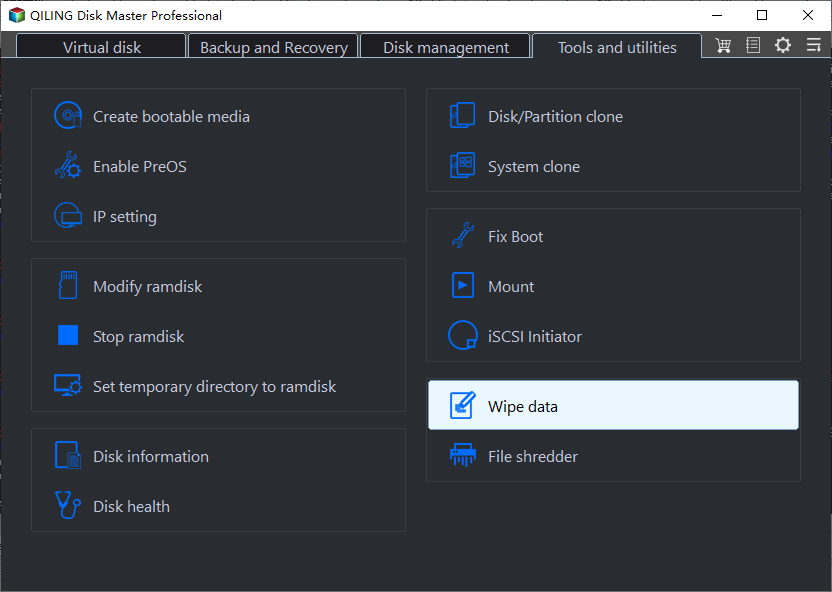
Step 2. In the left menu of Qiling Disk Master, select "Wipe data".
3. Select your SSD that you want to restore performance.
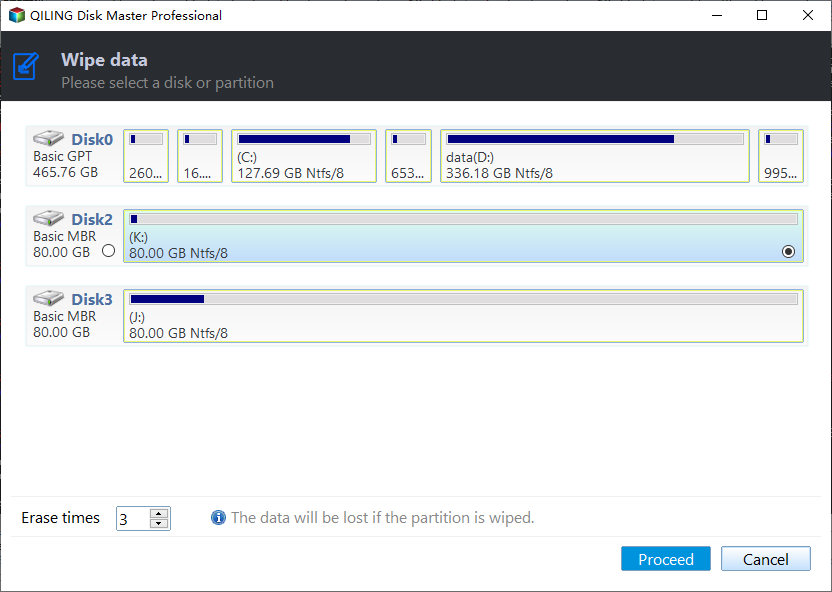
4. After a hot swap, click "Proceed" to securely erase your SSD, which will take a few seconds. Once erased, you can create a new partition and format the SSD to restore its performance.
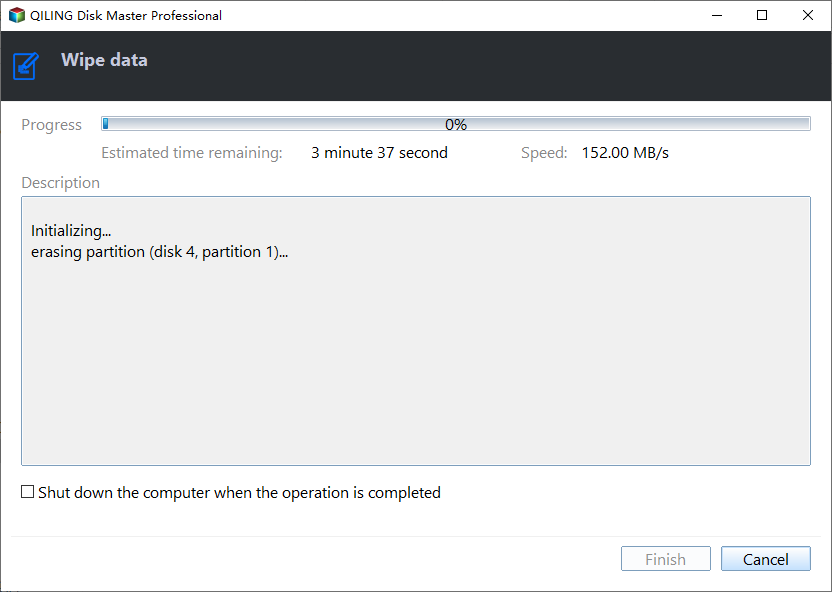
You can use a free tool to create a new partition and format your SSD, which can restore its peak performance in most cases. However, other issues like outdated BIOS drivers, incorrect SATA port or controller settings, and cable problems can also cause your SSD to run slowly.
Related Articles
- How to Wipe HDD/SSD from BIOS?
You may need to reinstall Windows in some situations. Here will how to wipe a hard drive from BIOS for reinstallation or other purposes. - Sanitize or Secure Erase SSD? What's the Difference?
Learn how to sanitize or Secure Erase SSD What's the Difference safely, including what to check before formatting, wiping, or deleting data. - Best SSD Cleanup Utility for Windows Users
This guide explains Best SSD Cleanup Utility for Windows Users with clear steps, key checks, and practical tips. - Wipe Seagate External Hard Drive Safely on Windows 10/8/7
Wipe Seagate external hard drive securely to prevent your data from being compromised or recovered by others. There are 2 methods to help you clean hard drive completely. - How to Factory Reset Windows 7 in 2022
Learn how to Factory Reset Windows 7 in 2022 with clear steps, key checks, and practical tips. - How to Factory Reset Windows XP in 2022
If your system doesn't work well, or you want to reconfigure it, here are your options for factory resetting your PC running Windows XP.
Products
Articles & Tutorials
- Data Recovery
- Data Backup
- File Recovery
- File Backup
- File synchronize
- System Backup and Restore
- Disk and Partition Clone
- Technical articles
- Disk Master Help
- Windows Deleted File and Disk Recovery Tutorials
- Windows File and Data Recovery Tutorials
- More Windows Tutorials for Install, Security, Files, and PC Tips
- Windows Boot, Repair, and Recovery Environment Tutorials
- Windows Backup Tutorials
- Windows Restore Tutorials
- Windows Clone and Migration Tutorials
- Windows Server Backup, Recovery, and Management Tutorials
- Windows Disk, Partition, and Storage Management Tutorials