Freeware: SSD to SSD Clone in Windows 11, 10, 8, 7
- Why clone SSD to (larger)SSD in Windows?
- Best SSD to SSD clone freeware for Windows 11, 10, 8, 7
- Stepwise guide: clone smaller SSD to larger SSD
- Benefit: automatic partition alignment during SSD to SSD clone
- The verdict
- FAQs about SSD to SSD clone
User story
Can I clone an SSD to another SSD?
Yes, you can clone your SSD to another SSD while keeping everything intact, including the OS, and make it bootable. This process is called a "sector-by-sector" or "bit-for-bit" clone, which copies every single bit of data, including the operating system, programs, and files, from the source SSD to the target SSD. This way, you'll have an exact replica of your original SSD, including the boot loader and operating system, on the new SSD. You can use software like Qiling Disk Master to perform this type of clone. Just make sure the target SSD is at least as large as the source SSD to avoid any issues. After the clone is complete, you can simply swap the SSDs and your system should boot up as if nothing has changed. Just keep in mind that if you're using a custom BIOS or UEFI settings, you may need to reconfigure them after the clone.
- Question from elevenforum.com
Why clone SSD to (larger)SSD in Windows?
Upgrading to a faster SSD with a small capacity may be a cost-effective option, but as more applications and programs are installed, the SSD may eventually run out of space, leading to low running speed and disk space warnings.

In situations where the old SSD is too small and needs to be replaced with a new, larger one, the most practical solution is to clone the old SSD to the new one, thereby avoiding the need to reinstall the Windows OS and apps. This approach allows for a seamless transition to the larger storage capacity.
Best SSD to SSD clone freeware for Windows 11, 10, 8, 7
When purchasing an SSD, a dedicated cloning tool for that brand is often included, such as Samsung Data Migration for cloning to a Samsung SSD. This tool allows for a straightforward cloning process.
While dedicated SSD to SSD cloning software can be effective, they often have a limitation: they only work for the specific SSDs they are designed for. To ensure a seamless cloning process across different SSD brands, it's often more practical to use third-party SSD to SSD cloning software that can accommodate various manufacturers.
Qiling Disk Master Standard is a free and reliable hard drive partition manager that allows us to perform SSD to SSD clone on Windows operating systems, including Windows 11, 10, 7, 8, XP, and Vista, both 32-bit and 64-bit. It can clone smaller SSDs to larger ones or vice versa without any issues.
- ★Tips:
- The free Standard Edition only supports cloning data disks to another disk, but if you need to clone a system disk, you'll need to upgrade to the Professional Edition.
- Moreover, its "Migrate OS to SSD" feature can clone only the OS from one SSD to another, instead of copying the entire disk. Now download this free tool to learn how to clone SSD to SSD drive.
Stepwise guide: Clone smaller SSD to larger SSD
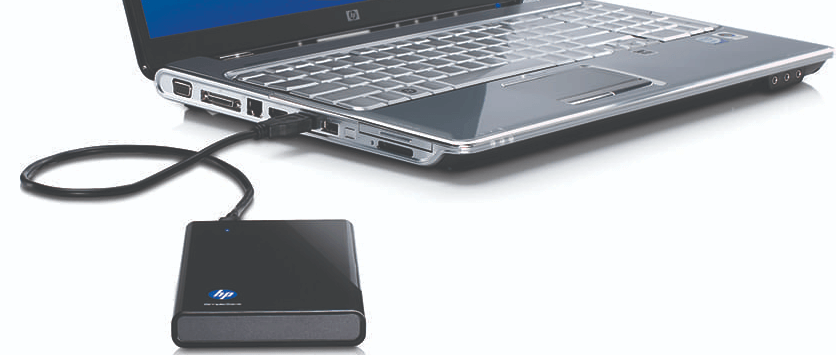
Install the destination SSD on the computer, clone the old SSD to the new one via USB cable if necessary, and initialize the new SSD with the same partition style as the old disk using Qiling Disk Master.
- Note:✎...
- Before cloning your old hard drive to a new SSD, make sure to back up any important files on the destination SSD drive, as the cloning process will erase everything on it.
Step 1. At the main interface, click "Clone Disk" in the tools page.

Step 2. Select the smaller SSD as the source disk.

▸Sector-by-sector Clone▸It will clone every sector on the source SSD, including accidentally formatted sections, which may take longer.
Step 3. Select the larger SSD as the target disk and ensure the "Optimize the performance of SSD" option is checked to automatically align the SSD partition for optimal performance.

Step 4. There are three options to edit partitions on target SSD, select one of them based on your needs.

Step 5. The software will guide you through the cloning process, first by previewing the virtual result and then providing instructions on how to boot from the destination SSD. After this, it will allow you to proceed with the pending operations.

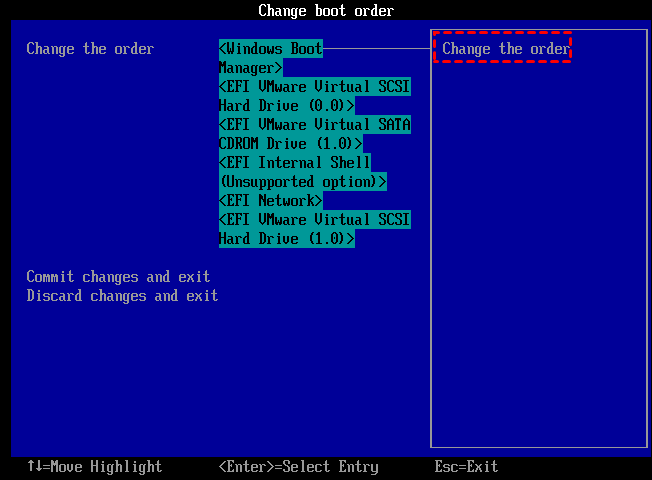
The cloning time depends on the amount of data on the source SSD. Once the cloning process is complete, you can either remove the previous SSD or change the boot drive in the BIOS to boot from the target SSD.
Bonus tips:
① If you're unable to boot from your cloned SSD, refer to the article Cloned hard drive to SSD not boot for troubleshooting assistance.
② When everything goes smoothly on the new SSD, you can format or securely erase the old SSD for reuse.
Benefit: Automatic Partition Alignment during SSD to SSD Clone
During SSD cloning, it's essential to ensure SSD partition 4K alignment. SSDs store data in 4K sectors, and if the allocation units are not aligned, it can affect performance, leading to issues like small files taking up large disk space. Fortunately, Qiling Disk Master can automatically align SSD partitions to 4K sectors when the "Optimize the performance of SSD" option is checked. This helps maintain optimal SSD performance.
To check if partitions are well-aligned using Diskpart in CMD, open Command Prompt, type "diskpart", then "list disk" to select the SSD, "select disk n" (where n is the SSD number), and finally "list partition". Check the "Offset" column; if it's a multiple of 1024KB, the partition is well-aligned. For more information on SSD partition alignment, visit the provided link.
The Verdict
Qiling Disk Master Standard is a free and powerful software for cloning SSDs, ensuring a successful and secure boot after cloning. For system disks, users can upgrade to Qiling Disk Master Professional, which offers advanced features such as migrating the OS from a GPT disk to an SSD without reinstalling, extending the system drive without rebooting, and converting data disks between MBR and GPT without deleting partitions.
FAQs about SSD to SSD clone
|
Question: What is SSD cloning? Answer: SSD cloning creates a complete, 1:1 copy of the target solid-state drive, transferring every bit of information to the destination location, rather than just copying saved files. |
|
Question: Does Samsung SSD come with cloning software? Answer: Samsung's SSDs come with a software called Data Migration, which allows for cloning of an SSD drive. However, it only supports cloning the system disk to a Samsung SSD drive. |
|
Question: What is the best SSD cloning software? Answer: Qiling Disk Master Standard software is the best SSD cloning software, as it successfully clones SSD to another and ensures a secure boot after cloning. |
|
Question: How do I transfer Windows 11/10 from SSD to SSD? Answer: To transfer the Windows 11/10 partition from an old SSD to a new one, consider using reliable OS migration software. This type of software can clone the Windows partition from the old SSD to the new one, allowing you to boot from the cloned SSD. |
|
Question:Does cloning an SSD drive make it bootable? Answer: A successful SSD clone can make the destination disk bootable if the system disk partition style and the boot mode are compatible. |
|
Question: How do I clone a large SSD to a smaller SSD? Answer: To clone a larger SSD to a smaller SSD, you can choose to clone only used sectors from the source SSD to target SSD, which will help save space and ensure a successful cloning process. |
|
Question: Why is my SSD capacity smaller after cloning? Answer: When cloning a hard drive to a larger SSD, the cloning program may default to copying the original partition size, resulting in unallocated space on the destination disk that is not visible in File Explorer. |
Related Articles
- Seagate Cloning Software: Migrate Data to Seagate Drive Easily
This post will introduce you great and overall Seagate cloning software for Windows 10,8, 7, and show you how to complete disk copy under the help of it. - Seagate DiscWizard Free Alternative | Review and Guide
DiscWizard is a practical cloning tool for Seagate and Maxtor hard drives. But it do have some deficiencies in addition to brand restrictions. So I'd like to share a free alternative to Seagate DiscWizard. - Free Seagate Disk Cloning Software - Qiling Disk Master
This guide explains Free Seagate Disk Cloning Software - Qiling Disk Master with clear steps, key checks, and practical tips. - How to Perform SSD to SSD Migration in Windows 7/8/10?
Learn how to Perform SSD to SSD Migration in Windows 7/8/10 with clear steps, key checks, and practical tips. - [Solved] Black Screen After Cloning Disk
This article will help you solve the problem of Windows 11/10/8/7 black screen after cloning. You won't encounter boot errors if you use the best disk cloning software - Qiling Disk Master. - Best Free Bootable Hard Disk Clone Software for Windows 10/8/7
This article is written for users like you who want to clone boot drive with bootable disk clone software in Windows when system fails to boot.
Products
Articles & Tutorials
- Data Recovery
- Data Backup
- File Recovery
- File Backup
- File synchronize
- System Backup and Restore
- Disk and Partition Clone
- Technical articles
- Disk Master Help
- Windows Deleted File and Disk Recovery Tutorials
- Windows File and Data Recovery Tutorials
- More Windows Tutorials for Install, Security, Files, and PC Tips
- Windows Boot, Repair, and Recovery Environment Tutorials
- Windows Backup Tutorials
- Windows Restore Tutorials
- Windows Clone and Migration Tutorials
- Windows Server Backup, Recovery, and Management Tutorials
- Windows Disk, Partition, and Storage Management Tutorials