How to Add Unallocated Space into Partition in Windows 10 Successfully?
Why Need to Add Unallocated Space in Windows 10 Partition?
Unallocated space is unused disk space that can be used to store deleted files, but data will be overwritten if the OS saves another file in the same place. It can be added to a partition or used to create a new one.
To address the issue of low disk space in Windows 10, users can add unallocated space to another partition, thereby increasing its capacity and resolving the low disk space warning. This can be done to prevent the system partition from running out of space, which can cause the computer to slow down. By incorporating unallocated space into an existing partition, users can effectively extend the capacity of that partition and prevent the low disk space issue from arising.
Add Unallocated Space to Partition in Windows 10 via Disk Managment
There are multiple ways to add unallocated space to a partition, with the most common method being the built-in Disk Management tool, which allows you to delete, extend, create, and format partitions. This can be accessed by right-clicking on "This PC" and selecting "Manage" and then "Disk Management".
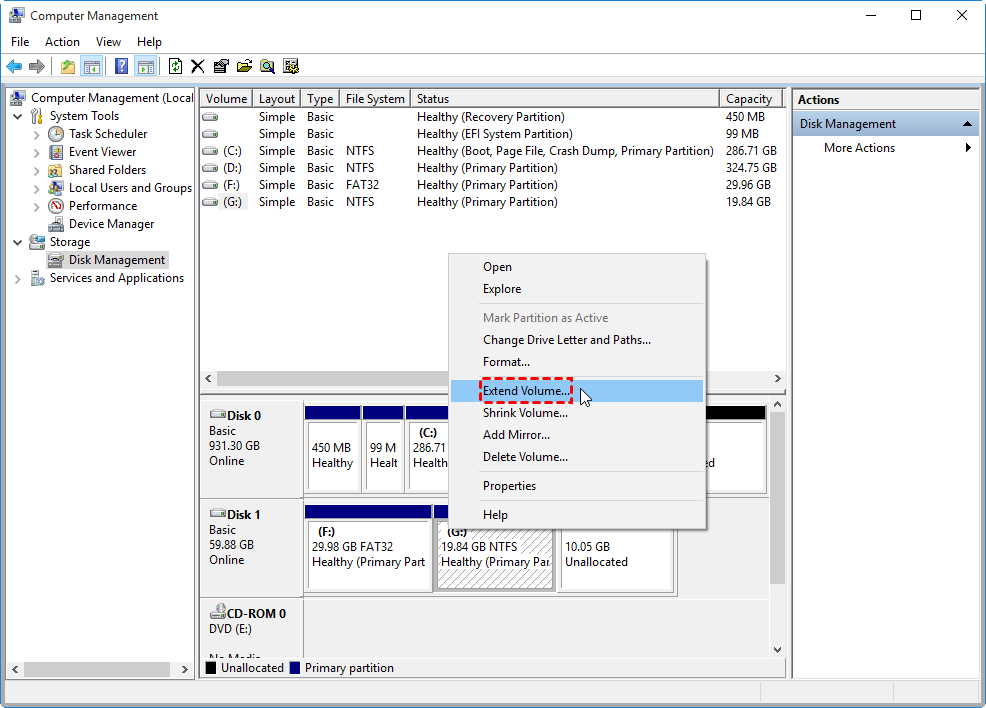
To add unallocated space, simply right-click the partition next to the unallocated space on the left side and select "Extend Volume".
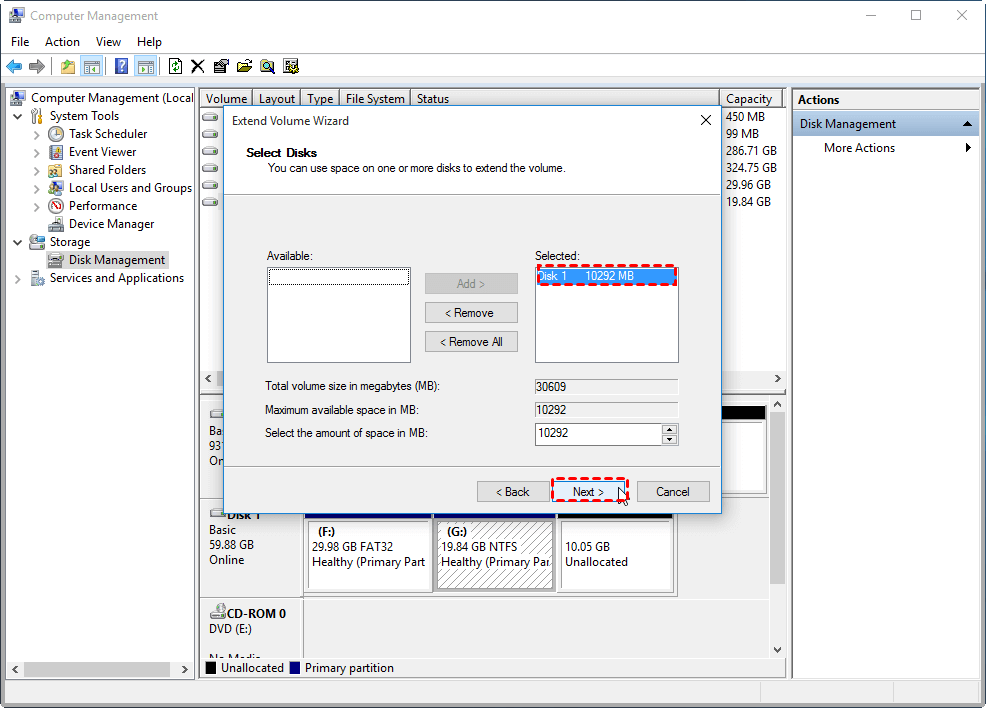
Select the disk that contains the unallocated space, and follow the prompt to merge the unallocated space into the selected volume.
Can't Add Unallocated Space Windows 10, Why?
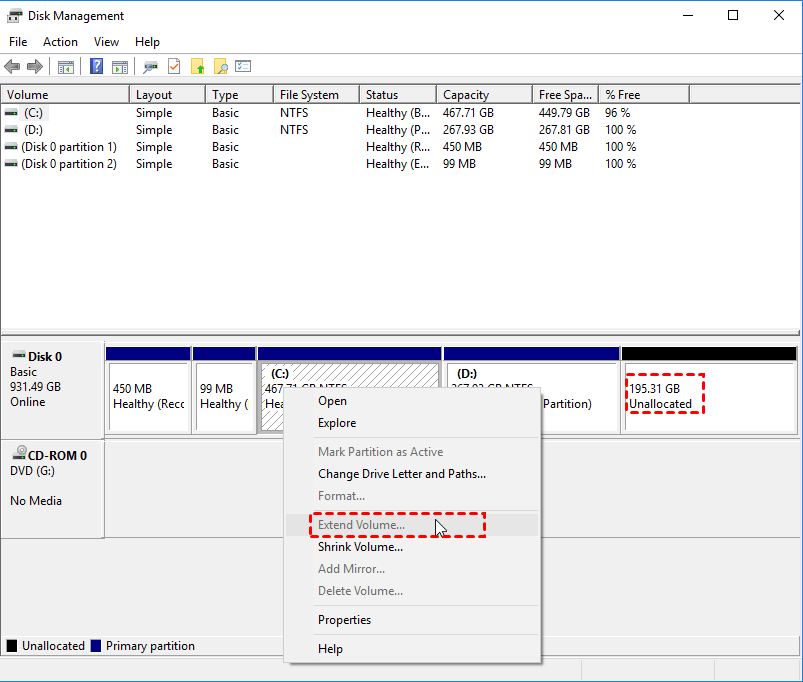
The Extend Volume option can be greyed out in Windows 10 if the unallocated space is not adjacent to the partition on its left side, preventing users from combining the unallocated space with the existing partition. This limitation restricts the ability to add unallocated space to the partition on its right side, making it seem like the Extend Volume option is unavailable. This issue can be resolved by deleting the adjacent partition and then extending the volume, but this approach may not be suitable for users who need to keep the existing partition intact.
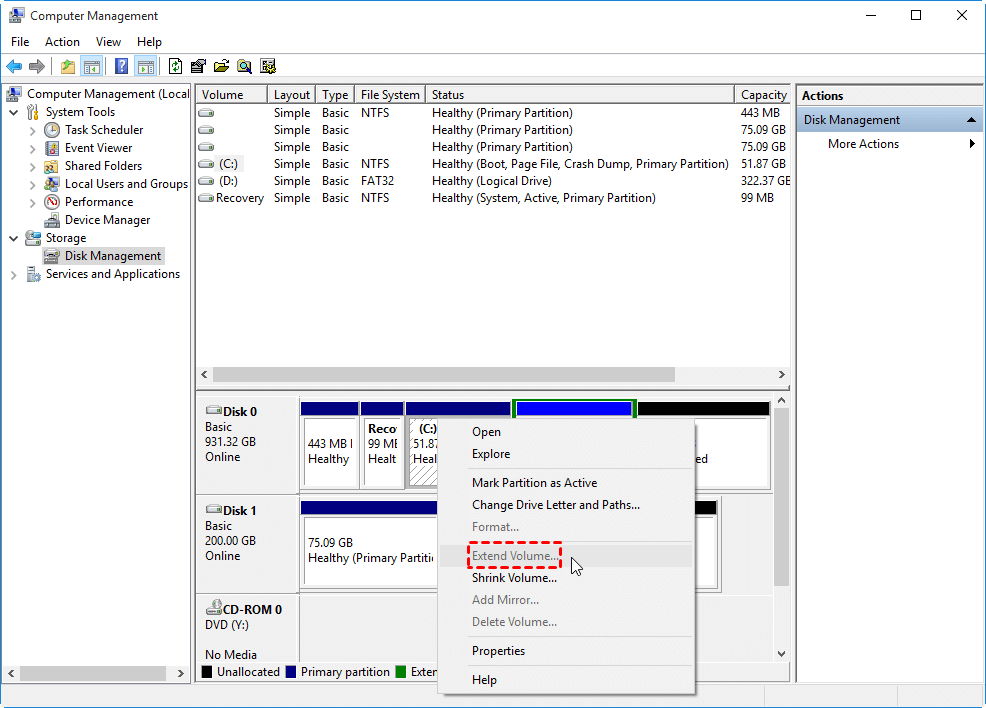
If the unallocated space is in an extended partition, it can't be added to a primary partition, even if they're contiguous, and it also can't be added to a logical partition.
Easier Way to Add Unallocated Space to Partition without Restrictions
To add unallocated space to another partition, you can use a 3rd-party disk partition management tool like Qiling Disk Master Standard Edition, which has a "Merge Partitions" feature that allows you to add unallocated space to any partition without losing data, regardless of whether the unallocated space is adjacent to the target partition or not.
PS.: You can download the demo version to experience a simulation!
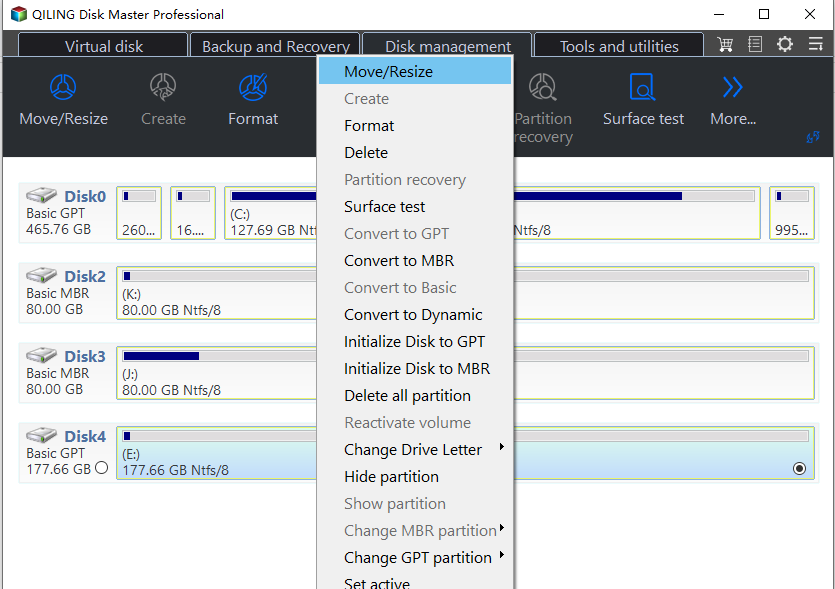
Step 1: Install and run the software, then right-click the partition you want to add the unallocated space to and choose 'Move/resize Partitions' (e.g. C partition).
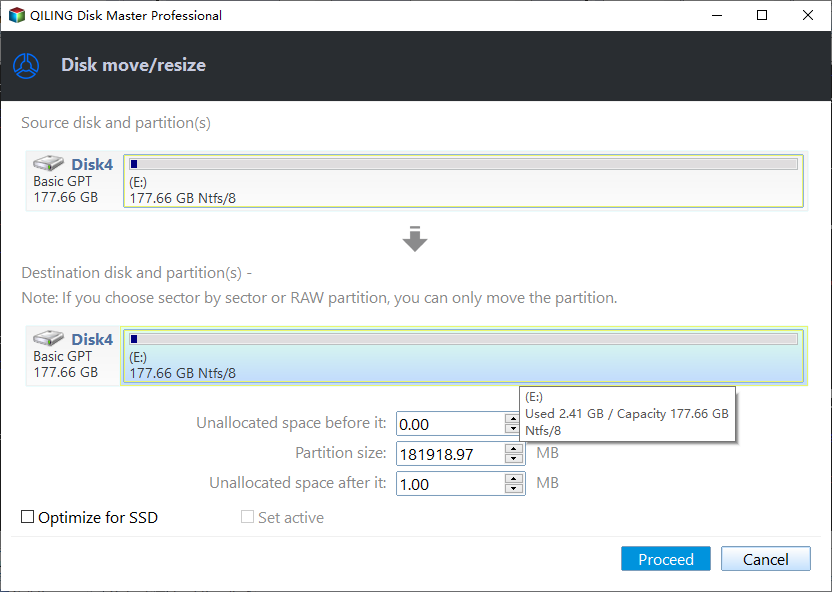
Step 2: In the next window, you will see that the partition size has been increased. To confirm the operation, simply click the Proceed button.
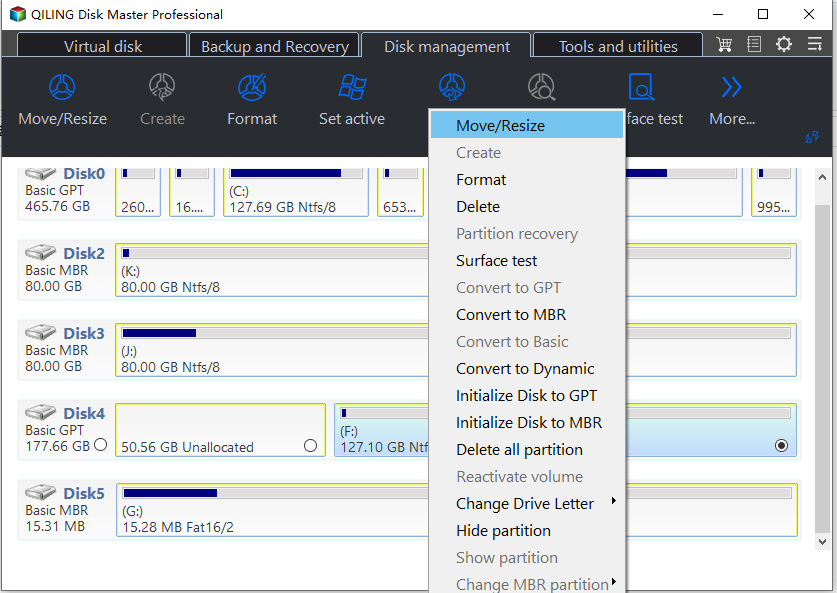
Merging partition is not the only way to add unallocated space into partition. To add unallocated space to another non-adjacent partition, you can also first move the partition between the aim partition and unallocated space to the right side, and then extend the partition with adjacent unallocated space.
If there's no unallocated space on the disk for extending another drive, you can upgrade to the professional version and use the "Allocating Free Space" function to add free space from one partition to another.
Summary
This software makes it easy to add unallocated space to another partition in Windows, and it's also capable of cloning partitions, cloning hard disks, migrating the OS drive to a new SSD or HDD, and converting MBR and GPT without deleting partitions. It's a convenient tool for managing partitions in Windows Server 2022, 2019, 2016, 2012, 2008, and 2003, as well as Windows 11, 10, 8, 7, and XP/Vista.
Related Articles
- Selected Boot Device Failed - 6 Quick Fixes with Pictures
This guide explains Selected Boot Device Failed - 6 Quick Fixes with Pictures with clear steps, key checks, and practical tips. - Fix SSD SMART Status Bad, Backup and Replace Error [2023 Easiest Guide]
Learn how to Fix SSD SMART Status Bad, Backup and Replace Error with clear steps, key checks, and practical tips. - How to Run SSD SMART Test Safely [SMART Attributes Explained]
Learn how to Run SSD SMART Test Safely with clear steps, key checks, and practical tips. - Steam Deck SSD Speed Test? Yes, Your Guide Here
Manage steam Deck SSD Speed Test Yes, Your Guide Here with safer disk and partition steps to avoid data loss or boot problems. - How to Upgrade Xbox Series X/S Storage [Ultimate Guideline]
If you're running out of space on your Xbox Series X/S, Microsoft offers a solution. You can upgrade your storage space using easy methods, allowing you to free up room on your console and continue enjoying your games and content without any issues. - 10 Free USB Speed Test Tool Recommend and Download
You can use a professional benchmark tool to test the speed of a USB flash drive. Fortunately, this article has compiled a list of 10 reliable USB speed test tools that can measure both read and write speeds.
Products
Articles & Tutorials
- Data Recovery
- Data Backup
- File Recovery
- File Backup
- File synchronize
- System Backup and Restore
- Disk and Partition Clone
- Technical articles
- Disk Master Help
- Windows Deleted File and Disk Recovery Tutorials
- Windows File and Data Recovery Tutorials
- More Windows Tutorials for Install, Security, Files, and PC Tips
- Windows Boot, Repair, and Recovery Environment Tutorials
- Windows Backup Tutorials
- Windows Restore Tutorials
- Windows Clone and Migration Tutorials
- Windows Server Backup, Recovery, and Management Tutorials
- Windows Disk, Partition, and Storage Management Tutorials