How to Wipe or Clean a Hard Drive in Windows 10 Securely
2 scenarios to clean a hard drive in Windows 10
There are two common contexts for hard drive cleaning in Windows 10: cleaning up disk space and cleaning up disk errors. You can refer to the following solutions to clean up disk space and disk errors.
▶ 1 Completely clean a hard drive
Permanently delete everything on a hard drive by taking powerful disk wipe initiatives, usually to discard, sell, or use a second-hand disk without worry. This process cannot be done by manual deletion.
▶ 2 Clean up a hard drive and free up disk space
If your computer is running out of space, you can perform a disk cleanup to free up space and speed up the computer.
How to completely wipe a hard drive in Windows 10
Manual deletion of files or folders from a hard drive does not ensure complete data erasure, as it only marks the space as available for reuse. The deleted data can still be recovered using specialized tools until it's overwritten by new data. To securely erase data, it's recommended to use a secure deletion tool or method that overwrites the data multiple times, making it unrecoverable.
Therefore, I'd like to provide 4 secure ways. They are mostly based on zero-filling, which implements disk wipe by writing zeros to hard drive. Thus the erased data can hardly be recovered and your sensitive info will stay safe.
Please note:
- To avoid losing important files, back up any data you want to keep on an external hard drive, which will allow for safe and portable storage. This will ensure that your files are protected during the cleaning process.
- It's recommended not to use clean methods on SSDs as they can reduce the lifespan of the drive by causing each sector to be written over to 0.
- Method 1. Format a non-system drive or USB drive
- Method 2. Reset PC to wipe everything off a hard drive
- Method 3. Use DiskPart command to clean a hard drive completely
- Method 4. Use disk wipe tool to clean a hard drive more securely
Method 1. Format a non-system drive or USB drive
For a non-system local drive (like D:\, E:\) or a USB drive, you can easily format it to erase all the data safely. This can be done both in File Explorer and Disk Management, I'll introduce the former as an example.
Caution:
This method applies to non-If you want to clean C drive in Windows 10 or wipe the entire hard drive, you can use the built-in Disk Cleanup tool or the Command Prompt to delete temporary files, system files, and other items you don't need. Alternatively, you can use a third-party disk wiping tool like DBAN or a disk cleanup software like CCleaner to securely erase all data on the drive. If you want to completely wipe the drive, you can use the built-in Disk Management tool to delete the partition and then recreate it, or use a third-party tool like Qiling Disk Master to resize or delete the partition.
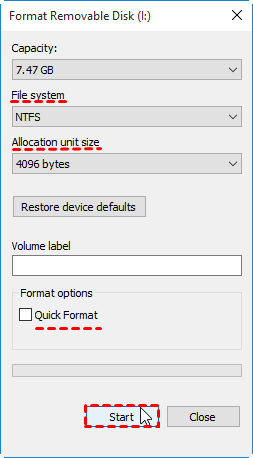
1. Right-click the drive you want to clean in File Explorer, then choose Format.
2. Select a file system and uncheck the quick format option, as it will make data recovery easier.
3. Click Start to format the drive, which will erase all data and fill sectors with zeros.
Method 2. Reset PC to wipe everything off a hard drive
If you're planning to erase a hard drive with Windows 10, you can use the "Reset this PC" feature to easily remove all your personal files, apps, and settings, which also involves zero-filling the drive.
1. Get access to Reset this PC in Windows 10:
☛ To reset Windows, go to Start, then Settings, followed by Update & Security, then Recovery, and finally Reset this PC. Click on Get started to initiate the process.
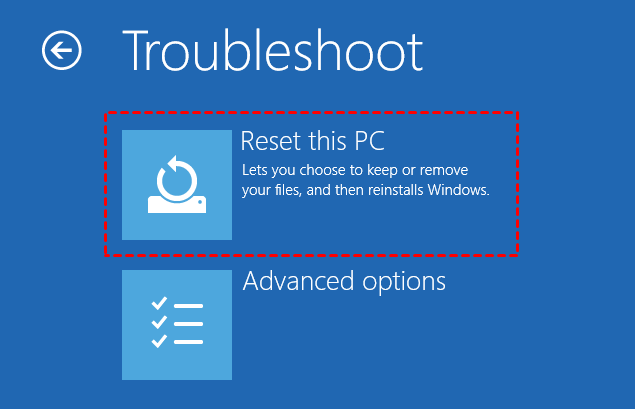
☛ To enter Windows 10 recovery mode, insert an installation disc or bootable drive and follow the prompts to select language and region in Windows Setup. Then, select "Repair your computer," followed by "Troubleshoot," and finally "Reset this PC".
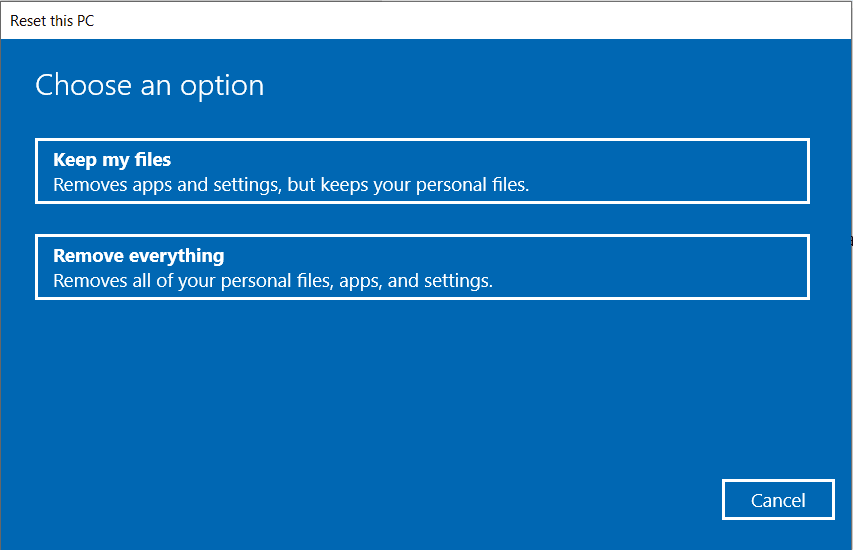
2. Choose Removing everything and follow the wizard to perform resetting.
Note:
- When the process is complete, your computer will automatically restart and all data will be erased. You can then choose to set up Windows again or discard the hard drive entirely.
- If you're experiencing issues with the Windows 10 reset feature, you can refer to the article on Windows 10 reset failed for troubleshooting guidance.
Method 3. Use DiskPart command to clean a hard drive completely
Among the few methods that can directly clean a hard drive in Windows 10, DiskPart is a convenient one, allowing you to erase all MBR or GPT partitions, even system-related ones on the disk.
Caution:
♦ This process will completely wipe a hard drive in Windows 10 leaving it unallocated and not initialized. To do this, you'll need to use the Command Prompt from the advanced startup options, which will allow you to clean your current system disk.
♦ The "clean all" command can take a significant amount of time to execute, especially for large datasets, due to its comprehensive nature of cleaning and processing all data.
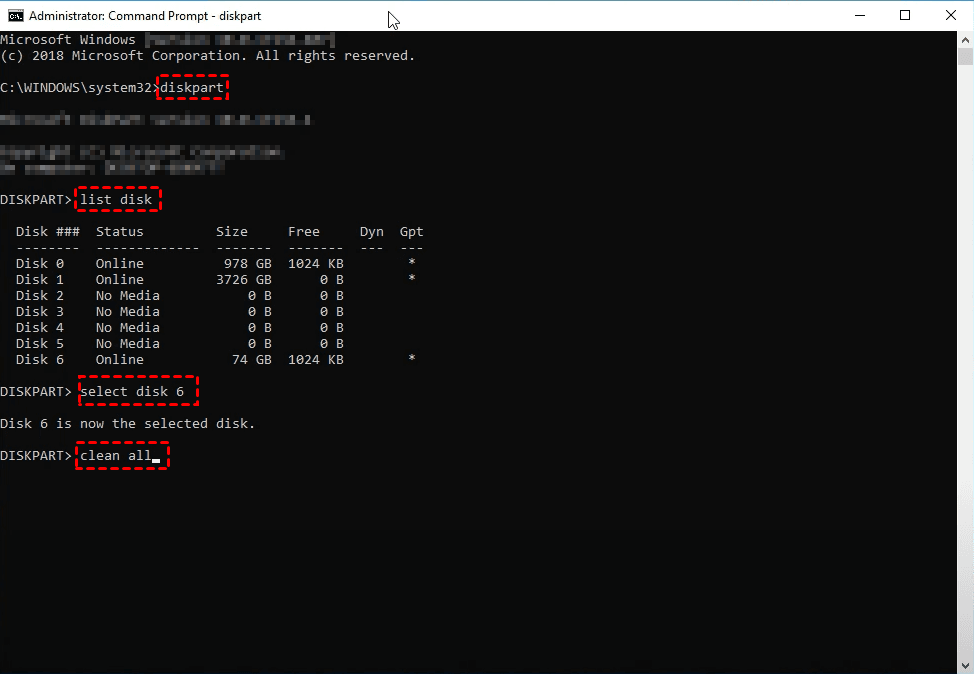
1. To access Command Prompt in Windows, search for "CMD" on the taskbar and run it as an administrator. Alternatively, you can use a bootable drive to enter the Windows Recovery Environment and access Command Prompt from there.
2. Type following commands and press Enter after each line.
Diskpart
List disk
Sel disk x
Clean all
*Replace x with the number of the disk you want to clean.
Method 4. Use disk wipe tool to clean a hard drive safely and easily
The process of disk wiping can be tricky due to the large amount of data involved, which can lead to disastrous consequences if done incorrectly. Additionally, Windows' limitations only allow for wiping an entire hard drive at once or cleaning individual partitions one by one.
To save you from all the trouble, Qiling Disk Master Professional is an effective solution on all Windows PCs.
◑ This software integrates data backup and restore features to safeguard important data, and also serves as a practical tool to wipe a hard drive clean. It allows users to selectively wipe partitions or an entire HDD/USB drive.
◑ While methods like zero filling and manual deletion can prevent data recovery, they're not the safest options. A more secure approach is to use professional-grade wiping methods like DoD 5220.22-M or Gutmann, which are available with the Professional edition of Qiling Disk Master. These methods provide a higher level of data security and protection.
You can download this software to have a try:
How to clean a hard drive in Windows 11/10/8/7 securely:
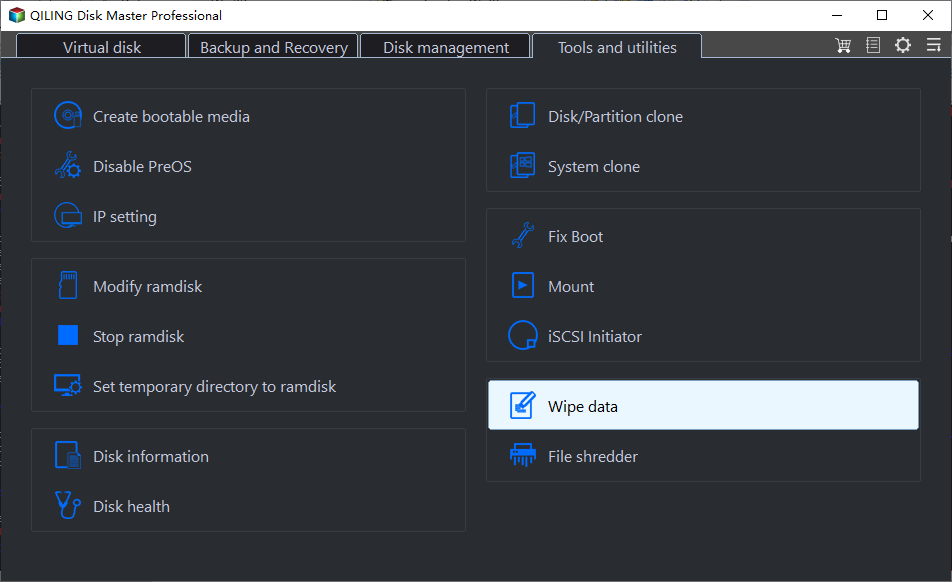
1. Install and open the tool, backup important files if necessary, then go to the "Tools" tab and select "Disk Wipe".
2. Choose a wiping type to determine what to clean, select wipe disk and click next to proceed.
3. To clean a hard drive, select the drive you want to clean, then click the "Next" button to proceed.
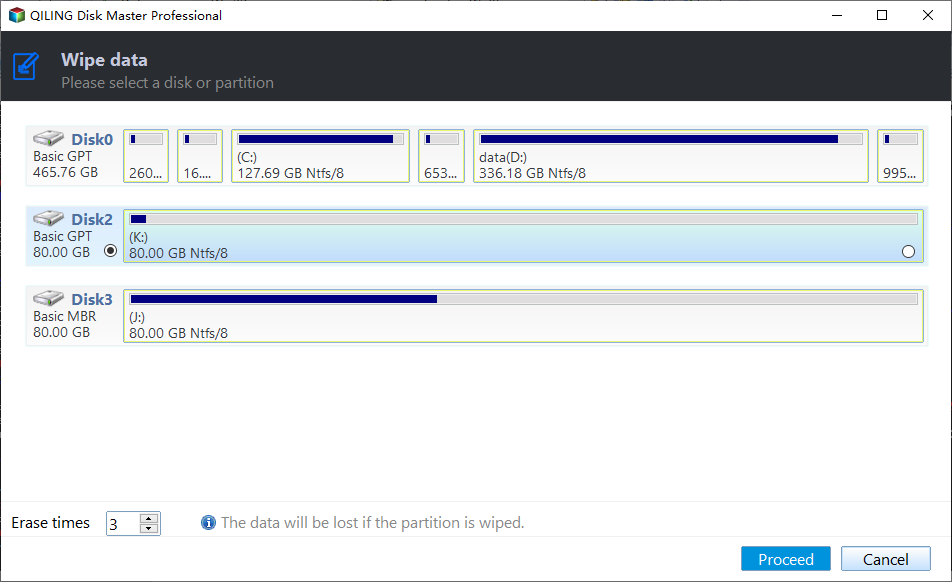
4. Select a wiping method with the desired safety level and speed, then click Proceed to initiate the hard drive wipe process.
Note:
- This feature doesn't support dynamic disks wiping currently.
- Safer wiping methods involve multiple passes with a lower wiping speed to reduce the risk of data loss or damage to the device.
- The system disk will be wiped and the system will be rebooted, preventing access to the system after completion.
How to clean up hard drive in Windows 10 to free up disk space
If your PC is running slow due to a lack of free space, you can clean up your hard drive without losing files by using more modest methods to free up disk space in Windows 10.
In addition to third-To perform a thorough cleanup of your Windows system, you can utilize built-in tools and a custom routine. The built-in tools include Disk Cleanup, which removes temporary files, system logs, and other items you don't need, and the System File Checker (SFC), which scans and replaces corrupted system files. Additionally, you can create a custom cleanup routine that involves deleting unnecessary files, uninstalling unused programs, and running the Windows Update troubleshooter to resolve any update-related issues.
Step 1. To free up space on your computer, delete any unnecessary files and move large files to external storage devices, such as an external hard drive, to free up space on your local drive.
Step 2. To empty the recycle bin, open it and click on the "Empty Recycle Bin" option at the top-left corner. This will remove all files from the bin, freeing up space on your computer.
Step 3. To free up space, uninstall any unnecessary programs by going to Start > Settings > Apps > App & features, and tapping on the program to uninstall it.
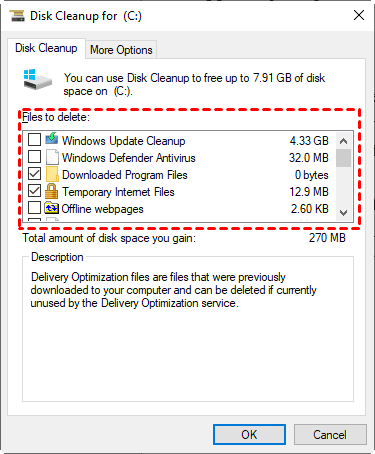
Step 4. To delete temporary files and free up space, access Disk Cleanup in Windows 10 by searching for it on the taskbar. Select the drive you want to clean up, and after scanning, choose the file types you want to delete. Click OK to perform the cleanup.
Step 5. Defragmenting the disk can optimize drives by reducing the extra work done by the hard disk, which can slow down the computer, by entering "defrag" in the search bar to open the "Defragment and Optimize Drives" feature in Windows 10, and selecting a drive to optimize or enabling a schedule for optimization.
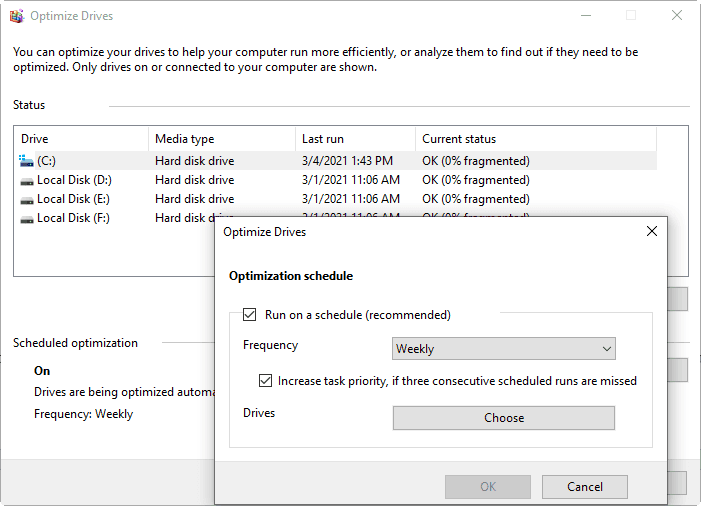
To free up drive space in Windows 10, you can delete temporary files, empty the Recycle Bin, and uninstall unused apps. You can also use the built-in Disk Cleanup tool to remove unnecessary files and free up space.
Conclusion
To permanently wipe data from a hard drive in Windows 10, you can use built-in tools or third-party software like Qiling Disk Master, which offers more options and safer wiping methods. Alternatively, if you just want to free up disk space, you can use this software to transfer large files to other storage devices, making it a useful tool for both data wiping and disk cleanup.
This software is ideal for replacing an old HDD with an SSD, as it includes a powerful disk cloning feature to clone the HDD to the SSD, and also allows for the old HDD to be cleaned with the Disk Wipe feature.
Related Articles
- Can't Erase DVD, CD
This guide explains Can't Erase DVD, CD with clear steps, key checks, and practical tips. - How to Clean a Disk Using CMD [2022 New Guide]
Learn how to Clean a Disk Using CMD with clear steps, key checks, and practical tips. - 2022 Guide: How to Clean SSD Drive in Windows 10/11
This page covers everything you need to know about cleaning SSD in Windows 10/11 or even older computers. We'll show you how to clean SSD drives in Windows computers successfully in 3 reliable methods. - How to Delete All Data from HP Laptop in Windows 11/10/7 [2022 New]
Learn how to Delete All Data from HP Laptop in Windows 11/10/7 with clear steps, key checks, and practical tips. - Is It Safe to Sell Used Hard Drives? Your Must-Do Tips Are Here
Manage it Safe to Sell Used Hard Drives Your Must-Do Tips Are Here with safer disk and partition steps to avoid data loss or boot problems.
Products
Articles & Tutorials
- Data Recovery
- Data Backup
- File Recovery
- File Backup
- File synchronize
- System Backup and Restore
- Disk and Partition Clone
- Technical articles
- Disk Master Help
- Windows Deleted File and Disk Recovery Tutorials
- Windows File and Data Recovery Tutorials
- More Windows Tutorials for Install, Security, Files, and PC Tips
- Windows Boot, Repair, and Recovery Environment Tutorials
- Windows Backup Tutorials
- Windows Restore Tutorials
- Windows Clone and Migration Tutorials
- Windows Server Backup, Recovery, and Management Tutorials
- Windows Disk, Partition, and Storage Management Tutorials