Solved: Second Hard Drive Not Detected in Windows 11/10/8/7
- "What do I do if my second hard drive not detected in Windows 10?"
- Why is the second hard drive not showing up in Windows 11/10/8/7?
- Solutions to "second hard drive not detected in Windows 10"
- Case A. Second hard drive not showing up in File Explorer
- Case B. Second hard drive not showing up in Disk Management
- Case C. Second hard disk not showing up in BIOS
- Case D. Second hard drive not detected after Windows 10 update
- Tip: Recover lost data from the second hard drive not detected in Windows 10 and 11
- Conclusion
"What do I do if my second hard drive not detected in Windows 10?"
"For some reason, my secondary hard drive keeps disappearing randomly while Windows 10 is running. The drive stays until some random moment when Windows cannot detect it any more. With a simple restart, the drive cannot be detected and won't show up, only after I shut down the machine completely, and push the power button back on, does this work. Why is my second hard drive not detected and showing up in Windows 10? What should I do to fix it?"
Many Windows 10 users use two hard drives for data storage: an internal main hard drive and an external hard drive. However, some may encounter the issue of the external hard drive not being detected in Windows 10, especially after a Windows 10 update. This article will explore the causes and provide solutions to resolve the problem.
If you're experiencing a full C drive after a Windows 10 update, you can try solutions such as deleting temporary files, uninstalling unused applications, and checking for disk errors.
Why is the second hard drive not showing up in Windows 11/10/8/7?
The second hard drive not detected in Windows 11/10/8/7 can be caused by several reasons, including a faulty or loose connection, incorrect drive letter assignment, corrupted drive drivers, disk errors, or issues with the disk controller. Additionally, outdated BIOS or UEFI firmware, or incorrect configuration in the operating system can also lead to this problem. Furthermore, disk formatting errors, incorrect disk partitioning, or conflicts with other hardware components can also cause the second hard drive to not be detected.
- Connection issues: The hard drive may not be connected properly or there might be an issue with the power supply, cable, or USB port, which could be causing the problem.
- Hard drive is not initialized: In Disk Management, a disk is marked as "Unknown, Not initialized" if it cannot be seen in File Explorer, likely due to a RAW file system on a second hard drive.
- Hard drive not being partitioned: If you haven't partitioned a hard drive, the hard disk has no partition and all disk space is unallocated, so it won't be visible in Windows Explorer.
- Hard disk partition without a drive letter: If a partition of the hard disk does not have a drive letter, then it cannot be found in Windows Explorer.
- Outdated disk driver: When a hard disk's driver becomes outdated, it may no longer be detected by the computer or system, leading to issues with data storage and retrieval.
- Bad sectors on the disk: When a hard disk drive contains bad sectors, the Windows operating system may struggle to recognize it, leading to potential issues with data storage and retrieval.
Solutions to "second hard drive not detected in Windows 10"
If the second disk can be found in Disk Management but not in File Explorer, try running the Disk Management tool as an administrator. If it still can't be found, try to boot from a Windows installation media, go to the Disk Management tool, and then assign a drive letter to the disk. If it can be seen in both Disk Management and File Explorer, but the disk is not accessible, try to check the disk for errors and then assign a drive letter to it. If the disk is not visible in either Disk Management or File Explorer, try to check the disk connections and ensure that the disk is properly seated and powered. If the disk is still not visible, try to boot from a Windows installation media and then try to access the disk.
Try the easiest things first:
▸Verify whether the hard drive cables are connected correctly The two cables work well because they are properly connected, ensuring a stable and reliable connection. This is due to the fact that the cables are securely attached to the corresponding ports, allowing for a smooth flow of data and power. This setup is ideal for a seamless and uninterrupted experience.get looseThere's a possibility the disk may not appear in Windows due to various reasons such as incorrect disk configuration, file system corruption, or driver issues.
▸Make sure the SATA port, USB port, and power supply work fine, too.
If everything is right, but the problem is still there, try one of the following technical solutions. For example, check for and remove any duplicate entries in your database or spreadsheet.
Case A. Second hard drive not showing up in File Explorer
If you can't see the second hard drive in File Explorer but it appears in Disk Management, try updating your operating system, checking the disk's file system type, and ensuring it's not set to offline or read-only mode. You can also try running the Disk Management console as an administrator, checking for any disk errors, and verifying that the disk is properly connected and recognized by your system.
Solution 1. Initialize and partition the second hard drive
When the hard drive is not initialized, it won't be visible and readable in Windows File Explorer.
1. To access Disk Management, right-click on "This PC/My Computer" and select "Manage" from the menu. This will open the Disk Management window.
2. To initialize a hard drive, right-click the hard drive in the Disk Management window, select "Initialize Disk" from the context menu, and follow the prompts to initialize the disk as either Master Boot Record (MBR) or GUID Partition Table (GPT).
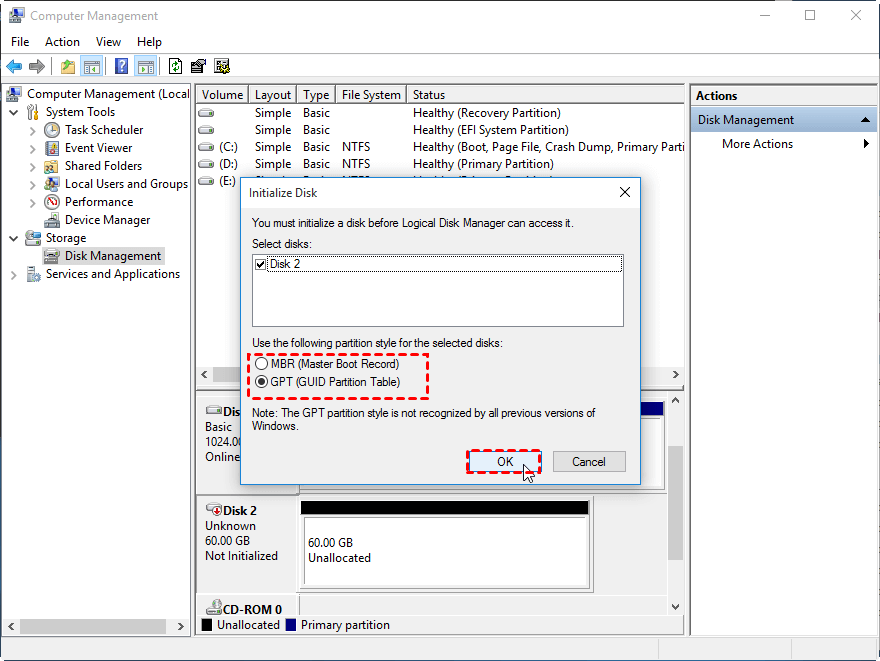
You can also use PowerShell to initialize a disk. After initializing the disk, it will appear as unallocated space, and you'll need to partition it to make the drive visible in Windows.
3. The steps to create a new simple volume on unallocated disk space are to right-click on the unallocated disk space and select "New Simple Volume", and then click "Next" on the welcome page.
4. The user should fill in the "simple volume size" to the desired value in Megabytes and click "Next", taking note of the minimum and maximum allowed size when creating the partition.
5. To assign a drive letter to a new drive, select the option to assign a drive letter and choose the desired drive letter from the dropdown menu, then click "Next" to proceed.
6. On the Format Partition page, you can choose the file system, set the allocation unit size and volume label, then click "Next" and "Finish" to complete the formatting process.
To create multiple partitions on the second hard drive, you can leave some free space in step 4 and repeat the process to create additional partitions. Alternatively, you can use Qiling Disk Master to quickly partition a large hard drive into several partitions at once.
The Best Windows Disk Partition Manager and PC Optimizer
1. Install and launch Qiling Disk Master Pro from your computer. Right-click the second hard drive and select "Quick Partition" to quickly partition the drive.
2. In the next windows, you can set the disk type, partition counts, partition size, volume name, file system, and other settings. Once you've completed these settings, click "Proceed" to continue.
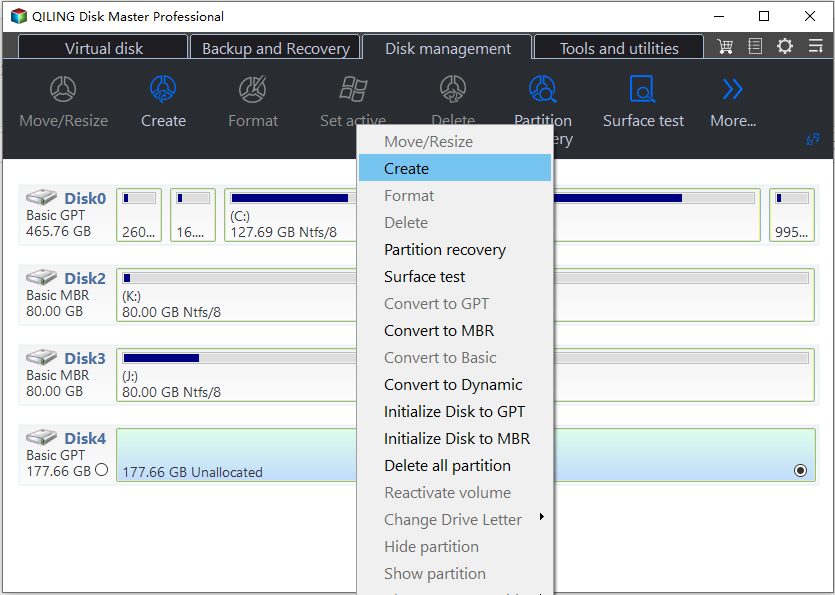
With two clicks, you can create multiple partitions at one time instead of creating them one by one.
Solution 2. Assign a drive letter
Lack of drive letter, the second hard drive won't show up on This PC/My Computer, either. So try changing the drive letter following the below steps.
1. To change the drive letter and path of the second hard drive in Disk Management, right-click on the drive and select the option to change the drive letter and path from the context menu. This will allow you to assign a new drive letter or change the existing one, and also update the drive's path to reflect the new changes.
2. Choose a letter for your partition from the list and confirm.
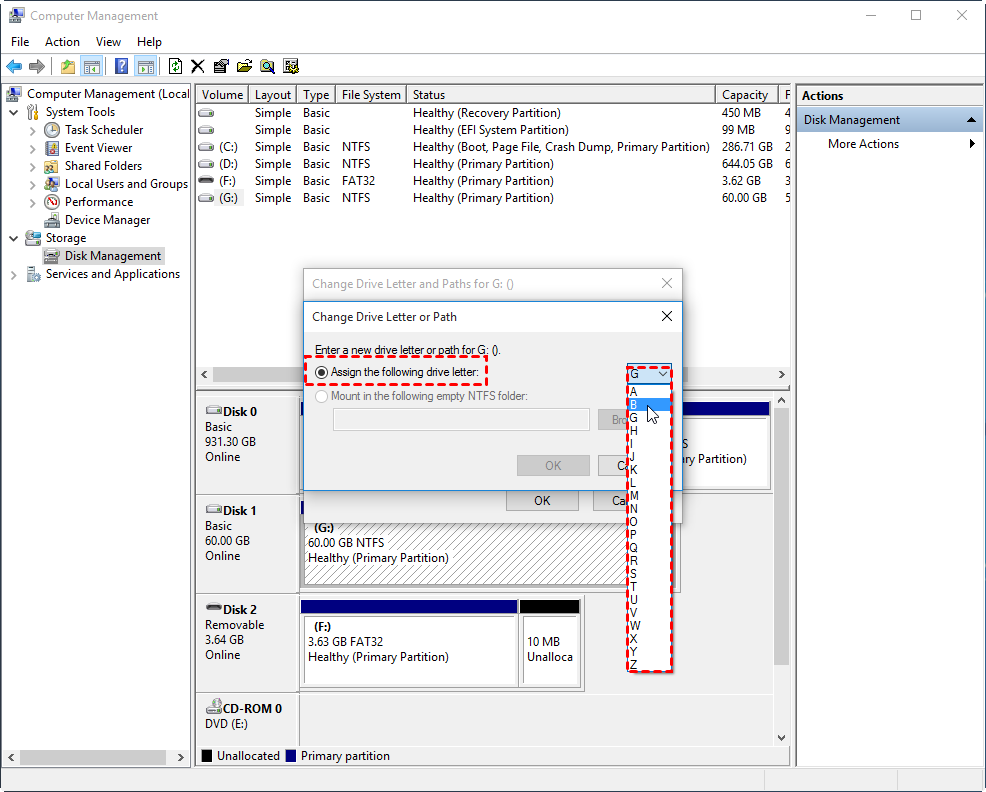
3. If you're experiencing an issue where the 2nd hard drive is not showing up in Disk Management, try restarting your computer, then check if the problem has been resolved.
Note: If the "Change Drive Letter and Paths" option is greyed out in Windows 11/10/8/7, you can also use Qiling Disk Master Pro.
Case B. Second hard drive not showing up in Disk Management
If you can't find the second hard drive in Disk Management, other solutions are needed.
Solution 1. Update the driver
If the second hard disk driver is outdated, it may not appear in Disk Management and File Explorer. To resolve this, update the driver in Device Manager to ensure the driver is compatible and the hard drive is recognized.
1. Right-click on Start, click "Device Manager".
2. Expand Disk driver and locate the hard drive which cannot be detected by Windows.
3. Right-click on the disk and select "Update Driver Software" from the context menu.
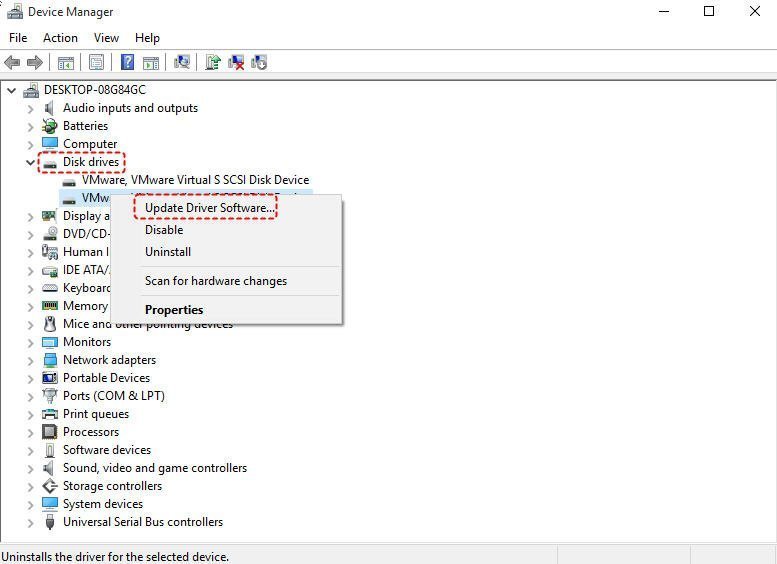
4. If there are any updates, follow further instructions to update the disk driver.
Solution 2. Uninstall and reconnect the second hard drive
You can try uninstalling and reconnecting the external hard drive to get Windows 10 to detect or recognize it, in addition to updating the disk driver.
1. Enter the Device Manager interface as solution 1.
2. Double click Disk Driver to expand it.
3. Right click on the second hard drive and select "Uninstall".
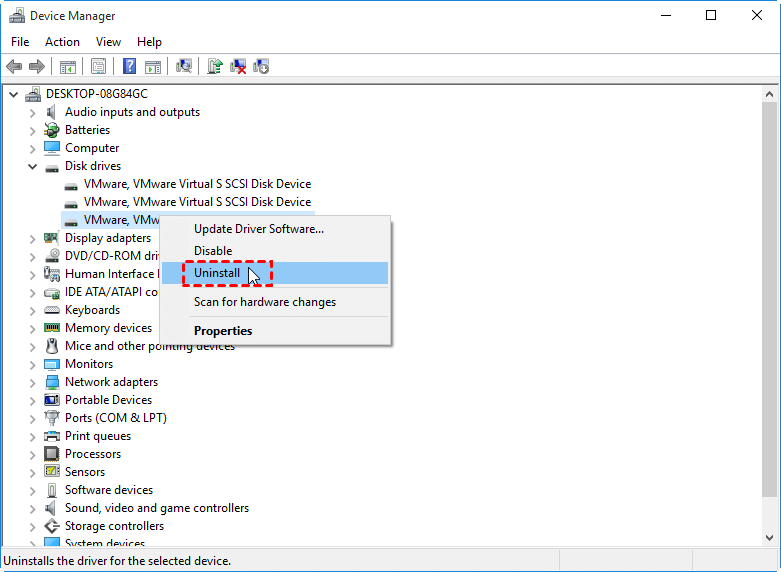
4. Reboot your computer after uninstalling the disk, then plug in the hard drive again.
Solution 3. Check and fix bad sectors on the second disk
To check and fix existing disk errors, run the command "chkdsk G: /f" in the Command Prompt window, replacing "G:" with the actual drive letter of the disk you want to check. This will scan the disk for errors and attempt to fix them.
1. To open the Command Prompt window, press the Windows key + R at the same time, type "cmd" in the Run dialogue, and then press Enter. This will open the Command Prompt window.
2. To run the chkdsk command on drive G:, input "chkdsk g: /f" in the Command Prompt window and press Enter to execute it.
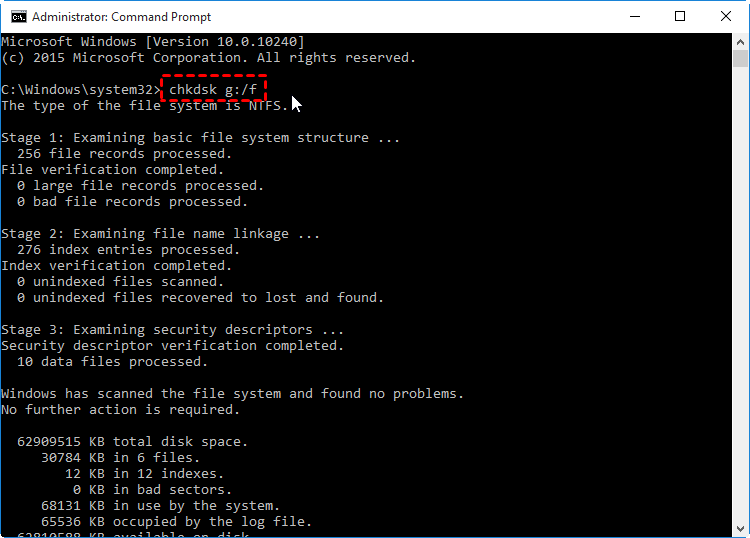
If you're not familiar with complex commands, you can switch to Qiling Disk Master, which simplifies error checking and fixing.
The Best Windows Disk Partition Manager and PC Optimizer
1. Run the software, right-click the second hard disk and click "Advanced" -> "Check Partition" to scan for errors and fix issues on the second hard disk.
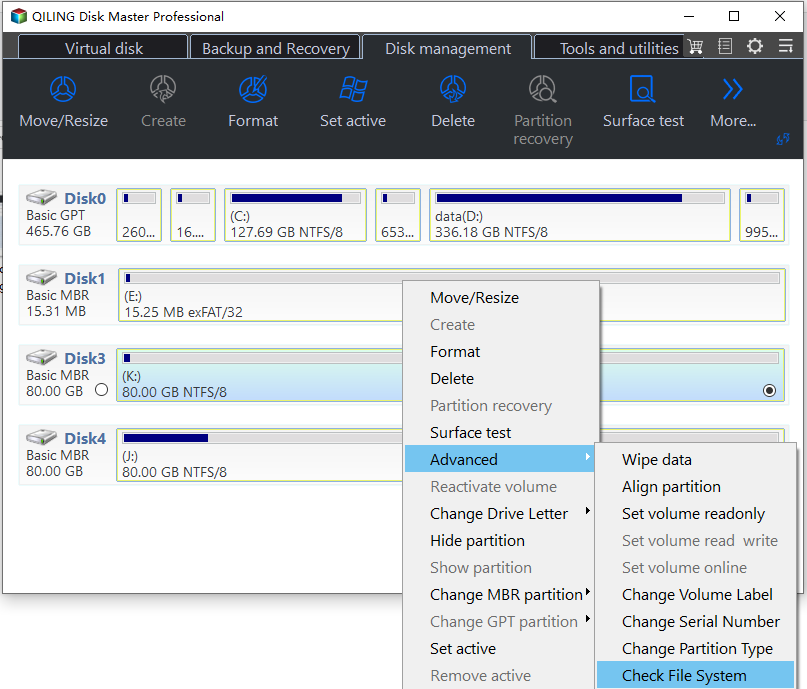
2. Select the first way to check as well as fix the disk error, and click Proceed.
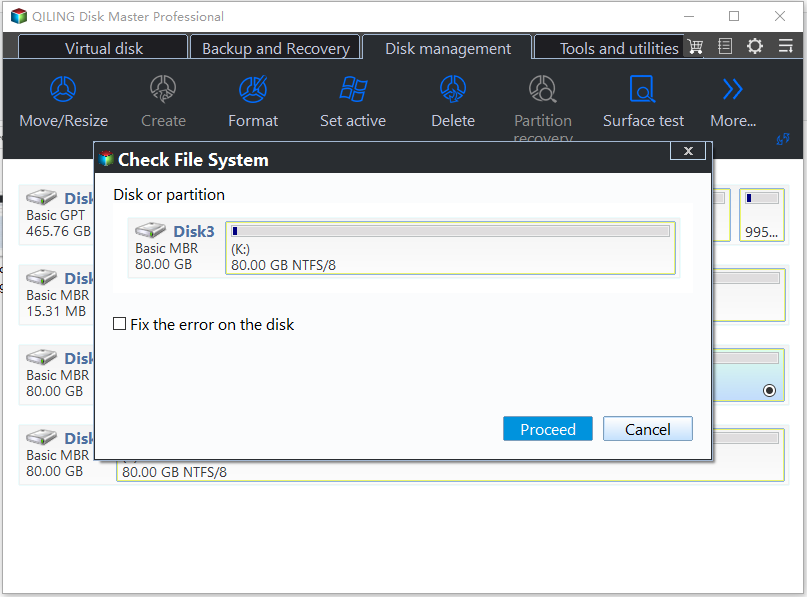
3. Then wait for the process to finish.
Case C. Second hard disk not showing up in BIOS
If your hard drive is not showing up in BIOS, try booting from a live USB or CD, checking the drive's power and data cables, resetting the BIOS settings to their default values, and checking the drive's configuration in the BIOS settings. You can also try checking the drive's compatibility with your system, running a disk check, and updating your BIOS to the latest version.
1. To access the BIOS, restart your computer and keep pressing F2 (or F1, Delete) to enter the BIOS settings. Alternatively, you can refer to the article "How to open BIOS on Windows 10 and 11 in 5 ways" for detailed instructions.
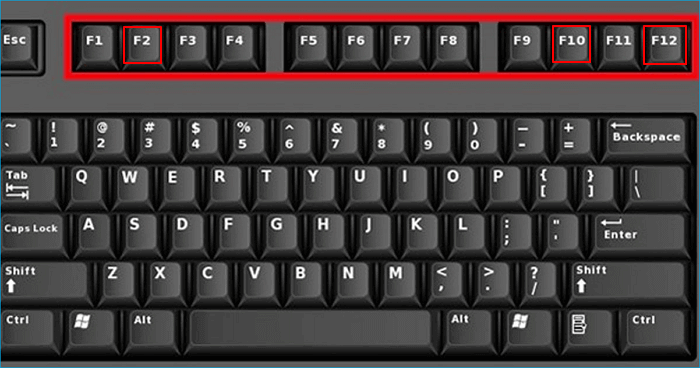
2. To check if a second hard drive is turned off in system setup, enter the setup menu and consult the system documentation to see if the hard drive is disabled or not.
3. If it's Off, turn it ON in System Setup.
4. To troubleshoot the issue, try restarting your PC and see if the external hard drive can be recognized in the Disk Management utility. This will help determine if the problem is with the drive itself or with the operating system's ability to recognize it.
Case D. Second hard drive not detected after Windows 10 update
If you've recently updated Windows 10 and your second hard drive isn't being detected, it's possible that a corrupted Windows version has been installed, and you may need to reinstall all updates.
1. To access the Settings app on a Windows 10 desktop, simply click on the "Start" button and then select the "Settings" icon, which is typically represented by a gear or cogwheel icon.
2. To update Windows, go to "Update & Security", locate "Windows Update", and check if there are any pending items. If there are, install the updates.
If your external hard drive is still not detected by Windows 10, try the following troubleshooting steps: Check if the drive is properly connected to the computer and if the power cord is securely plugged in. If the drive is connected via USB, try using a different USB port.
Tip: Recover lost data from the second hard drive not detected in Windows 10 and 11
If you've lost important data on your second hard drive due to undetectability or non-recognition, Qiling Disk Master can assist in recovering it. It supports restoring over 200 types of files from various complex data loss scenarios, including accidental deletion, system crashes, format, disk corruption, and virus attacks, making it a reliable tool for recovering data from the hard drive.

If all the methods above cannot fix Windows not detecting hard drive issue, your disk might be corrupted or damaged, which is a common situation when using a disk for many years. In this case, you may need to replace the disk. Fortunately, the Qiling software offers a Clone Disk function that allows you to clone a large hard drive to a small one without data loss, or easily clone a hard drive to an SSD without reinstalling.

Conclusion
If you're experiencing issues with a second hard drive not being detected in Windows 11/10/8/8.1/7, various effective methods can be employed to resolve the problem. Additionally, Qiling Disk Master can also help address other similar disk issues, such as BIOS detecting a hard drive but Windows not, a USB flash drive showing 0 bytes or no media, or being unable to format a 0-byte USB. For similar issues in Windows Server 2019/2016/2012/2008/2003, Qiling Disk Master Server can be utilized.
Related Articles
- Easily Fixed: Hard Drive Only Showing Half Capacity in Windows
If your hard drive only shows half capacity in Windows 11, 10, 8, 7, read this article and you will know why it occurs. Besides, you can learn how to restore the hard drive to its full capacity. - Fix Unable to Shrink C Drive on Windows 11/10/8/7
Learn why Windows cannot shrink the C drive beyond a limit and how to free space, move unmovable files, or use partition software to shrink the C partition safely. - Full Guide to Upgrade PS4 to SSD [Quick & Easy]
This guide explains Full Guide to Upgrade PS4 to SSD with clear steps, key checks, and practical tips. - How to Find What Is Taking Up Space on My SSD [Effective Ways]
Discover quick steps to identify large files on your SSD. Uncover what is taking up space on my SSD with our 2024 tutorial and optimize your storage efficiently. - How to Check Disk Read/Write Speed in Windows 10? 3 Practical Methods
To check the disk read/write speed in Windows 10, you can use one of three practical methods. By following these step-by-step guides, you can measure your disk's speed and identify potential issues with your storage devices, ultimately knowing the actual speed of your disk. - Guide to Check Disk Space Using PowerShell [2024 Tutorial]
This guide aims to introduce multiple ways to check disk space with PowerShell and an alternative tool to show disk usage.
Products
Articles & Tutorials
- Data Recovery
- Data Backup
- File Recovery
- File Backup
- File synchronize
- System Backup and Restore
- Disk and Partition Clone
- Technical articles
- Disk Master Help
- Windows Deleted File and Disk Recovery Tutorials
- Windows File and Data Recovery Tutorials
- More Windows Tutorials for Install, Security, Files, and PC Tips
- Windows Boot, Repair, and Recovery Environment Tutorials
- Windows Backup Tutorials
- Windows Restore Tutorials
- Windows Clone and Migration Tutorials
- Windows Server Backup, Recovery, and Management Tutorials
- Windows Disk, Partition, and Storage Management Tutorials