Download USB Image Tool and Create UBS Image in Windows 10
Why need Windows 10 USB image tool?
The economy and technology have made digital data a crucial part of modern life, and portable devices like USB flash drives have become increasingly popular due to their affordability and convenience. Brands such as Kingston, Patriot, SanDisk, Verbatim, PNY, Samsung, Transcend, among others, offer a range of well-known USB drives that cater to various needs.
Many users likely use the USB flash drive as a backup drive to store valuable files, such as camera pictures, design documents, and personal files, as a precautionary measure.
The USB flash drive has become a versatile bootable device, serving as a bootable USB, installation disc, and portable system, allowing users to boot their computer in case of system failure or hard drive crashes, or directly install Windows on it for portability.
If you want to keep the USB or the data on it safe, you need to backup the USB drive or copy a bootable USB with a USB image tool.
About the USB image tool
The USB Image Tool is a simple and free software that enables easy creation and restoration of USB image backups. It supports any device that follows the USB mass storage protocol, including card readers, digicams, cell phones, and mobile music players, and also compresses image files for convenience.
The USB Image Tool is a software that provides various functionalities, including displaying USB device information, managing favorite USB images, resetting USB devices, and a command line utility, with the latest version being 1.8.1 and compatible with Windows 7, 8, and 10.
The USB image tool requires .NET Framework 4.7 and Windows 7 or higher, and must have the usbit32.dll in the same directory as the .exe file. However, the command line utility does not require .NET Framework or usbit32.dll.
How to use the USB image tool in Windows 10
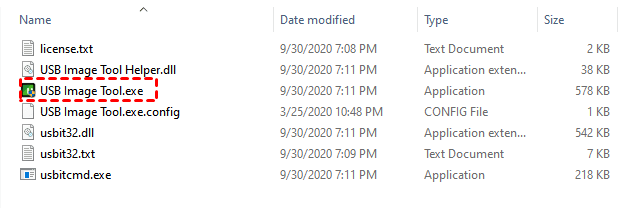
Download the USB image tool on Windows 10, extract it to a new folder, and run the executable file (USB Image Tool.exe) to launch the tool.
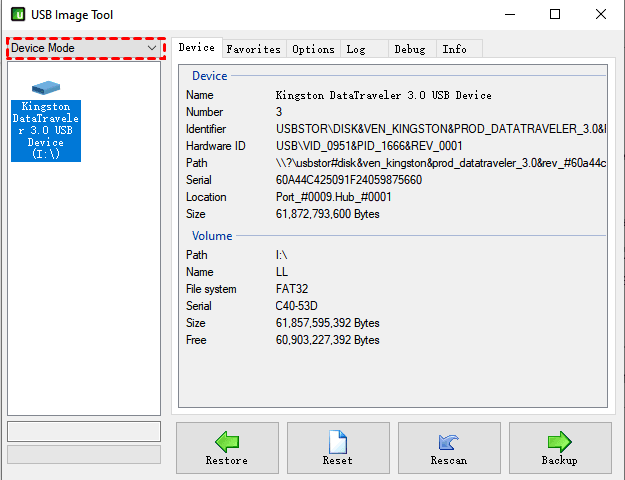
Step 2. The software automatically detects USB devices connected to the computer and scans them. To back up a USB drive, go to Device Mode, click on the USB drive, and it will display all the USB drive information.
Step 3. To backup your USB drive, click the Backup button, type a name for the backup, and select a local path to save the image. This will start the backup process.
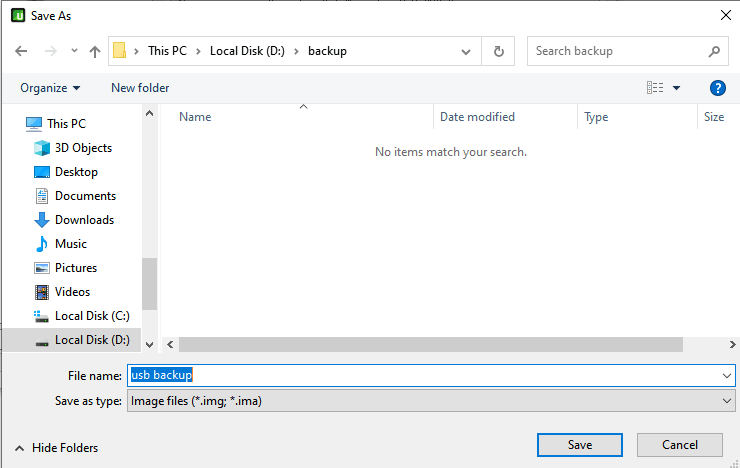
To use the Windows 10 image backup tool, follow the steps outlined above. If you need to make the USB image bootable for Windows 10, you can continue to see the additional instructions below.
Best USB image tool for Windows 10 - Free & Bootable
To backup a Windows operating system, you can use the USB image tool, but it only supports manual backup of the data drive. If you want to create a USB image automatically or copy and create a bootable USB, you can use Qiling Disk Master Standard, a free USB image tool for Windows 10 that supports all Windows operating systems, including XP, Vista, 7, 8, 8.1, 10, and 11.
▶ To create a USB image, you need to use the Disk Backup feature in this software, which provides useful features such as creating a bootable USB drive with the operating system installed, backing up and restoring data, and more.
- The Schedule Backup feature allows for automatic backups with customizable triggers, including daily, weekly, monthly, and event-based options. The Professional version also includes automatic backups upon USB plug-in, making it easy to copy files and run backup tasks without manual intervention.
- Incremental Backup: The default backup method, which only backs up changed files after the first full backup, is used.
- Other useful features: This software automatically compresses backup images, splits large images to fit on a USB drive if necessary, and backs up only used sectors of the file system, all of which helps to minimize disk space usage.
The overall steps:
To get started, download and install Qiling Disk Master Standard on your Windows 10 computer. If you're a server user, you can also utilize the Qiling Disk Master Server for added functionality.
To create a backup, click "Backup" and then "Disk Backup" in the software, select the USB drive you want to backup and choose another location, such as an internal or external disk, another USB, network drive or NAS, to store the backup image, and then click "Proceed".

To create a continuous USB image backup, enable the Schedule Backup feature at the bottom left corner before clicking Proceed, and select the desired frequency or advanced features available on the Professional version.
The USB plug in feature is recommended, allowing for a plug-and-pull method that eliminates the need to reconnect it every time before a scheduled task starts, reducing the risk of data loss due to forgotten backups, and is available on the Professional version.

Notes:
- All the features mentioned, except for schedule backup, are set as default options and will run automatically. To use incremental backup, you must first create a scheduled backup.
- To manage backup disk space, the Professional version offers automatic backup cleanup methods that automatically delete old backup images, freeing up space for new backups.
▶ To copy a bootable USB, you need to use the Disk Clone feature in this software, which clones only used sectors from the flash drive and ensures a secure boot if it's bootable previously.
The overall steps:
Select the source and destination disks, then click Proceed to copy the bootable USB to a larger USB drive.

If the target USB drive is larger, you need to edit the partition size of it with its advanced feature - Edit Partitions (supported by the Professional version). You can choose to add unallocated space to all partitions automatically or manually adjust the partition size.

▶ To create a bootable USB, use the software's "Create Bootable Media" feature, which can boot computers running various Windows operating systems, including Windows 11, 10, 8, 7, XP, and Vista, in both Legacy BIOS and UEFI boot modes.
The overall steps:
To create a bootable USB drive, go to Tools, then Common Tools, select Create Bootable Media, choose Windows PE as the bootable disc type, and select the USB drive as the storage device, then click Next. This will initiate the process of creating a bootable USB.

Tip: The Create Bootable Media feature needs a USB drive or CD/DVD to store boot files for a Windows PC. If you don't have one, you can use the Recovery Environment feature, but it only works on the current PC.
The process of using Qiling Disk Master Standard to create a USB image is straightforward and can be completed in simple steps, taking longer for larger data sizes.
This software supports creating a portable version that can be run from a flash drive, allowing it to be used on multiple computers with all its features, including backup, restore, sync, and clone, as well as various tools.
The software requires the "Create bootable media" feature, which is only available in the Technician or Tech Plus edition. To proceed, please upgrade to one of these editions.
Wrapping things up
In Windows 10, you can use either of two USB image tools to create a USB image and restore it, but if you prefer to automate your backup task or copy and create a bootable USB, you may prefer to use Qiling Disk Master Standard.
The software still supports various backup, restore, clone, sync features and tools to help protect data or make these tasks easy and flexible. To unlock more features, download it now to try it out.
Related Articles
- Free USB Clone Tool for Cloning Bootable USB Drive
This guide explains Free USB Clone Tool for Cloning Bootable USB Drive with clear steps, key checks, and practical tips. - Restore Windows 10 from Recovery USB (4 Ways included)
Now is the best time to create a recovery disk and then you can restore Windows 10/11 from USB when your computer runs into issue. 4 useful methods and complete guides are included. - Repair Windows 10: Create Repair Boot USB Drive - Qiling Disk Master
A Windows 10/11 repair boot USB drive can fix system errors and reset computer to a normal state. In this post, you will find how to create bootable USB and repair Windows 10 with it. - How to Backup Windows 11 to Google Drive (OS and Files)
This tutorial shows you how to backup Windows 11 to Google Drive in two different ways. Whether you want to backup Windows 11 files or OS, here's a way to go. - Outlook Backup and Restore in 2 Ways [with Video]
To backup and restore Outlook emails, you can either use a professional email backup software or the built-in Microsoft Outlook backup feature, allowing you to securely save and recover your emails. - Paragon Backup & Recovery Review in 2022: Pro, Cons and All-around Alternative for You
This guide explains Paragon Backup & Recovery Review in 2022: Pro, Cons and All-around Alternative for You with clear steps, key checks, and practical tips.
Products
Articles & Tutorials
- Data Recovery
- Data Backup
- File Recovery
- File Backup
- File synchronize
- System Backup and Restore
- Disk and Partition Clone
- Technical articles
- Disk Master Help
- Windows Deleted File and Disk Recovery Tutorials
- Windows File and Data Recovery Tutorials
- More Windows Tutorials for Install, Security, Files, and PC Tips
- Windows Boot, Repair, and Recovery Environment Tutorials
- Windows Backup Tutorials
- Windows Restore Tutorials
- Windows Clone and Migration Tutorials
- Windows Server Backup, Recovery, and Management Tutorials
- Windows Disk, Partition, and Storage Management Tutorials