Fix Boot BCD Error in Windows 7 Without CD
What is a Windows 7 Boot BCD error?
BCD stands for Boot Configuration Data. It tells Windows where the operating system is and how it should start. When BCD is missing, corrupted, or points to the wrong partition, Windows 7 may display errors such as 0xc000000f, Boot configuration data is missing, or Windows failed to start.
Prepare a way to enter recovery mode
If you do not have the original Windows 7 CD, use one of these options: press F8 and choose Repair Your Computer, create a Windows 7 repair USB on another PC, or use a bootable backup tool to access the disk.
Method 1. Run Startup Repair
Step 1. Start the computer and press F8 repeatedly before the Windows logo appears.
Step 2. Choose Repair Your Computer. If this option is missing, boot from a repair USB.
Step 3. Select keyboard layout, choose the Windows 7 installation, and click Startup Repair.
Step 4. Restart the PC after repair. If the same BCD error returns, rebuild BCD manually.
Method 2. Rebuild BCD with Command Prompt
Step 1. Open System Recovery Options and choose Command Prompt.
Step 2. Run the following commands one by one:
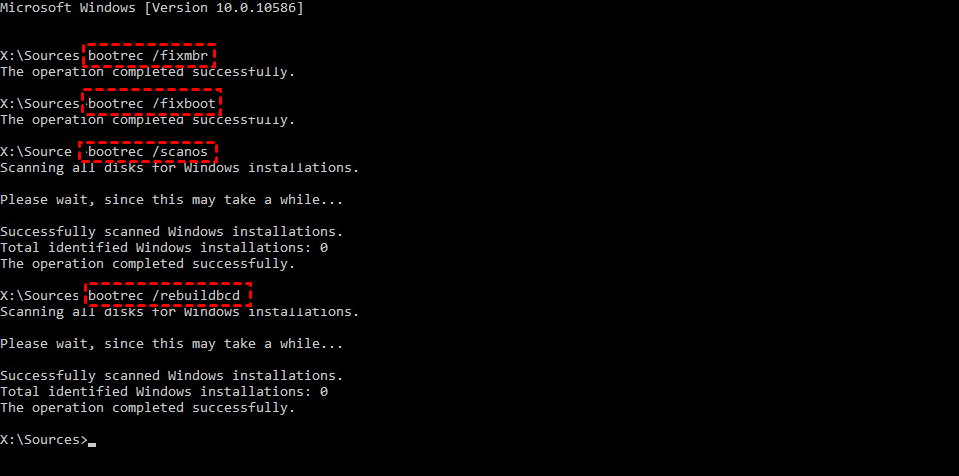
bootrec /fixmbr
bootrec /fixboot
bootrec /scanos
bootrec /rebuildbcd
Step 3. If Windows is found, type Y to add it to the boot list.
Step 4. If /rebuildbcd finds no installation, check drive letters with diskpart and confirm the Windows partition is online.
Method 3. Create bootable media for repair and backup
After Windows starts again, create a system backup and bootable media so the same failure can be handled faster next time.
 Qiling Disk Master
Qiling Disk Master can create bootable media and system backups for Windows 7, making boot failure recovery easier when no installation CD is available.
Step 1. On a working Windows computer, connect an empty USB drive. Copy off any files on it first because creating bootable media may erase the drive.
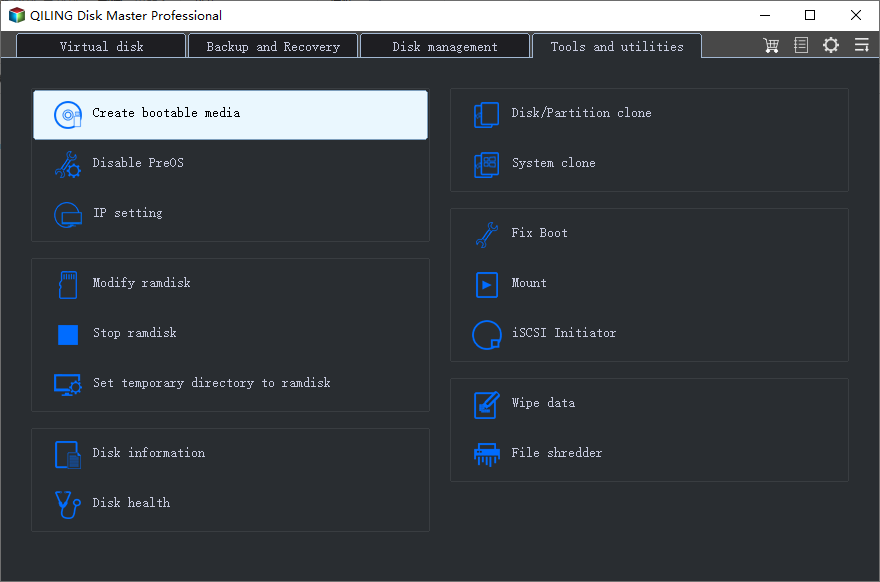
Step 2. Open Qiling Disk Master and select Tools > Create Bootable Media. Choose the Windows PE bootable media option.
Step 3. Select the USB drive as the destination and confirm that it is the correct removable device.
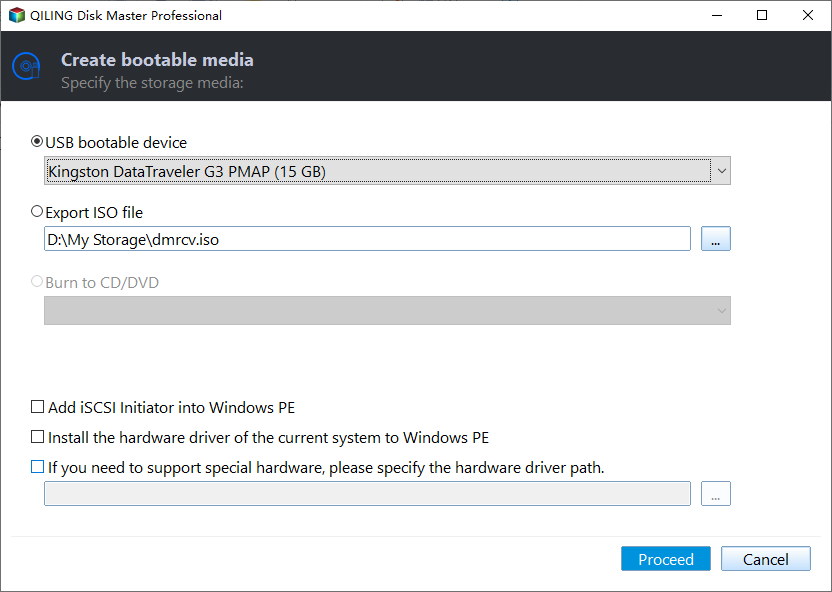
Step 4. Click Proceed to create the media and wait for the completion message. Label the USB clearly so it is not confused with a Windows installation drive.
Step 5. On the Windows 7 computer, connect the USB, enter the boot menu or firmware settings, and select the USB device. When the recovery environment opens, use the available backup and recovery tools as needed.
Step 6. After Windows is running normally, create a system backup on a separate drive. Keep both the bootable USB and the backup until you have confirmed that the computer starts correctly several times.
Conclusion
You can fix many Windows 7 Boot BCD errors without the original CD. Try Startup Repair first, then rebuild BCD with bootrec commands. After repair, create a backup and bootable USB.
Related Articles
-
BOOTMGR Is Missing? Fix It Easily in Windows 7/8/10/11
Repair BOOTMGR errors and restore startup files when Windows cannot boot normally. -
MBR Repair Tool: Repair Damaged MBR in Windows 11, 10, 8, 7
Use boot repair options to fix damaged MBR records and startup problems. -
Create Windows PE or Linux Bootable Media Easily
Create bootable media to access a computer when Windows cannot start.
Products
Articles & Tutorials
- Data Recovery
- Data Backup
- File Recovery
- File Backup
- File synchronize
- System Backup and Restore
- Disk and Partition Clone
- Technical articles
- Disk Master Help
- Windows Deleted File and Disk Recovery Tutorials
- Windows File and Data Recovery Tutorials
- More Windows Tutorials for Install, Security, Files, and PC Tips
- Windows Boot, Repair, and Recovery Environment Tutorials
- Windows Backup Tutorials
- Windows Restore Tutorials
- Windows Clone and Migration Tutorials
- Windows Server Backup, Recovery, and Management Tutorials
- Windows Disk, Partition, and Storage Management Tutorials