How to Create New Partition from C Drive in Windows 7 Home?
When to create a partition from C drive?
You want to create a separate partition for your personal data on a new laptop, so you can keep your operating system, programs, and personal files organized and easily manageable. Is that correct?
In Windows 7, you can split partition C to create more space for other purposes by using the built-in Disk Management tool. To do this, you can right-click on the C drive in the Disk Management console, select "Shrink Volume", and specify the amount of space you want to free up. This will create unallocated space that you can then use to create a new partition. Alternatively, you can use third-party partition software to achieve the same result. However, be cautious when using third-party software and make sure to back up your data before making any changes to your disk layout.
Tips: It's always a good idea to back up your hard drive before making any changes or performing any operations on it, to prevent potential data loss in case something goes wrong. This precaution has no negative impact on your data and ensures that your files are safe.
How to create new partition in Windows 7 from C drive?
To create a partition from C drive using Disk Management, you need to first create unallocated space on C drive, and then create a new partition based on it.
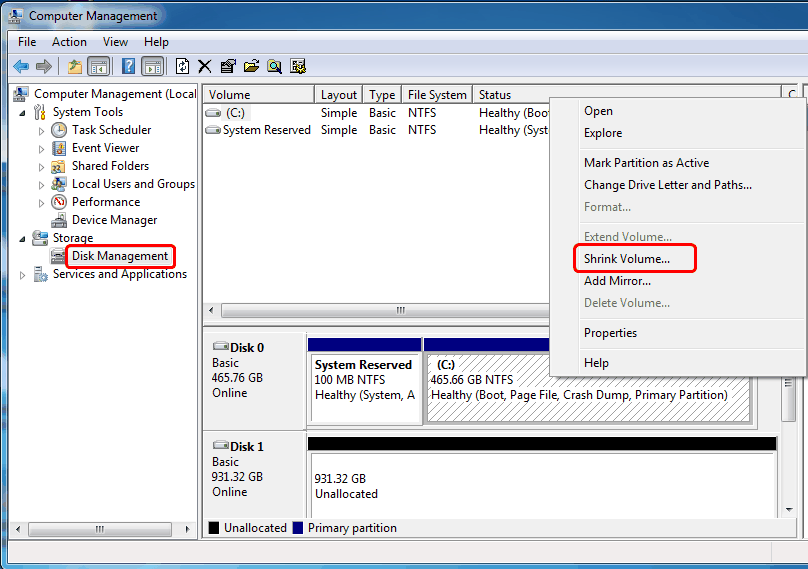
First, Right-click the Computer icon on the desktop, select "Manage", then click "Disk Management". Right-click the C drive and select "Shrink Partition". The process will query the volume for available shrink space, taking some time.
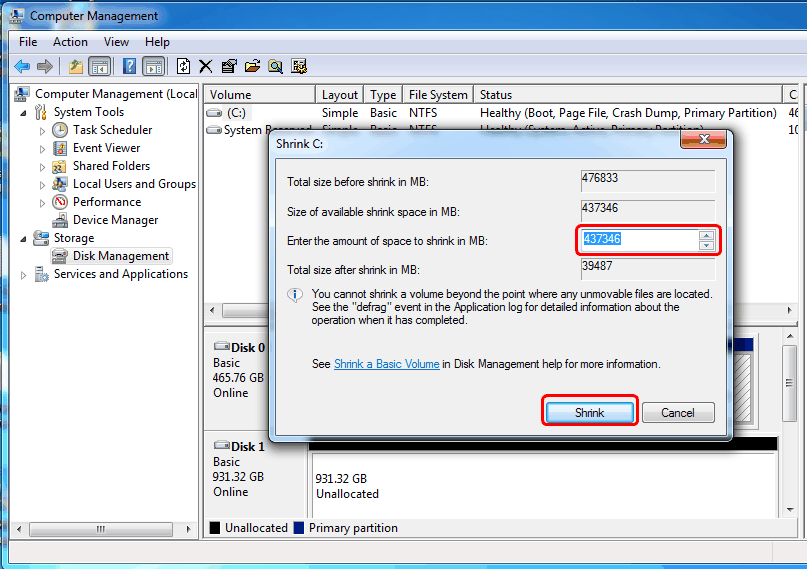
Second, To shrink a box in Microsoft Word, select the box by clicking on it, then click on the "Home" tab in the ribbon. Click on the "Size" group and use the up and down arrows behind the box to adjust the height and width of the box.
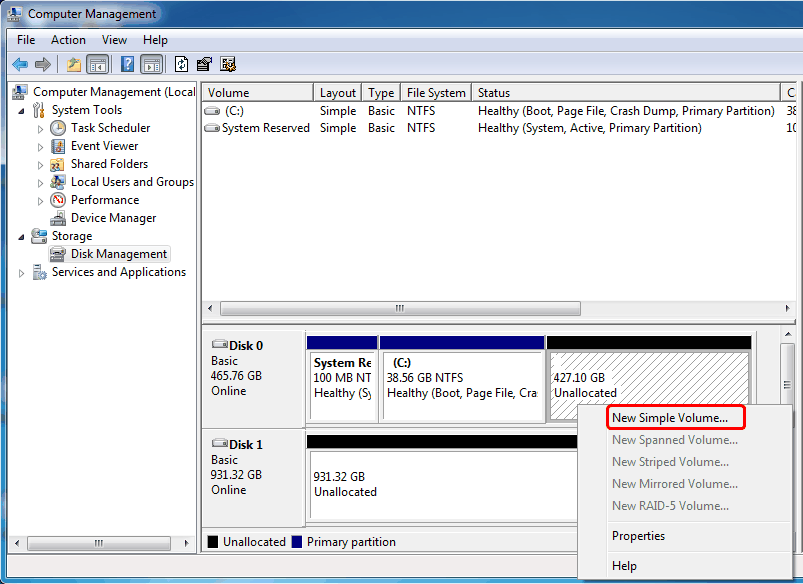
Third, Right click the unallocated space next to the C drive, and select New Simple Volume.
Finally, You are required to set the specific information of the newly created partition with the New Simple Volume Wizard, such as drive letter, file system, and allocation unit size. The final result should be a partition that is properly formatted and ready for use.

Note: The wizard allows you to format a new partition and choose the file system, with NTFS as the default. If you initially select exFAT, you can later convert it to NTFS, but if you choose NTFS first, you cannot convert it to exFAT.
In Windows 7, you can create a new partition from the C drive using Disk Management within four clicks. However, you may not be able to shrink the C drive beyond half its size using this method. For example, if you have a 700 GB partition with 500 GB free space, you can only shrink it by 350 GB or less. This limitation is due to the restricted shrink space, which can be affected by the allocated space for the virtual memory page file, system protection maximum storage space size, and hibernation files. If you encounter this issue, using 3rd party software may be a helpful alternative.
If you're looking for freeware to help with partition management, Qiling Disk Master Standard is a great option to consider. With its user-friendly interface and powerful features, it's easy to use and navigate. One of its standout benefits is its ability to shrink partitions by more than half their original size, a feat that's often tricky to accomplish without damaging unmovable files. By automating this process, Qiling Disk Master Standard makes it simple to create new partitions, such as one on your C drive in Windows 7 Home Basic.
How to create partition in Windows 7 from C drive without formatting?
Step1. Install and open Qiling Disk Master. Right-click the C drive, select Move/resize Partition.
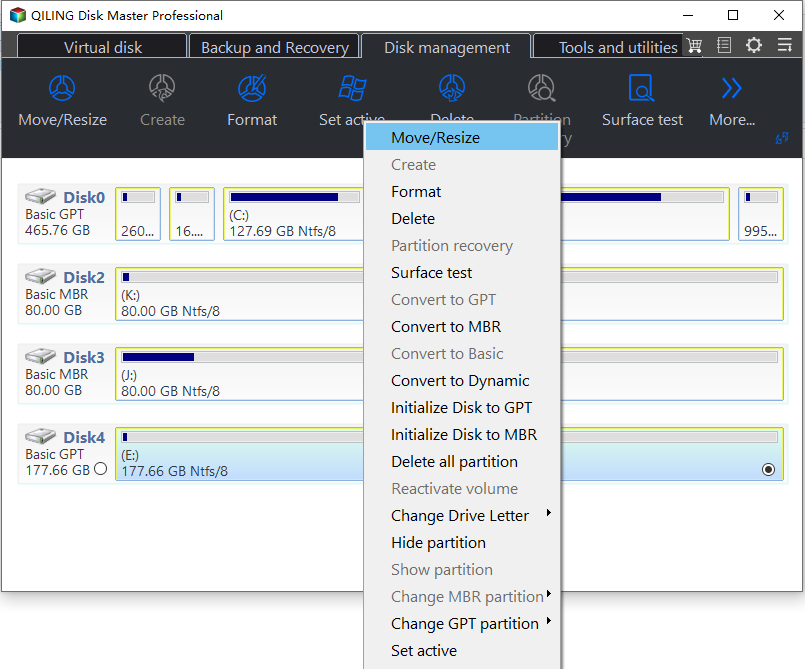
Step2. You can adjust the size of the created partition by either dragging the double-headed arrow to the desired size or typing in the specific amount you need, along with selecting the drive letter.
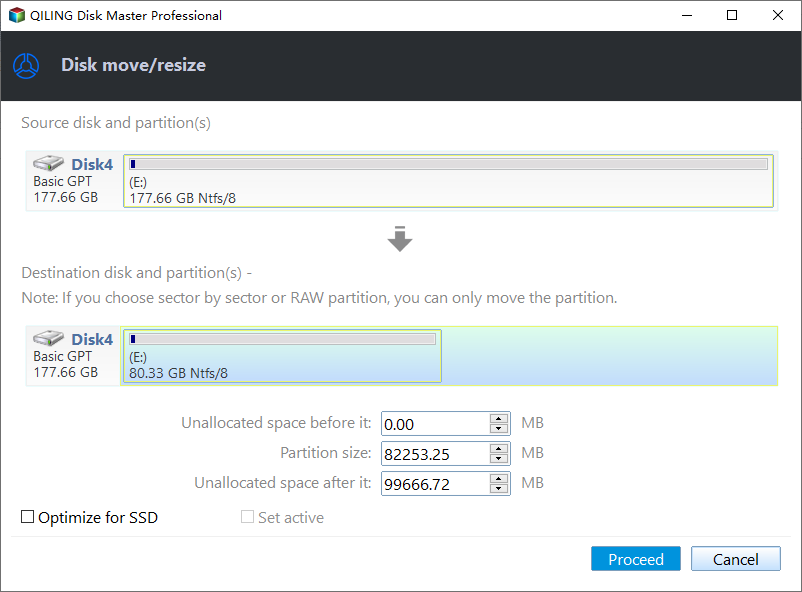
Step3. Click Proceed to execute this operation.
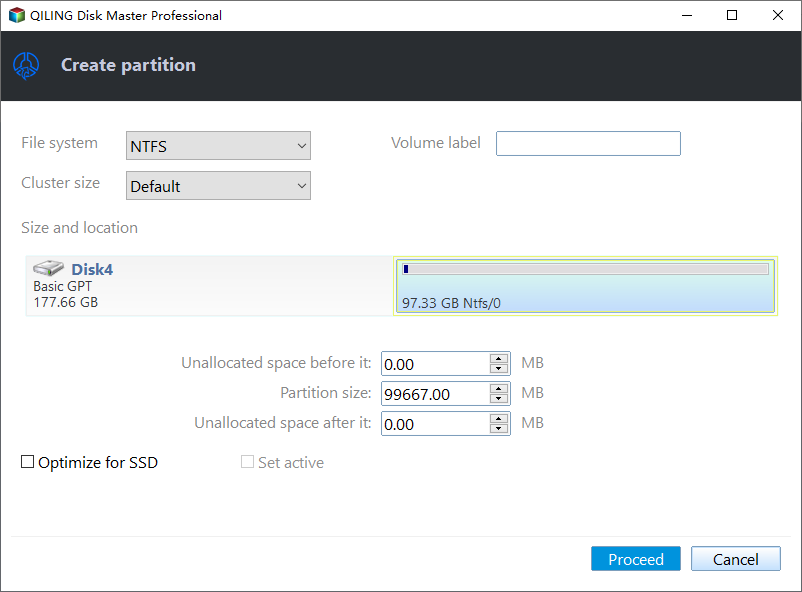
Step4. Right-click the unallocated space, select Create Partition.
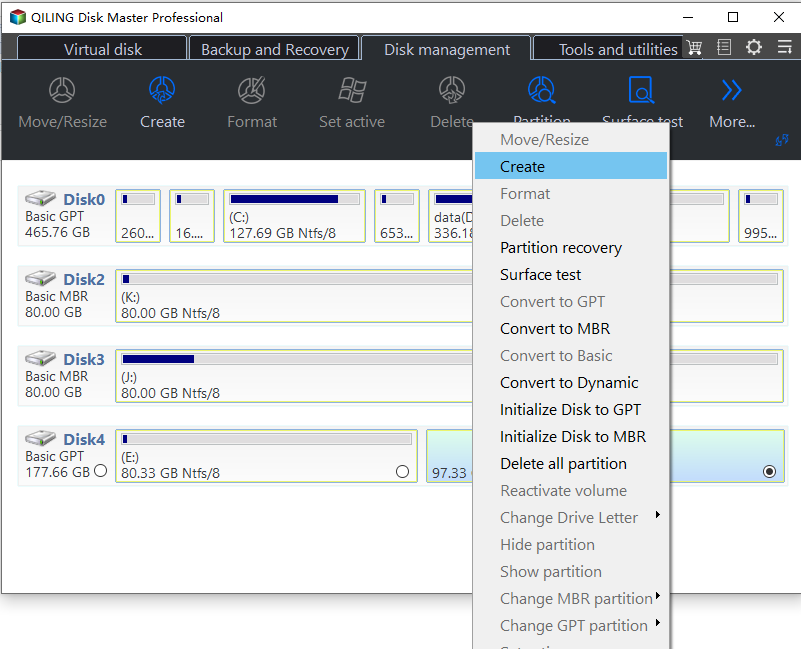
Step5. Click Proceed to execute this operation.
Note:
When you try to create a new volume on a hard drive that's already at its partition limit, you'll get a message saying you can't create a new volume in that unallocated space because the disk is already at its maximum number of partitions. If you still want to create a new partition, you'll need to convert the MBR disk to a GPT disk without losing any data.
To create a partition in Windows 7 from the C drive, you can do it with just three clicks using Qiling Disk Master. This software simplifies the process and also allows you to perform other disk operations, such as merging partitions when the MBR disk is full, or migrating your OS to an SSD for improved performance. Overall, Qiling Disk Master is a useful, user-friendly, and powerful tool that's worth trying.
Related Articles
- Top 3 Ways to Factory Reset Windows 11 Without Password
This guide explains Top 3 Ways to Factory Reset Windows 11 Without Password with clear steps, key checks, and practical tips. - How to Fix Samsung Magician Won't Recognize SSD [Full Guide]
Learn how to Fix Samsung Magician Won't Recognize SSD with clear steps, key checks, and practical tips. - How to Wipe Xbox One Hard Drive on Windows - Full Guide
If you need to wipe your Xbox One hard drive on Windows for any reason, this guide will help you and offer you two easy and simple methods to perform this task and achieve this goal. So, this guide read thoroughly to learn the process. - How to Format An Internal Hard Drive Windows 10? [Latest Tip]
Learn how to Format An Internal Hard Drive Windows 10 with clear steps, key checks, and practical tips. - How to Wipe Hard Drive in Windows 10 - 3 Safe Ways 🔥
Find practical guidance for How to Wipe Hard Drive in Windows 10 - 3 Safe Ways, including disk, partition, file system, or Windows troubleshooting steps. - Guide on Converting MBR to UEFI [Safe Guide for Beginners]
Find practical fixes for Guide on Converting MBR to UEFI, including disk, partition, file system, or Windows troubleshooting steps.
Products
Articles & Tutorials
- Data Recovery
- Data Backup
- File Recovery
- File Backup
- File synchronize
- System Backup and Restore
- Disk and Partition Clone
- Technical articles
- Disk Master Help
- Windows Deleted File and Disk Recovery Tutorials
- Windows File and Data Recovery Tutorials
- More Windows Tutorials for Install, Security, Files, and PC Tips
- Windows Boot, Repair, and Recovery Environment Tutorials
- Windows Backup Tutorials
- Windows Restore Tutorials
- Windows Clone and Migration Tutorials
- Windows Server Backup, Recovery, and Management Tutorials
- Windows Disk, Partition, and Storage Management Tutorials