How to Format a Hard Disk Drive in Windows 7?
Whenformat hard drive in Windows 7?
In Windows 7, a new hard drive needs to be formatted with a specific file system before it can be used to store data. The file system used in Windows 7 is NTFS (New Technology File System).
Formatting a Windows 7 hard drive will completely erase all data on the drive and rebuild the file system, which is NTFS by default. This process is different from other operating systems, such as OS X, which uses HFS+ and Linux, which uses EXT family.
NTFS is read-On OS X devices, hard drives formatted as HFS+ are readable and writable, but Windows machines cannot read them. To make a hard drive readable and writable on different OSes, format it as FAT32, but note its 4 GB file size and 2 TB partition size limits. For external hard drives, format with exFAT, which has no limits and works with both Windows and OS X.
Format hard drive with Windows 7 Disk Management
Windows 7 has its built-in utility Disk Management that can be used to format a hard drive. A detailed tutorial about how to format hard disk Windows 7:
Step 1. Type "diskmgmt.msc" in the search box and press "Enter" to open Windows 7 Disk Management
Step 2. With Disk Management open, right-click the drive you want to format and select Format
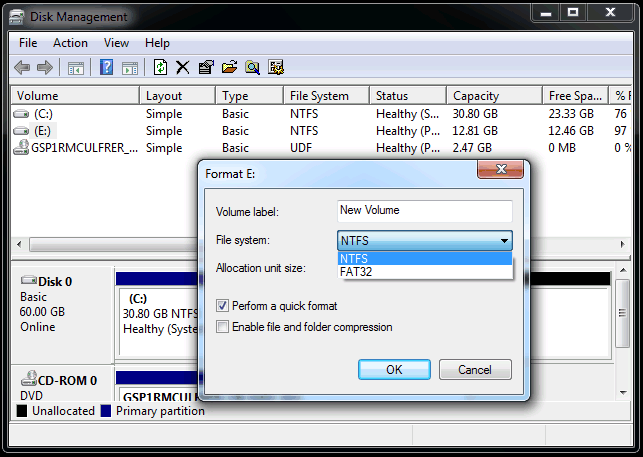
Step 3. In the next screen, enter a name to the drive or leave it in the Volume label textbox, and choose a file system as desired, leaving the rest of the settings unchanged unless specific reasons dictate otherwise.
Step 4. Click OK to perform.
1. If you're formatting a hard drive that doesn't have a drive letter, ensure the assigned drive letter is not the same as the existing partitions.
2. If you're formatting an external hard drive, double-check that you're formatting the correct partition, as the drive letter may change when plugged in and out.
If the Format option is not available, it's likely because the hard disk hasn't been initialized or partitioned, so you'll need to initialize and partition the hard drive. If you're trying to format a partition in Windows 7 Disk Management, you can only use NTFS or FAT32 file systems, but other file systems can be used with third-party software.
Format hard drive with free Qiling Disk Master
Qiling Disk Master Standard is a freeware that allows users to easily format hard drives with various file systems, including NTFS, FAT32, EXFAT, Ext2, and Ext3.
Step 1. Install and launch Qiling Disk Master.
Step 2. Right-click the drive you want to format and select Format Partition.
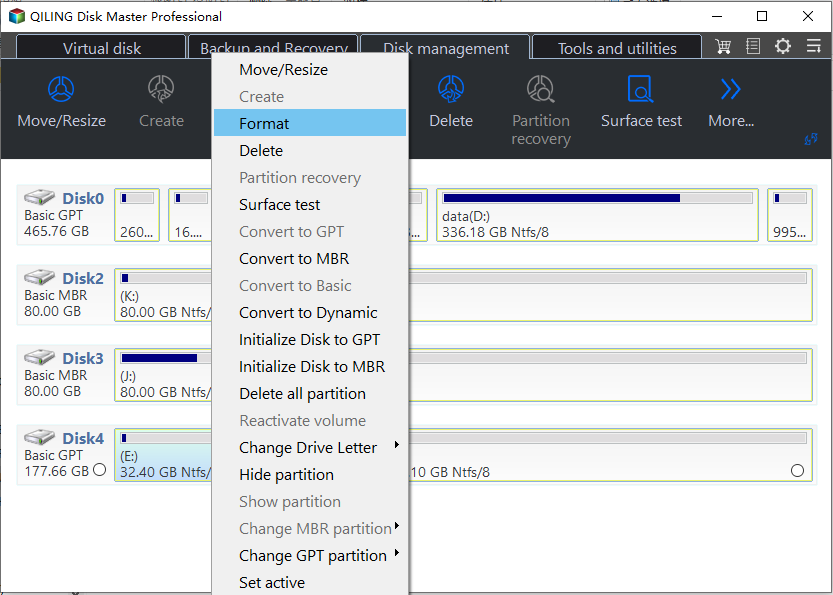
Step 3. To create a bootable USB drive, select the file system and type a partition label in the pop-out windows, click OK to proceed, and choose FAT32 as the file system for this example.
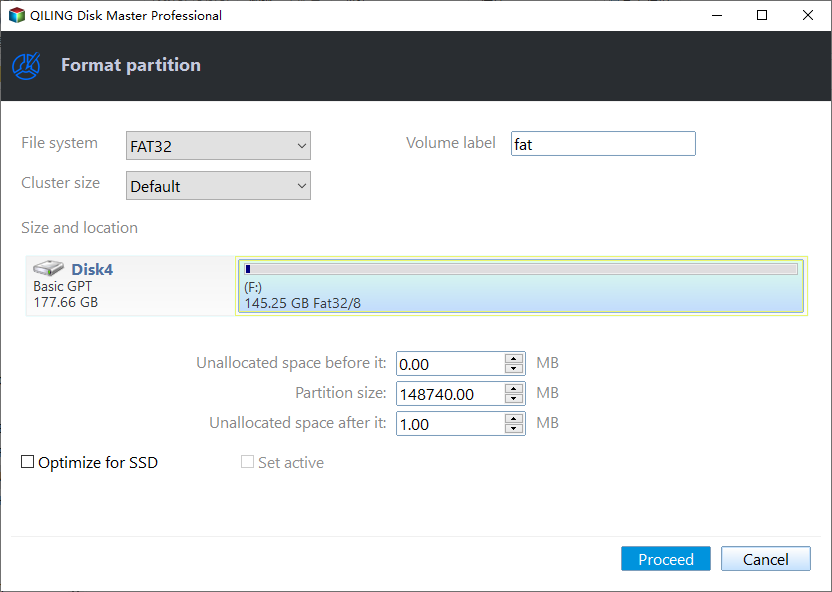
Step 4. If there is no problem, the program will show you how it will be after the formatting. To proceed, click Apply to execute the process, which will then be applied to your hard drive.
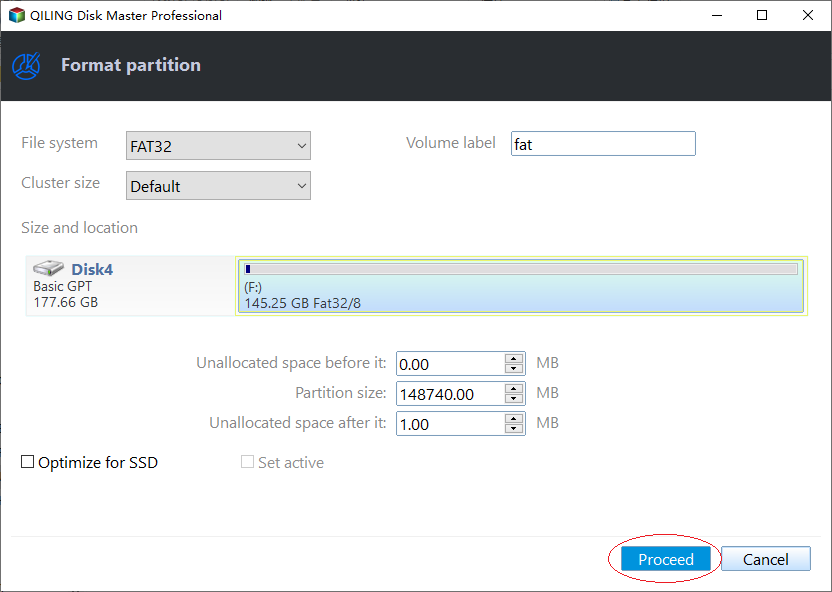
Qiling Disk Master formats hard drives using Windows 7 and also works similarly with Windows 10/8.1/8/XP/Vista. If the wrong drive is formatted, data can be recovered using the Partition Recovery Wizard. It also supports converting between NTFS and FAT32, disk copying, resizing partitions, and more. A technician version is available for service providers to solve disk partition problems for clients.
Related Articles
- How to Low Level Format USB Drive? Beginner's Guide🔥
This guide explains Low Level Format USB Drive Beginner's Guide🔥 with clear steps, key checks, and practical tips. - Top 5 Best HDD S.M.A.R.T Monitor Software Free Download 2024
This guide explains Top 5 Best HDD S.M.A.R.T Monitor Software Free Download 2024 with clear steps, key checks, and practical tips. - Top 5 Best SSD Speed Test Software Recommend with Pros & Cons
Many SSD speed test software enable you to test your SSD's speed within a few seconds rapidly. In this blog, we've sorted out five speed test software with complete details. After reading this blog post, you can choose any software that suits you best. - MBR2GPT Disk Layout Validation Failed | 3 Proven Fixes
It's a common issue that users receive MBR2GPT Disk Layout Validation Failed message when they try to convert MBR to GPT. In this article, we will show you how to resolve this problem in three reliable ways. - Convert to GPT Greyed Out in Windows 10? Fix It Instantly
This article will focus on the error 'convert to GPT greyed out Windows 10', which includes why it greyed out and how to solve this problem. - How to Copy Hidden Partition to Another Drive/USB with Success
This passage will provide information on hidden partitions and guide you through the process of cloning them to another drive or USB, including recommendations for the best software to assist with the task.
Products
Articles & Tutorials
- Data Recovery
- Data Backup
- File Recovery
- File Backup
- File synchronize
- System Backup and Restore
- Disk and Partition Clone
- Technical articles
- Disk Master Help
- Windows Deleted File and Disk Recovery Tutorials
- Windows File and Data Recovery Tutorials
- More Windows Tutorials for Install, Security, Files, and PC Tips
- Windows Boot, Repair, and Recovery Environment Tutorials
- Windows Backup Tutorials
- Windows Restore Tutorials
- Windows Clone and Migration Tutorials
- Windows Server Backup, Recovery, and Management Tutorials
- Windows Disk, Partition, and Storage Management Tutorials