Solved: NTLDR is Compressed or Missing [5 Ways + 1 Tip]
- NTLDR is Compressed Problem
- Causes to NTLDR (NT Loader) Error
- Quick fix for NTLDR is Compressed or Missing in Windows XP/7/8/10
- Method 1: Change Boot Order in BIOS
- Method 2: Repair MBR (contains NTLDR)
- Method 3. Decompress the NTLDR File Manually
- Method 4. Replace the NTLDR file
- Method 5. Restore NTLDR file with Windows System Image File
- How to Avoid Windows System Failure?
- Wrapping Things Up
NTLDR is Compressed Problem
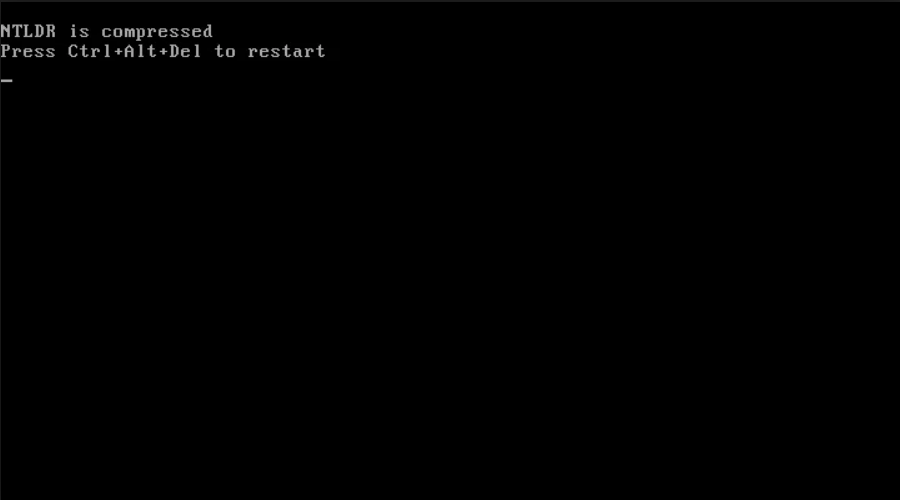
The NTLDR error, including "NTLDR is compressed", "NTLDR is missing", and others, can occur due to various reasons like human errors, power outages, or virus attacks. To resolve these issues, you can try booting your computer in Safe Mode, checking the boot order in the BIOS settings, and running a virus scan. Additionally, you can also try using the Windows installation media to repair or reinstall the operating system. If none of these methods work, you may need to seek further assistance or consider a system restore or reinstallation.
Causes to NTLDR (NT Loader) Error
NTLDR is the boot loader for Windows XP, 2000, and Server 2003, responsible for loading the Windows operating system. It contains three essential files: NTLDR, NTDETECT.COM, and Boot.ini. These files work together to initiate the boot process, allowing the system to start up and load the necessary components for the operating system to function properly.
The "NTLDR is missing" error occurs due to a corrupted or missing NTLDR file, which is responsible for loading the operating system. This can be caused by a faulty hard drive, a virus or malware infection, a corrupted boot sector, or a mismatch between the operating system installed and the one on the installation media. The error can also occur if the BIOS settings are not properly configured or if the boot order is set to the wrong device.
- If any of the NTLDR files corrupted or lost, you will get the NTLDR is compressed or missing problem.
- In Windows Vista and later, the BOOTMGR boot loader replaced NTLDR, but if you manually configured an older NTLDR boot code on a bootable Windows partition, you may still get the "NTLDR is missing" error, even in Windows 7 or 10.
- Your computer is trying to boot from a non-bootable hard disk, The BIOS boot order is not set correctly, resulting in the computer not booting from the intended device.
You may also encounter BOOTMGR is missing or BOOTMGR is compressed errors in Windows Vista, 7, 8, and 10.
Quick fix for NTLDR is Compressed or Missing in Windows XP/7/8/10
If you encounter the following boot loader related errors in Windows XP, Vista, 7, 8, 8.1, and 10, such as:
- ntldr is compressed
- ntldr is missing
- BOOTMGR is missing
- BOOTMGR is compressed
You could try the following methods.
Method 1: Change Boot Order in BIOS
If you have multiple hard disks in your computer, the issue of NTLDR is missing can be resolved by following these steps. First, ensure that the hard disk containing the Windows installation is set as the primary boot device in the BIOS settings.
1. Restart your computer and press a key (usually F2, F10, F12, etc.) to enter the BIOS settings.
2. Select Enter Setup and hit enter.
3. To configure boot options and change the boot order in the BIOS, select "Configure boot options" and then "Change boot order". Set the Windows hard disk as the first boot device and save the changes and exit the BIOS.
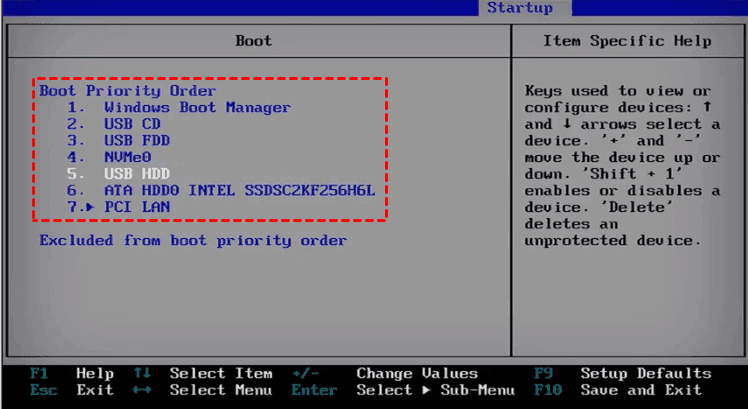
4. Restart your computer, verify if the Windows computer bootable.
Method 2: Repair MBR (contains NTLDR)
To fix the issue where NTLDR/BOOTMGR is compressed or missing, you can try booting from the Windows installation CD or DVD. If you have the installation media, you can use it to repair the NTLDR file. This process typically involves selecting the language and other options, then choosing the "Repair Your Computer" option. From there, you can access the Command Prompt and run the "bootrec" command to rebuild the boot configuration.
1. Insert Windows installation disc into your computer.
2. To access the boot menu, press the ESC or F12 key while your computer is booting up. Once the boot menu appears, select the option to boot from the Windows installation disc.
3. Select your language and other options, then click "Next". After that, click "Repair Your Computer" and select "Command Prompt" (or press Shift + F10 to open the command prompt).
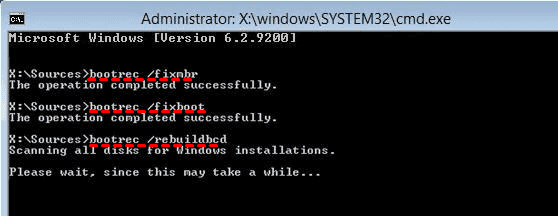
4. Now input and run the following commands one by one:
- bootrec /fixmbr
- bootrec /fixboot
- bootrec /rebuildbcd
Method 3. Decompress the NTLDR File Manually
If NTLDR is compressed in Windows XP, you can fix the issue by decompressing the NTLDR file manually. This involves following these steps:
Step 1. Insert the Windows XP installation CD, restart the computer and boot from the CD.
Step 2. Press R key to enter Recovery Console,
Step 3. Choose the Windows installation, and input the administrator password.
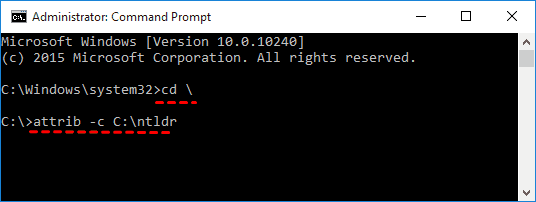
Step 4. Open Command Prompt and type the commands to decompress the NTLDR file:
- cd \
- attrib -c C:\ntldr
Step 5. Once NTLDR is decompressed, remove the Windows installation disc and then restart the PC.
Method 4. Replace the NTLDR file
You can replace the NTLDR file with a fresh copy from a Windows installation CD.
Here are the steps to replace the NTLDR file in Windows XP with step-by-step methods:
Step 1. Insert the Windows XP installation CD, restart the computer and boot from the CD.
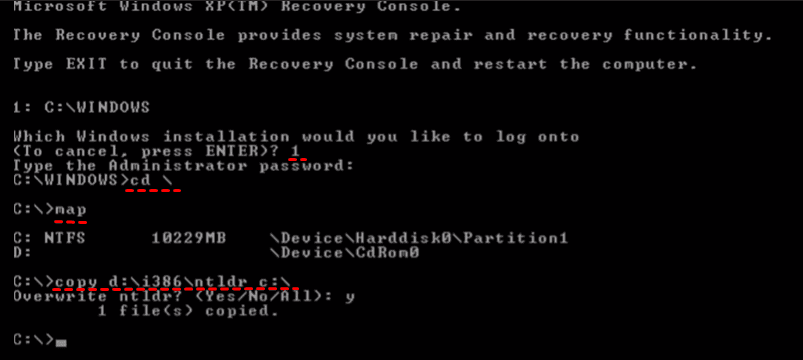
Step 2. Access Recovery Console by pressing R. Then press 1 and hit Enter.
Step 3. Input Administrator password if you have, then input the following commands copy the NTLDR file from the Windows installation disc to the current system hard disk:
- cd \
- map (Displays all the device names and their drive letters.)
- copy D:\i386\ntldr C:\
★Tips:
✍D:\ is the drive letter of the Windows installation disc.
✍C:\ is the Windows system partition's drive letter.
Step 4. Input Y to overwrite the corrupted or compressed NTLDR file.
Once the file is replaced, remove the Windows installation disc from the disc drive and restart the PC.
Method 5. Restore NTLDR file with Windows System Image File
If you created a system image using Qiling Disk Master Standard, you can easily restore the NTLDR file. If you're unable to boot into Windows, create a Windows bootable media on another computer. Once you have the bootable media, follow the instructions to restore the NTLDR file, which typically involves booting from the media, accessing the system image, and copying the NTLDR file to its original location. This should allow you to boot into Windows again.
1. Boot your computer with the bootable media, and it will automatically run Qiling Disk Master in the WinPE environment.
2. If the Windows system image created before is located on an external hard drive, you should connect that external hard drive to your computer.
3. To restore a Windows system image, select the "Restore" option and then choose the "Select Image File" option to pick the Windows system image file.

4. Tick Restore this system backup and hit Next >> button.

5. Click on "Proceed" to restore all Windows system files, including the NTLDR file, which is necessary for the operating system to function properly. This will ensure that the system files are updated and the NTLDR file is restored to its original location, allowing the system to boot normally.

Regardless of the system file-related issues you're experiencing, such as a compressed NTLDR, invalid partition table, missing operating system, or a missing winload.efi, you can use this method to restore your computer to its previous state and have it functioning normally again.
How to Avoid Windows System Failure?
To avoid the annoying "NTLDR is compressed or missing" problem from happening again, it's highly recommended to backup your Windows operating system to a safe location. You can create a system image backup to an external hard drive using Qiling Disk Master Standard in Windows XP, Vista, 7, 8, 8.1, and 10. Simply download Qiling Disk Master Standard, and follow the instructions to create a backup. This will ensure that your operating system is safely stored and can be easily restored if needed.
Step 1. After installing Qiling Disk Master, perform a system backup by selecting Backup -> System Backup in sequence.

Step 2. The tool will automatically select the Windows system partitions, such as the system C drive, Recovery partition, and EFI system partition, and you will only need to choose an external hard drive as the destination for the Windows system image file.

Step 3. To avoid NTLDR is compressed or missing problems, click Proceed to backup Windows OS to an external hard drive.

★Tips:
✍Options: It allows you to comment, compress, split, encrypt Windows system image files, and even send email notifications.
✍Schedule: You can schedule system backups on a regular basis, including once, daily, weekly, or monthly, as well as set up event triggers or use a USB plug-in for backup.
✍Scheme: This option allows you to automatically delete old backups to free up space on your computer. It requires an upgrade to Qiling Disk Master Professional or other advanced editions to be enabled.
Once you backed up your Windows operating system, you could prevent issues like NTLDR being compressed from happening again. For Windows Server 2003, 2008, 2012, 2016, 2019 (including R2) and other server systems, try Qiling Disk Master Server.
Wrapping Things Up
To fix the NTLDR is compressed or missing problem, find a suitable method and it's easy. To protect your Windows operating system and personal files, it's a good idea to backup your data regularly and have a restore plan in place, just in case.
Related Articles
- Solved: a Disk Read Error Occurred on a Laptop
- Error Loading Operating System in Windows 10 - Solved
- How to Do a System Backup to Backup System Files & Boot Files?
- (Fixed)Windows Server Backup Keep Only One Copy
Learn the key steps, checks, and practical tips for this related guide. - How to Fix Windows Was Unable to Complete the Format in Windows 11
Learn how to Fix Windows Was Unable to Complete the Format in Windows 11 with clear steps, key checks, and practical tips. - Fix Windows 11 Won't Boot After Update/Not Booting Black Screen
This article provides solutions for Windows 11 not booting, including black screen issues and problems after updating to Windows 11. The solutions have been tested by professionals and are 100% effective.
Products
Articles & Tutorials
- Data Recovery
- Data Backup
- File Recovery
- File Backup
- File synchronize
- System Backup and Restore
- Disk and Partition Clone
- Technical articles
- Disk Master Help
- Windows Deleted File and Disk Recovery Tutorials
- Windows File and Data Recovery Tutorials
- More Windows Tutorials for Install, Security, Files, and PC Tips
- Windows Boot, Repair, and Recovery Environment Tutorials
- Windows Backup Tutorials
- Windows Restore Tutorials
- Windows Clone and Migration Tutorials
- Windows Server Backup, Recovery, and Management Tutorials
- Windows Disk, Partition, and Storage Management Tutorials