The Top Six Ways to Fix Windows 7 running slow
Scenario
Windows 7 very slow, unresponsive and hangs
To resolve the slow performance and unresponsiveness issues on your Windows 7 computer, try restarting the system, disabling any recently installed software or drivers, and checking for disk space and disk errors. You can also try running a System File Checker (SFC) scan and a disk cleanup to free up space and ensure system files are intact. Additionally, consider updating your operating system to a newer version or seeking professional assistance if the issues persist.
- Question from Senvenforums.com
Why Windows 7 PC running so slow?
If your Windows 7 is running slow, it could be due to various reasons. Your PC might have gradually become slower over time, or it could have suddenly shut down. In either case, the slowness could be caused by a range of factors, and identifying the underlying cause is key to resolving the issue.
● Too many programs and software running at the same time.
● The fragment files cause slow access speed.
● Your C drive is full, which can slow down your system's running speed.
● SSD partition is misaligned
● Excessive accumulation of dust
● The computer is infected with a virus
6 Methods to speed up a slow Windows 7 computer
To address the issue of a slow Windows 7 computer, consider the following fixes. First, run an anti-virus scan to check for any potential viruses that may be affecting your computer's performance. Once cleared, you can proceed with the following steps: disable any unnecessary startup programs, check and adjust your disk space and memory usage, update your operating system and drivers, and consider upgrading to a solid-state drive (SSD) for improved performance.
│Method 1. Run Performance Troubleshooter
The first step to resolve performance issues on your computer is to use the Performance troubleshooter, which can automatically find and fix problems that might be slowing down your computer's performance.
1. To access the Control Panel, click the Start button on the desktop and select "Control Panel" from the menu.
2. To troubleshoot Windows issues, go to the search box, type "Troubleshooter", and open the Troubleshooting program from the search result. This will guide you through a series of questions to identify and resolve the problem.
3. In the Troubleshooting window, click "Check for performance issues".
4. To fix the "Windows 7 slow" problem, you can run the Performance Troubleshooter, which can be accessed by typing "performance troubleshooter" in the Start menu search bar. Follow the on-screen instructions to run the troubleshooter, which will detect and fix any issues that may be causing your computer to run slowly. Once you've completed the troubleshooter, restart your computer and see if the performance has improved.
│Method 2. Turn off unnecessary programs
Windows 7 slow performance is often due to multiple programs running simultaneously, consuming processing power and reducing PC performance, even if some programs are closed, they may continue to run in the background or start automatically when the computer is started.
To see which background programs are running on your PC and how much capacity and processing power they occupy, open the Task Manager by pressing CTRL + ALT + DELETE.
│Method 3. Defrag your hard disk
Repeated deletions and downloads can cause disk fragmentation, leading to slower computer performance. This is because the file storage sectors are not continuous, making it take longer to read files. However, this issue can be resolved through defragmentation, which can help restore the continuity of file storage sectors and improve computer speed.
Defragmentation is the process of reorganizing scattered files together continuously to improve the seek speed of the computer. This process helps to optimize the performance of the hard drive by reducing the time it takes to access files.
To defragment your hard drive and improve your computer's performance, you can use the built-in Defragment and Optimize Drives tool in Windows 7. This tool will scan your hard drive for fragmented files and then defragment them, which can help to improve your computer's speed and responsiveness.
Step 1. To view the properties of a drive, such as the C drive, on a Windows computer, open the "This PC" window on the desktop, right-click on the drive, and select "Properties" from the context menu. This will display information about the drive, including its capacity, used space, and free space.
Step 2. Choose the "Tools" tab, and click "Optimize"
Step 3. To defragment a hard drive, start by analyzing each drive one by one, then click on the "Defragment Disk" option.
If you don't like manually defragging your hard drives, you can set a schedule to optimize them daily, weekly, or monthly.
│Method 4. Clean up the dust
The computer's CPU fan attracts dust due to static electricity, which can accumulate and slow down Windows 7 if not cleaned regularly. Regularly cleaning the dust from the fan can improve the computer's heat dissipation efficiency.
│Method 5. Extend system partition
If your system partition is running low on space, Windows 7 will slow down, so you should extend the system partition.
Fortunately, Qiling Disk Master Professional can help solve the problem. This professional disk management tool offers features like extending the system drive and Partition Alignment, making it easy and quick to improve PC performance. Additionally, it supports creating, shrinking, and moving partitions, allowing for more flexible disk management.
To extend the system partition using Qiling Disk Master, follow these steps: download the Demo version to try it out first. With Qiling Disk Master, you can easily extend the system partition.
Step 1. To start, install and launch Qiling Disk Master Pro, which will display all disks and partitions on its main interface.
Step 2. If you have unallocated space behind the C drive, you can extend it by right-clicking the partition (in this case, the C drive) and selecting "Resize/Move Partition". This will allow you to expand the drive and utilize the available space. Additionally, if the drive has Bitlocker encryption enabled, you can also resize the encrypted partition.
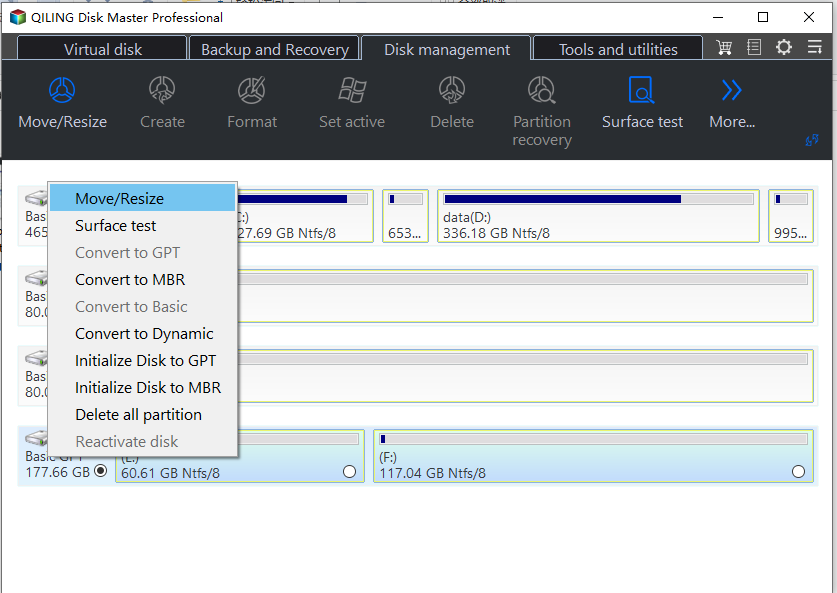
Step 3. In the next window, move the mouse pointer to the right border of the partition and drag the border to the right to extend the partition, but only if there is unallocated space beside the partition.
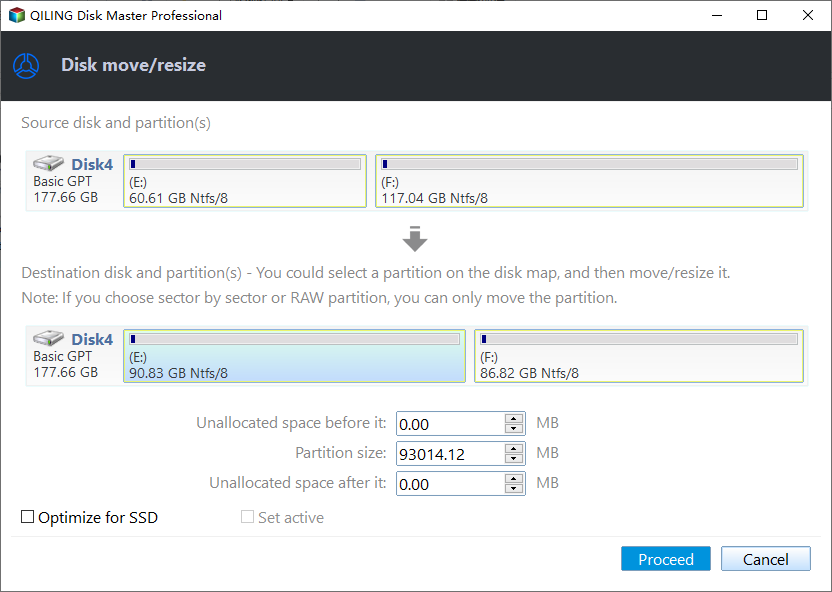
Step 4. You can extend the C drive, preview the changes, and then proceed with the operation to commit the changes.
PS.: If there is no free space on the system hard drive or adjacent unallocated space behind the system partition, refer to the guide on how to allocate free space.
│Method 6. Align SSD partition
If you want a faster read and write performance, you can migrate your OS from an HDD to an SSD, but if you're already using an SSD, make sure to prioritize 4K alignment.
Partition misalignment is a common reason for Windows 7 slowdowns, causing performance issues. Qiling Disk Master Professional can help check if SSD partitions are aligned and enable easy 4K partition alignment.
Step 1. Install and launch the software, then right-click the SSD partition and select "Advanced" and then "Partition Alignment" from the menu.
Step 2. You can tick "Optimize for SSD" options.
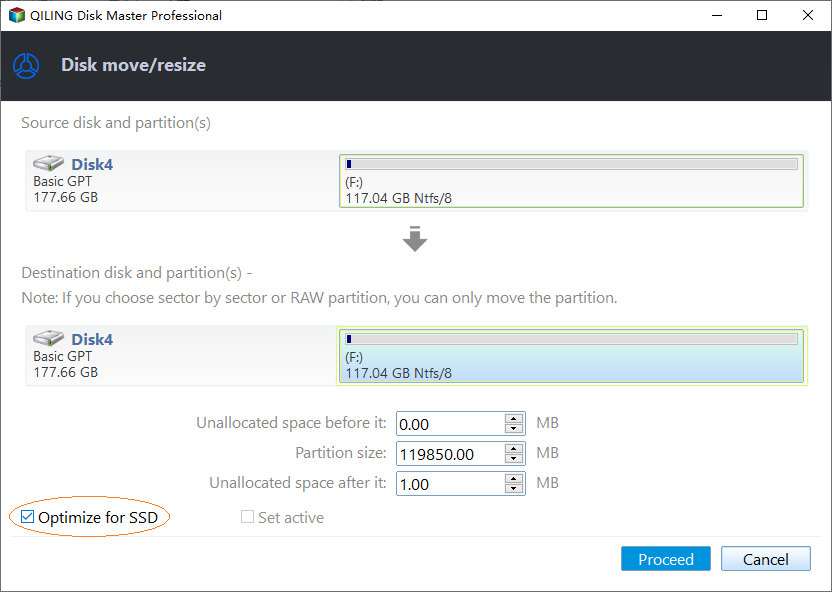
Step 3. Finally, click "Proceed" to save changes.
Conclusion
After reading this article, you should have a better understanding of how to troubleshoot Windows 7 slow performance. Before attempting these solutions, it's recommended to run a virus scan using anti-virus software to ensure that any potential viruses affecting computer performance are detected and removed.
If your computer is running with Windows Server system, you can turn to Qiling Disk Master Server Edition.
Related Articles
- How to Create a (New) Partition in Windows 8? [QuickStart]
Create a new partition in Windows 8 with Disk Management or partition software for better disk organization. - How to Clone Windows to Another Drive [Newest Solution]
This passage will help you figure out why you clone windows to another drive. And you will also get a step-by-step guide to clone windows to another drive. - Tutorial: How to Fix Hard Drive Failure on Windows 10
If you, too, are having a hard time understanding how to fix hard drive failure Windows 10, this detailed guide is what will help you get through it! - How To Check Storage on PC [Step-by-Step Guide]
Storage is an important value for monitoring the status of the computer. This article aims to teach users how to check storage on PC. - How to Create Bootable USB to Wipe Hard Drive
Create a bootable USB to wipe a hard drive when Windows cannot run or offline disk erasure is required. - Create D Drive from C Drive in 2 Simple Ways
Create a D drive from C drive by shrinking the system partition and creating a new volume safely.
Products
Articles & Tutorials
- Data Recovery
- Data Backup
- File Recovery
- File Backup
- File synchronize
- System Backup and Restore
- Disk and Partition Clone
- Technical articles
- Disk Master Help
- Windows Deleted File and Disk Recovery Tutorials
- Windows File and Data Recovery Tutorials
- More Windows Tutorials for Install, Security, Files, and PC Tips
- Windows Boot, Repair, and Recovery Environment Tutorials
- Windows Backup Tutorials
- Windows Restore Tutorials
- Windows Clone and Migration Tutorials
- Windows Server Backup, Recovery, and Management Tutorials
- Windows Disk, Partition, and Storage Management Tutorials