Easily Migrate Windows Server 2016 to New Hardware or System
Quick Navigation:
- Can You Migrate Windows Server2016 to New hardware?
- Migrate Windows Server 2016 to New Hardware via Windows Server Backup
- Another Way to Migrate Windows Server 2016 to New Hardware
- Migrate Windows Server 2016 to 2019 and Be Sure It Is Bootable
- Final Words
Can You Migrate Windows Server2016 to New hardware?
There are various scenarios where migrating Windows Server 2016 to new hardware or migrating an old server to a new one is necessary. Some common situations include upgrading to newer hardware to improve performance, replacing an old server that is nearing the end of its lifespan, or moving to a new server to take advantage of new features and capabilities. Additionally, migrations may be needed to consolidate servers, improve scalability, or enhance security.
- Your Windows Server machine is in dire need of an upgrade, having aged badly over time.
- Your computer may experience severe problems due to hardware failures, system crashes, natural disasters, or human error, leading to data loss and system downtime.
- You want to avoid reinstalling the Windows Server system from scratch.
Of course, you can. Microsoft offers Windows Server Backup utility with bare metal recovery capability, allowing efficient restoration of backup images to dissimilar hardware and bootability. Additionally, third-party migration tools like Qiling Disk Master Server can be used for assistance.
Both of these tools handle incompatible drivers between different computers well. However, you may need to pay more attention to license issues, as problems with the license type can lead to follow-up issues if the tool doesn't work as expected. It's a good idea to check the license type beforehand to avoid any potential problems.
Migrate Windows Server 2016 to New Hardware via Windows Server Backup
You can move Server 2016 to a new server with different hardware if your license is transferable. To do this, you can create a bare metal backup using Windows Server Backup, and then restore the backup image to the new hardware machine step by step. This method allows you to transfer Server 2016 to a new server with different hardware.
Preparations for Server 2016 Migration
1. Check if your license is transferable.
To check your license type, open Command Prompt or PowerShell, type "slmgr.vbs -dli" and press Enter, which will display a pop-up window showing your license type.
- If it's a retail license, there should be no problem with migration, whether to the same or dissimilar hardware.
- If it's an OEM license, it's tied to the motherboard and can't be moved to different hardware.
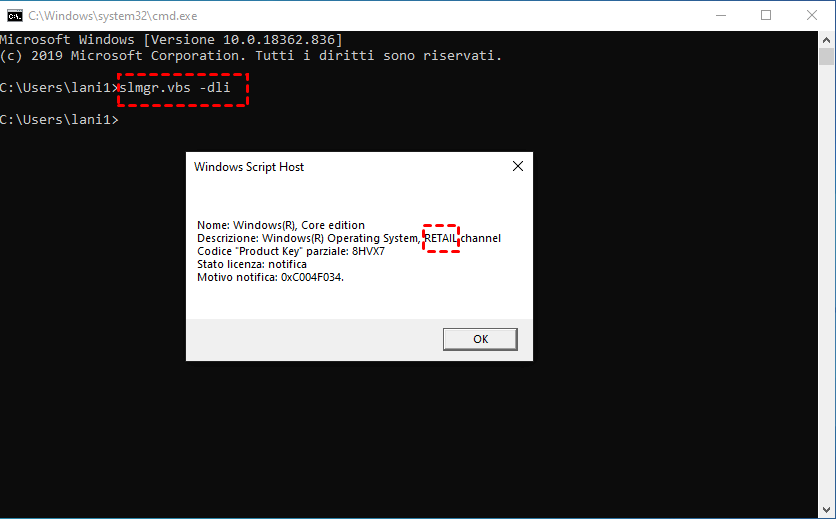
2. Install the built-in backup software - Windows Server Backup.
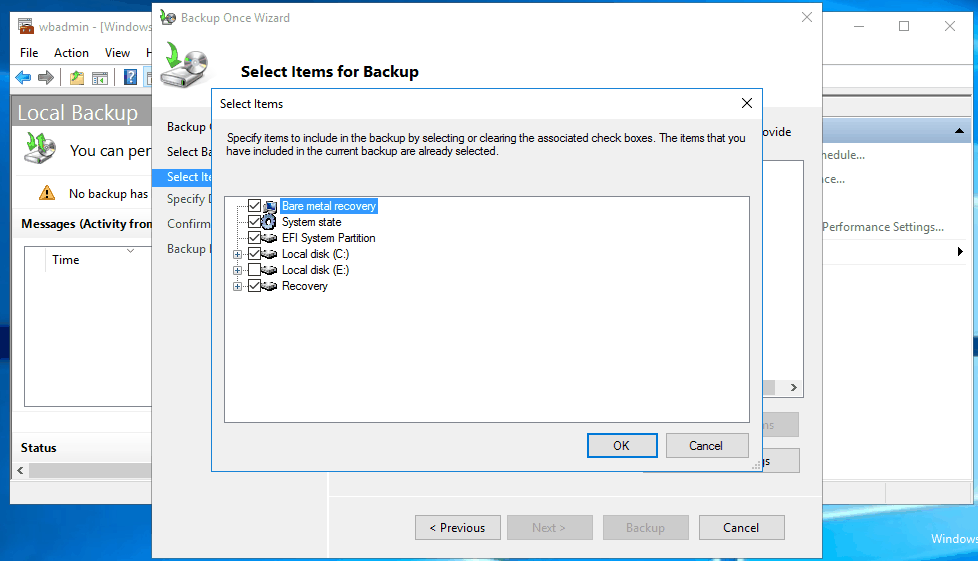
To install and use Windows Server Backup, you first need to install it from Server Manager, then navigate to Start > Administrator Tools > Window Server Backup, and select Backup Once to create a full backup or bare metal backup.
When selecting what to include in the backup, you'll want to ensure the "Bare metal recovery" option is checked, as shown below.
Perform Windows Server 2016 Migration to New Hardware Step by Step
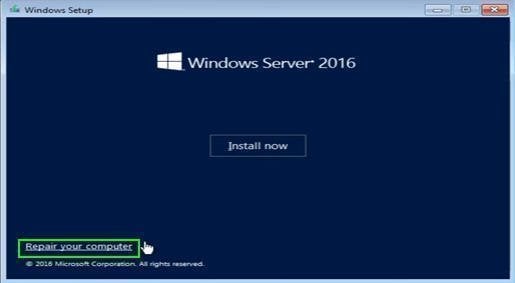
Step 1. After the backup completes, boot your new server machine with a Windows Server 2016 installation disk. Instead of Install now, select Repair your computer at the lower-left corner.
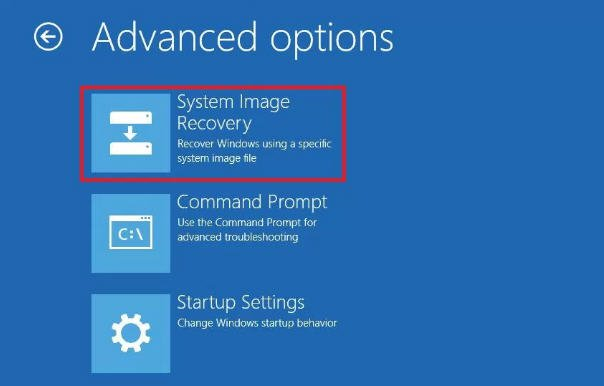
Step 2. Select Troubleshoot > Advanced Options > System Image Recovery.
Step 3. In the Re-image your computer screen, select the available system image to perform the dissimilar hardware restore in server 2016.
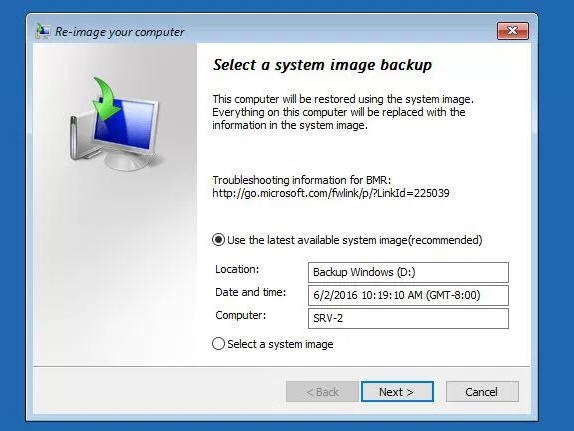
The restoring process of Windows Server 2016 typically takes a few hours to complete. Once finished, the new machine can be booted with the same system, settings, and installed programs as the original machine.
Error: Windows Server 2016 Bare Metal Recovery Failed to Complete
However, there are some known cases listed below have shown that the Windows Server 2016 migration will fail using this method:
- System restore fails because of EFI/BIOS. Windows Server cannot restore a system image to a computer with different firmware, such as restoring a BIOS-created image to a UEFI system or vice versa.
- Windows Server will fail to boot if you restore to a hard drive with a different partition style, such as from MBR to GPT or vice versa.
To ensure a smooth server migration, it's crucial to confirm that the old server and new server are running the same firmware (BIOS/UEFI) and that both disks have the same partition style (MBR/GPT), as MBR disks are compatible with BIOS mode, while GPT disks are used with UEFI mode.
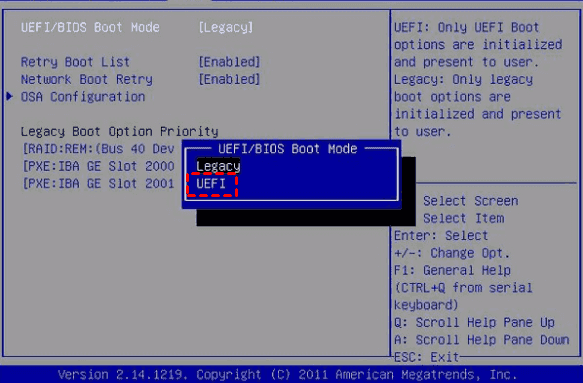
Most recent server machines support UEFI and are compatible with BIOS Legacy boot mode, allowing you to boot into BIOS to change the boot mode if necessary.
If you're switching to new hardware, you can choose to convert the hard drive from MBR to GPT or vice versa, but only if the new drive is blank or a new one, to avoid losing data.
Another Way to Migrate Windows Server 2016 to New Hardware
With reliable backup and recovery software, such as Qiling Disk Master Server with its Universal Restore feature, you can restore a system image to different hardware, successfully migrating Windows Server 2016 to new hardware, even with different firmware and partition styles.
The tool will automatically check the Universal Restore feature if your computer has new hardware and install the correct drivers for essential server hardware abstraction Layer (HAL) and mass storage devices, making it easy to use.
In advanced versions of Qiling Disk Master, such as Qiling Disk Master Technician or TechPlus, you can restore system images to multiple computers over the network, whether they have the same or different hardware. Additionally, you can create a portable version of the software that can be run on any computer without needing to be installed again.
Why don't you download its free trial and have a try?
This software works with all Windows PCs (11, 10, 8, 7, etc.) and Servers (2022, 2019, 2016, 2012, 2008, etc.) and can be used on Windows Server 2016 as an example.
Preparations before Windows Server 2016 Migration
To ensure a successful dissimilar hardware restore, it's essential to have a full system or disk backup and verify that your license is transferable. If you're replacing your server with a bare metal machine, you'll also need to create a bootable media, such as a USB, CD/DVD, or ISO, to boot from.
>> For backup, system backup or disk backup is workable.
After installing the software, simply open it and navigate to the Backup tab, where you'll find the corresponding backup feature. Follow the on-screen wizard to complete the backup task, and consider saving the backup image to an external drive, cloud drive, network path, or NAS for safekeeping.

>> For bootable mediaThe script helps you boot a new server and restore a system image to it, making the process more efficient.
To create a Windows PE bootable media, go to Tools > Create Bootable Media, select Windows PE disc type, and choose the storage device - USB, CD/DVD, or ISO file. Click Next to proceed.

To boot from multiple Windows Servers, try using Qiling PXE Boot Tool or Qiling Image Deploy.
Step-by-Step Guide: Restore Windows Server 2016 to New Hardware
To restore Windows Server 2016 to new hardware, start by making necessary preparations. Once ready, follow the guide to restore the image from the network path to a single new hardware machine. This process will allow you to transfer the operating system to the new hardware, assuming the image is compatible.
Step 1. Boot your Windows Server 2016 from bootable media.
- Insert the created bootable media in Qiling Disk Master.
- Restart your computer and press the specific key to access BIOS when prompted, which is usually F2, ESC, or F11. In the BIOS settings, set the bootable media as the first boot option, save the changes, and then boot from it.

Step 2. When the Qiling Disk Master interface is loaded, click Restore and then Select Image File.

Step 3. Click Share or NAS to add the network path of your backup.

Step 4. To add a share or NAS device, click on "Add Share or NAS Devices", enter the display name, network path, username, and password in the pop-up window, and then click OK to connect the network path and select the image on it.

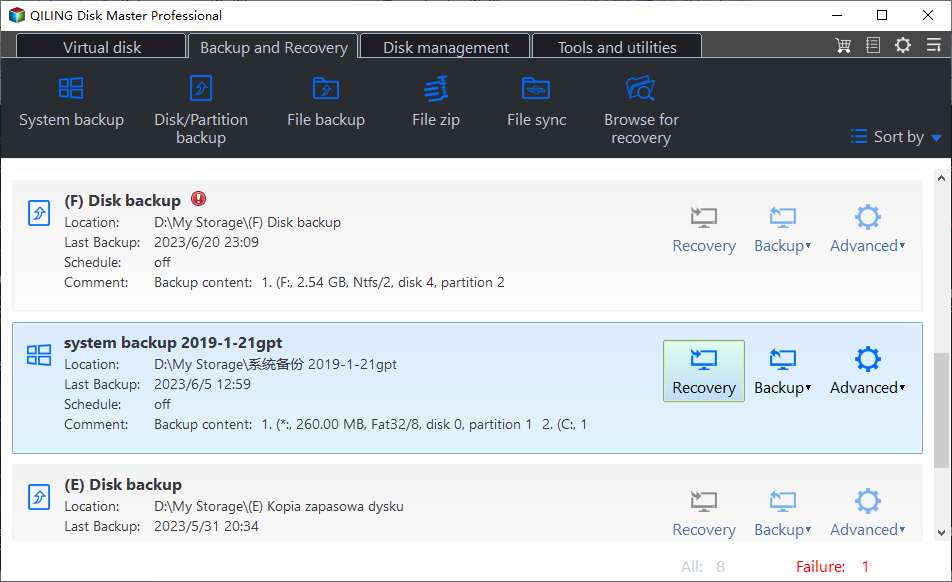
Step 5. Select to restore entire backup and click Next.
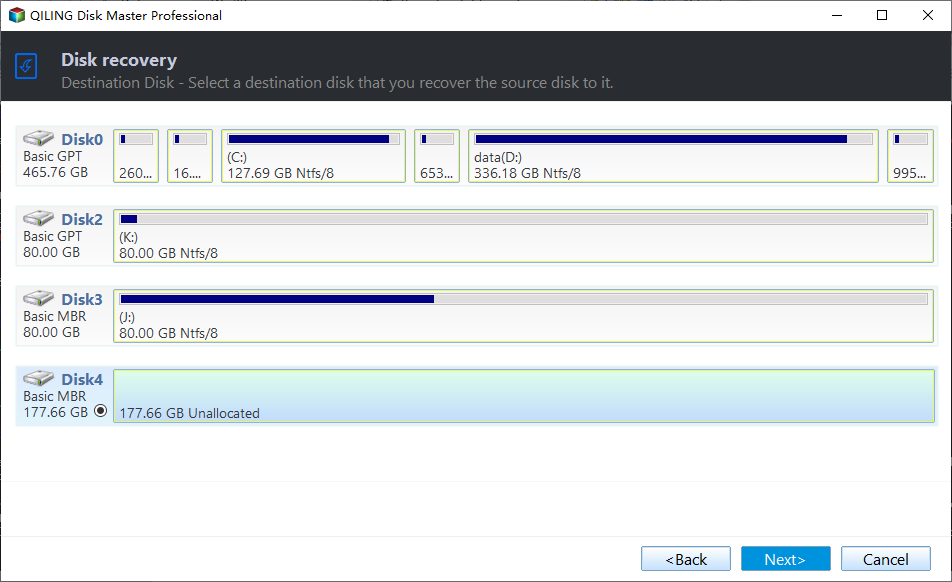
Step 6. Select the destination disk on the new hardware to restore system image in Windows Server 2016 and then click Next.
Step 7. Check the Universal Restore feature and SSD Alignment, then click Proceed to migrate Windows Server 2016 to new hardware.
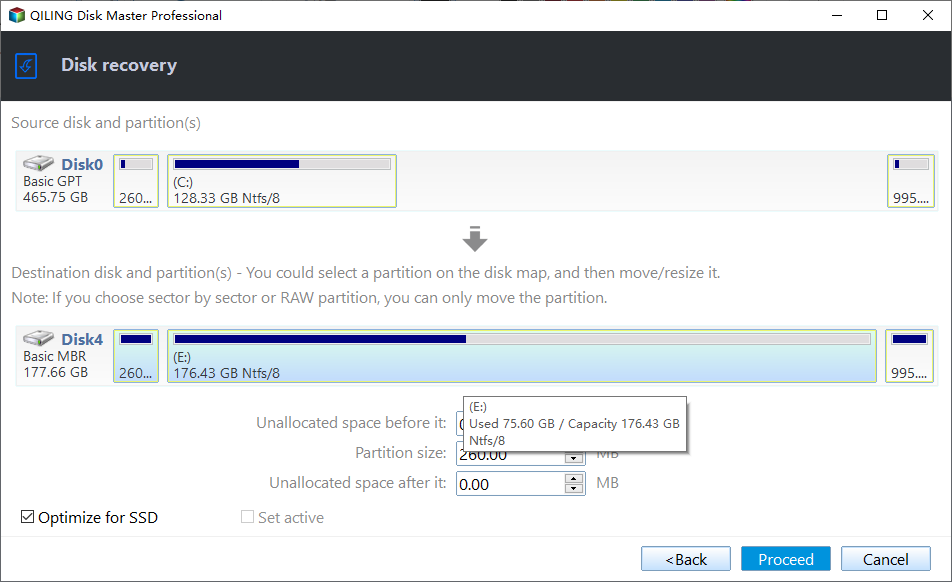
After installing the Server 2016 operating system, you can restart your server to experience the familiar operating system on the new server. If you want to restore a Windows Server 2016 backup image to multiple new servers, you can use the Qiling Image Deploy feature to complete this task.
✌ Notes:
★ This software can be used to migrate Windows Server 2012(R2) and other server systems, including Server 2003, 2008 (R2), 2011, 2016 and 2019, to new hardware.
★ The Universal Restore feature only installs system startup drivers on a dissimilar hardware machine, but other drivers like video, sound, and display drivers need to be installed manually after restoration.
★ If your new hardware uses different firmware, change the boot mode to BIOS or UEFI, depending on whether it's a MBR or GPT disk.
Migrate Windows Server 2016 to 2019 and Be Sure It Is Bootable
Some users still want to migrate from Windows Server 2016 to a newer version, such as 2019 or 2022, and the simplest way to do this is to restore a system image from Windows Server 2016 to one of these newer versions.
Migrating Windows Server 2016 to new hardware is a straightforward process, except for the backup image and installation disc, which should match the operating system. The steps are the same as migrating to new hardware, unless you prefer to perform a Windows Server in-place upgrade or clean install, which would require different procedures.
To perform a Windows Server in-place upgrade:
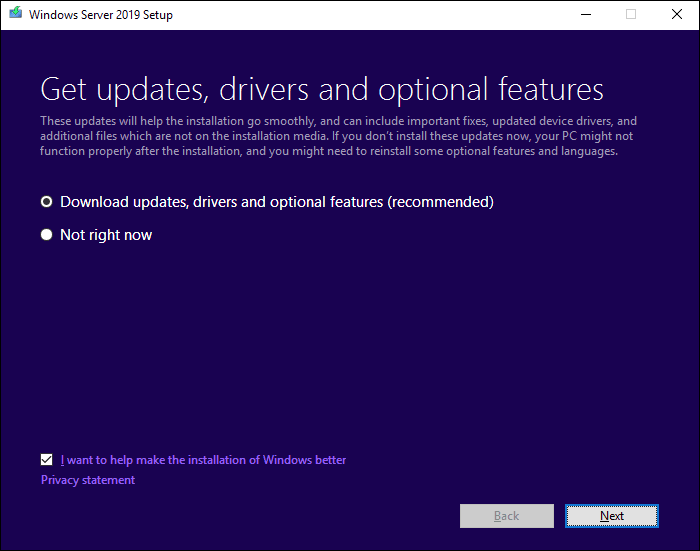
Download the Windows Server 2019 or 2022 ISO from Microsoft, launch the Setup.exe file to start the upgrade process, select "Download updates, drivers and optional features (recommended)", choose to keep personal files and applications or nothing, and then click "Install" to begin the in-place upgrade process.
To clean install Windows Server 2019 or 2022:
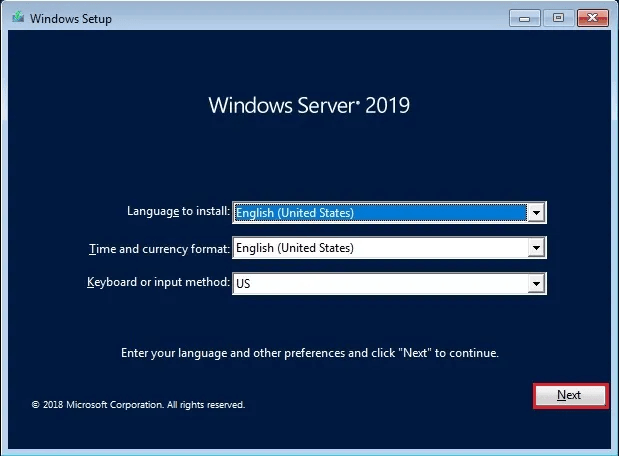
Restart your computer and boot from the installation disc. Select the language and other preferences, then click Next. Click Install Now, select the operating system, choose Custom for the installation type, and select the destination path to save the OS. Finally, click Next.
When migrating a Windows Server Essentials with a domain controller to new hardware, it's still necessary to prepare the forest and the domain, even after the physical move.
Open Command Prompt with Administrator priority and navigate to the adprep folder within installation folder (eg:C:\ISO\support\adprep). Then, run the following commands and hit Enter in order.
- adprep.exe /forestprep
- adprep.exe /domainprep
Final Words
With the provided methods, you can successfully migrate Windows Server 2016 to new hardware or system and boot from it with all data intact from the old server. It is also recommended to keep Qiling Disk Master on the new Server for optimal backup and protection of the installed system, applications, and personal data.
The Qiling Disk Master Technician Plus edition is ideal for company administrators, as it can be installed on unlimited servers and PCs, offering complete billable technical services to clients. It also allows for easy portable version creation and restoring backup images to multiple computers.
Related Articles
- Windows Server Backup Bare Metal Recovery to Different Hardware
- How to Create Windows Server 2016 Recovery Disk with Different Tool
- Clone Windows Server 2011 to New Hard Drive with Two Methods
- How to Migrate to a New Server with Different Hardware Easily?
- How to Extend System Partition for Windows 10/8/7 and Windows Server?
Learn the key steps, checks, and practical tips for this related guide. - Free Backup Software to Backup External Hard Drive
Learn how to automatically backup Seagate, Samsung, Western Digital etc. external/portable hard drive using best free backup utility Qiling Disk Master in Windows 7/8/10/11.
Products
Articles & Tutorials
- Data Recovery
- Data Backup
- File Recovery
- File Backup
- File synchronize
- System Backup and Restore
- Disk and Partition Clone
- Technical articles
- Disk Master Help
- Windows Deleted File and Disk Recovery Tutorials
- Windows File and Data Recovery Tutorials
- More Windows Tutorials for Install, Security, Files, and PC Tips
- Windows Boot, Repair, and Recovery Environment Tutorials
- Windows Backup Tutorials
- Windows Restore Tutorials
- Windows Clone and Migration Tutorials
- Windows Server Backup, Recovery, and Management Tutorials
- Windows Disk, Partition, and Storage Management Tutorials