Back Up Windows 11 Before Upgrading to an SSD
Clone an SSD only after you have a separate backup. A clone is a copy of the current disk, so it can also copy an unnoticed error or leave you without an earlier version of an important file. A system image gives you a fallback if the migration fails, the new SSD is incompatible, or Windows does not start afterward.
Choose a backup that can restore Windows
Use a System Backup when you need Windows, installed programs, settings, and boot partitions restored to their current state. Add a file backup for working documents that change frequently. Store the backup on an external disk or a network location, not on the SSD you plan to replace.
Create a Windows 11 system backup with Qiling Disk Master
Qiling Disk Master Professional creates a restore-ready image of the Windows system disk. The image is separate from the clone, so it remains useful even if the migration needs to be started again.
Step 1. Connect an external backup drive with enough free capacity. Download, install, and open Qiling Disk Master. Select Backup, then select System Backup.
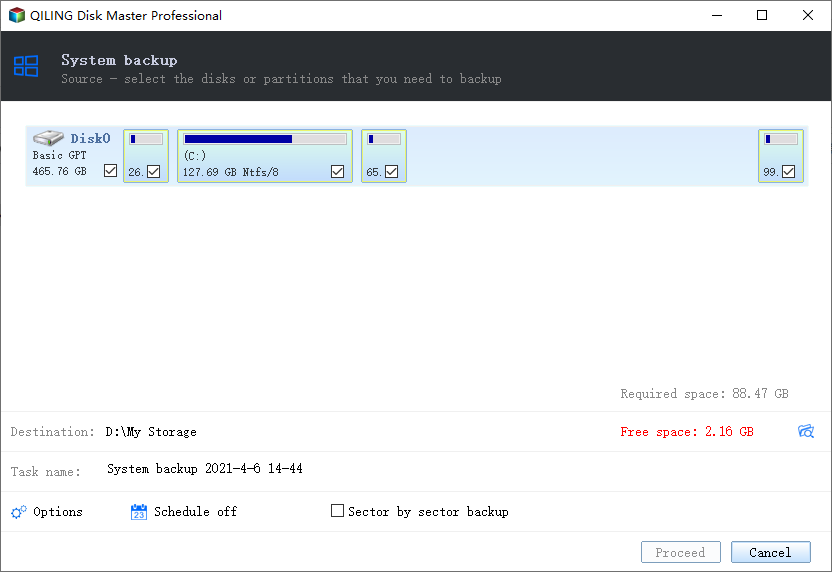
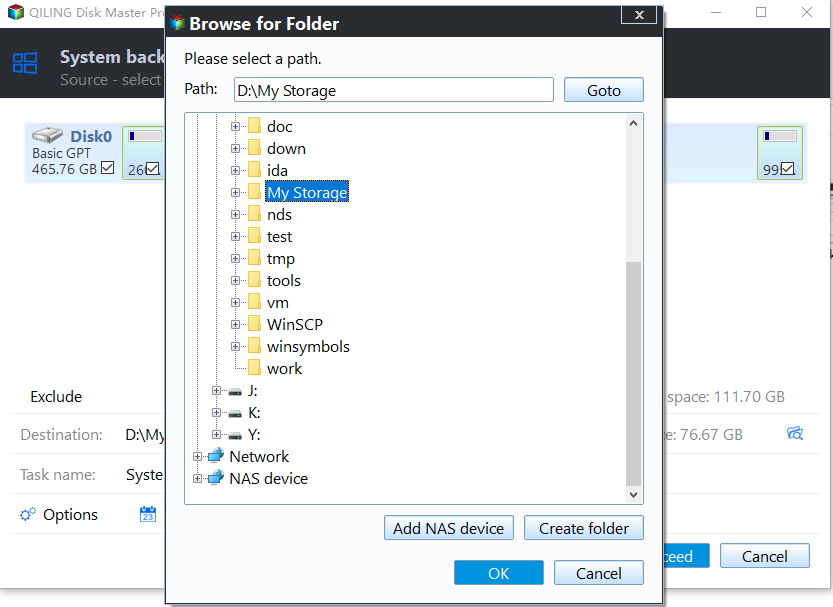
Step 2. Keep the required Windows system partitions selected. Click the destination area and select the external drive or a network folder. Do not choose the SSD that will be upgraded.
Step 3. Give the backup a recognizable name, review the source and destination, then click Proceed. Wait for the task to finish before disconnecting the backup drive.
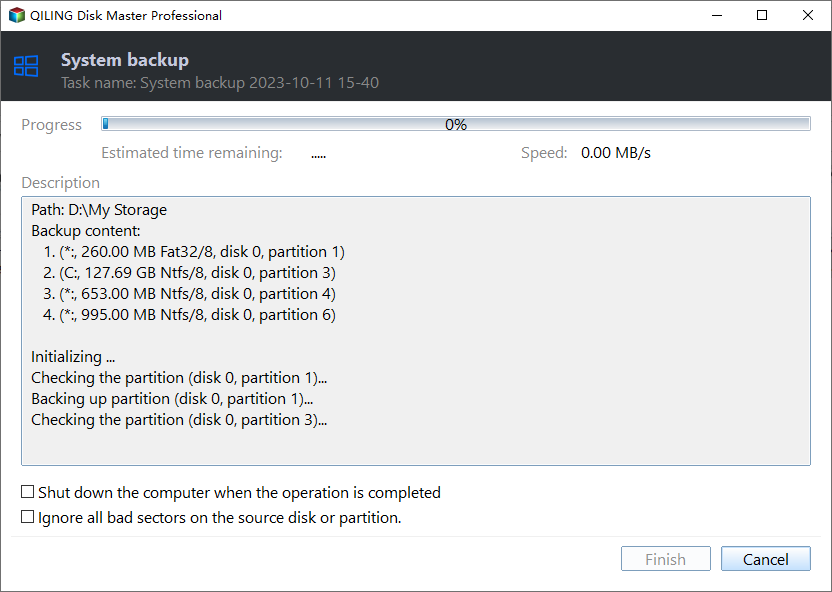
Check the backup before replacing the SSD
Open the backup task and confirm that it completed without errors. Keep the external drive and, when possible, create Windows recovery media before opening the computer. During the SSD upgrade, keep the original drive untouched until the replacement SSD has booted and your files have been checked.
Related Articles
- Back Up a Windows 11 Laptop
Choose file and system protection for a laptop that may need recovery after hardware changes. - Transfer Windows to Another SSD
Use a disk migration workflow after creating a separate restore-ready backup.
Products
Articles & Tutorials
- Data Recovery
- Data Backup
- File Recovery
- File Backup
- File synchronize
- System Backup and Restore
- Disk and Partition Clone
- Technical articles
- Disk Master Help
- Windows Deleted File and Disk Recovery Tutorials
- Windows File and Data Recovery Tutorials
- More Windows Tutorials for Install, Security, Files, and PC Tips
- Windows Boot, Repair, and Recovery Environment Tutorials
- Windows Backup Tutorials
- Windows Restore Tutorials
- Windows Clone and Migration Tutorials
- Windows Server Backup, Recovery, and Management Tutorials
- Windows Disk, Partition, and Storage Management Tutorials