Top 3 Ways to Backup Laptop on Windows 11 (Both Files and OS)
Scenario
How to backup Windows 11 laptop automatically?
You can consider using free software like FreeFileSync, Duplicati, or SyncToy, which offer automatic backup and synchronization features. These tools can be configured to backup specific files and folders, and some even offer incremental backups to save storage space. They are all compatible with Windows 11 and can be used on your laptop.
- Question from Tom's HARDWARE
To automatically backup laptop in Windows 11, it's essential to create a backup system to prevent data loss in case of system crashes or hardware failures. This can be achieved through various methods, including using the built-in Windows Backup tool, third-party backup software, or cloud-based services like OneDrive or Google Drive. Incremental backup, which only saves changes made since the last backup, can also be implemented to save storage space and reduce backup time.
The necessity of Windows 11 backup
Backing up your laptop or computer files or system is a crucial practice to regularly save your data or entire OS to a secure storage source, such as an external hard drive, to easily restore your system in case of accidental file loss or system crash.
Data failures can occur due to hardware or software issues, data corruption, or human errors like intentional attacks or accidental deletions, leading to potential data loss. To prevent this, a reliable backup method is necessary.
If you're interested in learning how to backup laptop on Windows 11, follow the steps below.
How to backup laptop in Windows 11 with 3 easy ways
To backup your laptop on Windows 11, you can use built-in tools like File History or Backup and Restore, or consider using professional Windows 11 backup software to automatically create Windows 11 backup files or system image.
To backup HP/Dell laptop Windows 11, you can use one of three methods. These methods also apply to backing up Lenovo, Acer, and ASUS laptops. Each method allows you to create a backup of your laptop's data, which can be useful in case of a system failure or other issues.
👉 Backup laptop Windows 11 to external drives using File History
👉 Backup Windows 11 laptop via Backup and Restore
👉 The best free solution for Windows 11 backup is Qiling Disk Master.
Backup laptop Windows 11 to external drives using File History
To backup laptop to external hard drive on Windows 11, follow these steps: File History is designed to backup all folders in frequently used locations, but you can also manually add specific folders to backup. To do this, go to Settings, then Update & Security, and select Backup. Under "Back up these folders," click "Add a folder" and select the folder you want to backup.
1. To connect an external drive to your laptop, press Windows + I to open Settings, and navigate to System - Storage - Advanced Backup options.
2. Click "Add a drive" to choose the connected drive as the backup destination under the "Back up using File History" option.
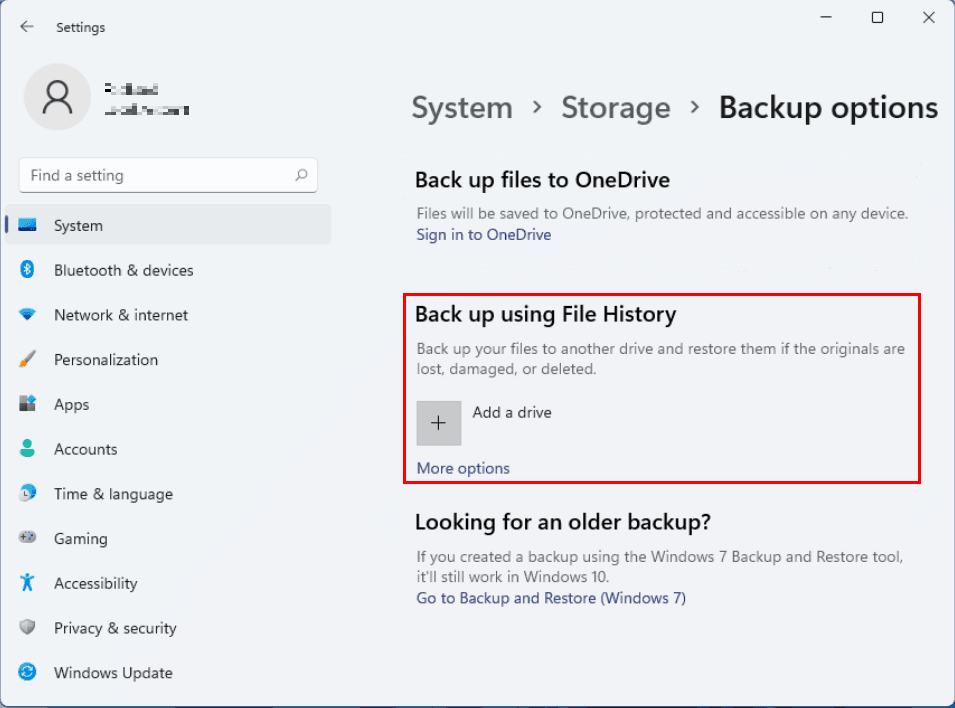
3. Then click Back up now to operate your backup.
Tip: File History is set to make hourly backups by default, but you can adjust the frequency to suit your needs by going to More options.
Backup Windows 11 laptop via Backup and Restore
You can use the Windows Backup and Restore tool to create a full system image or back up selected files and folders on Windows 11. It helps you recover the laptop after a crash, corruption, or unwanted system change, and you can save the backup to an external drive, NAS, DVD, or another supported location.
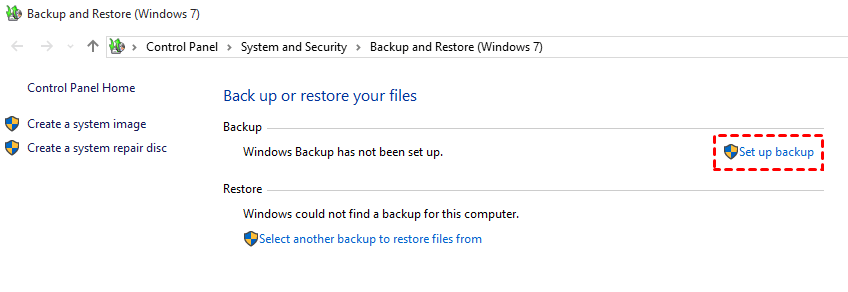
1. Go to Control Panel, select Backup and Restore (Windows 7), and tap on Set up backup. To create a system image backup for Windows 11, use the Create a system image option.
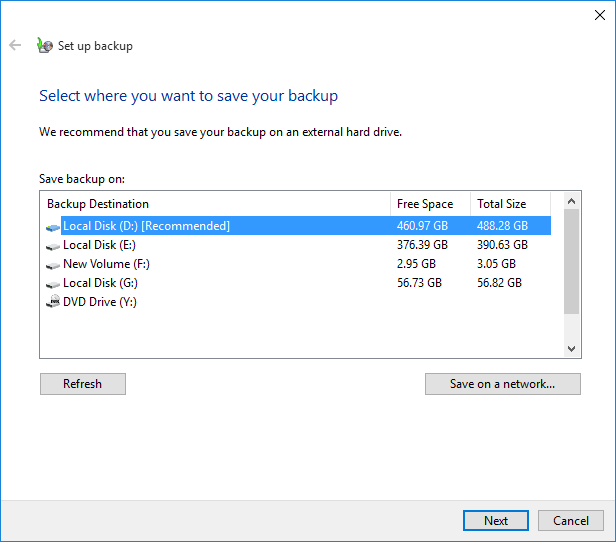
2. If condition permits, it is recommended that you back up to an external hard drive with sufficient storage space. Click Next.
3. Select the Let Windows choose (recommended) option and hit Next.
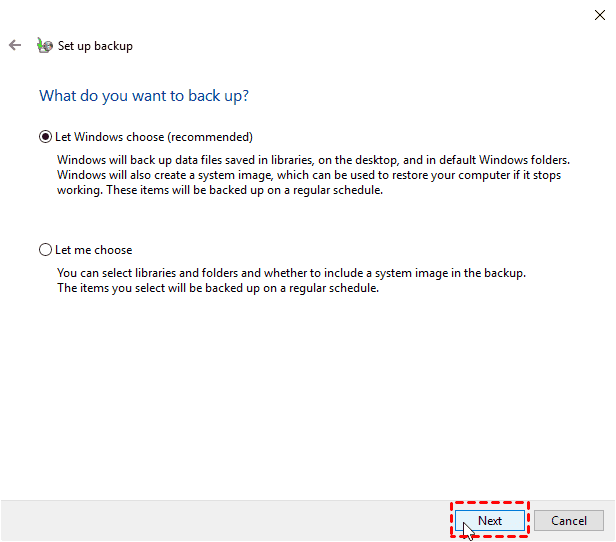
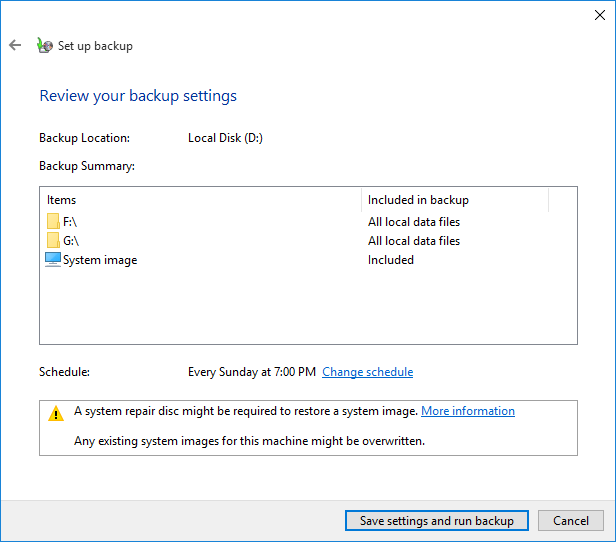
4. Click on the "Save settings and run backup" button to confirm your options and complete the backup process.
Note: To set a custom backup schedule, tap the "Change schedule" button and select your desired backup frequency. The default backup time is Sunday at 7 PM.
Best free solution for Windows 11 backup - Qiling Disk Master
To increase the efficiency of your backup and save storage space, I highly recommend using Qiling Disk Master Standard, which can help reduce duplicates and optimize storage space, especially when using File History to create full copies of original files and folders.
✐ It allows you to create backups of your entire system, individual disks, partitions, and specific files or folders, giving you flexibility in managing your data.
✐ This tool allows users to back up their data to a variety of destinations, including USB drives, local disks, external hard drives, network shares, NAS devices, and cloud storage services.
✐ It enables you to automate backup tasks on a schedule, such as daily, weekly, or monthly.
✐ It supports Windows 11/10/8.1/8/7/XP/Vista, and for server users, Qiling Disk Master Server is available.
To backup your laptop on Windows 11 using Qiling Disk Master, follow these graphical steps:
Download this freeware to your laptop to have a try.
Backup laptop files on Windows 11:
1. Open the backup utility and click on Backup, then select File Backup (or Disk Backup to backup specific drives).

2. To back up files or folders on your laptop, click on the "Files" or "Folder" option to select the files or folders you want to back up.

3. To create a Windows 11 backup, select the location as the destination path to store the image file, such as choosing Add Share or NAS Devices for a NAS backup.

You can customize your backup settings:
▶Options: You can write comments for your task and set an email notification.
▶Schedule Backup: You can set fixed frequencies such as daily, weekly, monthly, event triggers, or USB plug-in.
▶Backup Scheme: With incremental or differential backup, you can capture only the data changes since the last backup, saving time and disk space. This feature is available in the paid edition and also includes Automatic Backup Cleanup, which automatically removes history backup versions based on a rule to save storage space.
4. Confirm your settings by clicking the Proceed button and wait for the task to finish.
Backup laptop OS on Windows 11:
To backup your entire operating system, click System Backup from the Backup panel, then follow the on-screen instructions to complete the task.

To sum up
To backup your laptop on Windows 11, you have three options to choose from. However, for a more tailored backup experience, it's recommended to use Qiling Disk Master to simplify the process and avoid any additional hassles.
With its powerful features, you can automate your backup at your preferred frequency, offering incremental and differential backup, and store your backup in different locations, diversifying your backup efforts.
Qiling Disk Master offers more than just backup features, including restore, sync, and clone capabilities. It also allows for syncing files or folders over a network from one computer to another, making it a comprehensive tool for protecting data security.
Related Articles
- Best Way for Backing Up Windows 11 to External Hard Drive (2 Ways)
You can learn three methods of backing up Windows 11 to an external hard drive, including built-in tool and third-party tools. - Windows 11 Backup and Restore: Full Guide and Alternative
You will learn the difference of Windows 11 Backup and Restore and Windows 10 and how to use it to backup files as well as its best alternative way. - Windows 11: Backup Files to External Hard Drive in 3 Easy Ways
You can easily learn 3 methods to backup files to external hard drive in Windows 11. They are built-in tool "File History", "Backup and Restore" and a free backup software "Qiling Disk Master". - Free|How to Create Full Backup of Your Windows 11 PC (2 Ways)
This tutorial will demonstrate how to create a full backup of your Windows 11 PC to spare you from the risk of data loss. Following is the stepwise guide for you. - A Volume Shadow Copy Service Component Encountered an Unexpected Error
A Volume Shadow Copy Service component encountered an unexpected error in Windows 10/8/7 you can refer to this article and find solutions here. - How to Solve My WD Hard Drive Not Recognized in Windows 10?
When WD hard drive not recognized/ showing up in Windows 10 or 11, realize the possible causes and find out effective solutions in this post.
Products
Articles & Tutorials
- Data Recovery
- Data Backup
- File Recovery
- File Backup
- File synchronize
- System Backup and Restore
- Disk and Partition Clone
- Technical articles
- Disk Master Help
- Windows Deleted File and Disk Recovery Tutorials
- Windows File and Data Recovery Tutorials
- More Windows Tutorials for Install, Security, Files, and PC Tips
- Windows Boot, Repair, and Recovery Environment Tutorials
- Windows Backup Tutorials
- Windows Restore Tutorials
- Windows Clone and Migration Tutorials
- Windows Server Backup, Recovery, and Management Tutorials
- Windows Disk, Partition, and Storage Management Tutorials