Free|How to Create Full Backup of Your Windows 11 PC (2 Ways)
Reasons for creating full backup of your Windows 11 PC
Creating a full backup of your Windows 11 PC is essential to protect your system, programs, and user data from potential risks such as hardware failures, upgrade problems, malware attacks, and file corruption. A full backup ensures you have an exact copy of your current settings and files, safeguarding them from unpredictable situations like Windows 11 boot loops, and preventing data loss in case of unforeseen circumstances.
To backup Windows 11, you can use the built-in Backup and Restore tool, third-party software like Qiling Disk Master, or the File History feature to backup files, which can be set up with a schedule and custom selection, or the System Image Backup feature for a full system backup.
How do I backup my Windows entirely?
To create a full backup of your Windows 11 PC, you can use free and easy-to-use backup tools like [list the tools]. These tools allow you to back up all system boot files, settings, and user profiles, ensuring that your entire system is protected in case of a disaster.
1. Windows 11 Backup and Restore
Windows 11 still has the Backup and Restore feature from Windows 7, allowing you to backup your system or files, and restore your system using the created backup image in case of an issue.
2. Free backup software—Qiling Disk Master Standard
Qiling Disk Master is a comprehensive and professional utility that offers a free backup solution for Windows 11 OS, providing a range of features to easily backup your system and considered one of the best free backup software options.
❂ Multiple backup types: 4 types of backups are available: System Backup, Disk Backup, Partition Backup, and File Backup, each serving different backup needs.
❂ Various backup locations: This backup software offers flexibility and convenience in data storage and backup by allowing users to save their data to various locations, including USB drives, local disks, external hard drives, network shares, NAS devices, and cloud drives.
❂ Schedule backup: This feature allows for automated backups of modified data, performed on a daily, weekly, or monthly schedule, ensuring that data is preserved.
❂ If you encounter more serious problems like system crashes or disk failures, it's a good idea to create a bootable media in advance.
You can choose to use the tool that comes with the system or a free third-party backup tool, depending on your situation. The process for each method will be described in the following part.
Method 1: Backup Windows 11 with built-in utility
Create a full backup of Windows 11 with Backup and Restore:
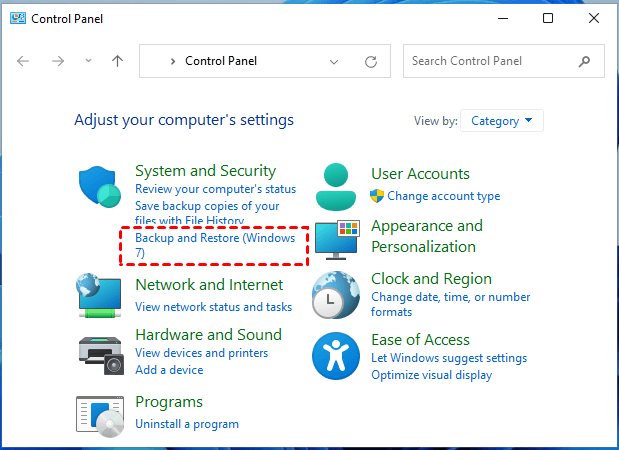
Step 1. To access the Backup and Restore feature in Windows, go to Control Panel, then System and Security, and click on Backup and Restore (Windows 7).
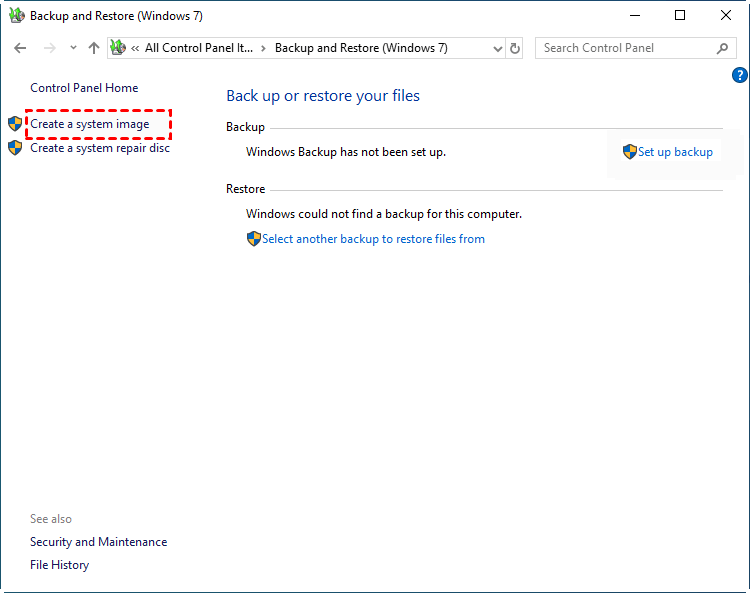
Step 2. On the next screen, select Create a System Image.
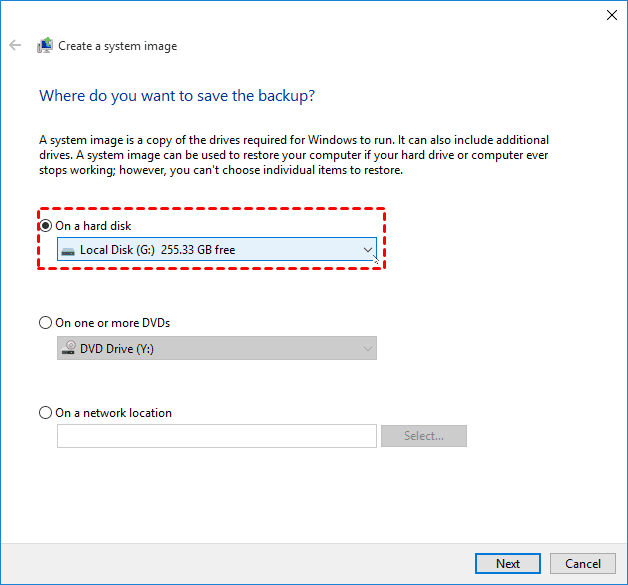
Step 3. Save your system image to a location such as a network drive or an external hard drive. Click Next.
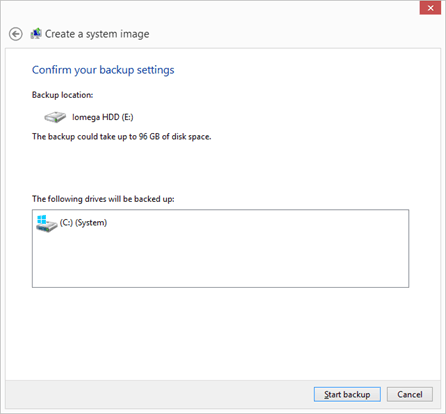
Step 4. Windows selects the required drives by default, and additional drives can be added by clicking "Next".
Step 5. Confirm your backup settings and then click Proceed.
Tip: After creating a system backup, you can skip the system repair disc prompt. If needed, use a USB installation media to access recovery settings and roll back to a previous installation.
How to restore after having created a system backup image:
Once you have created a system image, you can easily restore it to the previous state, which is a fairly simple process that allows you to revert back to a known good configuration.
1. To access the recovery settings, go to the Start menu and search for "Settings," then select "System" and finally click on "Recovery."
2. Scroll down to Advanced Startup and click Restart Now.
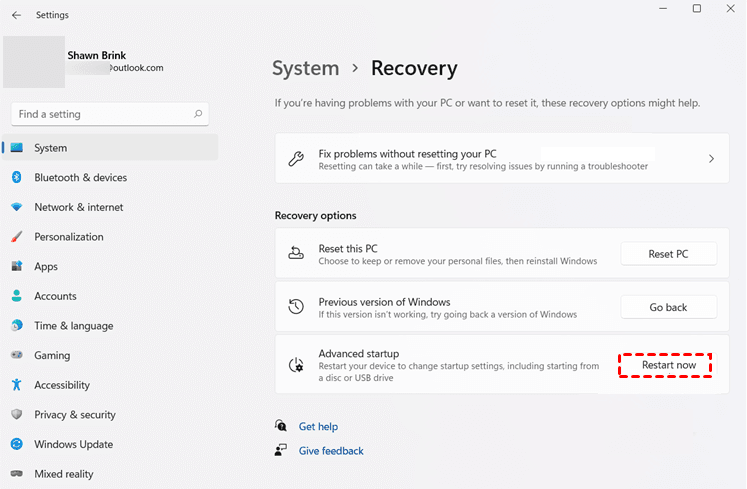
1. Connect the external hard drive that contains your system files to the computer. This will allow you to access the system files and perform the necessary steps to fix the issue.
Method 2: Create full backup of Windows 11 via Qiling Disk Master (easier)
To create a full backup of your Windows 11 PC with Qiling Disk Master, choose the proper backup option, select the system or disk you want to protect, pick a safe destination, and start the backup task.
Step 1. Download and install Qiling Disk Master Standard Edition, then launch the software.
Step 2. To backup your entire computer, click on the "Backup" option on the left side, then select either "System Backup" or "Disk Backup".

Step 3. The program automatically selects the system-related partition(s) as the source data, and you just need to choose a destination path.

Step 4. To backup your Windows 11, click on the "Proceed" button to initiate the backup process, which may take time depending on system and data size.

Notes about the lower-left settings:
Options: This software offers customizable backup features, enabling users to add comments, select compression levels, and set up email notifications for enhanced organization and convenience.
Schedule Backup: It offers automatic file backup with customizable frequencies, including daily, weekly, and monthly options, as well as event triggers and USB plug-in features, available with a paid upgrade.
Backup Scheme: The software offers various backup options, including full, incremental, and differential backups. The latter two methods, available in the Professional edition, save space on the destination disk by only backing up changed files, making them efficient.
How to restore the system image backup:
To restore your system, click on "Restore" and select either "Task" or "Image File", then follow the on-screen instructions to complete the system recovery process.

Note: To prepare for any potential Windows 11 boot issues, create a bootable disk in advance. This can be done by inserting a USB drive or CD/DVD into your computer, then using the Windows 11 installation media to create the bootable disk.

Tip: If you buy a new computer, you can use the "Universal Restore" feature (paid) and bootable media to recover your system files on the new computer.
Conclusion
To create a full backup of your Windows 11 PC, you can use either the built-in utility or Qiling Disk Master, which offers a more comprehensive backup solution. Qiling Disk Master provides various backup types for different needs and allows scheduled backups, making it a reliable option for users who want a thorough backup solution.
Qiling Disk Master is a free tool that enables cloning an SSD to another SSD in Windows 11 with ease.
Related Articles
- How to Make a Bootable Backup on Windows 11 (2 Free Ways)
A bootable backup allows you to restore a bootable system image when your computer falls into serious system errors. Scroll down to learn how to make Windows 11 bootable backup easily in 3 free ways. - How to Backup and Restore Files in Windows 11
You will learn the difference of Windows 11 Backup and Restore and Windows 10 and how to use it to backup files as well as its best alternative way. - 2 Easy Methods for Creating System Image in Windows 11
Learn two simple methods to create system image backup in Windows 11. Use Windows built-in tool and free Windows 11 image backup software to make it happen. Read on for more details. - How to Let Yahoo Mail Export Emails: Two Ways
Here are two ways to let Yahoo Mail export emails: using Outlook client and the Print feature on Yahoo Mail. Also, there is an easy solution to backup Yahoo Mail to hard drive easily. - Top 2 Ways to Fix Cannot Install or Upgrade to Windows 11
You will know the reasons you cannot install or upgrade to Windows 11 and how to fix it. You can also learn how to solve the system unbootable after installation failed. Please read on. - Easily Clone SSD to SSD in Windows 11 with the Best Migration Tool
To clone an SSD to another SSD in Windows 11, we recommend using Qiling Disk Master, a reliable and user-friendly software that can efficiently complete this task. Get it now and proceed with the cloning process.
Products
Articles & Tutorials
- Data Recovery
- Data Backup
- File Recovery
- File Backup
- File synchronize
- System Backup and Restore
- Disk and Partition Clone
- Technical articles
- Disk Master Help
- Windows Deleted File and Disk Recovery Tutorials
- Windows File and Data Recovery Tutorials
- More Windows Tutorials for Install, Security, Files, and PC Tips
- Windows Boot, Repair, and Recovery Environment Tutorials
- Windows Backup Tutorials
- Windows Restore Tutorials
- Windows Clone and Migration Tutorials
- Windows Server Backup, Recovery, and Management Tutorials
- Windows Disk, Partition, and Storage Management Tutorials