How to Add More Storage to a Windows 10 PC
“More storage” can mean freeing existing capacity, extending C: within the same disk, adding a second drive for files, or replacing the system drive with a larger SSD. These solve different problems. A second disk does not automatically enlarge C:, and deleting recovery partitions is not a sound shortcut.
Measure the shortage and choose a route
Open Settings > System > Storage to see what uses C:. Clear unneeded temporary files after reviewing categories, move personal libraries to another disk, and uninstall unused apps. In Disk Management, inspect whether the system disk has unallocated space and whether it sits directly after C:. Back up important files before any partition change.
Option 1. Add a data drive
Step 1. Install a compatible internal drive or connect an external one. Open Disk Management and identify it by model and capacity. If it already contains files, stop; do not initialize or format it.
Step 2. For a genuinely blank disk, choose a partition style when Windows prompts you, then right-click its unallocated space and select New Simple Volume. Follow the wizard to choose a size, unused letter, and file system.
Step 3. Open the new drive in File Explorer and copy a test file. If you want personal libraries there, open each library's Properties > Location tab and use Move where available. Installed program folders should not be moved by dragging them.
Option 2. Extend the C partition
Step 1. In Disk Management, check whether unallocated space is immediately to the right of C: on the same physical disk. If so, right-click C:, choose Extend Volume, enter the amount, and finish. Check the new C: capacity afterward.
If another data partition lies between C: and free space, do not delete it merely to activate the button. Back up the disk before trying the following resize method.
Step 2. In Qiling Disk Master, select the data partition immediately after C: and click Resize/Move. Check its used space before shrinking it.
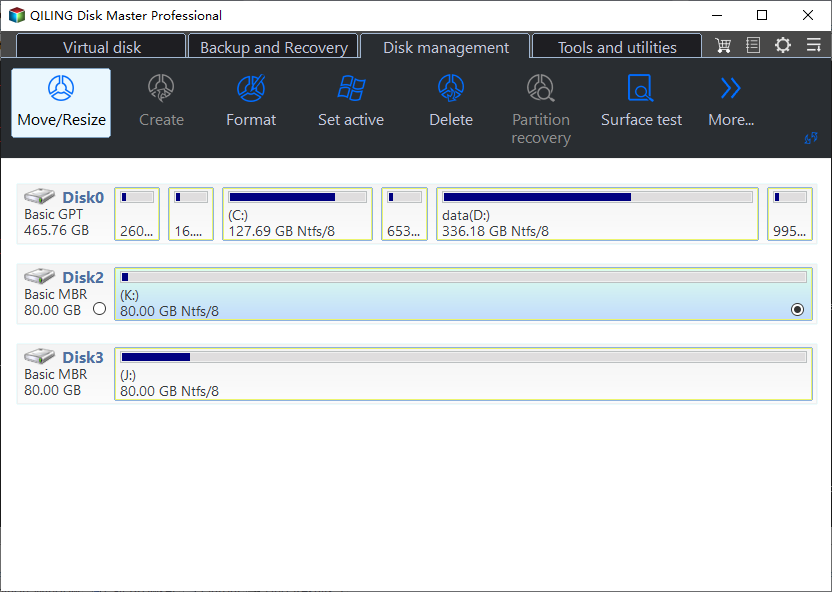
Step 3. Drag that partition's left edge right so unallocated space appears beside C:. In the same disk map, select C: and drag its right edge into that space. Confirm the previewed sizes of both partitions before continuing.
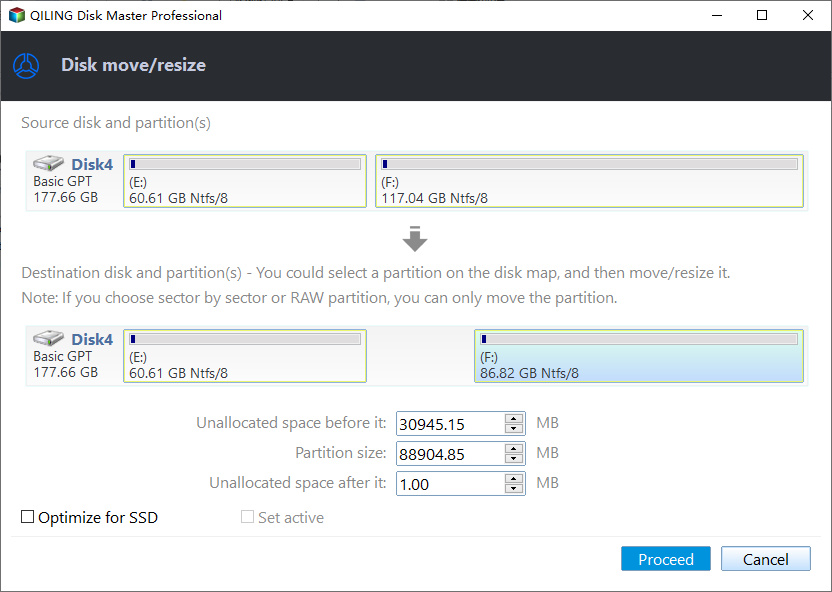
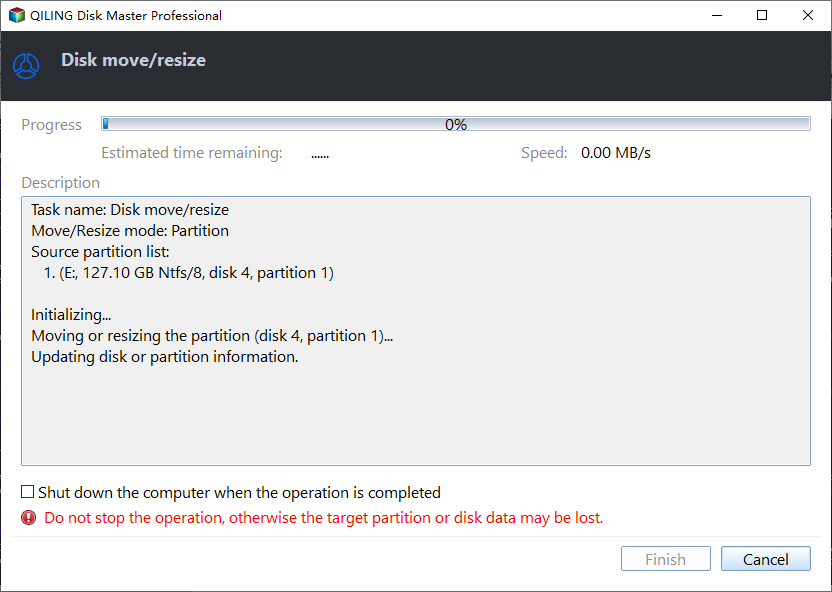
Step 4. Review the disk map, then click Proceed. Wait for the resize operation to finish, then verify both C: and the data partition.
Option 3. Replace the system drive with a larger SSD
Step 1. Check whether the replacement SSD fits your PC's connector and drive bay. Connect it through a compatible internal slot or adapter, and confirm that Windows detects it. Back up important files from the current Windows disk. Copy any files already on the new SSD elsewhere because cloning will overwrite the destination SSD.
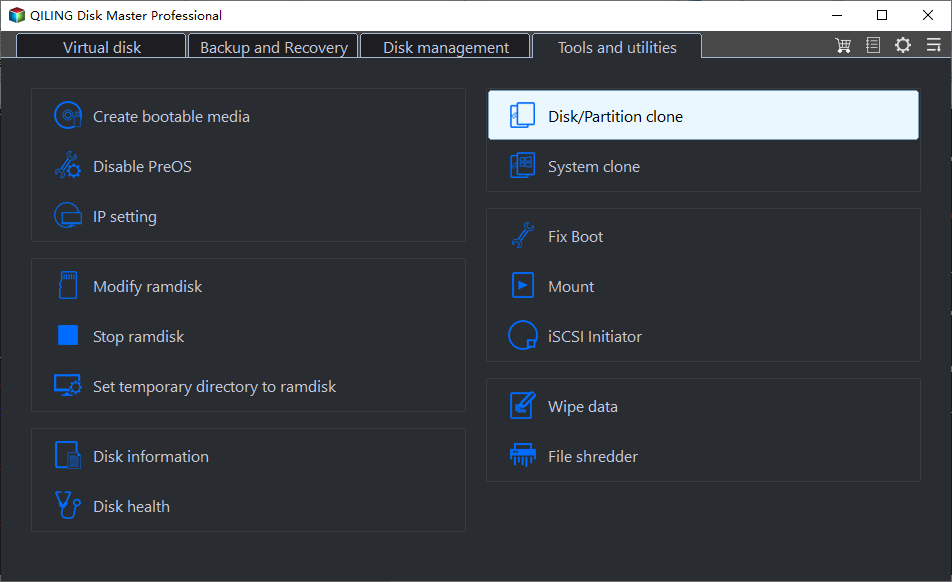
Step 2. Open an edition of Qiling Disk Master that supports system-disk cloning. On the Tools and utilities tab, choose Disk/Partition clone.
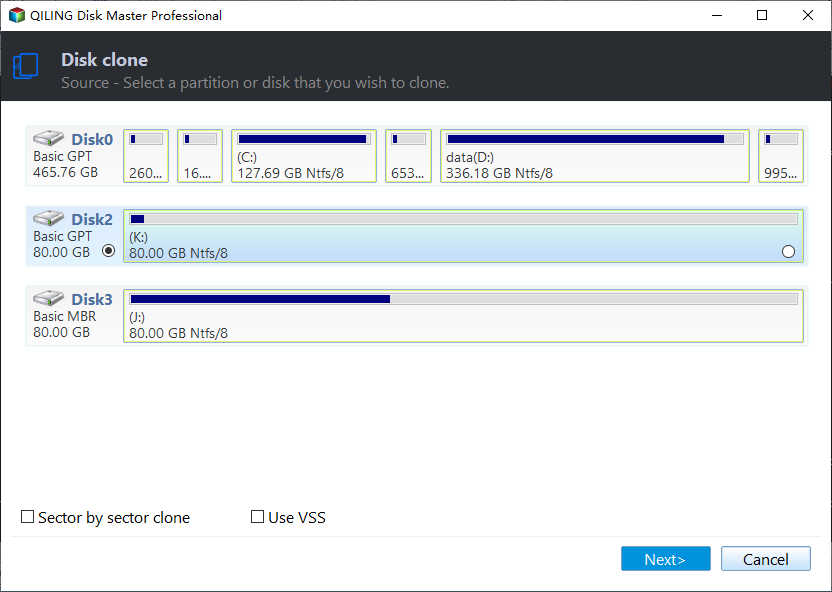
Step 3. On the source screen, find the current Windows disk by its capacity and the partition labeled C:. Select the whole disk using the circle beside its disk number, not the circle beside a single partition, so boot and recovery partitions are included. Click Next. If you intend to enlarge a partition on the new SSD, leave Sector by sector clone unchecked. The selected K: disk in the example image only shows where the disk-level control is; select the disk containing C: on your PC.
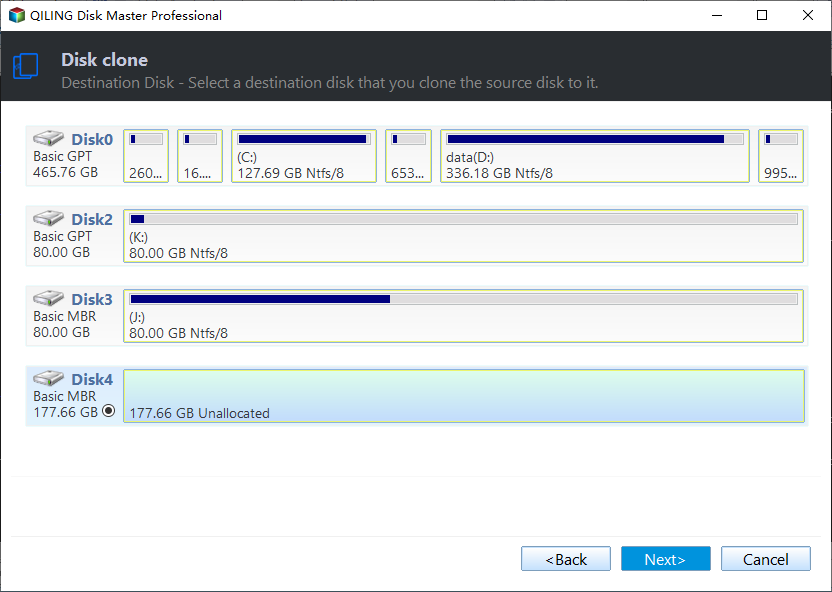
Step 4. On the destination screen, select the new SSD by its model and capacity, again using the circle beside the disk rather than an individual partition. Check that the source still points to the old Windows disk and the destination to the new SSD. Click Next only when you are certain: existing data on the destination SSD will be overwritten.
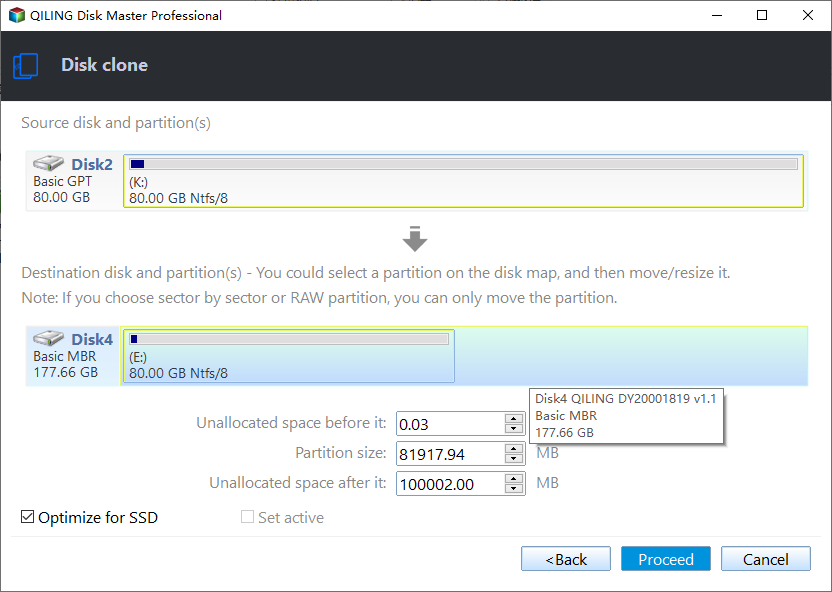
Step 5. In the preview, compare the source and destination layouts. Make sure the Windows and boot partitions are included. If the program lets you use the SSD's extra space, select the destination Windows partition and increase its size in the disk map; otherwise leave the layout unchanged and resize after a successful first boot. Select Optimize for SSD if available. The disk letters in the screenshot are examples, not the disks you should choose.
Step 6. Recheck the direction of the clone, then click Proceed. If a warning says the destination will be erased, confirm only after checking the SSD again. Keep both drives connected and wait for the clone to finish; allow any restart or offline phase the program requests.
Step 7. Shut down the PC and install the SSD in the original system-drive position. For the first test, disconnect the old disk where practical so you can tell which drive Windows boots from. Start Windows from the SSD, then check your files and the C: capacity in Disk Management. If extra space is still unallocated, use the partition-resize method above only after confirming the cloned SSD boots correctly. Keep the old disk unchanged until the new setup has been tested.
Related Articles
- Extend the Windows 10 System Partition
See partition-layout requirements for enlarging C. - Clone Windows 10 HDD to SSD
Plan a larger system-drive replacement without reinstalling.
Products
Articles & Tutorials
- Data Recovery
- Data Backup
- File Recovery
- File Backup
- File synchronize
- System Backup and Restore
- Disk and Partition Clone
- Technical articles
- Disk Master Help
- Windows Deleted File and Disk Recovery Tutorials
- Windows File and Data Recovery Tutorials
- More Windows Tutorials for Install, Security, Files, and PC Tips
- Windows Boot, Repair, and Recovery Environment Tutorials
- Windows Backup Tutorials
- Windows Restore Tutorials
- Windows Clone and Migration Tutorials
- Windows Server Backup, Recovery, and Management Tutorials
- Windows Disk, Partition, and Storage Management Tutorials