How to Change Legacy to UEFI
Quick Navigation:
Introduction
As it is known, the UEFI boot has more advantages over the traditional Legacy boot of BIOS. Many features available in UEFI are not supported in traditional BIOS. With the release of Windows 11, the UEFI boot mode becomes a must for a computer. To upgrade your system to Windows 11, you need to change the Boot Mode from Legacy to UEFI.
For the newest motherboard, normally CSM is enabled by default and UEFI is also enabled so that there is no need to manually change the Boot Mode. However, if the UEFI boot mode is not enabled, you still need to manually convert Legacy to UEFI boot mode.
How to Change the Boot Mode from Legacy to UEFI
For older motherboards, the change of Boot Mode from Legacy to UEFI may take steps.
1. Press Del or F2 or other shortcuts continuously when prompted to enter the BIOS menu. From the BIOS Main Menu screen, select Boot.
NOTE: different computers use different keys to achieve this. Typically, it will either be the Del key or the F2 key. Press this key repeatedly immediately after power-up until you see the BIOS/UEFI screen.
2. From the Boot screen, select UEFI/BIOS Boot Mode, and press Enter. Then the UEFI/BIOS Boot Mode dialog box appears.
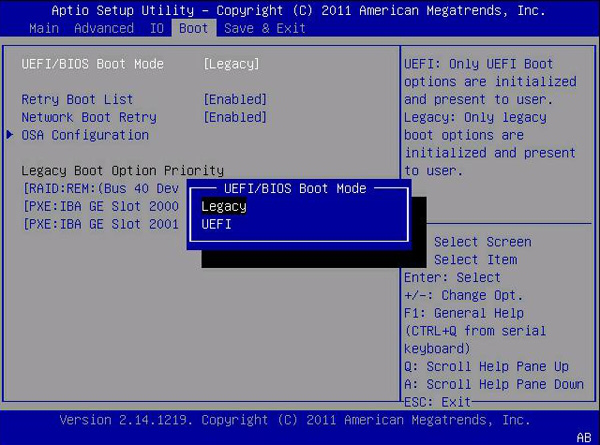
3. Use the up and down arrows to select Legacy BIOS Boot Mode or UEFI Boot Mode, and then press Enter.
4. To save the changes and exit the screen, press F10.
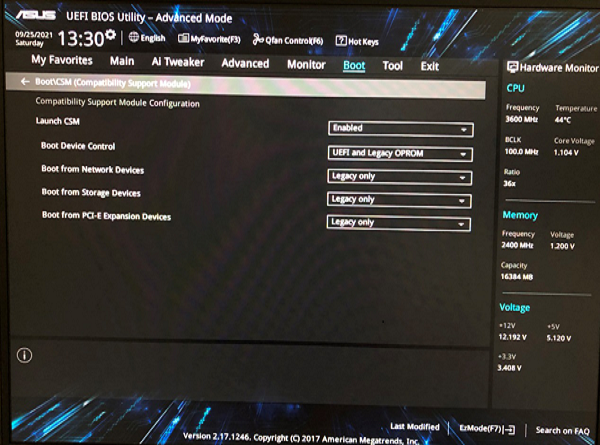
For newer motherboards, the setup of UEFI boot mode is much simpler. Once you enter into UEFI screen, please make sure the Launch CSM under Boot is enabled and UEFI support is turned on so that UEFI boot is configured successfully.
Related Articles
- 6 Solutions to Windows 11 Reset Not Working Problem
You can learn how to fix Windows 11 reset not working problem on this page. An easier way to reset your computer is also provided in this article. - Best Free Backup Software for Windows 7 (32/64 Bit)
The best free backup software for Windows 7 - Qiling Disk Master can help you protect system and data with no effort. Supports both 32 and 64-bit system. - How to Restore Windows 7 without Restore Point
Learn how to Restore Windows 7 without Restore Point with clear steps, key checks, and practical tips. - How to Easily Move Boot Partition in Windows 7/8/10?
You will get the 3 ways to move boot partition in Windows 7, and the best way to avoid boot partition and system partition on different drives. - Adjust Partition Size with Free Partition Software
If you're unable to adjust the partition size due to Extend Volume being greyed out or the available shrink space being 0 in MB, Qiling Disk Master can be a helpful tool. - Dell Alienware Hard Drive Replacement - No Data Loss
This guide explains Dell Alienware Hard Drive Replacement - No Data Loss with clear steps, key checks, and practical tips.
Products
Articles & Tutorials
- Data Recovery
- Data Backup
- File Recovery
- File Backup
- File synchronize
- System Backup and Restore
- Disk and Partition Clone
- Technical articles
- Disk Master Help
- Windows Deleted File and Disk Recovery Tutorials
- Windows File and Data Recovery Tutorials
- More Windows Tutorials for Install, Security, Files, and PC Tips
- Windows Boot, Repair, and Recovery Environment Tutorials
- Windows Backup Tutorials
- Windows Restore Tutorials
- Windows Clone and Migration Tutorials
- Windows Server Backup, Recovery, and Management Tutorials
- Windows Disk, Partition, and Storage Management Tutorials