Adjust Partition Size with Free Partition Software
- When adjust partition size?
- An all-around partition manager for Windows free download
- How to: adjust partition size via the partition manager
When adjust partition size?
Adjusting partition size typically involves extending or shrinking a partition, which is usually necessary when a user needs to change the size of a partition. This is commonly required under two main conditions: when the existing partition is too small and needs to be enlarged, or when it is too large and needs to be reduced in size.
- To resolve the "Low Disk Space" issue on a full partition, you need to extend the drive that lacks sufficient free space, which can often occur on the C drive.
- Your hard drive is not partitioned efficiently, making it difficult to manage data. To improve this, you should create more partitions to organize your files and data more conveniently. To achieve this, you can shrink the partition with ample free space, which will then release unallocated space, allowing you to create a new partition to store your data.
An all-around partition manager for Windows free download
In Windows Disk Management, you can use the "Extend Volume" or "Shrink Volume Wizard" to adjust partition size, as shown in the screenshots.
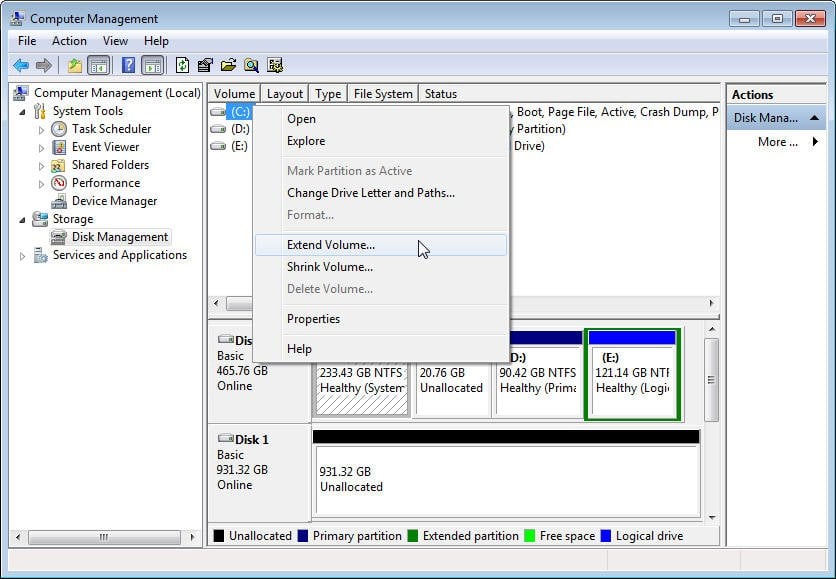
Note: To extend a partition via Disk Management, there should be a contiguous unallocated space behind the partition that you want to extend.
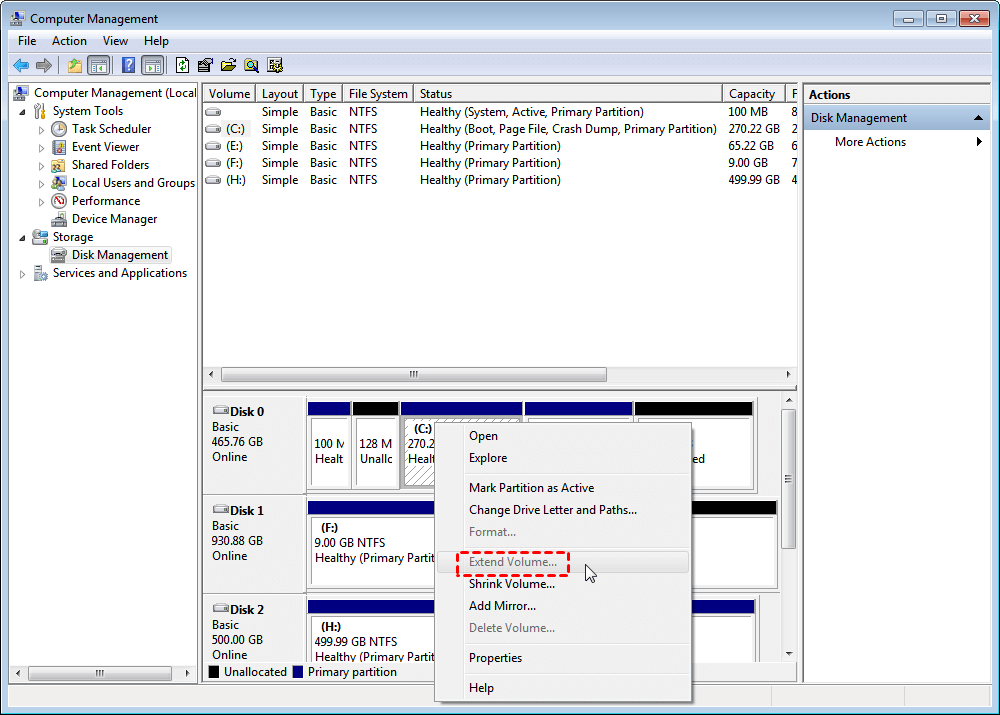
In many cases, there is no adjacent unallocated space behind the partition that you want to extend, making it impossible to get such a space through shrinking a partition. As a result, after shrinking a partition behind the C drive, the unallocated space is created behind the shrunk partition, not behind the C drive, making the Extend Volume option greyed out.
We introduce Qiling Disk Master Standard, an easy-to-use and powerful partition manager for Windows operating systems, including 10/8.1/8/7, XP, and Vista.
Apart from extending partition with non-contiguous or contiguous unallocated space, it's highly recommended out of the reasons given below:
✌ It can compress the C drive without being restricted by files that cannot be moved.
✌ It can resize NTFS partition and FAT32 partition.
✌ It can copy a partition to another drive, making it easy to transfer data.
✌ It can convert an NTFS partition into FAT32 without data loss.
✌ It can resize/move BitLocker partition.
Now, you can download the software for free to adjust your partition flexibly and securely.
How to: adjust partition size via the partition manager
Install and run Qiling Disk Master Standard, then refer to the step-by-step tutorials to change partition size in various Windows versions, including Windows 10, 8.1, 8, 7, XP, and Vista.
Extend partition by adding non-contiguous unallocated space.
Take extending C drive in Windows 7 as an example.
If there's no unallocated space, you can try shrinking one partition to free up some space. This can help you create a partition for your new installation.
Shrink partition with unmovable files
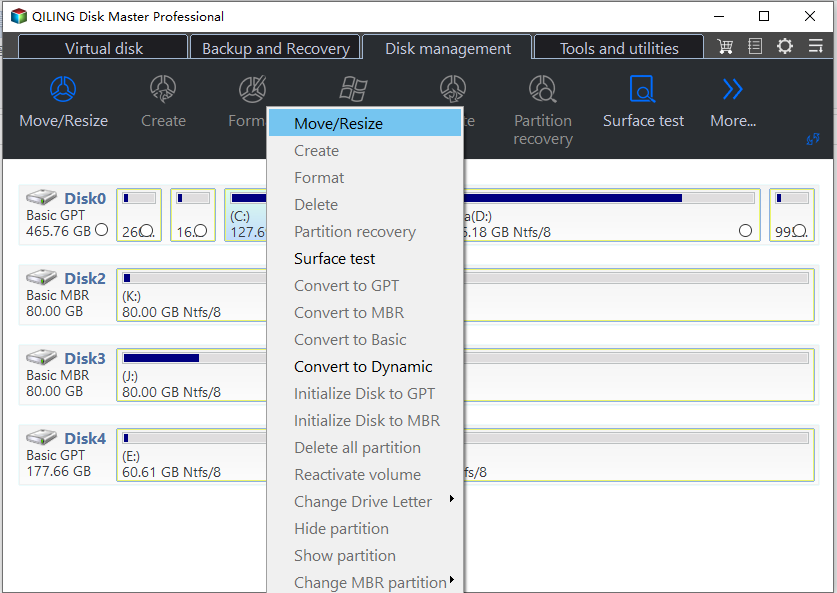
Step 1. Right click the partition that you want to shrink and choose Resize/Move Partition.
Step 2. In the pop-up window, shrink the partition C by dragging the slider leftwards.
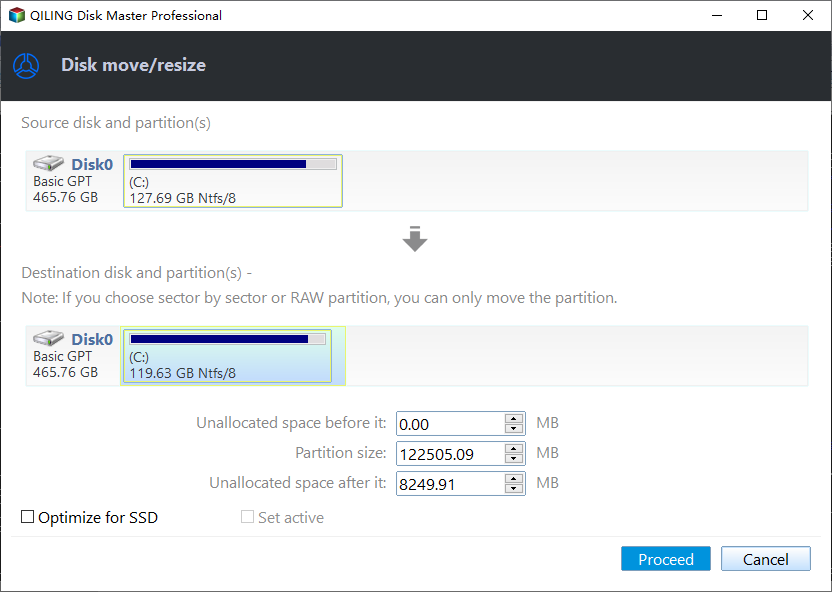
Step 3. Click Proceed to commit the operation.
Final words
Whether you want to increase or decrease the capacity of a partition, Qiling Disk Master Standard is a great choice. You can enjoy advanced functions like cloning NVMe to NVMe SSD, recovering deleted NTFS or FAT32 partition, converting dynamic disk into basic, and more. You can also upgrade to the Professional version.
Related Articles
- How to Resize C drive in Windows Server 2019/2016/2012/2008/2003 Effortlessly?
When you can't extend or shrink C drive in Windows Server 2019, refer to the article and you can realize detailed steps about how to resize C drive in Windows Server 2022/2019/2016/2012/2008/2003. - Allocate Free Space to C Drive without Deleting in Windows 10, 8, 7
Allocate free space to C drive in Windows 10/8/7 without deleting partitions or moving data manually. - 2 Effective Ways to Backup Outlook PST Files Automatically
Learn 2 ways to back up Outlook PST files automatically: use the Outlook backup add-in or Qiling Disk Master for scheduled PST and email backups. - Top 4 Ways to Backup Yahoo Mail to Computer
This tutorial provides 4 ways to back up Yahoo Mail to your computer, whether you want to save individual emails or an entire folder. - How to Delete Files from External Hard Drive in Windows 10/8/7?
In this post, we will show you how to delete files from external hard drives in Windows 11, 10, 8 and Windows 7. You will learn 4 methods to remove files on external drive successfully. - Learn How to Deploy Windows 10 Image via WinPE USB Disks
Deploy a Windows 10 image from WinPE USB media for system rollout, repair, or recovery on another computer.
Products
Articles & Tutorials
- Data Recovery
- Data Backup
- File Recovery
- File Backup
- File synchronize
- System Backup and Restore
- Disk and Partition Clone
- Technical articles
- Disk Master Help
- Windows Deleted File and Disk Recovery Tutorials
- Windows File and Data Recovery Tutorials
- More Windows Tutorials for Install, Security, Files, and PC Tips
- Windows Boot, Repair, and Recovery Environment Tutorials
- Windows Backup Tutorials
- Windows Restore Tutorials
- Windows Clone and Migration Tutorials
- Windows Server Backup, Recovery, and Management Tutorials
- Windows Disk, Partition, and Storage Management Tutorials