Install Programs on an External Hard Drive in Windows 10
Installing programs on an external hard drive can save internal disk space, but it is not suitable for every app. Programs may fail if the drive letter changes or the drive is disconnected.
Understand the problem
Portable apps work best on external drives. Large games and content libraries can also work if the launcher supports a custom library path. System tools and drivers should stay on the internal system disk.
- Confirm the exact disk, partition, drive letter, file system, and capacity before changing anything.
- Back up or recover important files before formatting, deleting, converting, resizing, or recreating partitions.
- For boot-related changes, check BIOS or UEFI mode, boot order, and system partition status before editing disk layout.
Use Windows built-in tools
Use the program installer or Windows app settings to choose a supported external location.
- Connect the external drive and assign a stable drive letter in Disk Management.
- Create a clear folder such as X:\\Programs or X:\\Apps.
- During installation, choose Custom or Browse and select the external drive folder.
- For Microsoft Store apps, open Settings > System > Storage > Advanced storage settings and set a new app save location when available.
- Keep the external drive connected before launching the program.
Use Qiling tools for guided steps
 Qiling Disk Master
Back up app data before changing where programs are installed or stored.
Function. Back up files before changing locations or programs
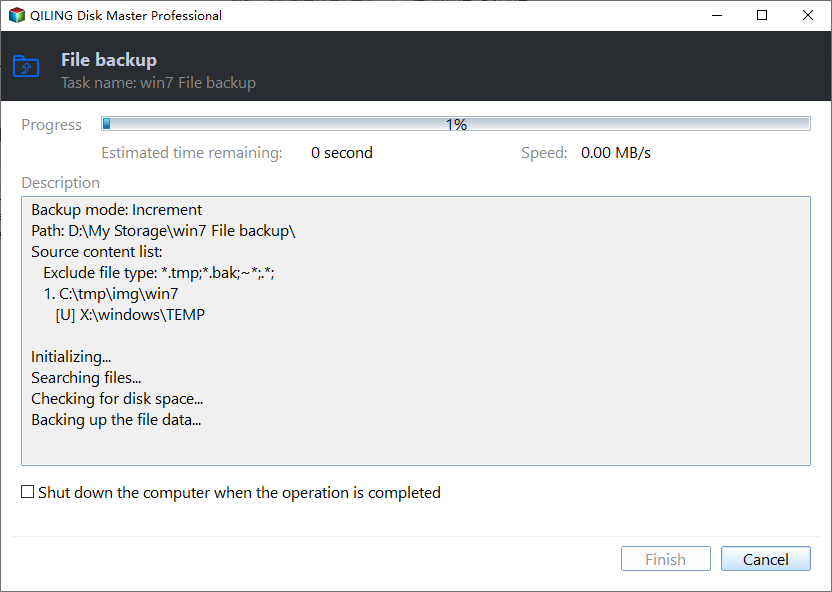
Step 1. Open Qiling Disk Master and choose Backup and Recovery > File backup.

Step 2. Select program installers, license files, projects, and app data folders and any related configuration folders that you may need later.

Step 3. Choose a destination on another disk, external drive, or network location. Avoid saving the backup to the disk you are about to modify.

Step 4. Review the source and destination, then click Proceed. Keep the backup until the new location or new program path is verified.
Check the result
Restart Windows, reconnect the external drive, and launch the installed program. Confirm that the drive letter remains unchanged.
Related Articles
-
Transfer Programs to External Hard Drive
Move programs and related data to external storage with fewer startup issues. -
Change Program Files to D Drive
Learn safer ways to reduce C drive program storage.
Products
Articles & Tutorials
- Data Recovery
- Data Backup
- File Recovery
- File Backup
- File synchronize
- System Backup and Restore
- Disk and Partition Clone
- Technical articles
- Disk Master Help
- Windows Deleted File and Disk Recovery Tutorials
- Windows File and Data Recovery Tutorials
- More Windows Tutorials for Install, Security, Files, and PC Tips
- Windows Boot, Repair, and Recovery Environment Tutorials
- Windows Backup Tutorials
- Windows Restore Tutorials
- Windows Clone and Migration Tutorials
- Windows Server Backup, Recovery, and Management Tutorials
- Windows Disk, Partition, and Storage Management Tutorials