PS3 Cannot Read an NTFS USB Drive: Prepare It in Windows
A USB drive that works in Windows can remain invisible to a PlayStation because the console and the computer support different file systems. For PS3 removable storage, Sony documents FAT32 or FAT16 and notes that multiple partitions are not supported. PS4 USB media can use FAT32 or exFAT for supported tasks, so a PS4 owner should not automatically reformat everything as FAT32.
Identify the console and intended use first. Copying media, saving backups, and installing games on extended storage can have different requirements. Sony's PS3 storage guidance and PS4 USB guidance are useful checks.
Find the cause before formatting
Step 1. Connect the USB drive directly to the computer. Open Disk Management and identify it by model and size. Note whether the volume is NTFS, exFAT, FAT32, RAW, or unallocated.
Step 2. If the drive is missing in Windows too, test a different port and cable before assuming that its file system is the problem. If it is RAW or reports read errors, prioritize file recovery rather than formatting.
Step 3. On PS3, confirm that the external media uses a supported file system and a simple single-partition layout. On PS4, check the exact task's storage requirements; exFAT supports files larger than FAT32's single-file limit.
Back up the NTFS USB contents
Step 1. Connect a separate destination disk. Open Qiling Disk Master and choose File Backup.
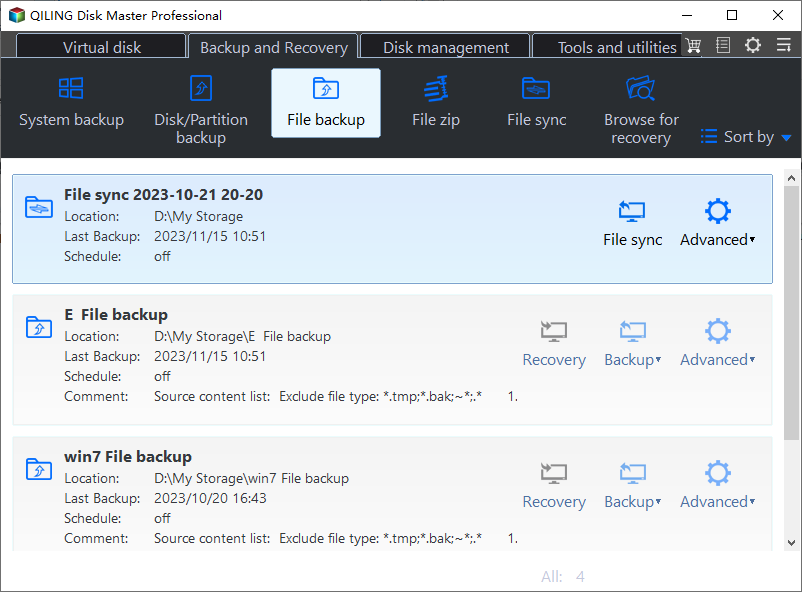
Step 2. In the folder tree, select the files and directories on the NTFS USB drive. Check media folders and hidden application exports that you still need.
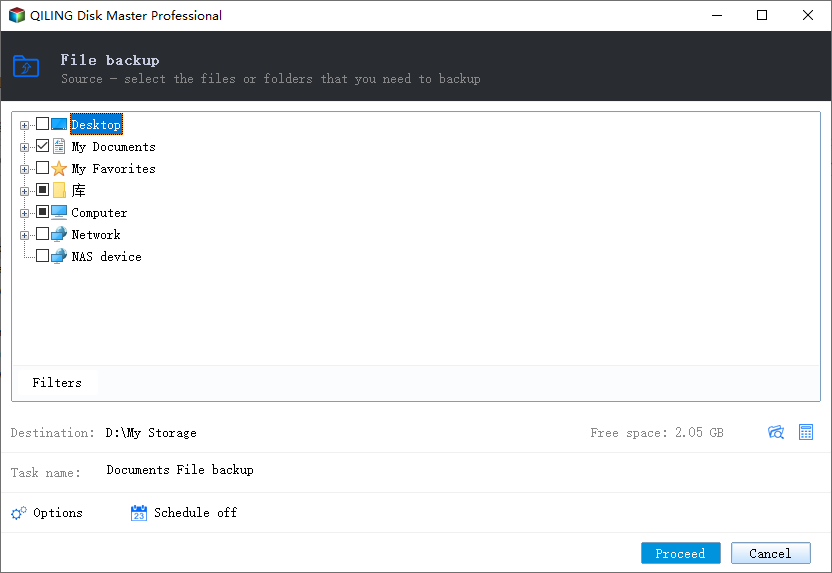
Step 3. Choose a destination on the separate disk, click Proceed, and wait for completion. Open a few files from the backup or a test restore before erasing the USB.
Format the correct USB volume for PS3
Step 1. Disconnect other removable drives. In Disk Management, match the USB by capacity and label rather than a remembered drive letter.
Step 2. Right-click its existing data partition, choose Format, and select FAT32 if Windows offers it. Read the erase warning. If FAT32 is unavailable for that size, use a verified compatible formatter or a smaller volume after backing up all data; do not select a different disk.
Step 3. If the USB is new or deliberately blank, create one simple partition only when needed. Deleting all partitions is a separate destructive decision, not part of routine formatting.
Step 4. Confirm FAT32 and the expected capacity in Windows. Create the folders expected for your PS3 content type and copy one small supported test file. FAT32 cannot hold a single file of 4 GB or more.
Step 5. Safely eject the USB, connect it directly to the console, and look in the Photo, Music, or Video menu. If the test file is missing, recheck the single-partition layout and the file's media format before copying the full collection.
If the console still does not recognize the drive
Check the folder structure required by the console task, USB port, power needs for an external HDD, and the console's own menu for browsing media. Try a known-compatible smaller USB device to isolate a device-compatibility problem.
Do not use whole-disk wiping to troubleshoot an unreadable USB until needed files are protected. A format cannot fix failing flash memory. Keep the backup until the console reads the restored files.
Related Articles
- FAT32 Option Not Available
Understand why Windows may not list FAT32 for a large USB volume. - Format exFAT as FAT32 in Windows 7
Review backup and format choices for older devices that require FAT32.
Products
Articles & Tutorials
- Data Recovery
- Data Backup
- File Recovery
- File Backup
- File synchronize
- System Backup and Restore
- Disk and Partition Clone
- Technical articles
- Disk Master Help
- Windows Deleted File and Disk Recovery Tutorials
- Windows File and Data Recovery Tutorials
- More Windows Tutorials for Install, Security, Files, and PC Tips
- Windows Boot, Repair, and Recovery Environment Tutorials
- Windows Backup Tutorials
- Windows Restore Tutorials
- Windows Clone and Migration Tutorials
- Windows Server Backup, Recovery, and Management Tutorials
- Windows Disk, Partition, and Storage Management Tutorials