Fix FAT32 Option Not Available in Windows
Windows may hide the FAT32 option when formatting a large USB drive, SD card, or external hard drive. This happens because Windows built-in formatting tools limit FAT32 formatting for large volumes, even though many cameras, game consoles, car systems, and legacy devices still require FAT32.
Why FAT32 is missing
- The partition is larger than the FAT32 limit used by Windows formatting tools.
- The device is read-only, write-protected, or has file system errors.
- The partition is currently in use by another program.
- The drive has an unsupported partition layout or damaged partition table.
Back up files before formatting
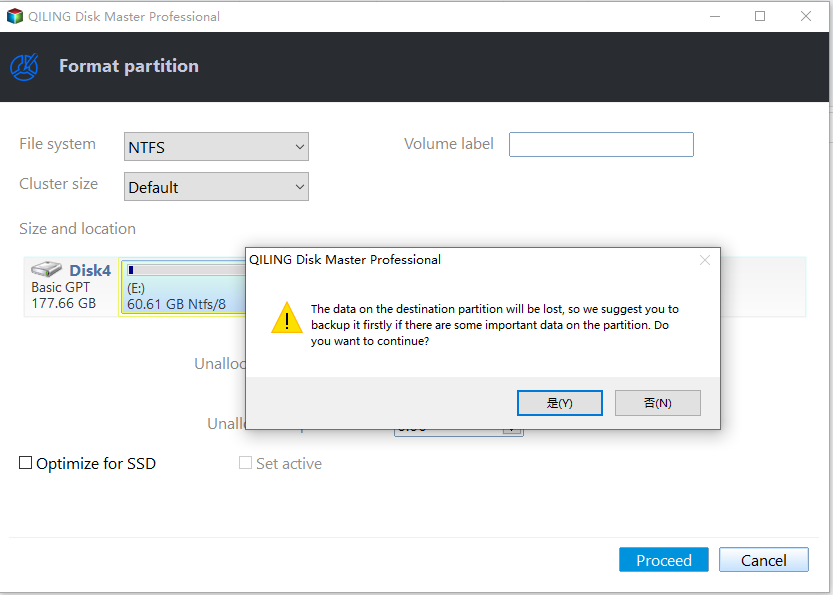
Formatting removes existing files from the selected partition. Copy important files to another drive first. If the drive is inaccessible, recover files before formatting it.
Method 1. Try Disk Management for smaller drives
Step 1. Open Disk Management and right-click the target partition.
Step 2. Choose Format. If FAT32 appears, select it and set a clear volume label.
Step 3. Finish the format and reconnect the drive to the device that needs FAT32.
If FAT32 does not appear, use the next method.
Method 2. Format a large drive to FAT32 with Qiling Disk Master
 Qiling Disk Master
Format a large USB drive, SD card, or external drive to FAT32 when Windows does not show the FAT32 option.
Step 1. Connect the USB drive, SD card, or external drive to the computer.
Step 2. Open Qiling Disk Master and identify the correct device by capacity and drive letter.
Step 3. Right-click the partition and choose Format Partition.
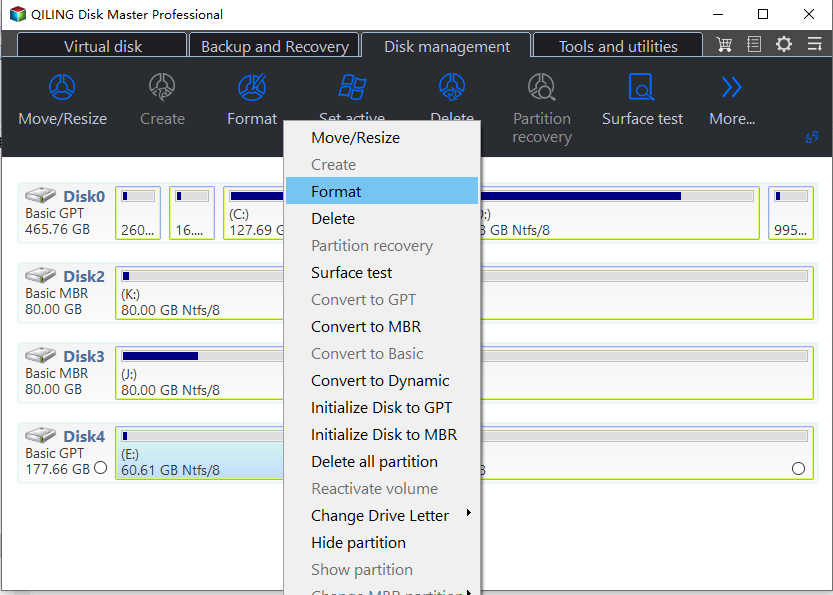
Step 4. Select FAT32 as the file system, set a clear partition label, and confirm the cluster size if the program asks.
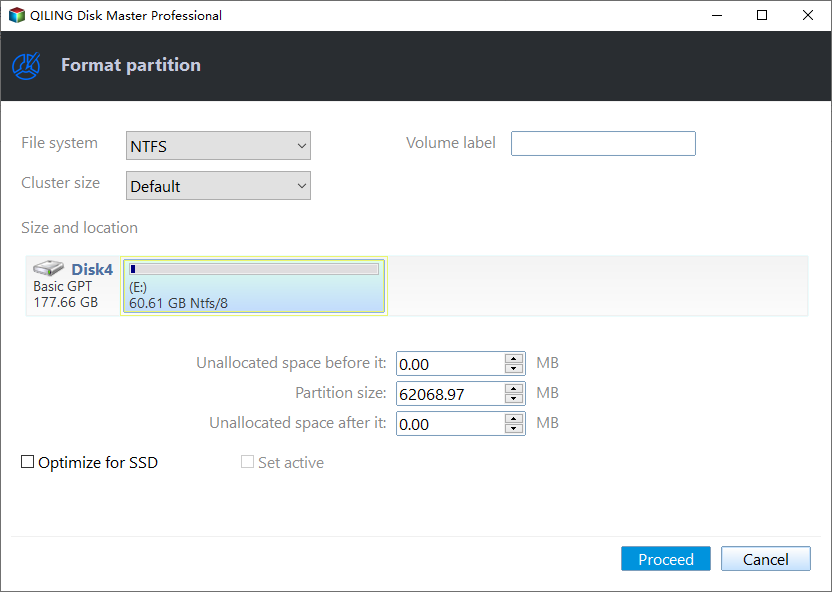
Step 5. Review the pending operation and click Proceed.
Conclusion
FAT32 may disappear from Windows format options on large drives, but the device can still be formatted safely after backup. Choose FAT32 only when the target device requires it; otherwise, exFAT or NTFS may be more suitable.
Related Articles
-
Convert USB to FAT32 or NTFS
Choose the right file system for a USB drive and back up files before conversion. -
Restore Lost Partition on USB Drive
Recover a missing USB partition and recreate it with a compatible file system.
Products
Articles & Tutorials
- Data Recovery
- Data Backup
- File Recovery
- File Backup
- File synchronize
- System Backup and Restore
- Disk and Partition Clone
- Technical articles
- Disk Master Help
- Windows Deleted File and Disk Recovery Tutorials
- Windows File and Data Recovery Tutorials
- More Windows Tutorials for Install, Security, Files, and PC Tips
- Windows Boot, Repair, and Recovery Environment Tutorials
- Windows Backup Tutorials
- Windows Restore Tutorials
- Windows Clone and Migration Tutorials
- Windows Server Backup, Recovery, and Management Tutorials
- Windows Disk, Partition, and Storage Management Tutorials