Convert USB to FAT32 or NTFS in Windows
FAT32 or NTFS for USB?
Use FAT32 when the USB must work with cameras, TVs, game consoles, or older devices. Use NTFS when the USB is mainly for Windows and needs to store files larger than 4GB.
Method 1. Format USB to FAT32 or NTFS
Step 1. Copy USB files to another location.
Step 2. Open File Explorer, right-click the USB drive, and choose Format.
Step 3. Select FAT32 or NTFS from File system.
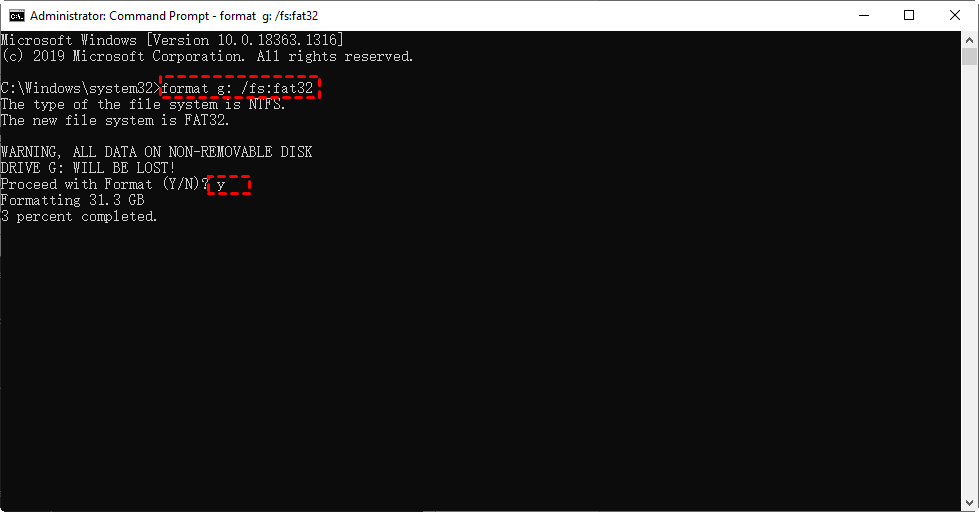
Step 4. Click Start and restore files after formatting.
Method 2. Convert FAT32 USB to NTFS without formatting
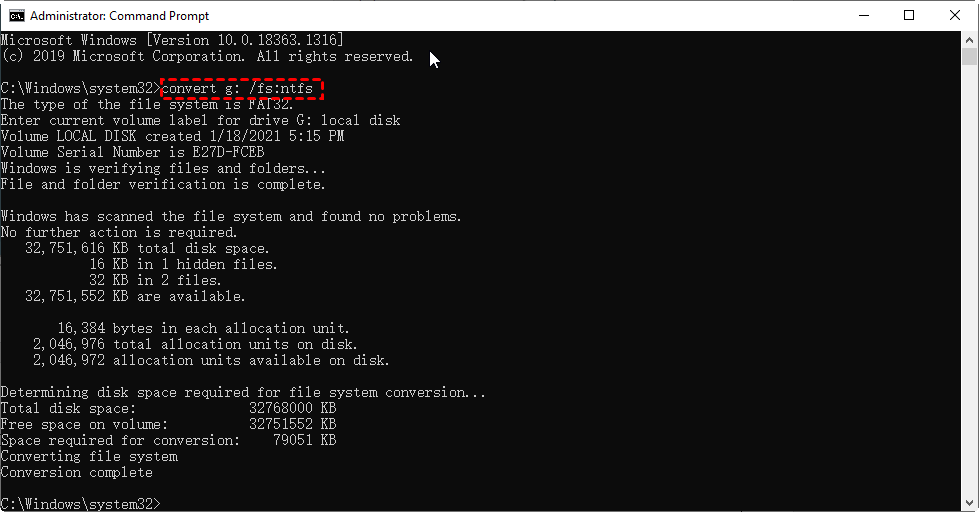
Step 1. Open Command Prompt as administrator.
Step 2. Run chkdsk X: /f to fix file system errors.
Step 3. Run convert X: /fs:ntfs. Replace X with the USB drive letter.
Method 3. Back up USB before conversion
 Qiling Disk Master
Qiling Disk Master helps back up USB files or create a partition image before formatting or converting the drive.
Step 1. Connect the USB drive and another storage device, such as an internal disk, external hard drive, or network folder. The backup destination must not be the same USB drive that will be formatted or converted.
Step 2. Open Qiling Disk Master, choose Backup > File Backup, and create a new backup task for the USB files.

Step 3. Click the source area, browse to the USB drive letter, and select the folders or files you want to keep. If you are not sure which files are important, select the whole USB drive folder.

Step 4. Choose a destination on another disk. Leave enough free space for the backup image and use a clear folder name, such as USB-before-FAT32-NTFS-conversion, so it is easy to identify later.

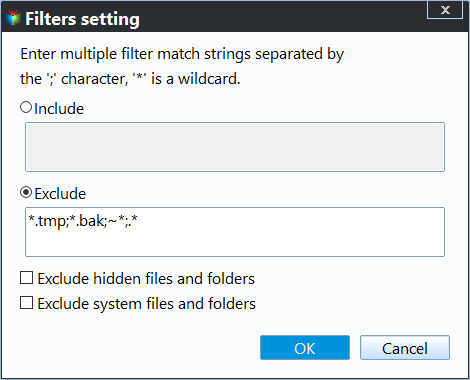
Step 5. Open Options or Filter if you only want to include certain file types, exclude temporary files, or add password protection. For a one-time USB conversion, a manual backup is usually enough; for frequently used USB drives, you can set a schedule.
Step 6. Click Preceed and wait for the task to finish. Do not unplug the USB drive during the backup.
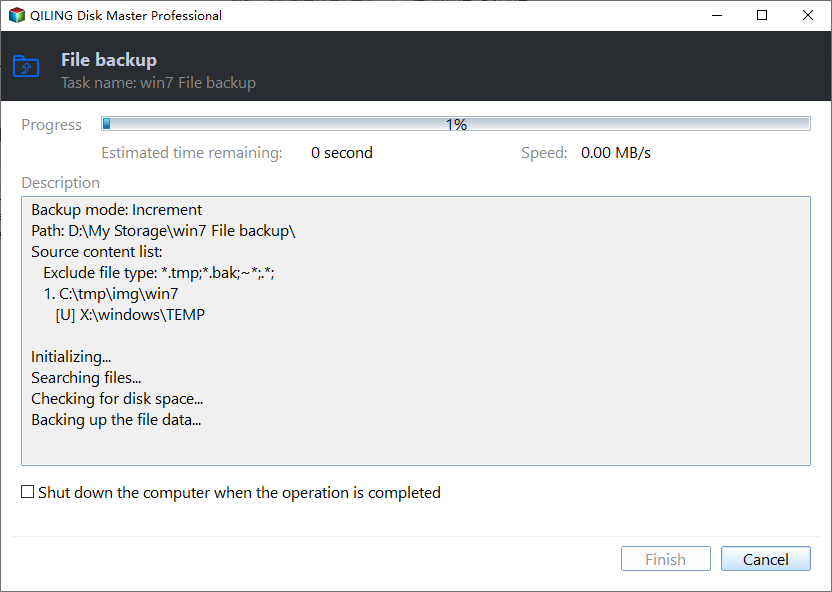
Step 7. Open the backup destination and confirm the backup task or image file is present. If the USB contains critical files, restore or browse a few sample files first, then continue to format or convert the USB drive.
What if FAT32 is not available?
Windows may not show FAT32 for large USB drives in the Format dialog. Use exFAT for broad compatibility with large files, or use a dedicated formatter when a device specifically requires FAT32.
Conclusion
Converting a USB to FAT32 or NTFS depends on device compatibility and file size needs. Back up files first, then format or use the convert command carefully.
Related Articles
-
Best USB Formatter to Format 64GB Flash Drive to FAT32 in Windows
Format large USB drives to FAT32 when Windows does not show the option. -
How to Convert FAT32 to NTFS Windows 10 without Data Loss?
Convert FAT32 drives to NTFS with less risk to existing files. -
Quick Fix: No Restore Previous Versions Option in Windows 10
Use backup and restore options when file history or previous versions are unavailable. -
Convert FAT32 to NTFS with Disk Management
Compare safe FAT32-to-NTFS conversion methods and back up files before changing the file system.
Products
Articles & Tutorials
- Data Recovery
- Data Backup
- File Recovery
- File Backup
- File synchronize
- System Backup and Restore
- Disk and Partition Clone
- Technical articles
- Disk Master Help
- Windows Deleted File and Disk Recovery Tutorials
- Windows File and Data Recovery Tutorials
- More Windows Tutorials for Install, Security, Files, and PC Tips
- Windows Boot, Repair, and Recovery Environment Tutorials
- Windows Backup Tutorials
- Windows Restore Tutorials
- Windows Clone and Migration Tutorials
- Windows Server Backup, Recovery, and Management Tutorials
- Windows Disk, Partition, and Storage Management Tutorials