Restore Lost Partition on USB Drive
A USB drive partition may disappear after accidental deletion, failed formatting, unsafe removal, partition table damage, or virus infection. When this happens, avoid writing new data to the USB drive because new files can overwrite recoverable data.
Check the USB drive status
Step 1. Connect the USB drive directly to the computer instead of a hub.
Step 2. Open Disk Management and check whether the device appears as unallocated, RAW, not initialized, or without a drive letter.
Step 3. If the USB drive makes unusual noises, disconnects repeatedly, or shows the wrong capacity, stop using it and consider professional recovery.
Recover files before rebuilding the partition
 Deep Data Recovery
Scan a lost USB partition first and save recovered files to another disk before recreating the USB partition.
Step 1. Open Qiling Deep Data Recovery and select Fast Scan first.
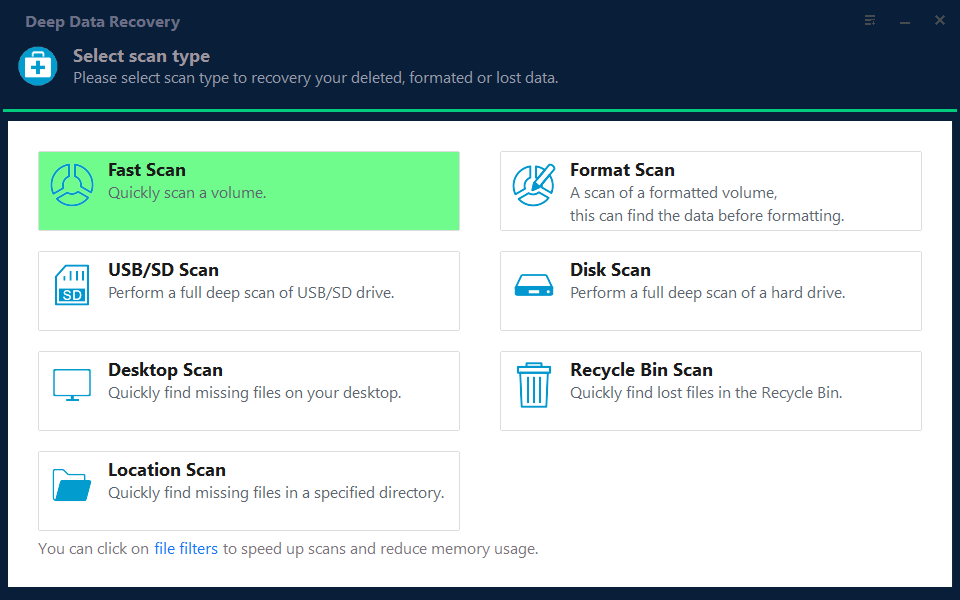
Step 2. Select the USB drive or the lost partition area that matches its capacity, then start the scan.

Step 3. Wait for deleted, lost, and existing files to appear. Use filters if you need only documents, photos, or videos.
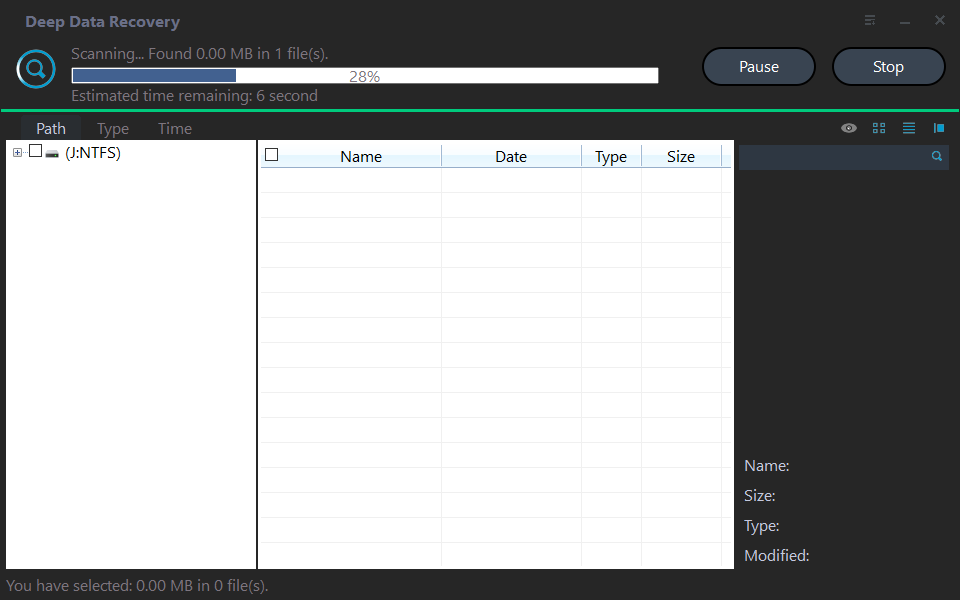
Step 4. Preview found files and select the data you need.

Step 5. Save recovered files to another disk, not back to the damaged USB drive.
Recreate the USB partition after recovery
Qiling Disk MasterCreate a new partition on the USB drive after important files have been recovered to another location.
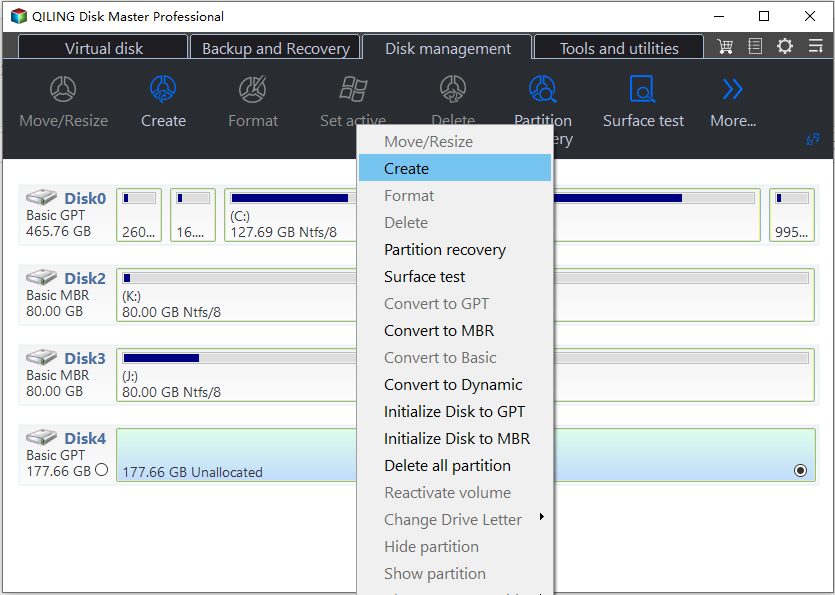
Step 1. Open Qiling Disk Master and locate the USB drive by capacity.
Step 2. Right-click the unallocated space and choose Create Partition.
Step 3. Set the partition size, drive letter, and file system. Use exFAT for large files and FAT32 for devices that require broad compatibility.
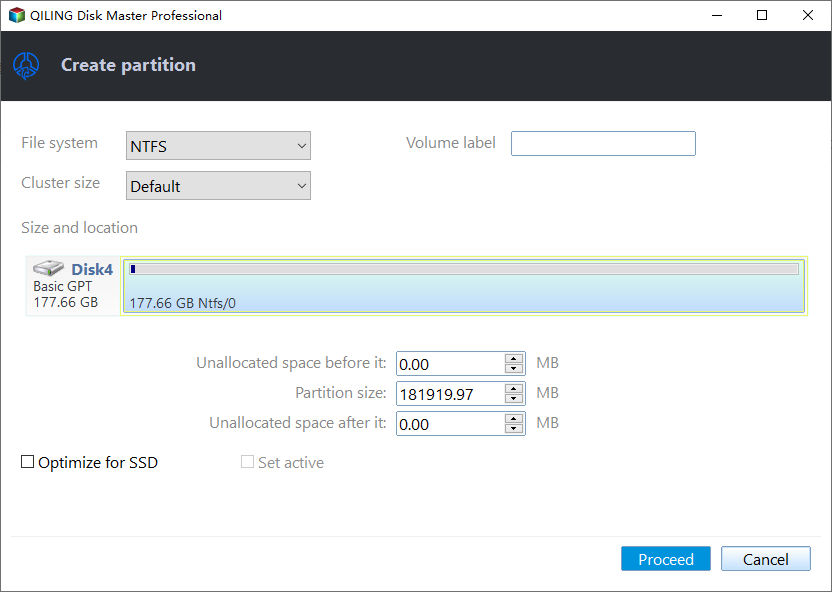
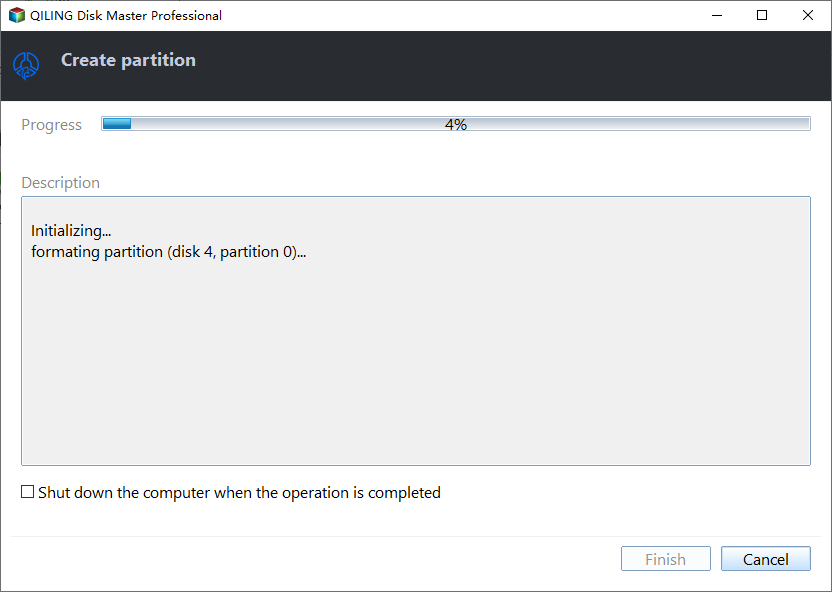
Step 4. Click Proceed and wait until the partition is created.
Conclusion
For a lost USB partition, recover files before rebuilding the partition. Once the data is safe, create a new partition and format it with the file system required by your device.
Related Articles
-
Data Recovery from Unknown Partition
Scan an unknown partition and save recovered files before repairing the disk layout. -
Fix FAT32 Option Not Available in Windows
Format removable storage to FAT32 when Windows does not show the option.
Products
Articles & Tutorials
- Data Recovery
- Data Backup
- File Recovery
- File Backup
- File synchronize
- System Backup and Restore
- Disk and Partition Clone
- Technical articles
- Disk Master Help
- Windows Deleted File and Disk Recovery Tutorials
- Windows File and Data Recovery Tutorials
- More Windows Tutorials for Install, Security, Files, and PC Tips
- Windows Boot, Repair, and Recovery Environment Tutorials
- Windows Backup Tutorials
- Windows Restore Tutorials
- Windows Clone and Migration Tutorials
- Windows Server Backup, Recovery, and Management Tutorials
- Windows Disk, Partition, and Storage Management Tutorials