Data Recovery from Unknown Partition in Windows
What is an unknown partition?
An unknown partition is a volume Windows cannot identify correctly. It may appear as RAW, unallocated, not initialized, or a partition without a readable file system. The cause can be partition table damage, file system corruption, unsafe removal, virus damage, or sudden power loss.
What not to do first
- Do not format the partition before recovering files.
- Do not create a new volume on the same space.
- Do not run repair commands repeatedly if the disk is physically failing.
- Do not save recovered files back to the unknown partition.
Method 1. Check the partition status
Step 1. Open Disk Management and identify how Windows labels the partition.
Step 2. Check whether the disk is online and whether the capacity looks correct.
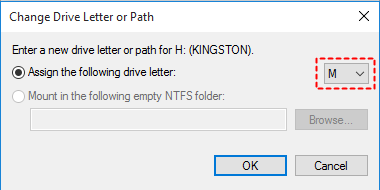
Step 3. If the drive has no letter but the file system is normal, assign a letter first.
Method 2. Recover files from the unknown partition
 Deep Data Recovery
Deep Data Recovery scans unknown, RAW, or lost partitions and helps recover files before you format or rebuild the partition.
Step 1. Open Deep Data Recovery and select Fast Scan to quickly scan the unknown or lost partition.
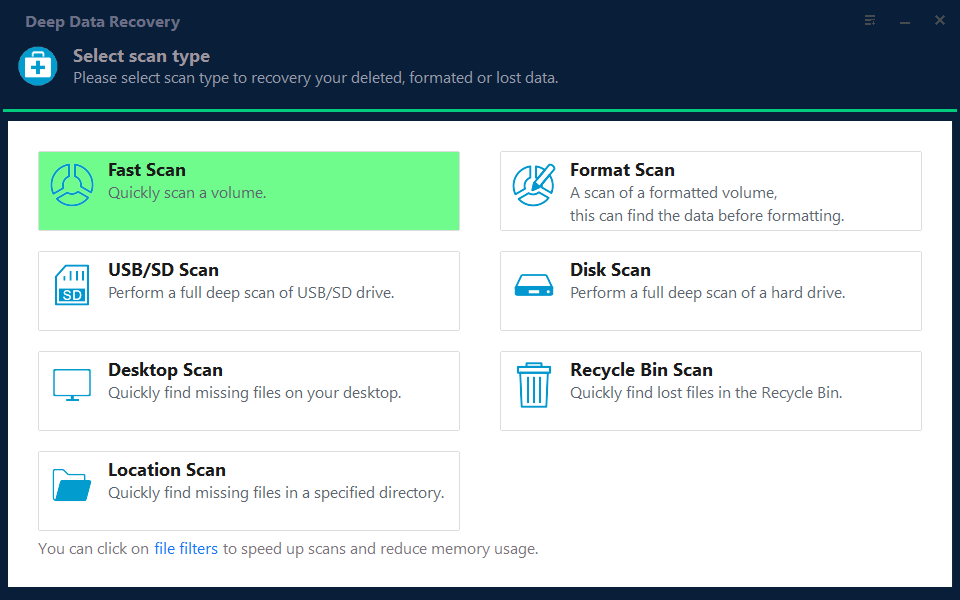
Step 2. Select the unknown partition or the physical disk that matches its capacity. Do not select the healthy drive where you plan to save recovered files.

Step 3. Start the scan and wait for deleted, lost, and existing files to appear. Let the scan finish when important files are not shown in the first results.
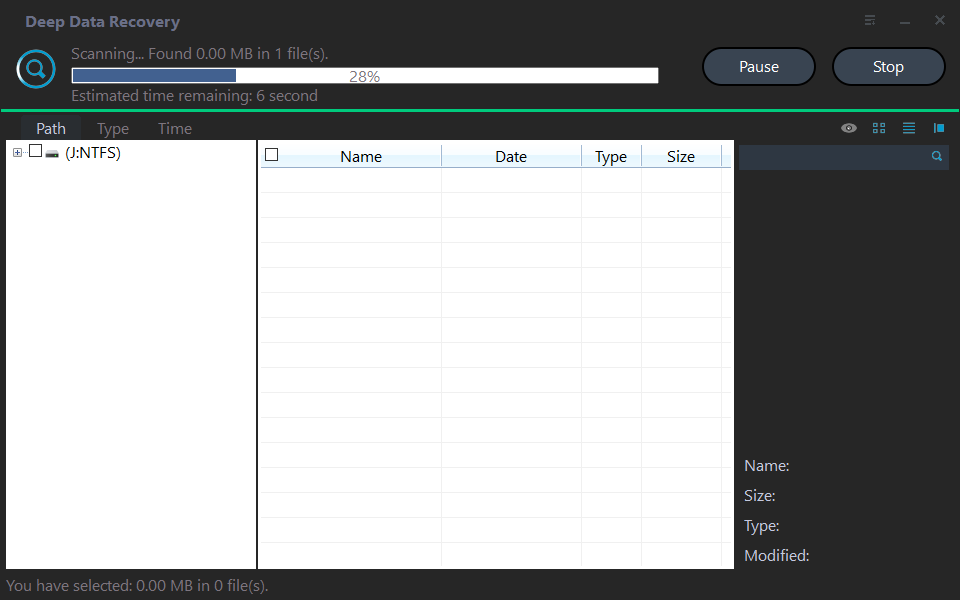
Step 4. Use filters and preview to find the files you need, then select the required files and folders.

Step 5. Click Recover and save the selected files to another healthy disk. Do not recover them to the unknown partition or the disk being scanned.
Method 3. Repair the partition after recovery
Only repair or recreate the partition after the recovered files have been saved to a different healthy drive and checked. Formatting, deleting, or rebuilding a partition before recovery can overwrite data that is still recoverable.
Step 1. Open several recovered files from the separate destination drive. Check important documents, photos, and archives before making any change to the unknown partition.
Step 2. Press Win + X and choose Disk Management. Identify the physical disk by its capacity and confirm that the unknown partition is not a recovery, EFI, or OEM partition needed by Windows.
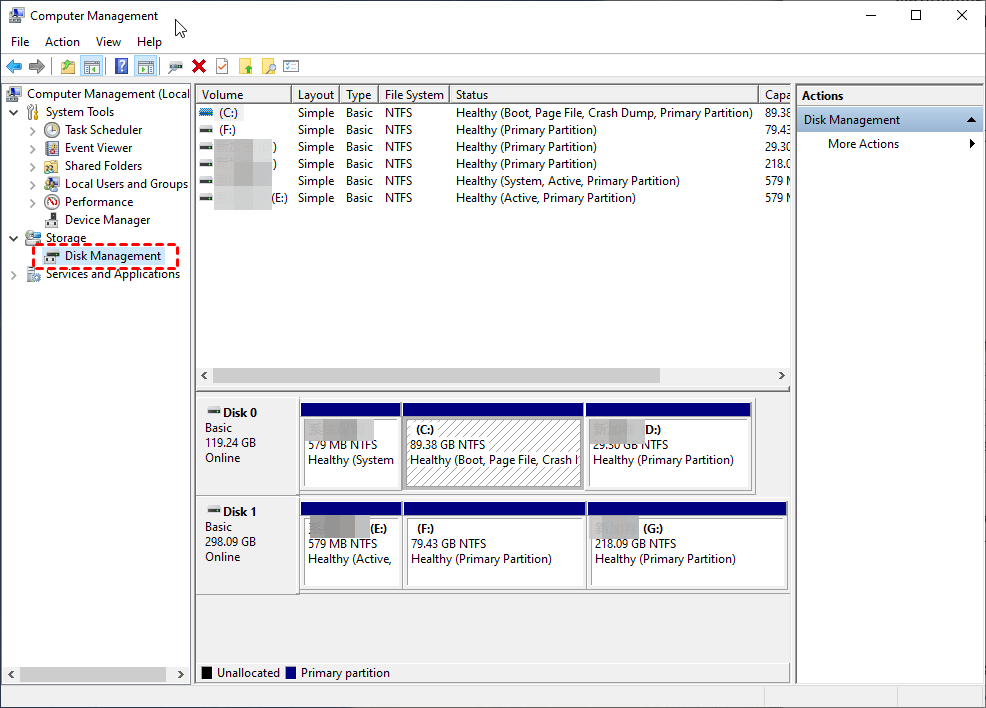
Step 3. If the partition is no longer needed and appears as unallocated space, right-click the unallocated area and choose New Simple Volume. Use the wizard to assign a size, drive letter, and volume label.
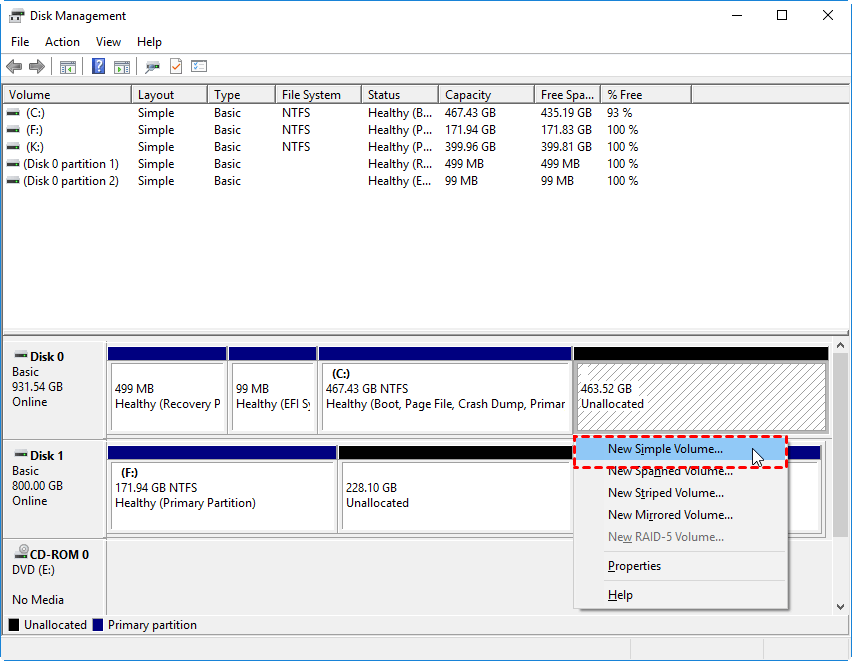
Step 4. Choose NTFS for a Windows-only data drive or exFAT for a removable drive that must work with other devices. Complete the format only after confirming the correct disk and partition are selected.
Step 5. Copy files back gradually and watch for read errors, repeated disconnections, or slow transfers. If the disk shows bad sectors, SMART warnings, or unusual noises, replace it rather than trusting it with the only copy of the recovered data.
Conclusion
Unknown partition recovery should start with data protection, not formatting. Recover files first, then repair or recreate the partition when the important data is safe.
Related Articles
-
Recover Partition Table without Data Loss in Windows 11/10
Handle partition table damage before rebuilding disk structures. -
Recover Data from RAW Drive Free
Recover files from RAW partitions before formatting them. -
Damaged Partition Recovery: Recover Data from Damaged Partition
Restore files from damaged or inaccessible partitions with safer recovery order. -
Unallocated Partition Recovery: Recover Files from Unallocated Space
Recover files from unallocated space before recreating a partition or formatting the disk.
Products
Articles & Tutorials
- Data Recovery
- Data Backup
- File Recovery
- File Backup
- File synchronize
- System Backup and Restore
- Disk and Partition Clone
- Technical articles
- Disk Master Help
- Windows Deleted File and Disk Recovery Tutorials
- Windows File and Data Recovery Tutorials
- More Windows Tutorials for Install, Security, Files, and PC Tips
- Windows Boot, Repair, and Recovery Environment Tutorials
- Windows Backup Tutorials
- Windows Restore Tutorials
- Windows Clone and Migration Tutorials
- Windows Server Backup, Recovery, and Management Tutorials
- Windows Disk, Partition, and Storage Management Tutorials