Unallocated Partition Recovery: Recover Files from Unallocated Space
What does unallocated partition mean?
Unallocated space is disk space that does not belong to any usable volume. It may appear after deleting a partition, failed resizing, partition table corruption, or interrupted installation. Files in that area may still be recoverable, but Windows cannot show them through File Explorer.
What not to do
- Do not create a new volume on the unallocated space before recovery.
- Do not format the disk.
- Do not save new files to the affected disk.
- Do not run random repair commands if the data is important.
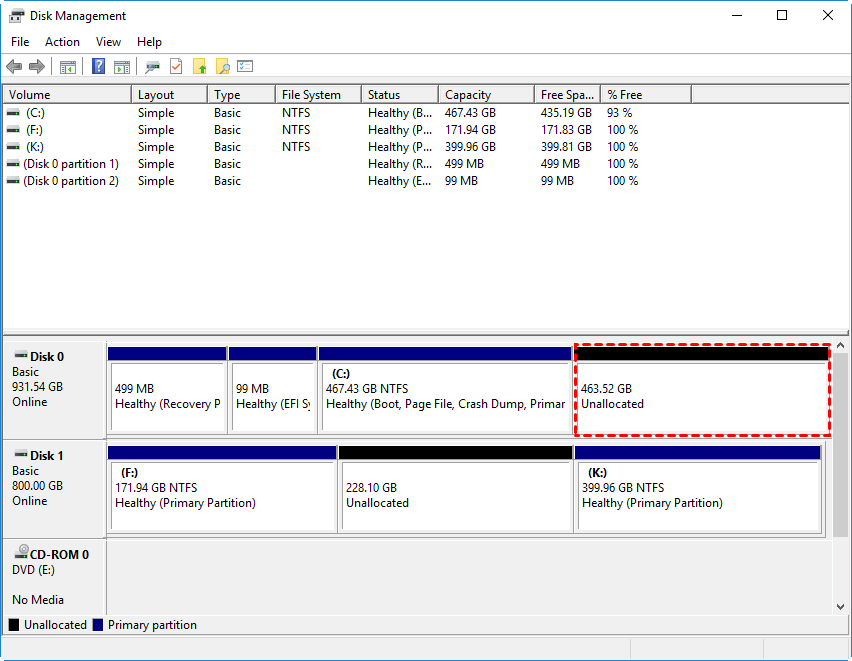
Method 1. Confirm the unallocated area
Step 1. Press Win + X and choose Disk Management.
Step 2. Find the disk by capacity and label.
Step 3. Confirm whether the lost area is shown as Unallocated.
Step 4. Note the disk number for recovery.
Method 2. Recover files from unallocated space
 Deep Data Recovery
Deep Data Recovery can scan unallocated space and restore documents, photos, videos, and other files without creating a new partition first.
Step 1. Launch the software and choose the disk containing unallocated space.

Step 2. Start a full scan.
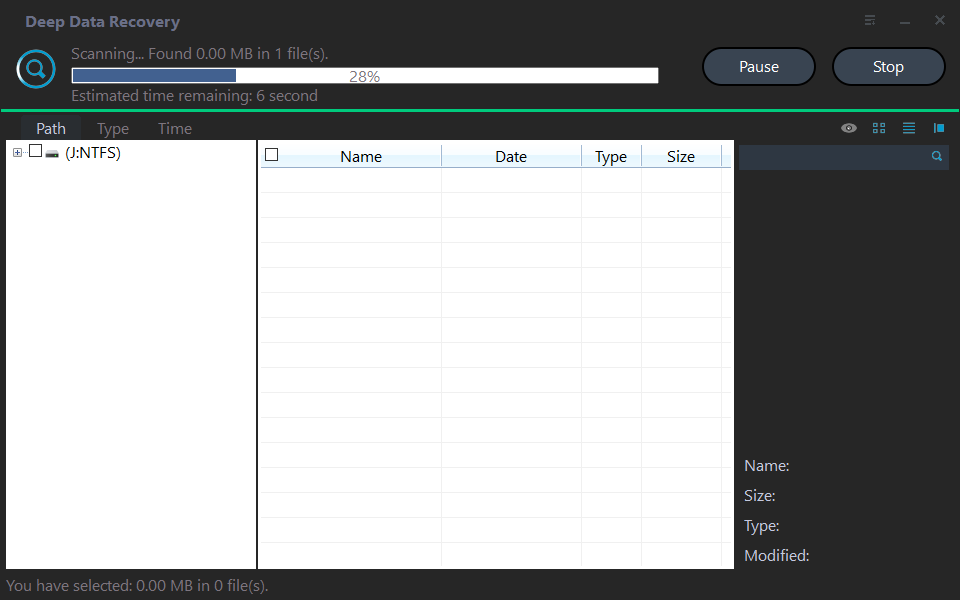
Step 3. Preview found files and check folder paths.

Step 4. Recover files to another disk.
Method 3. Recreate the partition after recovery
Step 1. Return to Disk Management.
Step 2. Right-click the unallocated space and choose New Simple Volume.
Step 3. Specify size, drive letter, and file system.
Step 4. Format it and copy recovered files back if needed.
Why unallocated recovery sometimes fails
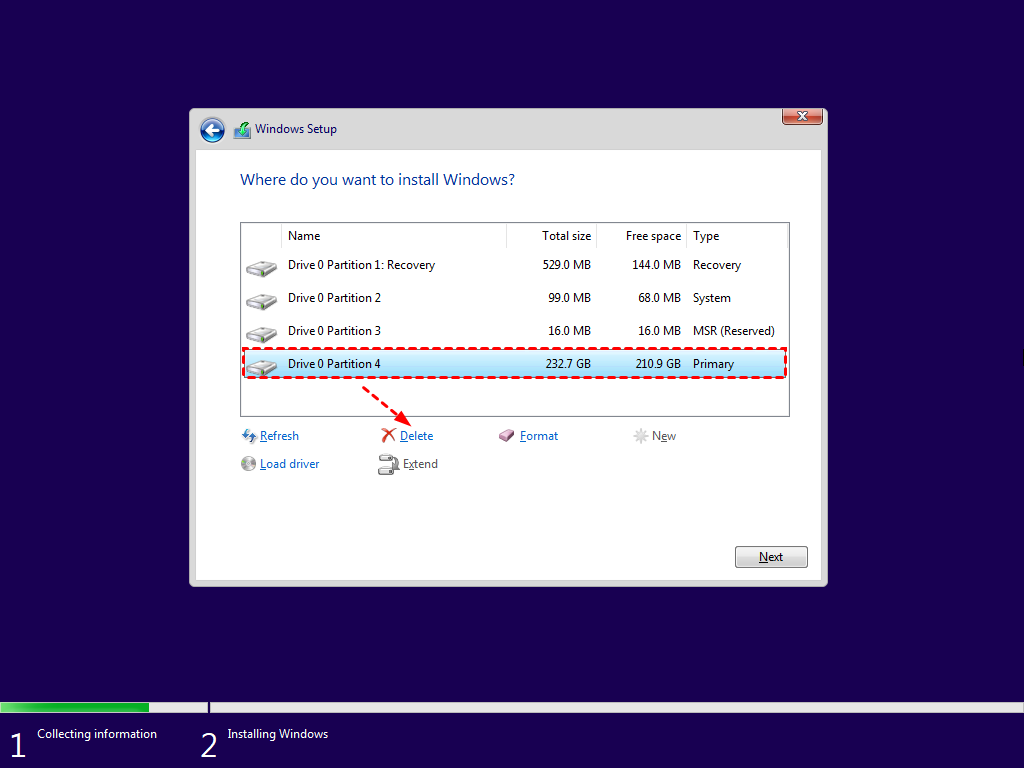
Recovery may fail if a new partition has already overwritten file system records, the drive has physical damage, or TRIM cleared deleted data on an SSD. For critical disks, consider professional recovery before further operations.
Related Articles
-
Accidentally Deleted Recovery Partition? Fixed!
Learn how to handle deleted partitions and protect files before rebuilding partition structures. -
How to Recover a Deleted/Lost Partition on External Hard Drive
Recover missing partitions from external hard drives and avoid formatting before file recovery. -
Recover Data from RAW Drive Free
Restore files from RAW or inaccessible drives before repairing the file system. -
Data Recovery from Unknown Partition in Windows
Handle RAW, unknown, or unallocated partitions safely before attempting repair. - Partition Becomes Unallocated After Windows 10 Upgrade
Recover files and rebuild a partition that becomes unallocated after a Windows 10 upgrade or interrupted disk operation.
Products
Articles & Tutorials
- Data Recovery
- Data Backup
- File Recovery
- File Backup
- File synchronize
- System Backup and Restore
- Disk and Partition Clone
- Technical articles
- Disk Master Help
- Windows Deleted File and Disk Recovery Tutorials
- Windows File and Data Recovery Tutorials
- More Windows Tutorials for Install, Security, Files, and PC Tips
- Windows Boot, Repair, and Recovery Environment Tutorials
- Windows Backup Tutorials
- Windows Restore Tutorials
- Windows Clone and Migration Tutorials
- Windows Server Backup, Recovery, and Management Tutorials
- Windows Disk, Partition, and Storage Management Tutorials