Accidentally Deleted Recovery Partition? Fixed!
What is the recovery partition?
The recovery partition on a system hard drive allows for a factory reset, but users can only view it through the Disk Management utility and cannot modify it.
Windows has two types of recovery partitions - the Windows recovery partition and the computer manufacturers' recovery partition. The Windows recovery partition is created when Windows is installed on the disk and includes the Windows Recovery Environment (WinRE), allowing you to restore your PC if you encounter operating system issues.
Computer manufacturers like Lenovo, HP, and Dell create a specific key to restore your computer to the factory reset, such as pressing F9 for HP and F12 for Dell.
Can you get the recovery partition back after deleting it?
Users who have inadvertently deleted a recovery partition can recover it by using a third-party partition recovery software, such as Qiling Partition Recovery or DiskGenius, to scan and recover the deleted partition. Alternatively, they can create a new recovery partition by using the built-in recovery tools in their operating system, such as Windows 10's System Image Backup feature. It is also recommended to regularly back up important data to an external drive or cloud storage service to prevent data loss in case of a system failure or other disaster. Additionally, users can also use a bootable USB drive or CD/DVD to create a recovery environment and restore the system to a previous state.
▶If you accidentally delete important files or data, stop using your computer immediately to prevent further data loss. Do not write new data on the computer until you've taken steps to recover the deleted files or have consulted a professional for assistance.
▶To recover a deleted recovery partition, you can use a third-party recovery software such as Qiling Data Recovery Wizard or Disk Drill. These tools can scan your hard drive and recover deleted data, including the recovery partition. Be sure to select a reliable solution to avoid causing further damage to your system.
How to recover the accidentally deleted recovery partition?
If you've accidentally deleted your recovery partition, don't worry - there are two feasible solutions to recover it. Firstly, you can try using a third-party recovery software that specializes in recovering deleted partitions. These tools can scan your hard drive for any remaining partition data and attempt to rebuild the recovery partition.
Case A. Use efficient partition recovery software
One of the leading partition recovery software, Qiling Disk Master Professional, can help you safely retrieve the accidentally deleted recovery partition with sufficient evidence.
This powerful partition recovery tool allows anyone to recover deleted/lost partitions and their data in Windows operating systems, including 11, 10, 8.1, 8, 7, Vista, and XP, as long as no new data has been written.
NTFS partition recovery and Ext3/Ext4 partition recovery are also allowed.
Qiling Disk Master Professional eliminates the need to delete recovery partitions using diskpart, and allows for creating, merging, resizing, and moving partitions. It also performs disk conversion between MBR and GPT, and OS migration. With its ease of use, you can recover an accidentally deleted recovery partition by following just four simple steps.
Step 1. Install and launch Qiling Disk Master Professional on your computer. Select the needed disk and click Partition Recovery.

Step 2. Select "Full Search" to find your desired partition, then click "Proceed".
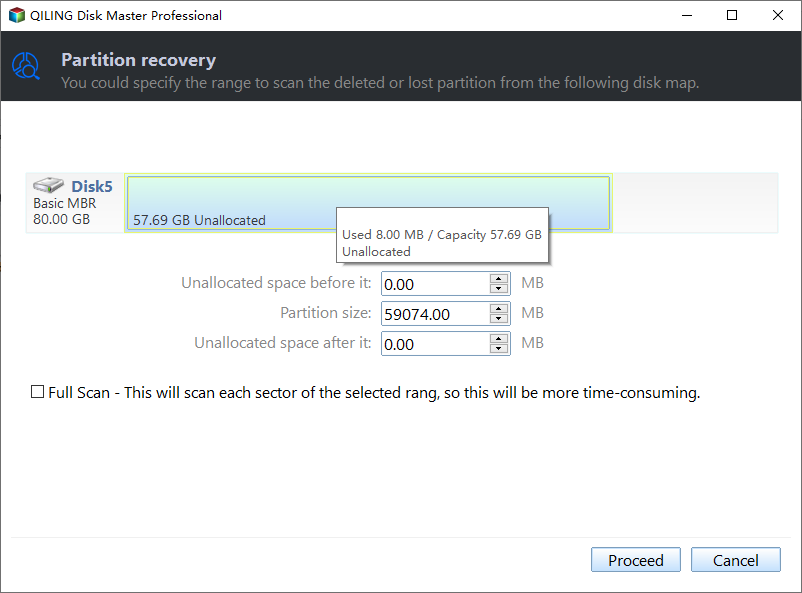
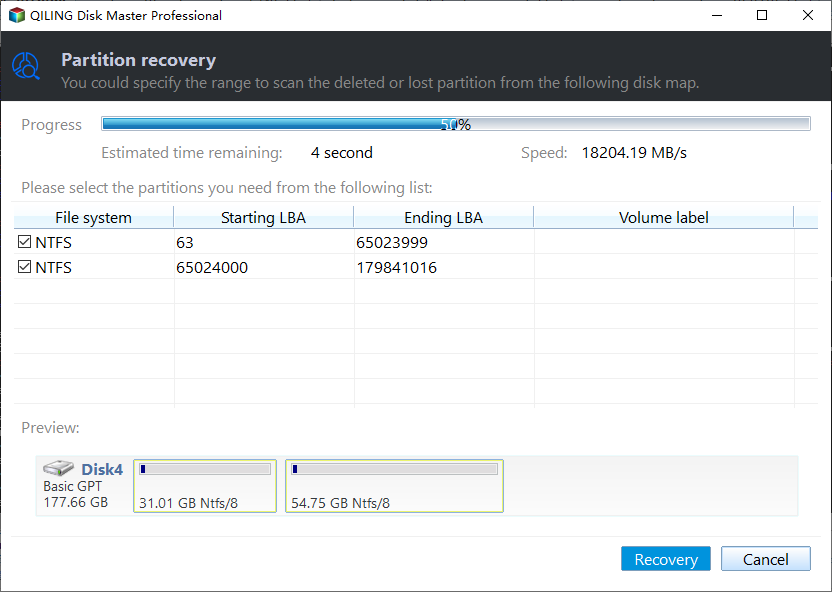
Step 3. This application will display all the partitions on the hard disk. Select your needed partition and click "Recover" to start the recovery process.
Case B. Create recovery partition
Aside from using a third-To address the problem of a Windows 8 system running out of disk space, you can create a recovery partition. This involves creating a separate partition on your hard drive to store the recovery environment, allowing you to free up space on your main partition. This process involves using the built-in Windows 8 feature called System Restore, which allows you to create a restore point and then use the built-in Disk Management tool to create a new partition. You can then move the recovery environment to the new partition, freeing up space on your main partition.
Step 1. To install Windows, download the Windows ISO file from Microsoft and use your product key to install it. After that, you can create installation media for Windows using Microsoft's tool.
Step 2. To begin, locate the Sources folder which contains the install.esd file. Once you've found it, move the install.esd file from the ISO to a location on your hard disk.
Step 3. To convert the install.esd file to install.wim, use a converter like WinConverter, and then copy the resulting install.wim file to a new folder on your C:\ drive labeled C:\Win81-Recovery.
Step 4. Press the "Start" button, type "cmd" in the search bar, and select "Run as administrator" to open the Command Prompt as an administrator.
Step 5. Type "REAGENTC /SetOSImage /Path C:\Win81-Recovery\INSTALL.WIM /Index 1" in the command prompt window.
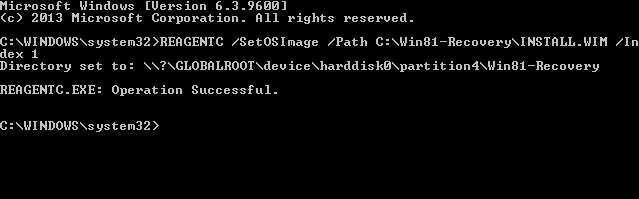
Step 6. Type "REAGENTC /Info" > "Exit".
Questions & Answers to recover accidentally deleted recovery partition
✿ Can I use a recovery drive to recover the deleted recovery partition?
If you've created a recovery drive in Windows, you can use it to restore or recover your PC. However, keep in mind that recovering from the recovery drive or recovery partition will erase personal files, apps, and customization of settings not included with your PC.
✿ Is it necessary to restore the accidentally deleted recovery partition?
The recovery partition on Windows 10, which is only about 450MB, serves as a safeguard for the system and critical data from being deleted, lost, or formatted. To release limited storage, you can delete other types of recovery partitions, but ensure you've created backups first.
✿ Any free solution to recover corrupted/damaged files or Windows after deleting the recovery partition?
To recover your system without erasing new content, consider making a full image of your system via the Windows System image. This is the most efficient way to restore your system, capturing all files and settings, including the operating system, partitions, apps, documents, and photos.
Save the system image on the external hard drive to ensure recovery in case the original hard drive fails, allowing for a smooth system migration to new hardware. This is a crucial step in maintaining system integrity and ensuring a seamless transition to new hardware, if needed. This is a crucial step in maintaining system integrity and ensuring a seamless transition to new hardware, if needed. This is a crucial step in maintaining system integrity and ensuring a seamless transition to new hardware, if needed.
Qiling Disk Master is another freeware option for backup, suitable for both personal and business use. It supports a range of functions, including backup, clone, and sync.

In this situation, you can restore your recovery partition from a full backup using Qiling Disk Master. To avoid manually creating backups, you can opt for automatic backups. Additionally, daily incremental backups and differential backups are available to simplify your backup process.
Related Articles
- (Recommended) How to Recover Hidden Partition Windows 7?
This guide explains (Recommended) How to Recover Hidden Partition Windows 7 with clear steps, key checks, and practical tips. - 3 Working Ways to Recover Deleted CCTV (DVR) Footage
even if you lost CCTV footage from your DVR camera. You can get three practical ways to restore lost CCTV camera videos, using data recovery software, asking data recovery experts for help, and checking the backups. - 2023 Tips| How to Recover Deleted Cyberpunk 2077 Game Saves
If you've accidentally deleted a game save file on Cyberpunk 2077, There are two effective ways to recover your lost game data. You can try running Qiling game data recovery software to see if it can retrieve your deleted files. - How to Recover Deleted Files Without Backup in Windows 10/11
If you've deleted files without a backup on Windows, there are still ways to recover them. Four efficient methods can help you restore deleted files without a backup, and you can use them for free. Alternatively, you can use Qiling data recovery software to accomplish the task. - Raw USB Recovery: How to Recover Data from Raw USB Flash Drive
When your USB drive becomes raw USB drive, then you can't see any data on the USB drive even you haven't done anything to it. This article help you to learn how to recover data from raw USB drive, preventing data loss. - Seagate Hard Drive Recovery - How to Recover Data from Seagate External Hard Drive
Before you start the file recovery process, make sure the Seagate external hard drive is connected to your Mac or Windows PC.
Products
Articles & Tutorials
- Data Recovery
- Data Backup
- File Recovery
- File Backup
- File synchronize
- System Backup and Restore
- Disk and Partition Clone
- Technical articles
- Disk Master Help
- Windows Deleted File and Disk Recovery Tutorials
- Windows File and Data Recovery Tutorials
- More Windows Tutorials for Install, Security, Files, and PC Tips
- Windows Boot, Repair, and Recovery Environment Tutorials
- Windows Backup Tutorials
- Windows Restore Tutorials
- Windows Clone and Migration Tutorials
- Windows Server Backup, Recovery, and Management Tutorials
- Windows Disk, Partition, and Storage Management Tutorials