Ultimate Guide to Partition Recovery on Windows 11/10/8/7 (2023)
Accidentally delete the wrong partition
If you've accidentally deleted a partition on your Windows or your partitions are unallocated for some unknown reasons, there's still hope to restore deleted partition and data. You can try using a data recovery software like Deep Data Recovery Wizard to scan your disk and recover deleted files and partitions. This software can help you recover deleted partition and data from your Windows computer, even if you've already formatted the partition or disk.
Once your partition gets lost, deleted, or corrupted, all of the documents in the partition disappear too. If you want to recover your data as much as possible, please do not make any new operation on the hard drive or rebuild the partition table to avoid the lost data being rewritten or covered.
To recover lost partitions, it's essential to understand the types of disk partitions and volumes, as well as common causes of lost partitions. Disk partitions and volumes can be primary, extended, logical, or dynamic, and are often created for different purposes such as storing operating systems, programs, and data.
Common causes of lost or deleted partitions
When you receive an error message indicating that a partition is lost, your initial concern is likely to be what happened to your computer. The loss of a partition can be caused by a variety of factors, including accidental deletion, formatting, virus attacks, power failures, or physical damage to the storage device.
- ★Common Causes for Partition Loss:
- Accidental Deletion. Deletion of an entire volume instead of a specific partition can lead to lost or deleted partitions. To avoid this, it's essential to double-check before deleting any files. This simple precaution can save you from the frustration of dealing with lost data.
- Partition Table Loss or Damage. A partition table plays a crucial role in informing the operating system about the partitions on a disk. If the partition table becomes corrupted or is lost, the partition may become inaccessible, making it essential to maintain its integrity.
- Repartition Hard Drive. Some improper operations or sudden interruptions during partition resizing can cause the partition to become inaccessible, also known as being in a "limbo" state. This can happen when resizing a partition, and it may result in the partition being unusable.
- Unexpected System Shutdown. Unexpected shutdowns can cause a computer to misbehave and harm the partitions on a hard disk, which can be caused by power outages, infected apps, and irregular BIOS upgrades.
- Virus Infection. Virus and malware have become increasingly sophisticated, making them harder to detect despite the presence of antivirus software. Once a hard drive is infected, there's a significant risk that the partition can be lost or deleted, leading to potential data loss.
- Operating System or File System Corruption. The partition may be lost due to operating system or file system corruption, such as a blue screen, which can cause the partition to become inaccessible.
- Bad Tracks/Sectors. Bad sectors on the disk could stop your partition from being recognized by your computer.
- Run CHKDSK after Disk Defragmentation. Disk fragmentation occurs when a large file can't fit on a hard disk due to a lack of contiguous space, causing the OS to store different parts of the file in multiple locations. After defragmentation, it's essential to run CHKDSK to prevent hard drive corruption and potential loss of the partition.
When a partition is lost or deleted, the operating system often removes its assignment for that position on the hard drive, but as long as the region of the disk is not overwritten, recovery software can still be used to restore the partition.
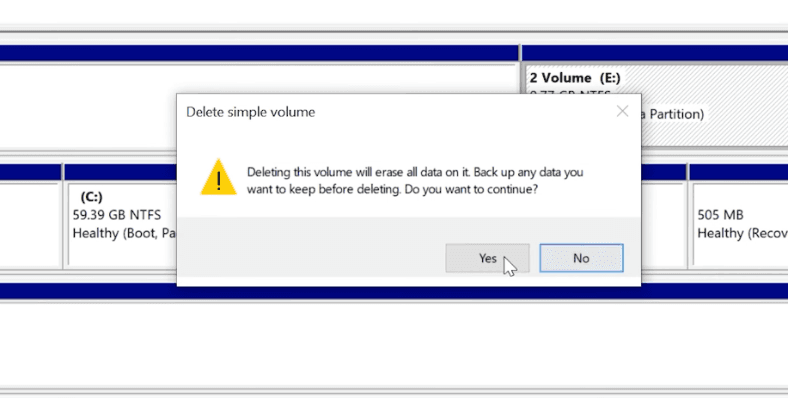
The sooner you try to recover lost partitions and the less you access the hard drive, the better it is to restore partitions and data.
Understanding partition loss is just the first step, as it can occur due to various reasons. To further address this issue, it's essential to explore different scenarios and methods for recovering lost partitions.
Different cases and methods for partition recovery on Windows 11/10/8/7
Most lost or deleted partition cases fall into three scenarios: the partition has no drive letter, the partition becomes unallocated, or the partition table is damaged. Choose the matching method below before writing new data to the disk.
Case 1: The partition vanished instead of deleted
Some system partitions, such as recovery partitions, boot volumes, and OEM partitions, are undeletable, while most other partitions can be deleted. If you encounter a gray wall in Disk Management when trying to delete a partition, it means that partition is undeletable.
Method 1: Assigning a drive Letter
File Explorer may deny the existence of a specific partition, but disk management can reveal a different story. To troubleshoot, go to Disk Management and check if the partition requires some space, which is often the case when the partition isn't assigned a letter. In such scenarios, assigning a drive letter can resolve the issue.
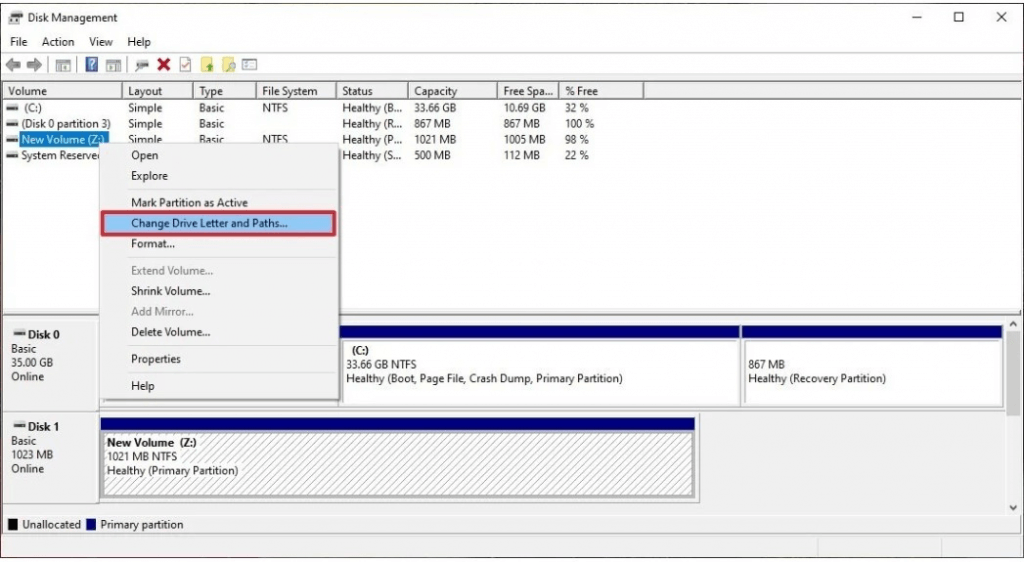
Step 1: In the Disk Management tool, right-click the partition you want to change the drive letter for and select "Change Drive Letter and Paths".
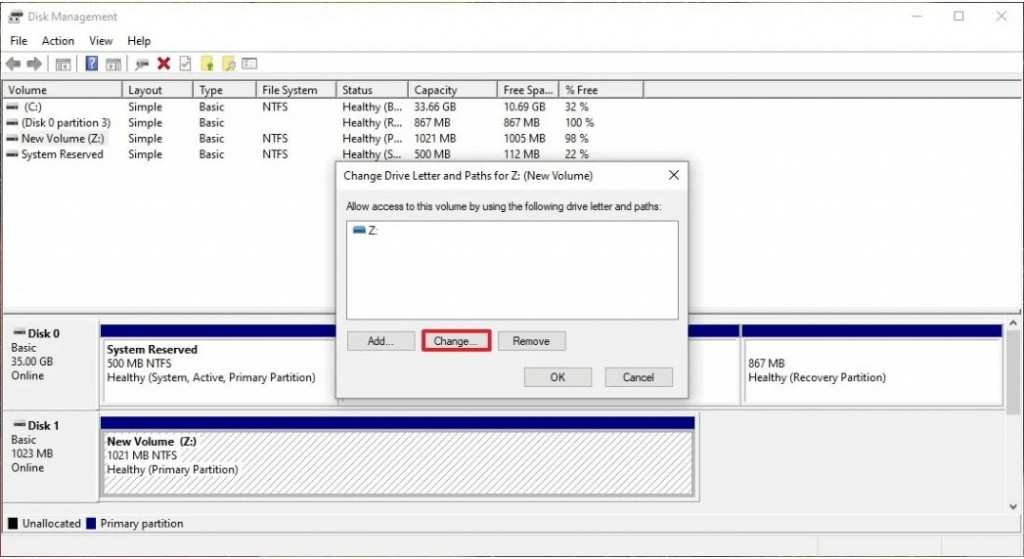
Step 2: Click "Change".
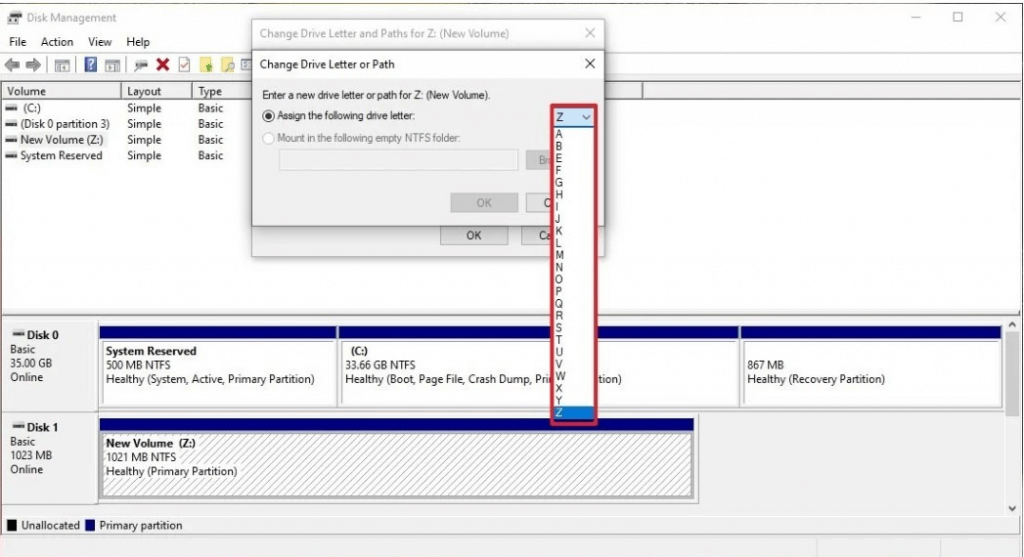
Step 3: Click "Add" or "Change", select "Assign the following drive letter", choose an available letter, and click "OK".
Step 4: Click "OK" to finish the process. You can check whether you could access the lost partition in File Explorer. If not, please check the following method 2 to recover lost/deleted partitions.
Method 2: Restore an unallocated space to the partition
If the partition is still invisible, it may have become an unallocated space. To check this, go to Disk Management and look for the unallocated tab under the Disk Volume list.
Step 1: Right-click on the unallocated tab, select "New Simple Volume", and click "Next".
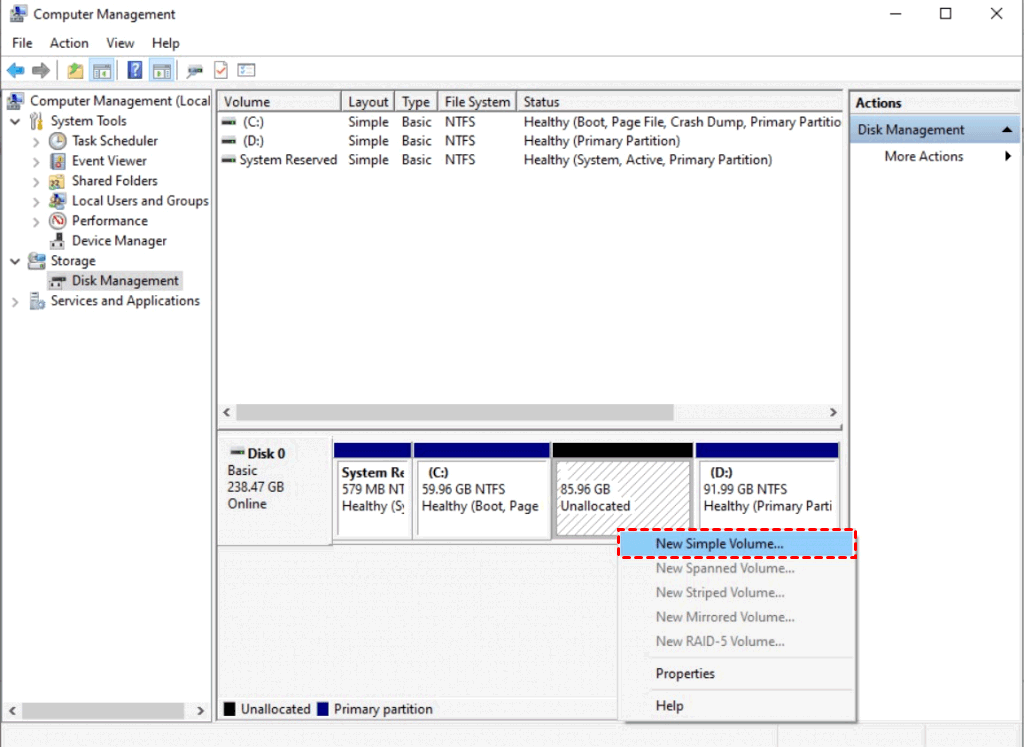
Step 2: Click on "Next" > "specify the volume size".
Step 3: Select "Assign the following drive letter" and select a letter.
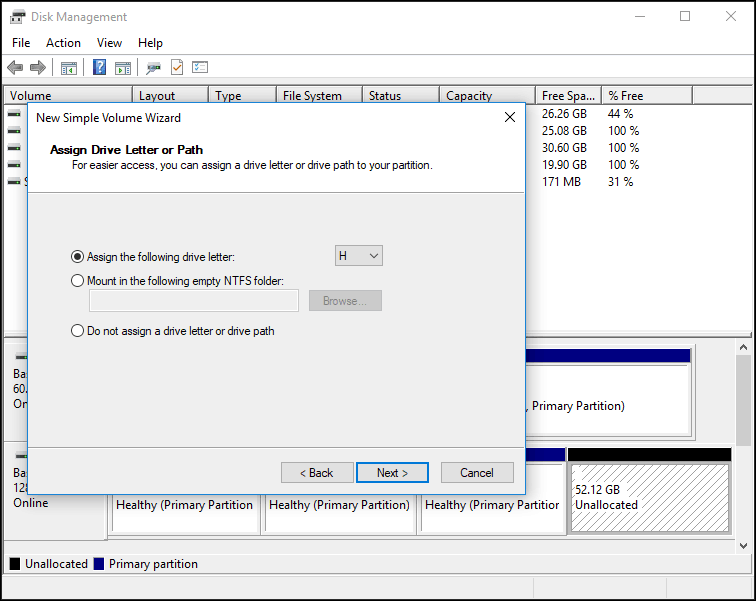
Step 4: Click "Next" and select "Do not format this volume"
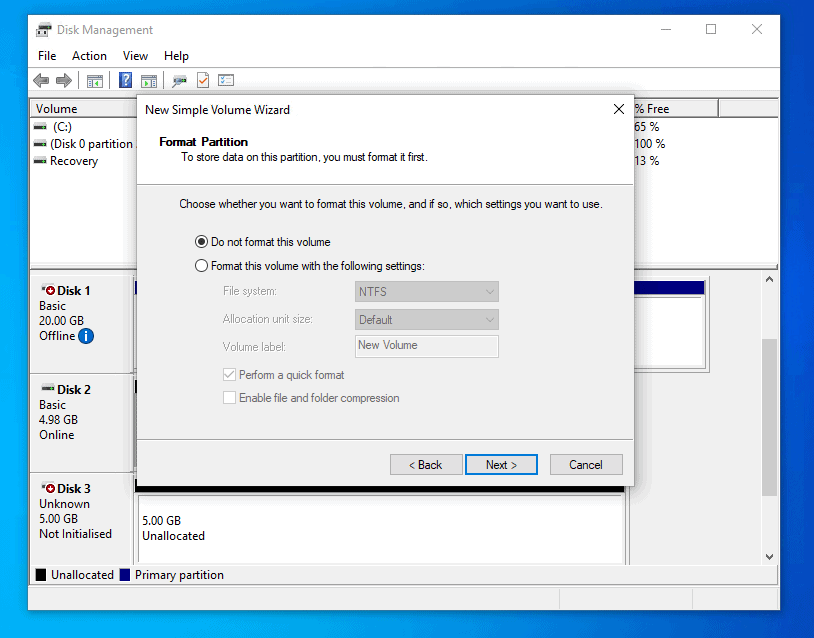
Step 5: Confirm the volume size, drive letter, file system, and volume label. Then click "Finish" to create the new partition. Format only after you have recovered important data.
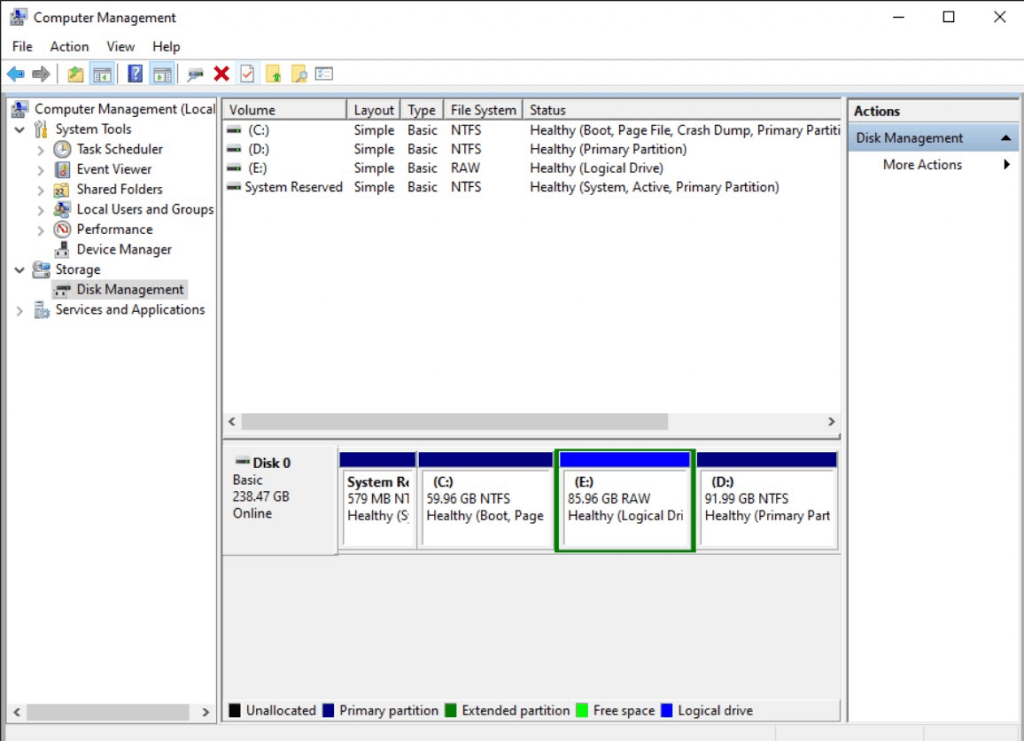
Method 3: Recover a lost partition using CMD
If you're familiar with the DiskPart command line and your partition loss was caused by losing the volume label, drive letter, partition name, you can try assigning a drive letter to it to make it visible again in File Explorer.
Step 1: To find a lost partition in Disk Management, open the Disk Management console by pressing "Win + R", typing "diskmgmt.msc", and pressing "OK". Look for unallocated disk space, which may indicate a deleted partition, and note the partition size to help locate it.
Step 2: Run CMD as administrator.
Step 3: Type "diskpart" in the window and press Enter.
Step 4: To view a list of all disks on a computer, simply type "list disk" and press Enter. This will display all disks currently connected to the system.
Step 5: To recover a lost partition, type `select disk *` and press Enter, replacing `*` with the number of the hard drive that contains the lost partition.
Step 6: Type "list volume" and press Enter.
Step 7: The command to restore a lost partition is to type "select volume*" and press Enter, replacing the asterisk with the number of the lost partition. This command is used to select the volume where the lost partition is located, allowing the user to access and restore the data from the lost partition.
Step 8: To assign the letter * to a drive, type "assign letter=*" and press Enter, replacing * with an available drive letter. For example, if you want to assign the letter "D" to a drive, you would type "assign letter=D" and press Enter.
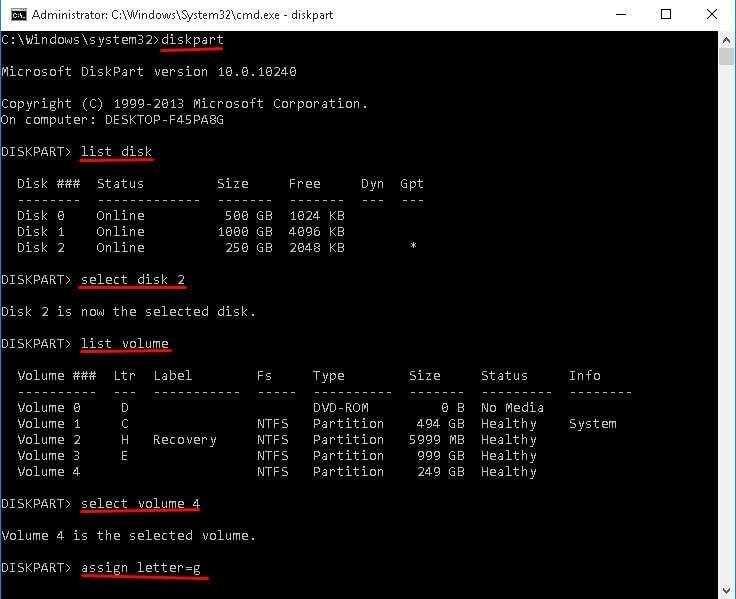
Step 9: To check if the lost partition is accessible, you can go to File Explorer, which is a built-in feature in Windows. From there, you can navigate to the drive where the lost partition was located and see if it's accessible.
Case 2: Recover entire deleted partitions
To recover an entire partition, the best and easiest way is to use a professional third-party recovery tool like Qiling Disk Master Professional, which can recover partition without data loss.
Qiling Disk Master
Qiling Disk Master, a leading partition recovery product, allows users to easily restore lost partitions in Windows operating systems, including 10, 8, 7, Vista, and XP. With a user-friendly interface, anyone can complete the recovery process in just a few steps. The software offers two search options, fast search and full search, to locate lost or deleted partitions, and can also repair corrupted MBRs in external hard drives.
- ★Qiling Disk Master:
- Qiling Disk Master Professional is a partition manager that offers various features, including converting MBR and GPT without removing partitions, moving, cloning, merging, and formatting partitions, as well as basic tasks like creating, deleting, formatting, and extending partitions.
To recover lost partition in Windows 10, 8, and 7, use Qiling Disk Master Professional. Follow the steps: download the demo version.
Step 1: Install and open Qiling Disk Master.
Step 2: Select Partition Recovery Wizard on the left panel and click the disk you want to restore. Click Next.
Step 3: Select a proper search mode. It is recommended to choose Fast Search the first time, as it saves more time than Full Search. Then, click on "Next" to proceed.
Step 4: The software will then scan the drive where the lost partition was located and display a list of all the lost partitions found. You can then select the partition you want to restore and follow the software's instructions to complete the recovery process.
Step 5: After the partition recovery process is completed, click "Finish" to exit the window when you see the "Congratulations" message.
To recover deleted partitions, you can follow these steps: First, you need to check if the partition is still visible in File Explorer. If it's not visible, you can try using a partition recovery software like Qiling Partition Recovery to scan for and recover the lost partition.
Case 3: Recover files from a deleted partition
To recover files from a deleted partition, you'll need to use a data recovery tool. When using such a tool, look for a feature that allows you to filter files by type, which will help you quickly find the specific files you're looking for. Once you've selected a file type, you'll be able to view a filtered list of the files and folders that can be recovered.
Whatever third-When using party software, it's essential to be mindful of time, as it plays a crucial role in keeping files visible.
When using Qiling Disk Master to recover a deleted or lost partition, if no new operations are performed on the partition after it's lost or deleted, the stored data may be recovered along with the partition. This is because the lost data remains intact until it's overwritten or covered by new data, allowing the recovery of files from a deleted partition.
Disk partition and volume types
A disk partition is a separate region created on a storage device, allowing each region to be operated independently. This is achieved by partitioning the storage device into one or more partitions using the DiskPart command or a reliable third-party tool. One of the benefits of disk partitioning is that it reduces the risk of losing all data in the event of an unknown issue.
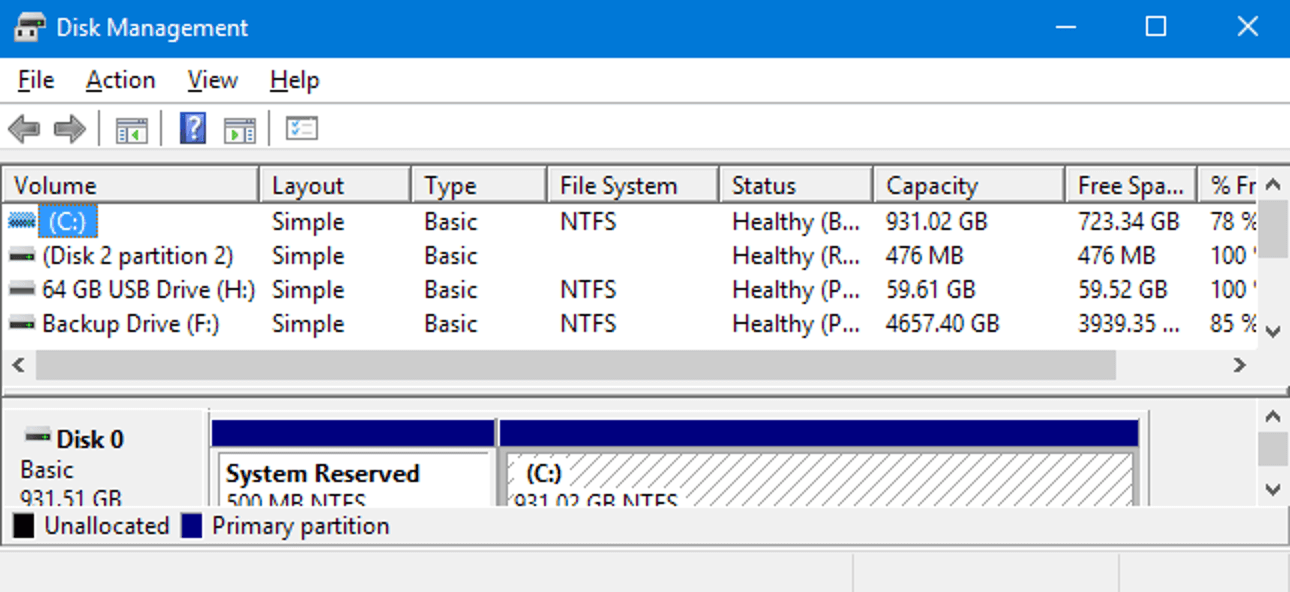
Resizing a partition can be a delicate process, as incorrect operation may result in data loss. For those who are not computer experts, Qiling Disk Master can be a reliable solution for partitioning, resizing, cloning, and other tasks, providing a safe and effective way to manage disk space.
Important partition table types
In Windows, a partition table is used to describe all the partitions on a hard drive, allowing the computer to identify which partition is running the active operating system by loading and reading the partition table.
A partitioned table is divided into segments to make it easier to manage and query data, improving query performance and speed. However, if the partition table is lost, users may experience issues writing data to the hard drive normally. There are four common types of partition table types.
- FAT 32
- NTFS
- exFAT
- Ext3
To determine the partition table type, open Disk Management, right-click the disk, choose "Properties", and check the "Volumes" tab for MBR or GPT information.
The partition table has two structures, Master Boot Record (MBR) and GUID Partition Table (GPT), with GPT having more advantages. One significant benefit of GPT is that it supports partitions exceeding 2 TB, making it a more practical option for large storage needs. If you need to convert an MBR to a GPT without losing any data, you can use professional third-party software to make the transition.
Difference between volumes and disk partitions
Volumes and disk partitions are not the same, with volumes having a unique name or number. Some systems have identifiable volumes, while partitions are a logical division of a hard disk to run different operating systems.
A volume is created on a dynamic disk, which can be divided into multiple physical disks, while a partition is created on a basic disk.
A disk partition is a subdivision of a volume, such as a hard disk drive (HDD) or solid-state drive (SSD), like C: drive or D: drive.
A volume is more flexible than a partition, but it's also more volatile. If you reinstall the OS or move a dynamic disk to another device, the data on the dynamic disk will be lost.
Before making operations, convert the dynamic disk to a basic disk using Qiling Disk Master to avoid losing data.
Extended reading: recovery partition
A recovery partition is a partition on the disk that serves as a failsafe, restoring the system to its factory settings if there's a sudden system failure. This partition has no drive letter and can only be accessed and used through Disk Management.
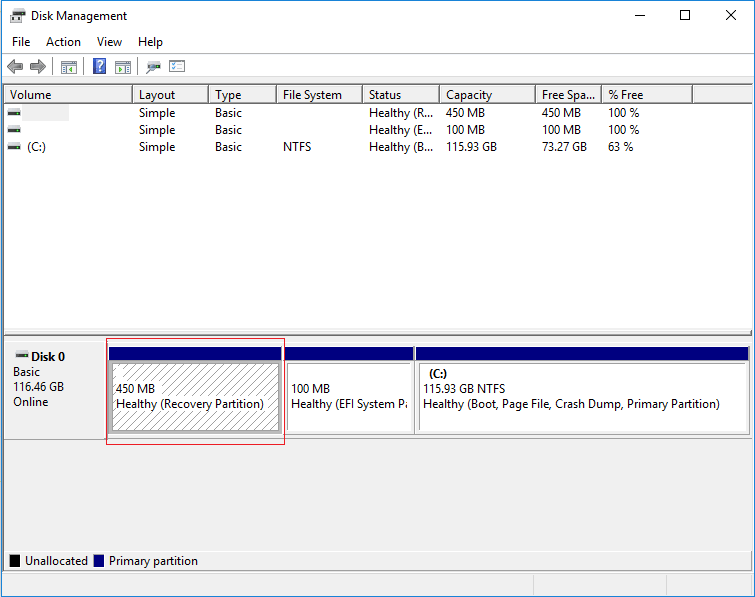
There are two types of recovery partitions. The default Windows Recovery Partition is installed with the Windows operating system on a GPT disk, occupying a negligible volume of disk space.
The second recovery partition, known as the OEM Recovery Partition, is created by computer manufacturers like HP, Dell, or Lenovo. It stores the manufacturer's default settings for application drivers and other items, allowing users to restore their computer to its original settings. This partition requires a significant amount of disk space.
Can't I simply use a recovery partition to restore the lost partition?
You can't use a recovery partition to restore a lost partition because it will erase all software, files, documents, and customized settings, returning the computer to its original factory state.
Using a recovery partition has no effect on restoring lost or deleted partition, and it's typically the last method to try if a partition loss occurred due to a system crash or virus attack.
Delete a recovery partition
Deleting a recovery partition is not recommended, as it contains necessary files for creating a recovery drive. However, you can still access the Windows Recovery Environment after deleting the recovery partition. If you need extra disk space, you can create a USB recovery drive first and then delete the recovery partition using the following methods.
Method 1: Using Windows Command to delete recovery partition
Step 1: Type "cmd" on the search box.
Step 2: Right-click on the "Command Prompt", choose "Run as Administrator".
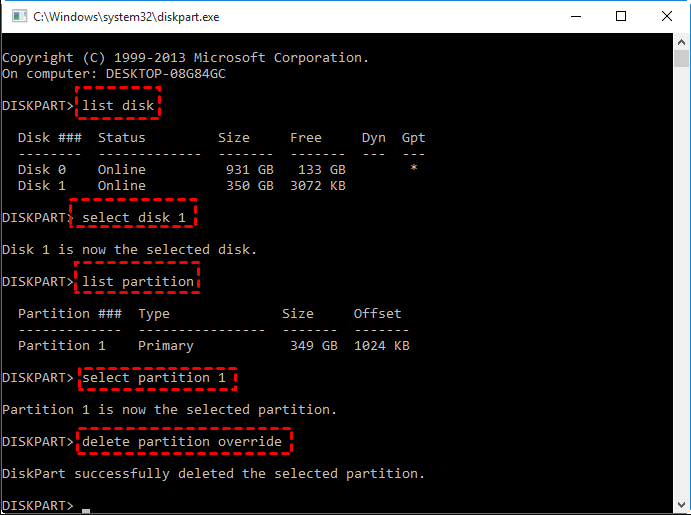
Step 3. Once the Command Prompt is launched, type "diskpart" and press Enter to open DiskPart.
Step 4. Type and press Enter to run the following commands one by one:
● list disk
● select disk number The disk contains the recovery partition, which is typically located on disk 0.
● list partition
● select partition number (Choose the recovery partition number)
● delete partition override
Method 2: Using a USB Drive to delete recovery partition
Before removing a recovery partition, create a USB recovery drive with a clean USB drive. The USB drive will be erased during the process, so back up its files first.
Step 1: Eject your USB drive
Step 2: To create a Windows recovery disk, press the Windows key and enter "recovery disk" in the search bar. Select "Create Recovery Disk" from the results. Ensure that the option "Copy recovery partition from PC to recovery disk" is checked. If it is, proceed to the next step.
Step 3: Connect the USB drive to the computer and choose it. Click "Next".
Step 4: Left-click on "Create" and wait for the data transfer process.
Step 5: You can choose to leave the recovery partition on the computer or delete the recovery partition.

More questions about restoring deleted partitions
Can I restore a deleted partition from an external hard drive?
Partition recovery tools like Qiling Disk Master support recovery from external hard drives, but avoid making new operations on the drive after deleting a partition to prevent file overwriting or covering.
How to do that I accidentally deleted a volume in disk management?
When you delete a partition or volume using disk management, this disk space turns into unallocated space on your drive, and you can use software like Qiling Disk Master to restore the deleted partition.
Is there any way to make partition recoveries easier?
To quickly restore your system, create a full image backup of your system regularly, using an external hard drive or a tool like Qiling Disk Master, to store all data, including partitions, operating system, settings, apps, documents, images, and files.
A full image backup is different from a recovery partition as it doesn't require time-consuming reloading, updating, and re-creating files. Instead, it allows your system to be easily migrated to new hardware if the original hard drive fails or is inaccessible. This is made possible by storing the backup on an external hard drive.
Conclusion
In most cases, lost partitions on Windows 10 can be recovered, but it's essential to understand the cause to avoid recurrence. If the partition was deleted but not completely erased, it can be restored by assigning a drive letter. If the entire partition was deleted, third-party software can help recover it. Additionally, Windows' built-in "Diskpart" command can aid in partition recovery. To prevent data loss, it's recommended to create a full image backup.
If you've completed the previous steps and are still unable to use files in the partition, you may need to use Qiling Disk Master to check for bad sectors.
Related Articles
- 2 Solutions to Recover Lost Partition SD Card
This guide explains 2 Solutions to Recover Lost Partition SD Card with clear steps, key checks, and practical tips. - How to Recover Deleted Partition in Windows 11, 10, 8, 7?
Follow this step-by-step guide on how to recover deleted partition in Windows 11/10. Some tested solutions are provided here, including repairing damaged/corrupted partitions. - Unlock Hard Drive | Fix Drive Where Windows Installed Is Locked
Fix Unlock Hard Drive | Fix Drive Where Windows Installed Is Locked with clear Windows repair steps and precautions to protect your system or data. - Unlock PDF Without Password | Remove Password from PDF Files [2022 Real Fix]
If you're looking to open a password-protected PDF file without entering the password, there are a few ways to do so. You can use Google Chrome to open the file, Adobe Acrobat to access the contents, or a free online PDF password remover tool to bypass the password. - How to Recover Files After Factory Reset/System Restore Windows 10
If you reinstall Windows 10, you risk losing some or all of your files, but there are ways to recover them. A factory reset or system restore can wipe out your data, but you can still retrieve your files using a guide that outlines the steps to take. - How to Recover Files after Reset Windows 10
If you've performed a factory reset on your Windows 10 device and lost important files, you can recover them.
Products
Articles & Tutorials
- Data Recovery
- Data Backup
- File Recovery
- File Backup
- File synchronize
- System Backup and Restore
- Disk and Partition Clone
- Technical articles
- Disk Master Help
- Windows Deleted File and Disk Recovery Tutorials
- Windows File and Data Recovery Tutorials
- More Windows Tutorials for Install, Security, Files, and PC Tips
- Windows Boot, Repair, and Recovery Environment Tutorials
- Windows Backup Tutorials
- Windows Restore Tutorials
- Windows Clone and Migration Tutorials
- Windows Server Backup, Recovery, and Management Tutorials
- Windows Disk, Partition, and Storage Management Tutorials