2 Solutions to Recover Lost Partition SD Card
- Can you recover lost partition on SD card?
- Way 1: Recover lost partition on SD card without losing data (Easiest)
- Way 2: Recover lost partition on SD card via Disk Management
- Part 1: Recover Data from Lost Partition with Deep Data Recovery
- Part 2: Create a New Simple Volume in Disk Management
- Wrapping up
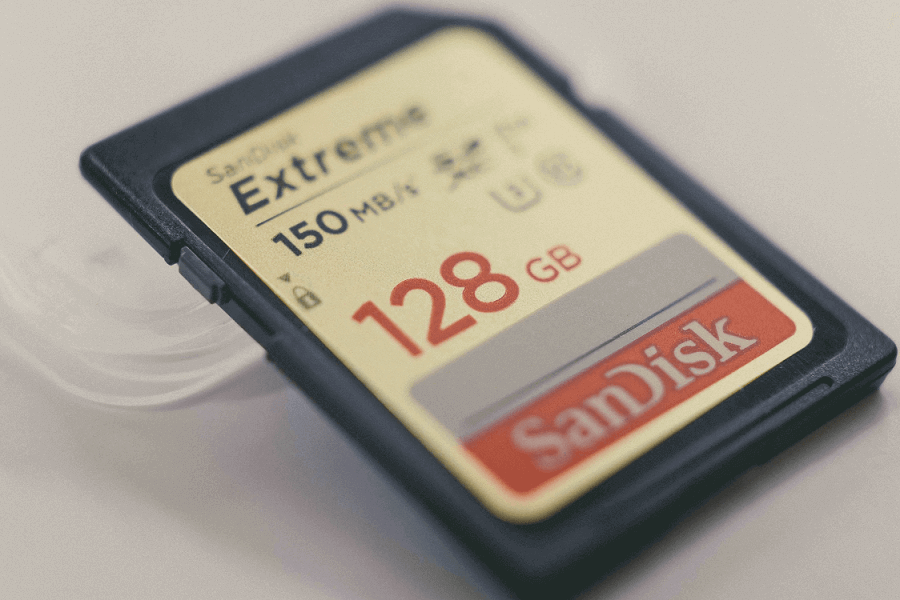
The SD card is a portable storage device with a large storage capacity, designed for use with various devices like digital cameras, laptops, mobile phones, media players, and GPS receivers.
If you accidentally delete or lose a partition on your SD card, it's possible to recover the lost partition and the data it contains. To do this, you can use data recovery software specifically designed for SD cards, such as Deep Data Recovery Wizard. This software can scan the SD card for lost partitions and recover the data, including photos, videos, documents, and more.
Can you recover lost partition on SD card?
Deleting a partition on an SD card can be tricky to recover from, but there are possible ways to try and retrieve your data. You can use data recovery software like Recuva or Deep Data Recovery Wizard to scan the SD card for deleted files and attempt to recover them. Alternatively, you can use a tool like Disk Drill to help recover deleted partitions and files.
If you've lost a partition on your SD card, try using data recovery software like Deep Data Recovery or Disk Drill to scan the card and potentially recover the lost partition. Alternatively, use your device's built-in recovery features or a third-party tool like SD Card Recovery. If these methods don't work, the partition might be gone for good. However, if you recently deleted the partition, the data might still be recoverable.
In a nutshell, yes, You can recover a lost partition on an SD card using a powerful partition recovery software like Qiling Disk Master. This software scans the entire disk to locate deleted or lost partitions via its partition table and can recover them safely and effectively.
If your SD card isn't overwritten, the data can still be recovered. You can use software like Qiling Disk Master to recover lost partition on the SD card or a reliable data recovery software to recover data, and then recreate the partition using Disk Management.
Way 1: Recover lost partition on SD card without losing data (Easiest)
If you've discovered that the partition on your SD card is missing, immediately stop using the card and refrain from writing any new data on it to ensure the partition and data are fully recoverable. This precautionary measure helps prevent any potential data loss or overwriting of the missing partition, allowing for a better chance of successful recovery.
Let the Partition Recovery wizard in Qiling Disk Master help you. Its advanced scanning methods can help you find not only the lost partition but also the data in it.
- Fast Search: To recover a lost partition on an SD card, a specific search method is recommended. This involves using a targeted approach to locate the lost partition.
- Full Search: This method will search every sector of the selected disk, taking longer, and is recommended when Fast Search fails.
Step 1. Install and launch Qiling Disk Master Professional, select the needed disk and click "Partition Recovery" to proceed.

Step 2. Select the full search option to find your desired partition, then click proceed.
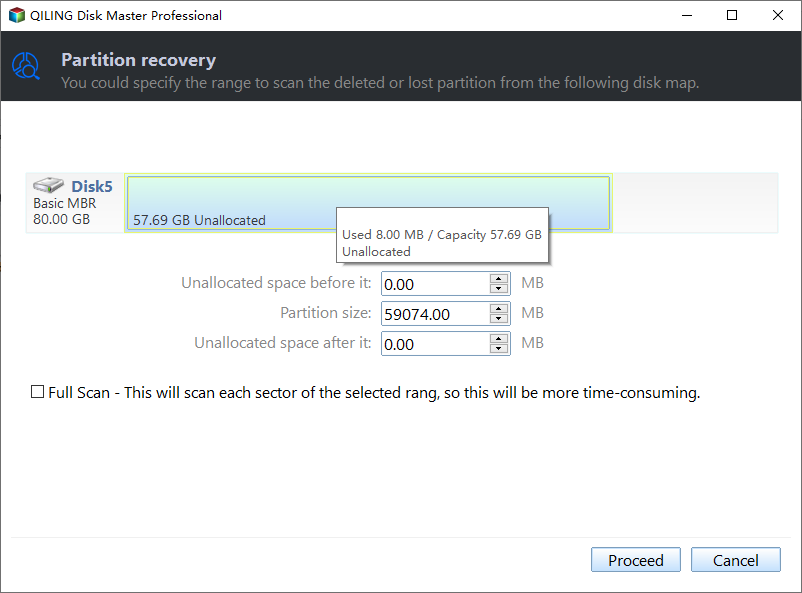
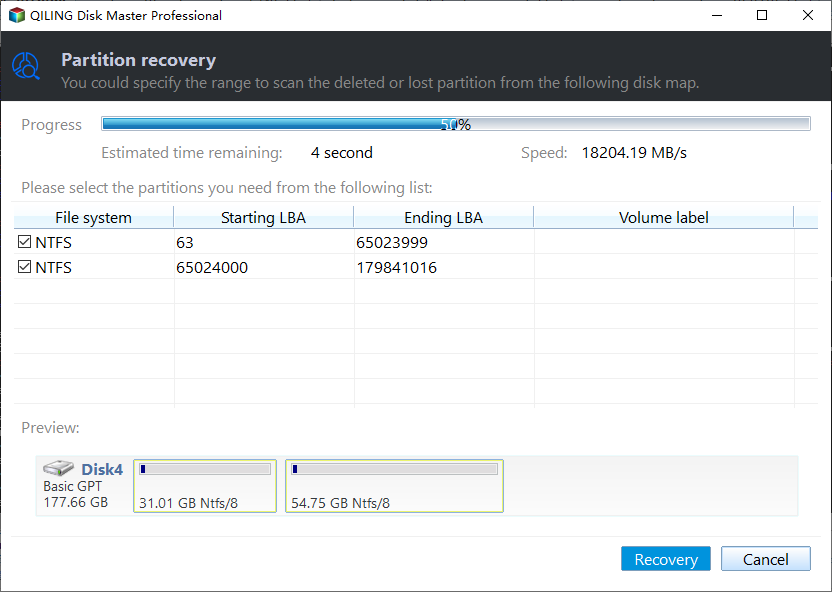
Step 3. This application shows all hard disk partitions, lets you choose one, and starts recovery by clicking "Recover".
Way 2: Recover lost partition on SD card via Disk Management
Users may mistakenly believe that deleted partitions are completely erased, but in reality, they can still exist in unallocated space, potentially vulnerable to data recovery or virus attacks.
To fix the issue, create a new simple volume in Disk Management, which will show the unallocated space in File Explorer again, but be aware that this will overwrite any data on the unallocated space if not recovered first. Alternatively, use free data recovery software like Deep Data Recovery to recover lost files and then create a new simple volume.
- Recover deleted or lost data from lost partitions, or other data loss scenarios.
- Compatible with different SD card types, The SD card family includes various types of memory cards, such as Standard SD, micro/mini SD, CF card, SDHC/SDXC, and xPicture SD card, among others.
- The software supports recovery from various SD card brands, including Panasonic, Nikon, Canon, Kodak, FujiFilm, Olympus, Samsung, Lexar, Transcend, Toshiba, Kingston, SanDisk, and many others.
- This device can read and support a wide range of file types, including 3FR, CR2/CR3, CRW, DCR, DNG, NRW, ORF, PEF, RAF, RAW, RW2, RWL, TIF, X3F, MP3, WMA, M4V, MP4, and R3D, among others.
- The recovered files, including images, videos, documents, and other types, should be kept with their original paths, formats, and qualities intact.
Part 1: Recover Data from Lost Partition with Deep Data Recovery
The software is compatible with Windows 7, 8, 10, 11, and various server versions, including Windows Server 2008(R2), 2012(R2), 2016(R2), 2019, and 2022, and can be downloaded on any of these versions.
Step 1. Once the SD card is detected, select it in the recovery software and click the "Scan" button.

Step 2. The software will automatically run a Quick Scan & Deep Scan to scan the entire external disk, displaying all recoverable files.

During the file recovery process, you can search for the file name, filter by file type, date modified, or size to locate your lost files.
- Type: The local drive contains a variety of file types, including images, videos, documents, emails, web pages, and compressed files.
- Data Modified: The tool offers flexibility in selecting the time period for analysis, including today, yesterday, the last 7 days, the last 30 days, and custom timeframes, catering to diverse user needs.
- Size: The tool allows you to filter files based on their size, categorizing them into four groups: less than 128KB, 128KB to 1MB, 1MB to 512MB, and files larger than 512MB, or you can set a custom size range for more specific filtering.
Step 3. After selecting the lost files on the SD card, click the "Recover" button. You will then be prompted to choose a new location to save the recovered files, ensuring they are not overwritten.

Except for SD card, you can also use it to recover deleted files from external hard drive, or USB flash drive, regardless of brands and size.
Part 2: Create a New Simple Volume in Disk Management
Step 1. To open the Disk Management window, press Windows + R to open the run dialog, then enter diskmgmt.msc and press OK. This will display all the storage devices connected to your computer, including internal hard drives, external hard drives, and USB drives.
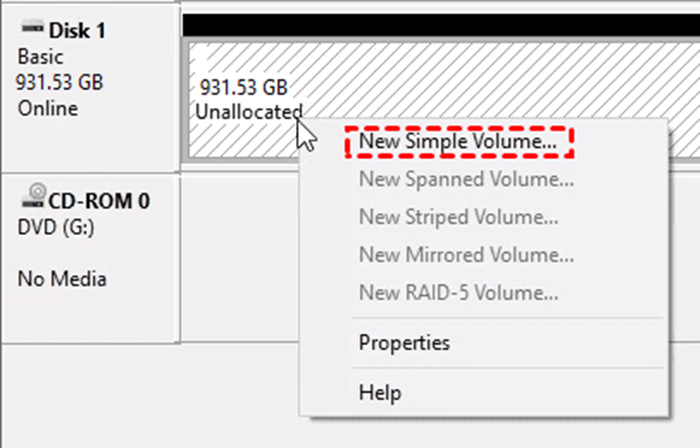
Step 2. After recovering important files, open Disk Management, locate the unallocated space on the SD card, right-click it, and select "New Simple Volume".
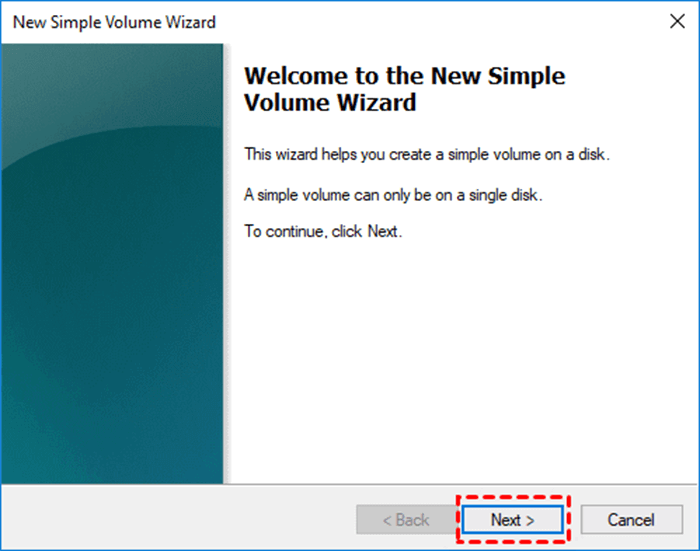
Step 3. Click the "Next" button on the Welcome to New Simple Volume Wizard window.
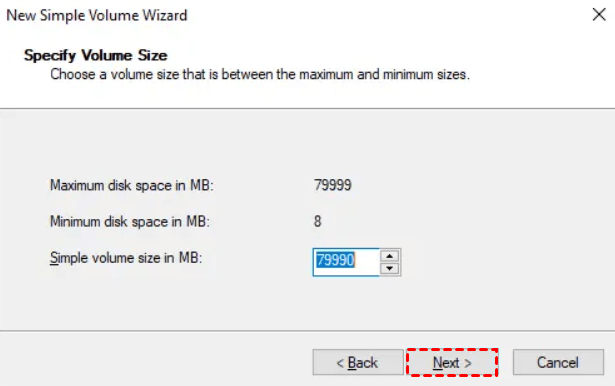
Step 4. Enter a smaller simple volume size in the box on the Specify Volume Size window, then click Next.
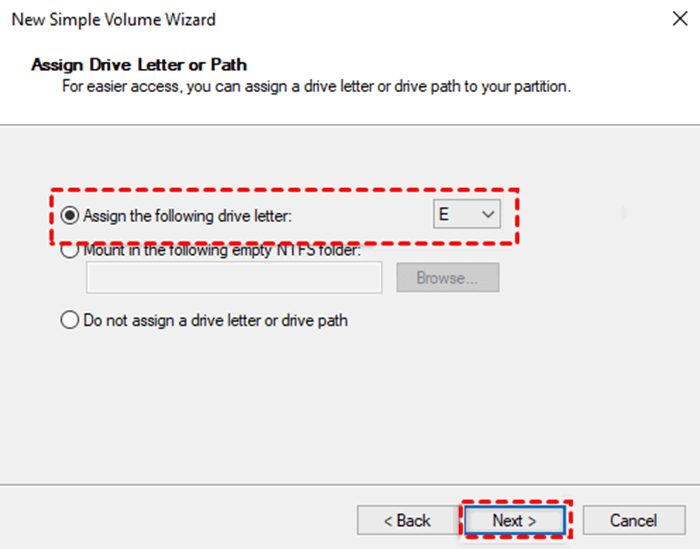
Step 5. Create a new partition on the selected disk, and then assign a drive letter to the new partition via the "Assign the following drive letter" option. Next step.
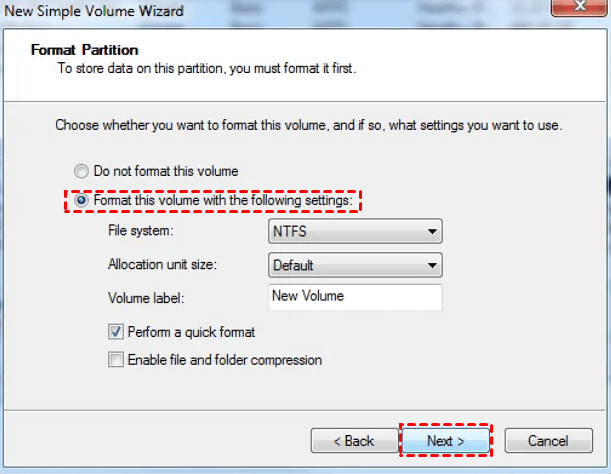
Step 6. Ensure the file system is set to NTFS and select "Next" after choosing the format settings for the volume.
Step 7. After making the changes, you can click "Finish" to close the last window and go back to the main disk management window.
Wrapping up
This tutorial offers two solutions to recover lost partitions on an SD card. For those seeking a hassle-free approach, Qiling Disk Master Wizard is a recommended option.
To prevent data loss, consider implementing various practical measures. Regularly back up your data to an external hard drive or cloud storage service, and use a password manager to generate and store unique, complex passwords for all accounts. Additionally, keep your operating system and software up to date with the latest security patches, and exercise caution when interacting with unknown digital sources.
- To avoid data corruption or loss, do not remove the SD card or shut down the system while it is reading or writing data.
- Do not use the same SD card on multiple devices.
- Ensure the electronic device recognizes your SD card.
- Use the original battery to ensure power stability.
- Avoid the high temperature and humidity environment.
- Make regular backups using the Windows feature such as Windows File History, to ensure your important files are safe and can be easily restored in case of data loss or system failure.
- Use free backup software-Qiling Disk Master to create regular backups.
Related Articles
- Accidentally Deleted Recovery Partition? Fixed!
Recover an accidentally deleted recovery partition and protect remaining disk data during repair. - 5 Ways to Fix External Hard Drive Access Denied
This guide explains 5 Ways to Fix External Hard Drive Access Denied with clear steps, key checks, and practical tips. - Google Drive Recover Permanently Deleted Files
This guide explains Google Drive Recover Permanently Deleted Files with clear steps, key checks, and practical tips. - How Do I Recover Permanently Deleted Folders?
Learn four practical ways to recover permanently deleted folders in Windows, including backups, previous versions, File Recovery, and recovery software. - Best SD Card Recovery Software to Recover Files from SD Card
This guide explains Best SD Card Recovery Software to Recover Files from SD Card with clear steps, key checks, and practical tips. - How to Recover Files from SD Card RAW File System and Fix It
If your SD card becomes RAW, this article explains how to recover files first and then fix the RAW file system issue.
Products
Articles & Tutorials
- Data Recovery
- Data Backup
- File Recovery
- File Backup
- File synchronize
- System Backup and Restore
- Disk and Partition Clone
- Technical articles
- Disk Master Help
- Windows Deleted File and Disk Recovery Tutorials
- Windows File and Data Recovery Tutorials
- More Windows Tutorials for Install, Security, Files, and PC Tips
- Windows Boot, Repair, and Recovery Environment Tutorials
- Windows Backup Tutorials
- Windows Restore Tutorials
- Windows Clone and Migration Tutorials
- Windows Server Backup, Recovery, and Management Tutorials
- Windows Disk, Partition, and Storage Management Tutorials