8 Ways to Recover Permanently Deleted Files from Google Drive
- Can I Recover Permanently Deleted Files from Google Drive?
- How to Recover Permanently Deleted Google Drive Files
- Method 1. Recover Permanently Deleted Files from Google Drive
- Method 2. Recover Permanently Deleted Files from Shared Drive
- Method 3. Recover Deleted Data from Google Account
- Method 4. Contact the Google Drive Help
- Method 5. Scan and Recover Local Google Drive Folder with Data Recovery Tool
- Method 6. Recover Deleted Google Drive Files from Google Takeout
- Method 7. Recover Deleted Google Drive Files from Google Vault
- Method 8. Restore Google Drive Data to Previous Date with Version History
- Limitation of Google Drive Native Recover Feature
- How to Prevent Google Drive Data Loss
- FAQs
- Concluding Words
Many users prefer to store their data in the cloud because it's easy, convenient, and keeps them away from system failure or physical damage, allowing them to access their files from anywhere.
Google Drive is a popular cloud storage option known for its efficiency. Many users rely on it to back up their PC files, but data loss can still occur due to accidental deletion or other reasons.
If you're experiencing data loss, here's a summary of the key points to consider: First, stop using the device or system to prevent further data loss. Then, assess the situation and determine the cause of the data loss.
Can I Recover Permanently Deleted Files from Google Drive?
Unfortunately, Google Drive's automatic trash feature only keeps deleted files for 30 days, and permanently deleted files are not recoverable. However, you can try checking the Google Drive trash to see if the files are still there, and if not, you can try using a third-party data recovery software to scan your computer for any remaining file fragments. Keep in mind that the success of this method depends on various factors, such as the type of file, the amount of data on your computer, and the software used.
- Question from Techforum
Google Drive allows you to recover deleted files from the Trash folder for 30 days, making it easy to retrieve lost videos or pictures. Simply select the files and click Restore to recover them.
After 30 days, deleted files from Google Drive will be permanently deleted, but Google still offers alternative methods to recover files, even without a backup. If you need to quickly retrieve deleted Google Drive files, consider using data recovery software to scan your Google Drive folder.
How to Recover Permanently Deleted Google Drive Files
Google allows users to access their files across web browser, desktop, and mobile app, with automatic deletion and recovery across devices. Additionally, using data recovery software can also be a helpful method.
Method 1. Recover Permanently Deleted Files from Google Drive
If you're using a G Suite account, you can ask the administrator for assistance. They can recover deleted files, even after emptying the Recycle Bin, within a 25-day timeframe.
IMPORTANT: The G Suit administrator can recover permanently deleted files from Shared Drive, deleted users account, and users' individual account.
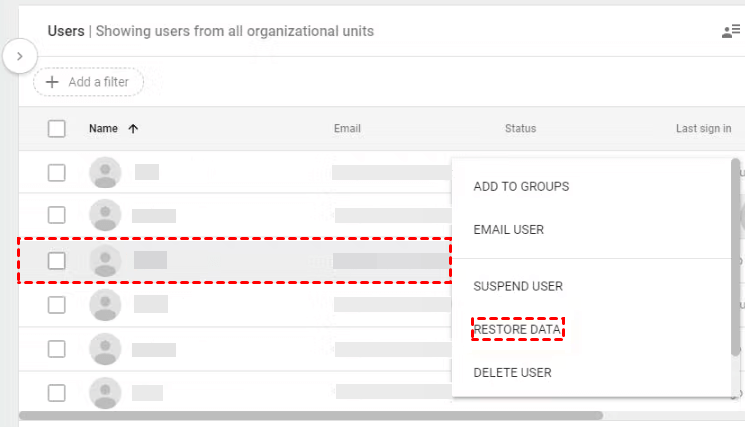
Step 1. Sign in to the Google Admin Console. Then, click Users and select the target user containing permanently deleted data.

Step 2. Right-click the target user and select RESTORE DATA.
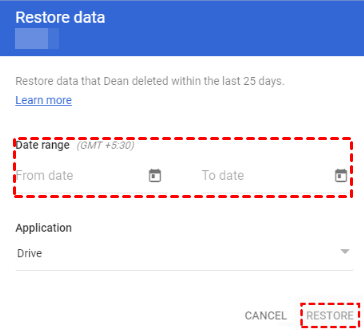
Step 3. To recover deleted files on a Windows computer, go to the Recycle Bin, select the date range and application - Drive, then click RESTORE to recover the deleted files. It will be restored to its original location.
Method 2. Recover Permanently Deleted Files from Shared Drive
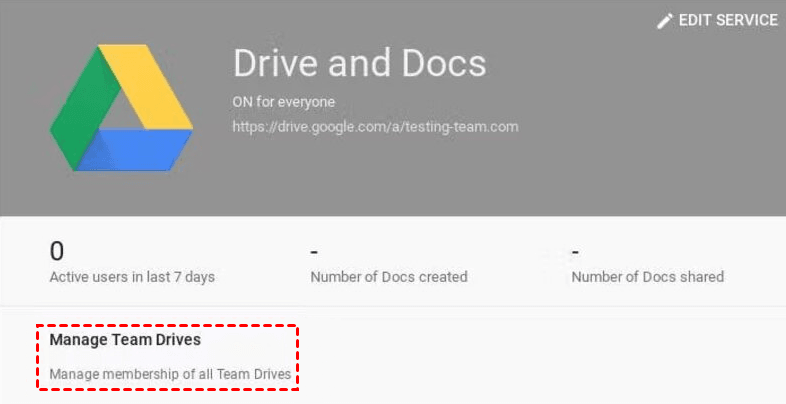
Step 1. Sign in to the Google Admin Console. Then, go to App > G Suite > Drive and Docs.
Step 2. Select Manage Team Drives.
Step 3. Find and select the deleted Google Drive files and click Restore.
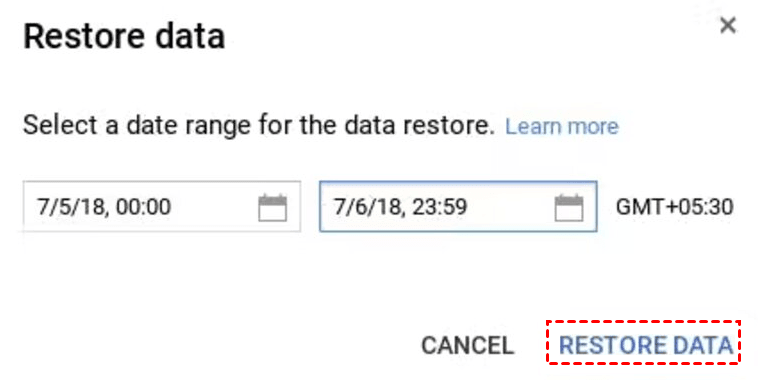
Step 4. Select a date range and click RESTORE DATA. The deleted files will now be restored to the selected Team Drive.
Method 3. Recover Deleted Data from Google Account
The Google Drive administrator can recover deleted files from a G Suite account within 20 days, then recover the account, and finally transfer the file ownership to another G Suite user.
Step 1. Sign in to the Google Admin Console and recover the deleted account.
- Click Users, select Add filter and Recently Deleted.
- Look for the deleted account you want to recover and click Continue.
- Specify the desired organizational unit and click Recover.
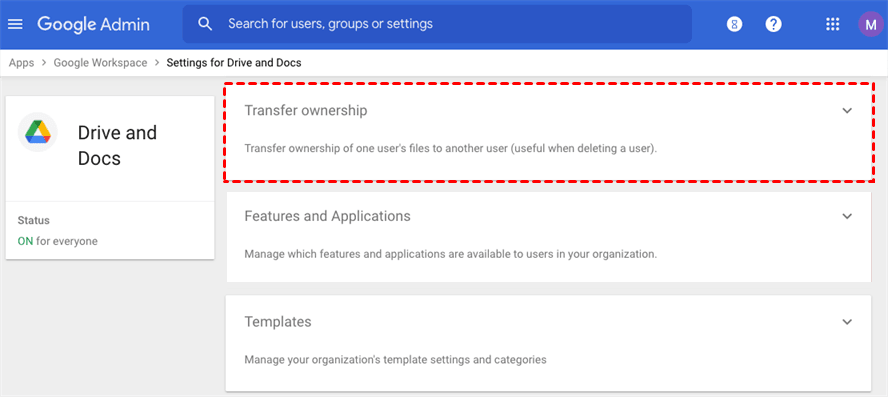
Step 2. Go to App > G Suite > Drive and Docs and select Transfer ownership from the list.
Step 3. To transfer files from one G Suite account to another, add the respective username and domain for both users. Then, click "Transfer Files". If necessary, delete the G Suite account again.
Method 4. Contact the Google Drive Help
If you're not the administrator, contact Google Drive Help. Google offers a file recovery feature to recover deleted files not in the Trash folder.
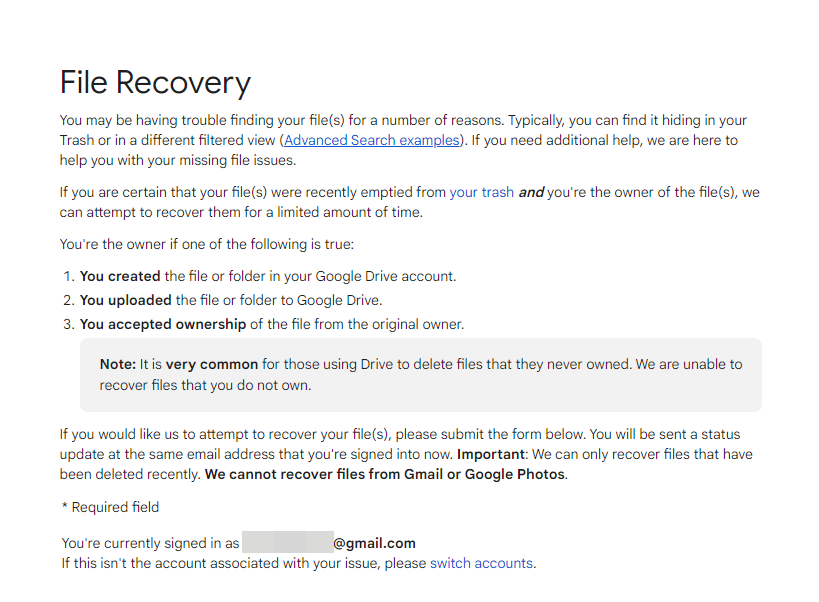
Step 1. To get help with Google Drive, go to the Google Drive Help page in your browser, then sign in to your Google Drive account in the "Need More Help" section.
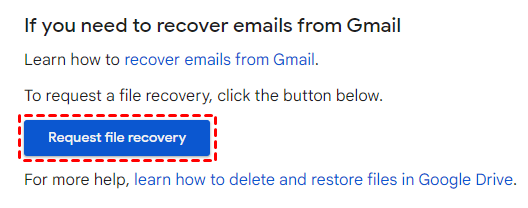
Step 2. Then, click Request file recovery at the bottom. It will ask you to log in again.
Step 3. After logging in, it will ask you to fill in the information below. Fill in the form, check the consent box, and click Submit.
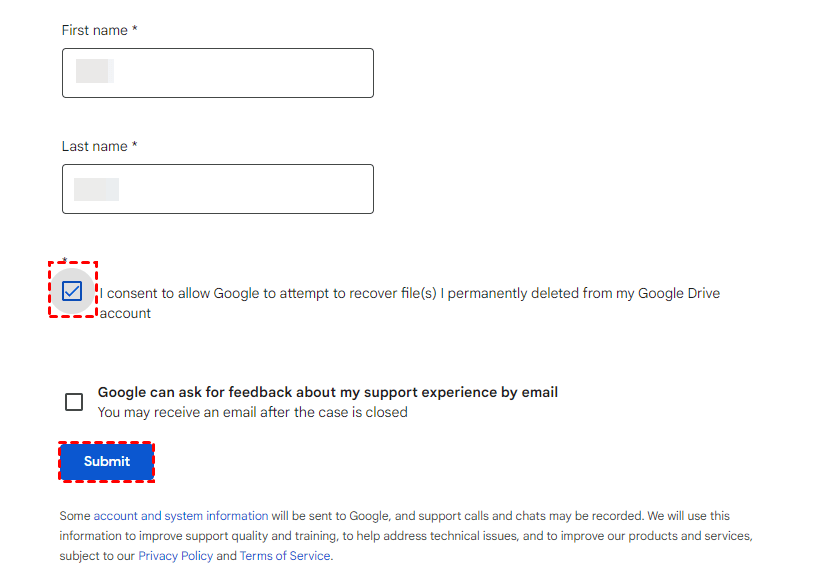
Step 4. You will receive an email from support confirming your request has been received and it may take about 12-48 hours to process your data, during which the deleted files will be restored to their original location.
Notes:
- After your data is recovered, you will receive another email to check the deleted files in their original location.
- You cannot restore deleted files using this method if you are not the owner of them.
- You can only use this method if you're using individual Google accounts, not workspace accounts. If you're part of a workspace, you should contact your domain administrator for assistance.
Method 5. Scan and Recover Local Google Drive Folder with Data Recovery Tool
If you can't recover Google Drive files or folders using its native feature, it's worth trying Deep Data Recovery, a data recovery software that can recover deleted files of various types, including Word documents, Excel files, videos, pictures, and more, from Windows operating systems.
- The software supports two advanced scanning methods: Quick Scan and Deep Scan. These methods help to locate all deleted files on local disks or external devices.
- Filter specific files quickly The company is committed to recovering and returning lost or stolen items, including personal items, company property, and sensitive information, as soon as they are found. This includes items of Type, Date Modified, and Size.
- Recover data with a high success rate and fast speed, preserving the original file name, format, quality, and path.
To recover permanently deleted files from Google Drive, download the Windows data recovery software - Deep Data Recovery, and follow the steps to scan the Google Drive folder and recover the deleted files in a breeze.
Step 1. Run Windows data recovery software - Deep Data Recovery. Hover the mouse over the drive saved deleted files before, and click Scan. This will initiate the scanning process, allowing you to recover your deleted files.

Step 2. The combined scanning methods, Quick Scan and Deep Scan, automatically start to find deleted Google Drive files or folders.

Notes:
- Quick Scan only supports NTFS drives, but Deep Scan works for all file systems.
- Any scanned files or folders will be displayed, allowing for a preview of the scanning result or the option to directly select files to restore without waiting for the process to complete.
- To locate specific files, you can type their file name in the Search for files or folders box or use the Filter feature.
Step 3. To recover deleted files from Google Drive, check the "Deleted files" box, navigate to the Google Drive file location, select the desired files to recover, and click the "Recover" button.

Notes:
- If you can't find Google Drive files in the Deleted files section, try sorting the file name in the sorting box or checking the Raw files section to locate your files.
- Deep Data Recovery will show the number of files to be recovered and their total size. You can recover up to 500MB of files for free, or upgrade to recover unlimited files.
- To avoid overwriting deleted data, select a new location to store the recovered files. This will ensure the integrity of the deleted data and prevent any potential data loss.
- It is still able to recover deleted files from Windows Server 2016, 2019, 2022, etc. in one paragraph shortly.
Besides recovering deleted files, this tool can also be used to recover files from a formatted hard drive, as well as recover files after installing Windows 11.
Method 6. Recover Deleted Google Drive Files from Google Takeout
Google Takeout allows you to create a backup of your Google Drive files, which comes in the form of a zip file, enabling you to recover deleted files after 30 days.
Step 1. Locate the zip file created by Google Takeout. Right-click it and select Extract all.
Step 2. Log in to your Google Drive. Click New and select File Upload or Folder Upload.
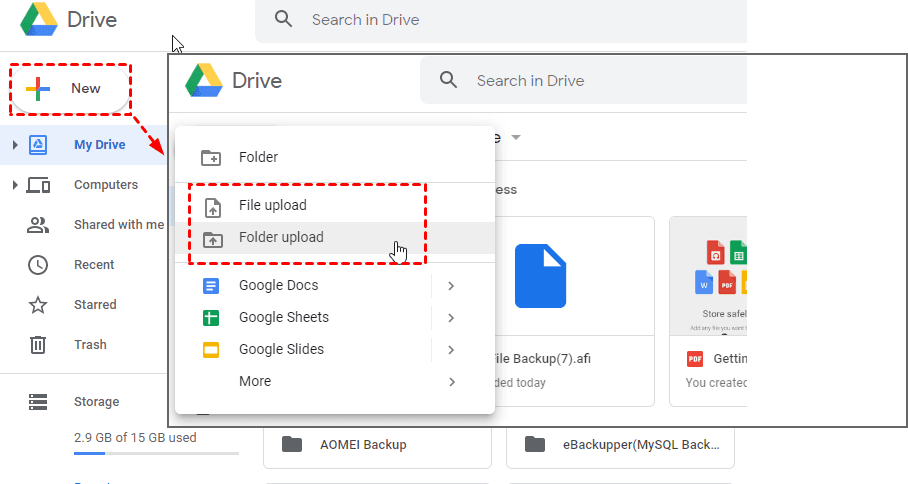
Step 3. Select the extracted file or entire folder and click OK to upload them.
Method 7. Recover Deleted Google Drive Files from Google Vault
Except for Google Takeout, you can also use Google Vault to recover deleted files in Google Drive.
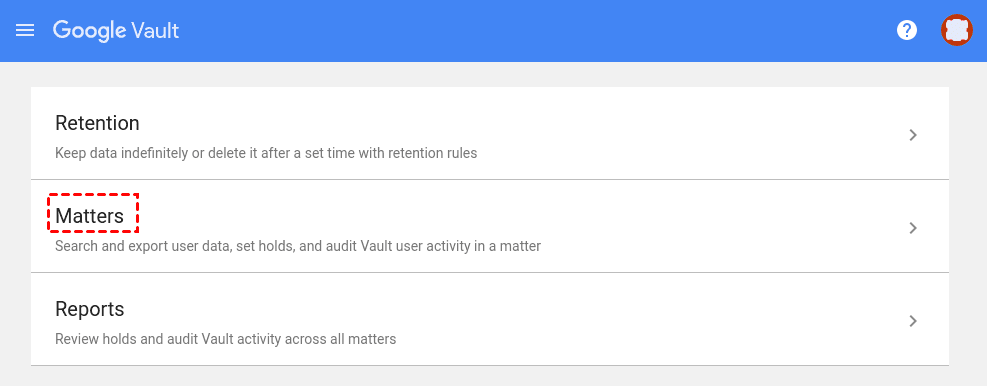
Step 1. Sign in to your Google Vault account. Click Matters and select the folder previously saved your data.
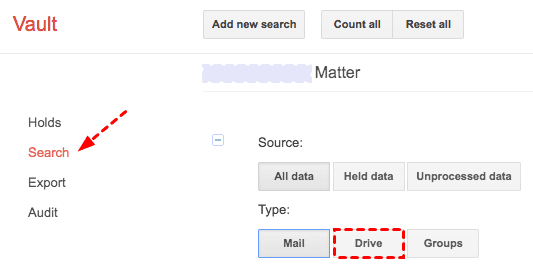
Step 2. Click Search and select Drive as the application data type.
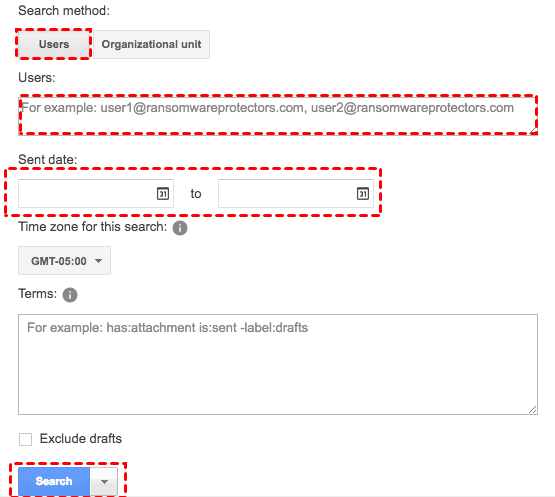
Step 3. Select the Users search method and type the emails of Users.
Step 4. Then, select the sent date and click Search. You will see all the deleted Google Drive files.
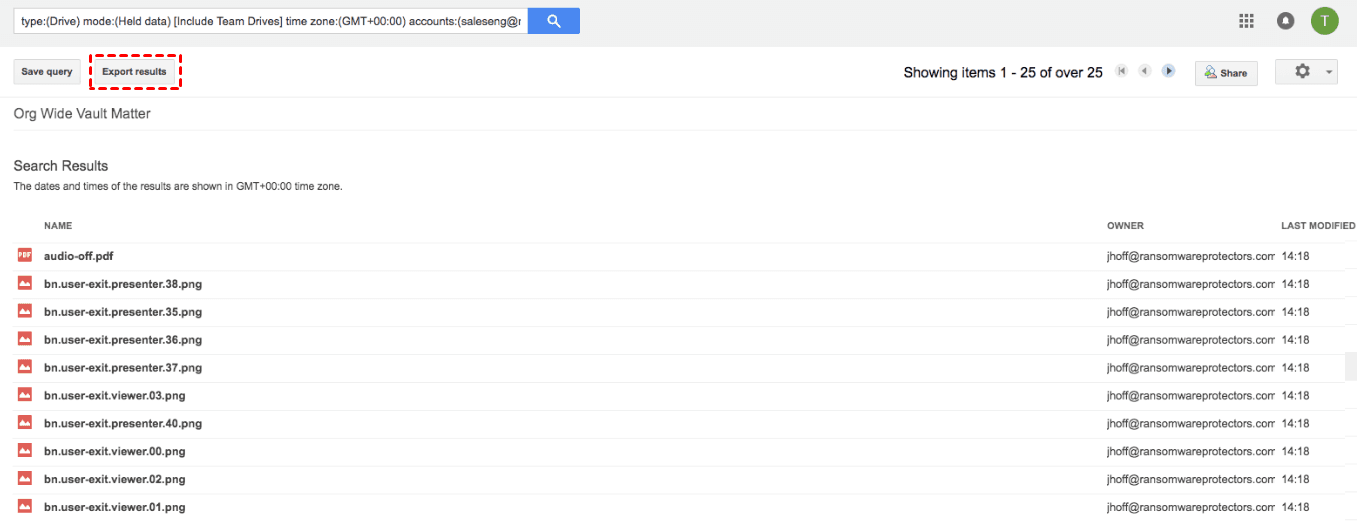
Step 4. Click Export Results to download them and the files will be saved as a zip file.
Method 8. Restore Google Drive Data to Previous Date with Version History
Google Drive's Version History feature allows users to recover overwritten data by saving older versions of files for about a month, enabling them to restore previous versions of their Google Drive files.
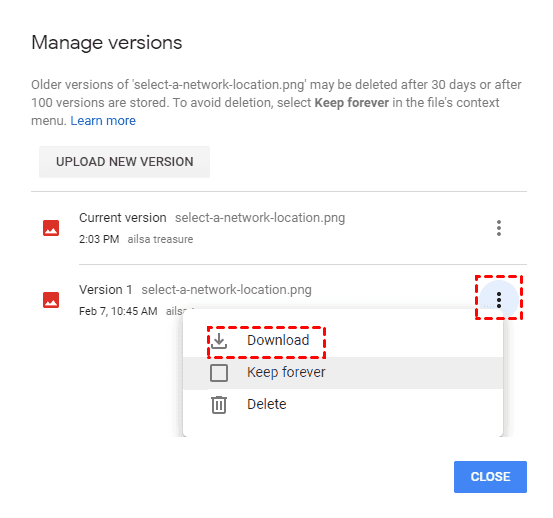
Step 1. To view the version history of a file, go to My Drive, select the file that was overwritten, and click "Manage Versions".

Step 2. Select the file version you want to restore, click the three-dot icon and Download.
Step 3. Select a location to save your Google Drive files.
Limitation of Google Drive Native Recover Feature
Google Drive's native recovery feature allows for the recovery of permanently deleted files, but it has limitations, such as only being able to recover files that were deleted within a certain timeframe, and not all files can be recovered due to storage constraints.
- No self-recovery for shared files: If you delete a file shared with you, it will be permanently deleted and cannot be recovered from the Trash. You will need to ask the owner to re-share the file in order to access it again.
- No granularity in file recovery: The software recovers all deleted files in the specified date range, resulting in clutter and wasted space on the drive.
- Loss of sharing permissions: You cannot recover file or folder-sharing settings.
- Limited data recovery time: Permanently deleted files can be recovered within 25 days by an administrator, or 30 days in Team Drive.
- Do not view non-owner files: The advanced search feature in the system does not enable users to view lost files if they do not have ownership of the file.
If you're experiencing limitations with Windows, consider using Deep Data Recovery software to recover deleted files from local or external disks, as long as they haven't been overwritten. This software allows you to select specific files to recover, rather than recovering all files.
How to Prevent Google Drive Data Loss
Here are some useful suggestions to protect your data in your daily life:
- Think twice before deleting important files.
- Don't empty the Trash folder unless the space is insufficient.
- Back up Google Drive files or folders regularly. You can create a backup of your Google Drive using either the Drive for desktop or third-party software like Qiling Disk Master Standard.

- Run antivirus software to prevent data loss due to viruses or malware attacks.
FAQs
✍ Can I recover shared files deleted from Google Drive?
If you're using a G Suite account and are the administrator, you can recover deleted files from the Shared drive within 25 days.
✍ Can I recover permanently deleted photos from Google Drive
If your photos are not in the Trash folder, you can check if they are available in Google Takeout, Google Vault, or other backup software. If not, you can try using Windows data recovery software like Deep Data Recovery.
✍ How to recover deleted files from Google Drive after 2 years?
Google only gives you 25-30 days to recover deleted files from Drive, after which they are permanently deleted unless you have a backup or use data recovery software if the data hasn't been overwritten.
Concluding Words
To recover permanently deleted files from Google Drive, you can use one of the 8 effective methods listed above. If you haven't checked the Recycle Bin folder yet, do so first. Otherwise, you can try using Google Drive's native restore feature, data recovery software, or a backup image to retrieve your lost files.
The fastest method of data recovery is through software, which doesn't require a backup image. This software can recover over 200 file types and allows for selective file recovery.
Related Articles
- How to Recover Unsaved & Deleted Word Documents
Learn how to Recover Unsaved & Deleted Word Documents with clear steps, key checks, and practical tips. - Data Recovery Software for Windows 10/Mac/iPhone/Android
Data recovery software can help you recover deleted files and folders on your Windows or Mac computer, mobile device, or storage media, making it easy to restore lost data and alleviate frustration and stress. - 7 Quick Ways to Reduce Chrome High Memory Usage Windows 10/11
This guide explains 7 Quick Ways to Reduce Chrome High Memory Usage Windows 10/11 with clear steps, key checks, and practical tips. - Ultimate Guide on SD Card Recovery in 2022
SD cards are widely used because of their high data transmission speed and hot-swappable features, which are accompanied by many data loss problems. - How to Recover Deleted Call Recordings from SD Card/Memory Card
Learn how to recover deleted call recordings from an SD card or memory card with practical recovery methods. - How to Recover Deleted DCIM Folder on Samsung Galaxy
This article explains how to locate the DCIM folder on a Samsung Galaxy device and provides a guide on how to recover a deleted DCIM folder using a DCIM folder recovery tool.
Products
Articles & Tutorials
- Data Recovery
- Data Backup
- File Recovery
- File Backup
- File synchronize
- System Backup and Restore
- Disk and Partition Clone
- Technical articles
- Disk Master Help
- Windows Deleted File and Disk Recovery Tutorials
- Windows File and Data Recovery Tutorials
- More Windows Tutorials for Install, Security, Files, and PC Tips
- Windows Boot, Repair, and Recovery Environment Tutorials
- Windows Backup Tutorials
- Windows Restore Tutorials
- Windows Clone and Migration Tutorials
- Windows Server Backup, Recovery, and Management Tutorials
- Windows Disk, Partition, and Storage Management Tutorials