(Recommended) How to Recover Hidden Partition Windows 7?
How do I get my hidden partition back?
Manufacturers have created hidden partitions to protect system data, including Recovery Partition, EFI System Protection, and OEM Partition, which are often pre-installed on Windows computers to prevent critical data and files from being deleted, lost or formatted.
If you can't access certain partitions through File Explorer, it's probably because they're hidden. You can use Disk Management or a third-party program to access these partitions, which doesn't necessarily mean they're gone or missing, but rather that they're not visible in File Explorer.
How to show hidden partition in windows 7?
If you're having trouble showing hidden partitions in Windows 7, don't worry! You can use the Disk Management tool or a partition recovery software like Qiling Disk Master to access them. These tools can help you view and manage hidden partitions, making it easier to recover lost data or troubleshoot issues. We'll show you how they work in the next part.
1. Use the correct disk name.
- Notes:✎...
- Do not add new data on the partition.
- Do not reformat the partition.
- Do not rebuild the partition table.
Solution 1. Assign drive letter CMD to recover hidden partition windows 7
Disk Management In Windows, the Disk Management utility allows you to perform advanced storage tasks, including unhidden partitions, which are typically unlettered and require assigning a drive letter using the Command Prompt (CMD) rather than changing the drive letter. This feature can be accessed by following specific steps, and although it may be underutilized by many users, it can be useful in certain situations.
Step 1. To open the Disk Management utility from the Command Prompt, press Windows key + R to open the Run dialog box, type "diskmgmt.msc" and click OK. This will open the utility.
Step 2. Locate the hidden partition on the hard disk, right-click on it, and select "Change Drive Letter and Paths".
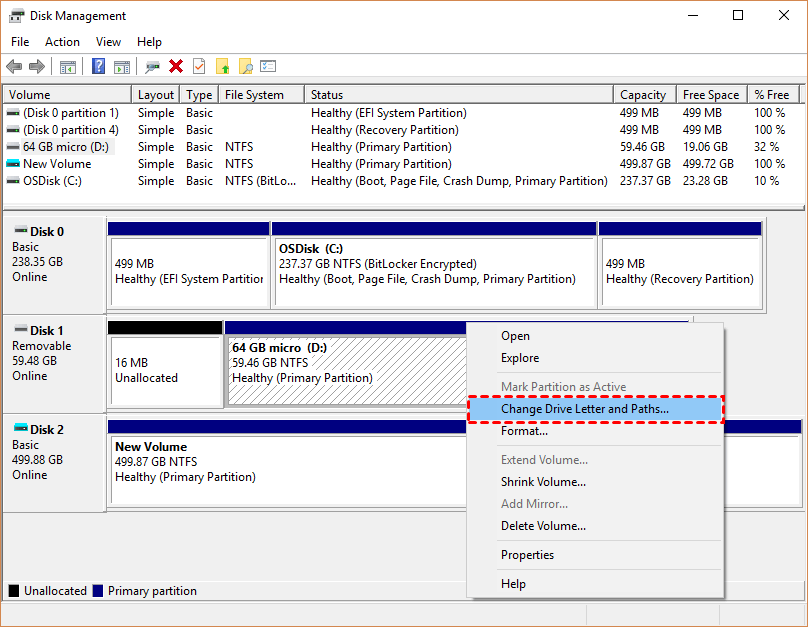
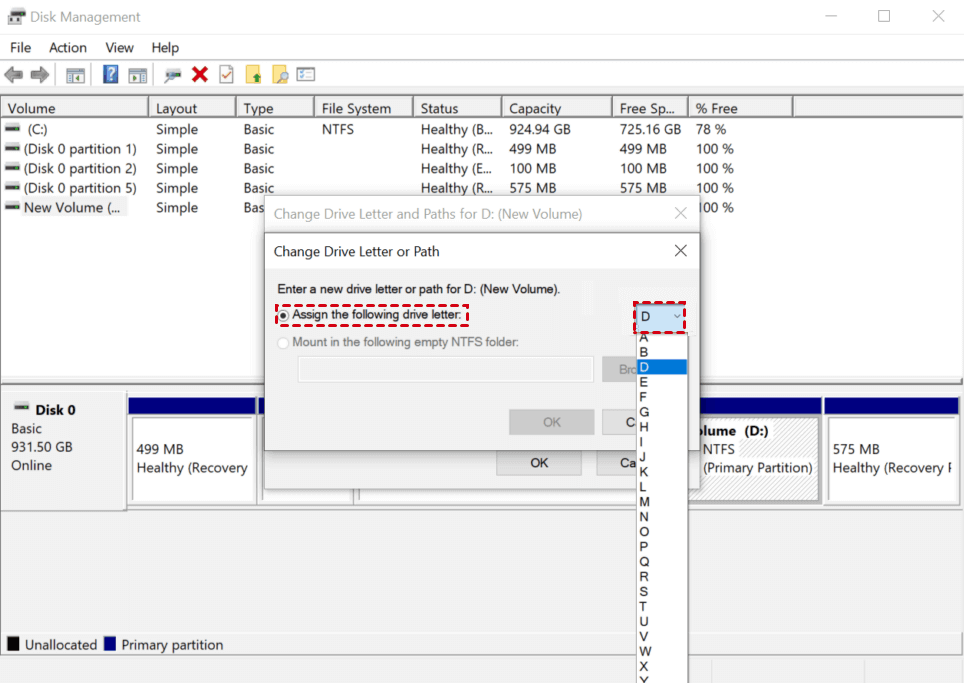
Step 3. To add a drive letter for the hidden partition, you can select the "Add" option.
Step 4. Assign a new drive letter to the hidden partition and check it after rebooting the computer.
Solution 2. Unhide partition windows 7 with partition recovery software
If you're unable to recover a hidden partition in Windows 7 using Disk Management, it's possible that the partition has been deleted or lost, rather than hidden, and you may need to use a third-party tool like Qiling Disk Master Professional to recover it.
Partition recovery software is highly recommended to recover deleted or lost partitions on a hard disk, as long as the data is not overwritten. This software allows you to recover the data stored in the partition, and you can try out the demo version first. The detailed steps for partition recovery on Windows 11/10/8/7 are also available for reference.
Apart from that, Qiling Disk Master Professional also renders you other exciting features.
✿This software enables you to resize, move, merge, and split partitions without losing any data, making it a powerful tool for managing your hard drive. It can also be used to migrate your operating system to a Solid State Drive (SSD) or a Hard Disk Drive (HHD).
✿This multifunction converter converts various disk formats, including MBR to GPT, basic to dynamic disk, and NTFS to FAT32, among others.
✿The upgraded Qiling Disk Master Pro offers a range of enhanced features that build upon its predecessor, delivering improved quality and functionality in all aspects.
Step 1. Install and launch Qiling Disk Master Professional on your computer, then select the disk you need to recover and click on "Partition Recovery".

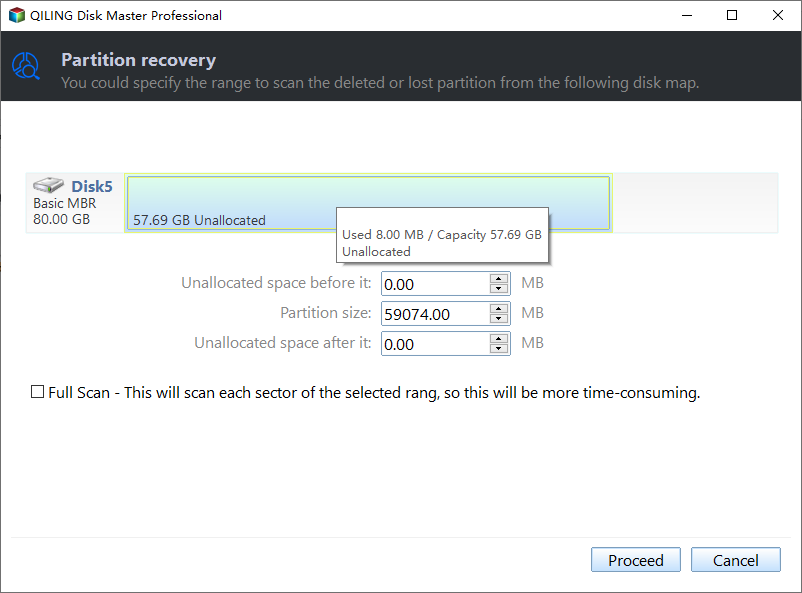
Step 2. To find your desired partition, select the "Full Search" option and click "Proceed".
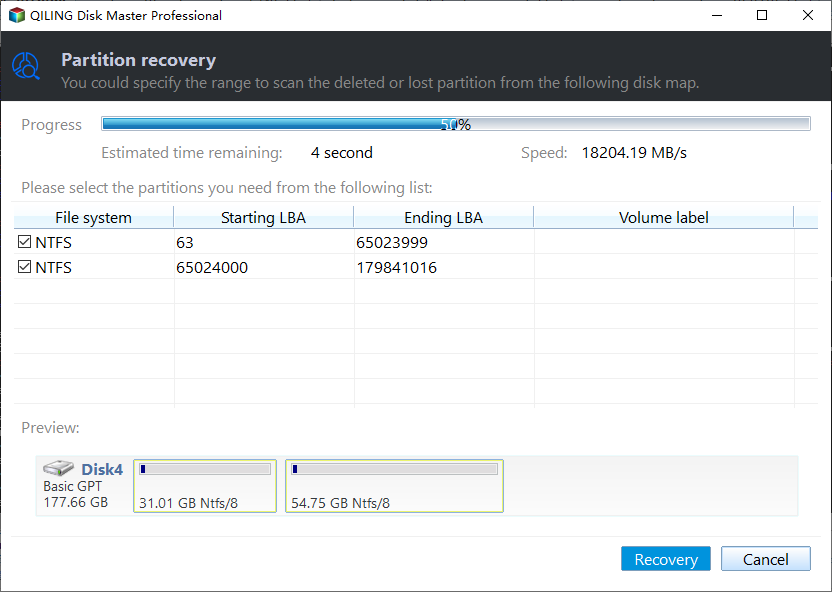
Step 3. This application displays all hard disk partitions, allowing users to select and recover a desired partition by clicking the "Recover" button.
Related suggestions
To show a hidden partition in Windows 7, you can use the built-in Disk Management tool or a third-party software like Qiling Disk Master Professional.
If you've experienced data loss, regular backups are crucial. You can use the freeware Qiling Disk Master to create incremental, differential, or automatic backups, ensuring your data's safety.
Related Articles
- 2 Solutions to Recover Lost Partition SD Card
This guide explains 2 Solutions to Recover Lost Partition SD Card with clear steps, key checks, and practical tips. - Solid State Drive Data Recovery: How to Retrieve Your Lost Files
This guide explains Solid State Drive Data Recovery: How to Retrieve Your Lost Files with clear steps, key checks, and practical tips. - [Answered] Where Do Deleted Files Go on PC/Mac/Android/iPhone
This guide explains Where Do Deleted Files Go on PC/Mac/Android/iPhone with clear steps, key checks, and practical tips. - BitLocker Data Recovery: Recover Data from BitLocker Encrypted Drives
Learn how to recover data from a BitLocker encrypted drive with a recovery key, password, or recovery software, and what to do before formatting. - Memory Stick Recovery: How to Recover Files from Memory Stick
This guide explains Memory Stick Recovery: How to Recover Files from Memory Stick with clear steps, key checks, and practical tips. - How to Recover Deleted Files from Recycle Bin in Windows 7
If you want to know how to recover deleted files from recycle bin in Windows 7 or restore recycle bin in Windows 7, follow the step-by-step guide for Windows 7 recycle bin recovery.
Products
Articles & Tutorials
- Data Recovery
- Data Backup
- File Recovery
- File Backup
- File synchronize
- System Backup and Restore
- Disk and Partition Clone
- Technical articles
- Disk Master Help
- Windows Deleted File and Disk Recovery Tutorials
- Windows File and Data Recovery Tutorials
- More Windows Tutorials for Install, Security, Files, and PC Tips
- Windows Boot, Repair, and Recovery Environment Tutorials
- Windows Backup Tutorials
- Windows Restore Tutorials
- Windows Clone and Migration Tutorials
- Windows Server Backup, Recovery, and Management Tutorials
- Windows Disk, Partition, and Storage Management Tutorials