BitLocker Data Recovery: Recover Data from BitLocker Encrypted Drives
What is the meaning of BitLocker?
BitLocker is a Windows encryption method that safeguards your data by encrypting your drive and requiring one or more authentication methods before unlocking it.
As a Microsoft encryption tool, BitLocker has been a user-friendly option since Windows Vista, making it a popular choice for protecting data from theft or unauthorized use.
Is it possible to recover data from BitLocker encrypted drives?
To access data from an encrypted drive, you need to enter the correct password to authenticate yourself and unlock the drive. This initial step is necessary before you can view or use the encrypted files.

If you forget your password or enter the wrong PIN too many times, your device will automatically reboot and enter BitLocker recovery mode, indicating that it has detected unauthorized access attempts.
You're experiencing issues with your D drive being locked and asking for a 48-digit BitLocker key after reinstalling Windows with Secure Boot enabled. This is likely due to the BitLocker encryption on your D drive. Reinstalling Windows will not remove the BitLocker encryption, and attempting to do so may result in data loss. To recover data from BitLocker encrypted drives, you'll need the 48-digit recovery key. If you don't have the recovery key, you can try using a data recovery tool specifically designed for BitLocker encrypted drives. However, the success of these tools depends on various factors, such as the drive's condition and the level of encryption. It's recommended to seek professional help from a data recovery service if you're unsure about the process. Reinstalling Windows with Secure Boot enabled is not a recommended solution, as it may lead to further complications. Instead, try to recover the recovery key or seek professional help for data recovery.
-A user from Microsoft Community
You can recover your data even if BitLocker is malfunctioning, as feasible fixes are available.
Why did my computer go into BitLocker recovery?
A malicious attempt to alter the startup environment can cause a PC to enter BitLocker recovery mode, aside from authentication errors, there are other potential reasons.
◢ Boot/BIOS changes:
- To change the BIOS boot order and give a CD or DVD drive boot sequence priority, you'll typically need to enter the BIOS settings by pressing a specific key (usually F2, F12, or Del) when the computer first boots up. Once in the BIOS settings, navigate to the boot order section and select the CD or DVD drive as the primary boot device, then save the changes.
- To read USB devices in the pre-boot environment when using USB-based keys, enable USB support in BIOS/UEFI so the recovery key can be detected before Windows starts.
- To replicate a scenario where a computer fails to boot from a network drive before booting from the hard drive, you can configure the boot order in the BIOS settings to prioritize network booting over local hard drive booting. This can be achieved by setting the boot order to "Network" or "PXE" first, followed by the local hard drive.
- Changes to the master boot record on the disk
- Changes to the boot manager on the disk
◢ Hardware, software, and firmware changes:
- If the PC was undocked when BitLocker turned on, undocking the portal computer will prevent BitLocker from turning on. If the PC was docked when BitLocker turned on, docking the portal computer will allow BitLocker to turn on.
- Changes to the NTFS partition table on the disk, such as deleting, creating, or resizing a primary partition, can cause issues with the disk's boot sector and potentially lead to system crashes or data loss. These changes can also disrupt the operating system's ability to load the correct drivers and file system structures, resulting in system instability or failure to boot.
- Turn off, disable, deactivate, or clear the TPM
- Update option ROM firmware
- Upgrade TPM firmware
- Add or remove add-In order to improve the performance of a computer, one can upgrade various components such as the central processing unit (CPU), memory (RAM), storage drive, power supply, or add-in cards (such as video or network cards), or upgrade the firmware of existing components. This can be done to increase the overall processing power, memory capacity, storage capacity, or to upgrade the functionality of specific components.
◢ Other triggers:
- The Platform Configuration Registers (PCRs) used by the TPM validation profile need to be modified. This involves updating the PCR values stored in the TPM to reflect the changes in the platform configuration.
- Hide the TPM from your operating system
- Move the BitLocker-protected drive to a different system
- Press the F8 or F10 key during the boot process
Phase 1. Three ways to find your Encryption recovery key
To access your encrypted drive, you'll need to find your BitLocker recovery key first, which is essential to recover files from your encrypted drive.
If you forget your recovery key, you can try to find it in your Microsoft or job account, as the encryption process starts when a user enters a Microsoft account with administrative access.
1. Try to find it on your printed paper
If you've printed the recovery key, you can decrypt your encrypted drive using your keys, which will allow you to access your files without any data loss.
2. See if your Microsoft account
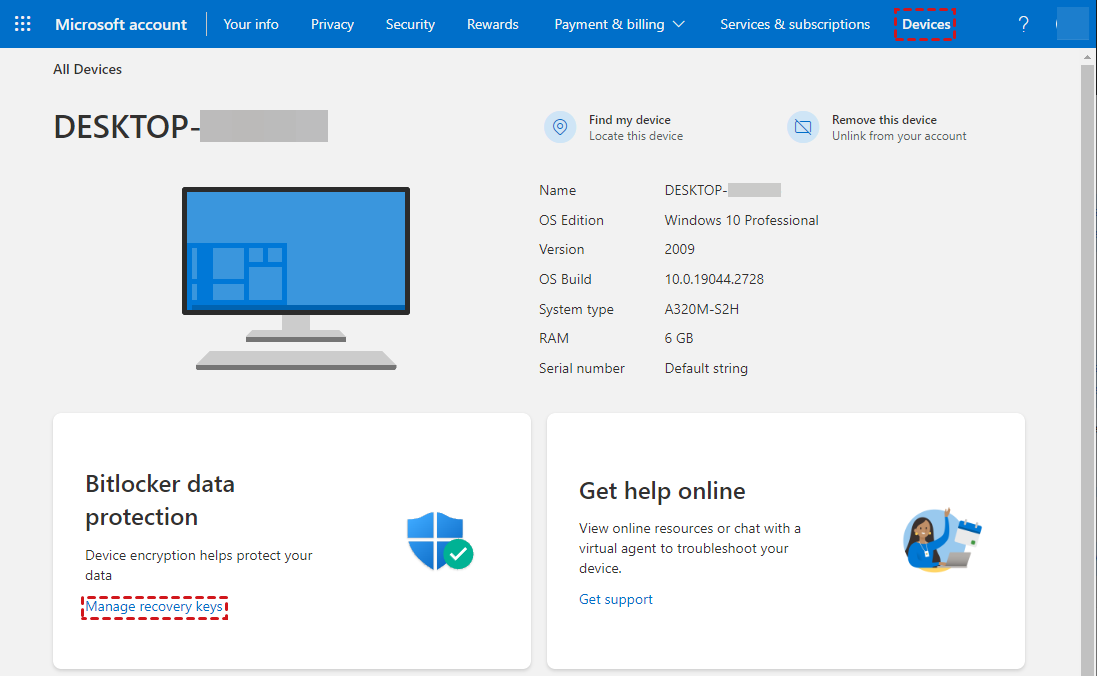
Step 1. To access your encrypted drive on another PC, log into your Microsoft account, click on "Devices" at the top, select your encrypted drive, click on "info & support", and then click on "Manage recovery keys".
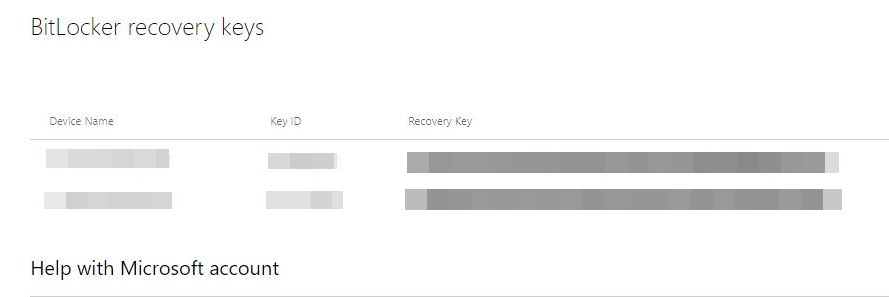
Step 2. Copy your keys to another location.
3. Check your USB device
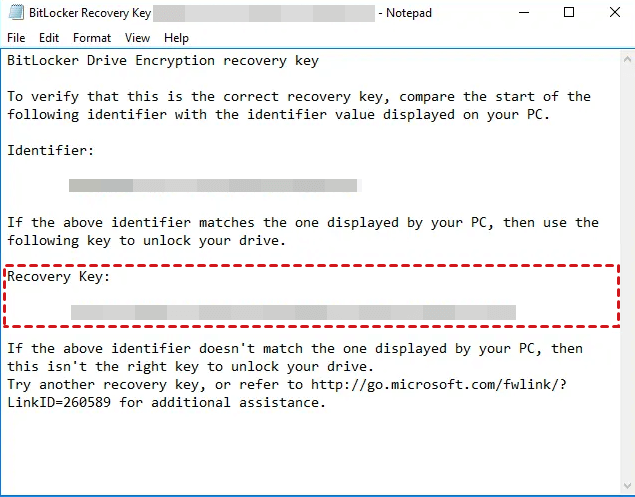
If you've enabled BitLocker on your device, there's a chance that saved key text files are stored on an external storage device like a USB drive. If this is your situation, try plugging the USB stick into another PC to locate your saved keys.
Phase 2. Recover data from BitLocker encrypted drives
Recovering data from BitLocker encrypted drives is much easier when you have the recovery key or password. If the drive is unlocked but files are missing, Windows data recovery software can scan the decrypted drive for recoverable data.
Deep Data Recovery, supported by Qiling Tech, embeds an advanced scanning algorithm, achieving a high data recovery rate with users.
Highlights of Deep Data Recovery:
- Powerful features: Recover deleted and lost files from various storage devices, including hard drives, solid state drives, USB drives, and more. This tool can restore Word, Excel, PPT, folders, compressed files, photos, songs, videos, audio, websites, and over 200 other file types that have been accidentally deleted or lost due to various reasons.
- Easy-to-find: During Quick Scan and Deep Scan, you can quickly find your desired files by searching by Filename, Path, Date, Size, and other criteria.
- Convenient: When deleting files, retain the original path, filename, and format for the deleted files to ensure accurate record-keeping and compliance with regulations. This approach helps maintain the integrity of digital evidence and prevents data loss.
- Excellent compatibility: The software supports multiple file systems, including NTFS, FAT32, exFAT, and ReFS, and is compatible with various Windows operating systems, such as Windows 11, 10, 8, 7, and Windows Server.
Step 1. After launching Deep Data Recovery on your Windows, hover the mouse over your decrypted drive and click "Scan".

Step 2. You can filter your data based on specific criteria such as Name, Date, Document Type, or Path, to narrow down and view only the relevant information.
- Name: Type the filenames of your desired files to narrow the search area.
- Date modified: Set the date according to your situation (today, yesterday, the last 7/30 days, etc).
- Size: To filter the file size based on your needs, you can set specific size ranges, such as files smaller than 128KB, between 128KB and 1MB, between 1MB and 512MB, and so on.

Step 3. Go to the deleted files folder and select the data you want to recover, then click "Recover" to start the BitLocker data recovery process.

- To maximize the chances of recovering data from a BitLocker-encrypted drive, refrain from writing any new data to it. This will help preserve the original data and prevent overwriting, which can reduce the effectiveness of data recovery efforts.
- After recovering the files, make sure to save them in a new saved path for future reference.
- Upgrading Deep Data Recovery to the Professional or Technician edition allows for the recovery of a large number of deleted/missing files from your hard drives with ease.
Wrapping up
BitLocker is a full disk encryption feature in Windows that prevents unauthorized access to data on a device. If you have forgotten your BitLocker password or the recovery key, you may be unable to access your data. However, there are ways to recover data from a locked BitLocker. You can try using a third-party recovery tool or seeking assistance from a professional data recovery service.
If you want to clone BitLocker encrypted disks, you can try Qiling Disk Master after unlocking the drive and confirming that the target disk has enough space.
Related Articles
- Recover Deleted Folders on Windows 10/11 [Quick]
Recover deleted folders in Windows by checking Recycle Bin, backups, previous versions, and recovery software. - 2 Best Ways to Recover Deleted Minecraft Worlds in Windows 10
Minecraft data recovery can be easily achieved by either running Minecraft game data recovery software or recovering deleted Minecraft worlds from the local folder, both of which work well in restoring lost game data. - Detailed Guide | How to Recover Deleted Videos from DJI
This guide explains Detailed Guide | How to Recover Deleted Videos from DJI with clear steps, key checks, and practical tips. - How to Recover Hogwarts Legacy Lost Progress on PC/Steam/Xbox
If you've lost progress in Hogwarts Legacy on your PC, Steam, or Xbox, there are practical solutions to recover it. - Sony Xperia Data Recovery – Recover Data from Sony Xperia Internal Memory
If you're looking for Sony Xperia recovery software, you can free download the best Sony Xperia data recovery software to recover data from Sony Xperia internal memory even it broken screen, dead or broken. - How to Recover Data from USB Flash Drive That Needs to Be Formatted
Here in this article, we will discuss how to recover data from USB flash drive that Needs to be formatted -
Find a BitLocker Recovery Key in Windows 10
Locate a BitLocker recovery key before unlocking an encrypted Windows 10 drive or recovering files.
Products
Articles & Tutorials
- Data Recovery
- Data Backup
- File Recovery
- File Backup
- File synchronize
- System Backup and Restore
- Disk and Partition Clone
- Technical articles
- Disk Master Help
- Windows Deleted File and Disk Recovery Tutorials
- Windows File and Data Recovery Tutorials
- More Windows Tutorials for Install, Security, Files, and PC Tips
- Windows Boot, Repair, and Recovery Environment Tutorials
- Windows Backup Tutorials
- Windows Restore Tutorials
- Windows Clone and Migration Tutorials
- Windows Server Backup, Recovery, and Management Tutorials
- Windows Disk, Partition, and Storage Management Tutorials