Find and Use a BitLocker Recovery Key in Windows 10
Windows 10 may ask for a BitLocker recovery key after hardware changes, firmware updates, TPM changes, or repeated boot failures. The key proves that you are allowed to unlock the encrypted drive.
Understand the problem
BitLocker encryption protects data by design. Recovery software cannot bypass encryption without the correct password or recovery key, so finding the key is the first step.
- Confirm the target disk, partition, drive letter, file system, and capacity before changing anything.
- Back up or recover important files before formatting, deleting, resizing, converting, or reinstalling Windows.
- For boot-related repairs, check BIOS or UEFI mode, boot order, and disk style before editing system partitions.
Use Windows built-in tools
Check common key locations in order.
- Sign in to the Microsoft account used on the PC and check the BitLocker recovery key page.
- Look for a printed key, saved text file, or USB key backup.
- For work or school computers, contact the administrator to check Azure AD or Active Directory.
- After unlocking the drive, back up important files immediately.
- Save a new recovery key copy in a secure location.
Use Qiling tools for guided steps
 Deep Data Recovery
Recover files from an unlocked BitLocker drive after you provide the correct recovery key.
Function. Recover files with Fast Scan
Step 1. Stop writing new data to the unlocked BitLocker partition. Install Deep Data Recovery on another drive if possible.
Step 2. Launch Deep Data Recovery and choose Fast Scan first. Fast Scan is useful after files were deleted from a drive that you can unlock successfully.
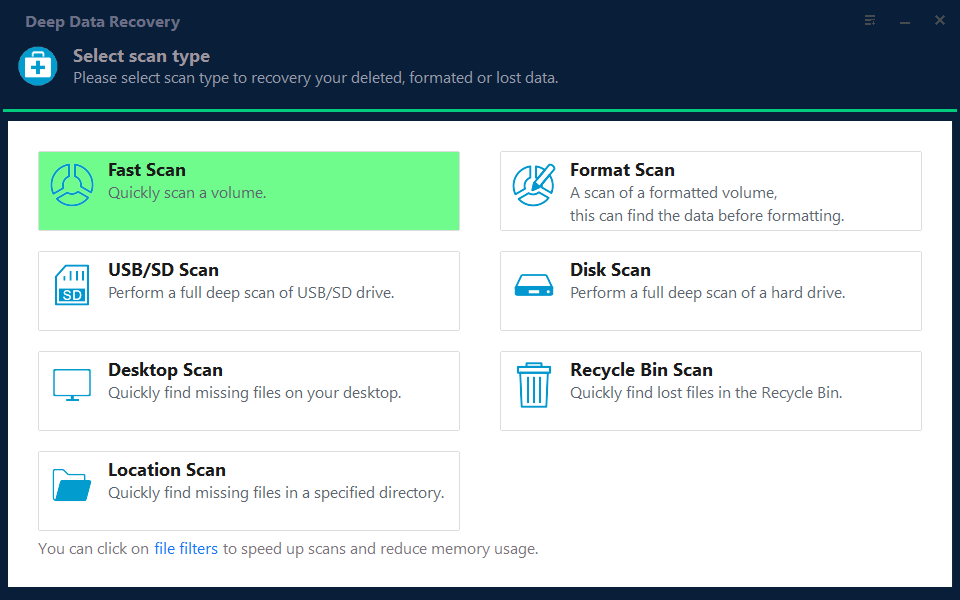
Step 3. Select the unlocked BitLocker partition as the scan location. If the original folder is missing, scan the whole partition where it was stored.

Step 4. Wait for the scan to complete. Use file type, name, date, and path filters to narrow the results.
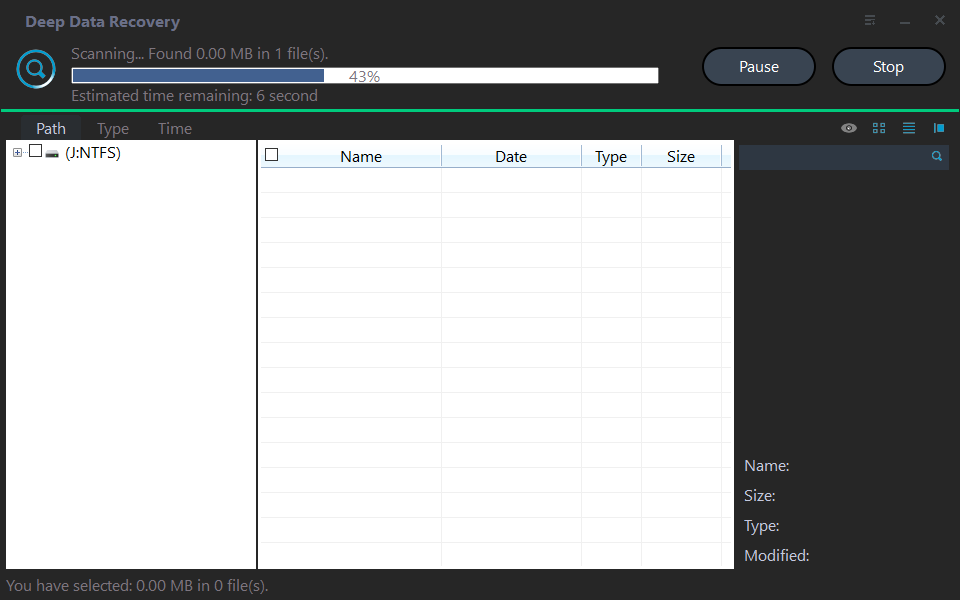
Step 5. Preview the files, select the items you need, and recover them to another disk or external drive.

Check the result
After unlocking, open several files to confirm access. Store the recovery key separately from the encrypted computer.
Related Articles
-
BitLocker Data Recovery
Recover data from a BitLocker drive after it has been unlocked correctly. -
Windows 11 BitLocker Recovery Key
Find and manage BitLocker recovery keys for Windows 11 computers.
Products
Articles & Tutorials
- Data Recovery
- Data Backup
- File Recovery
- File Backup
- File synchronize
- System Backup and Restore
- Disk and Partition Clone
- Technical articles
- Disk Master Help
- Windows Deleted File and Disk Recovery Tutorials
- Windows File and Data Recovery Tutorials
- More Windows Tutorials for Install, Security, Files, and PC Tips
- Windows Boot, Repair, and Recovery Environment Tutorials
- Windows Backup Tutorials
- Windows Restore Tutorials
- Windows Clone and Migration Tutorials
- Windows Server Backup, Recovery, and Management Tutorials
- Windows Disk, Partition, and Storage Management Tutorials