What Is Windows 11 BitLocker Recovery Key and How to Find It
What is a BitLocker recovery key?
A BitLocker recovery key is a 48-digit number used to unlock a BitLocker encrypted drive when normal authentication fails. Windows 11 may ask for it after hardware changes, BIOS or UEFI updates, Secure Boot changes, TPM reset, repeated wrong PIN entries, or system repair.
When will Windows 11 ask for the recovery key?
- The TPM detects a startup environment change.
- You changed boot order, firmware settings, or Secure Boot state.
- The motherboard or system disk was replaced.
- Windows update or recovery changed boot files.
- Too many incorrect unlock attempts occurred.
How to find the correct Windows 11 BitLocker recovery key
Method 1. Microsoft account. Visit https://aka.ms/recoverykey on another device and sign in with the Microsoft account used on the PC. Match the Key ID shown on the locked PC with the saved key.
Method 2. Work or school account. If the device is managed by an organization, contact the administrator or check the managed device recovery keys.
Method 3. Printed or saved copy. Search printed papers, USB drives, text files, screenshots, or password managers for "BitLocker Recovery Key".
Method 4. Another administrator account. If Windows still boots on another admin account, open Control Panel > BitLocker Drive Encryption and back up the key.
How to unlock a drive with the recovery key
Step 1. On the blue BitLocker recovery screen, check the Key ID.
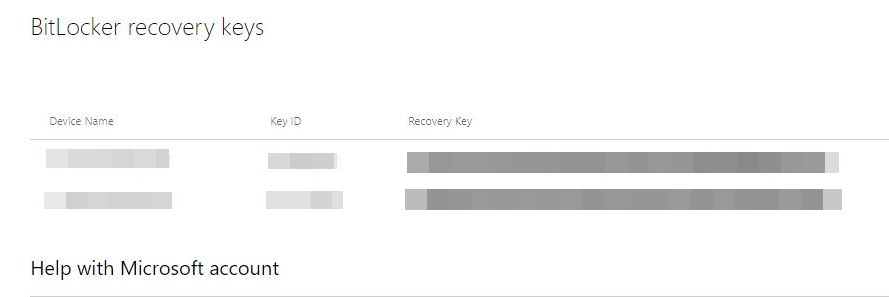
Step 2. Find the matching 48-digit recovery key.
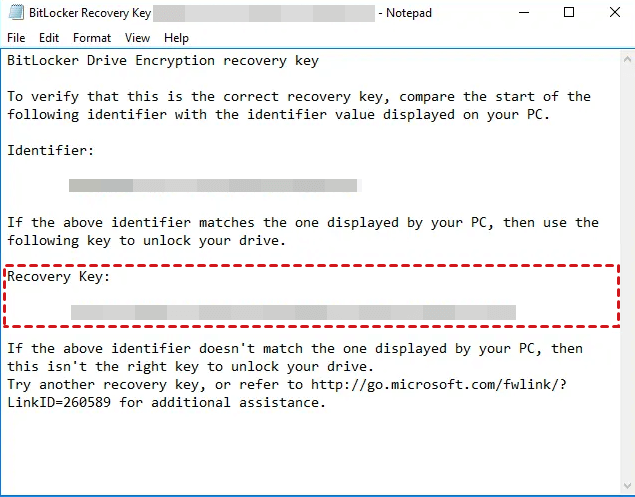
Step 3. Enter the key carefully. Hyphens are usually handled by the recovery screen.
Step 4. After Windows starts, suspend and resume BitLocker if firmware settings were changed.
How to protect files before changing BitLocker settings
 Qiling Disk Master
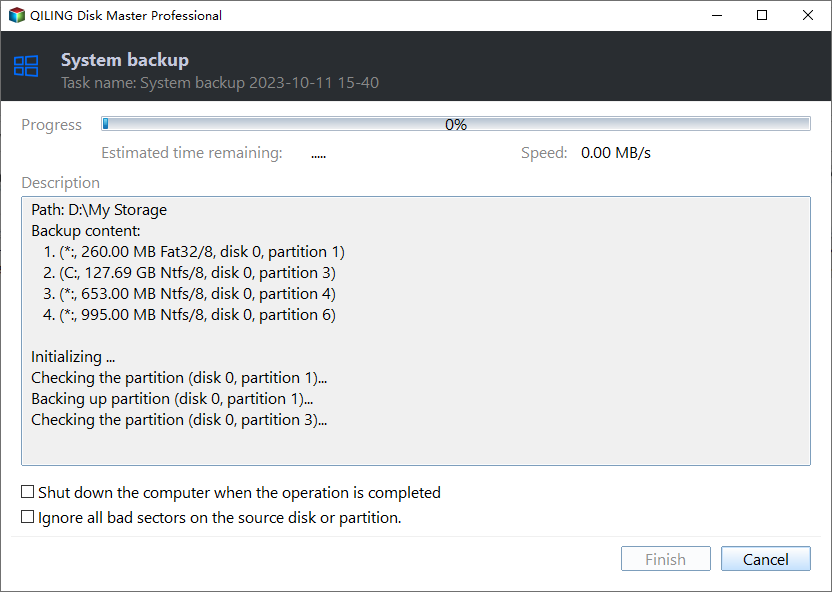
Create a backup of important files before firmware updates, disk replacement, or Windows repair that may trigger BitLocker recovery.
Step 1. Connect an external drive with enough space.
Step 2. Open Qiling Disk Master and choose a system or file backup task.
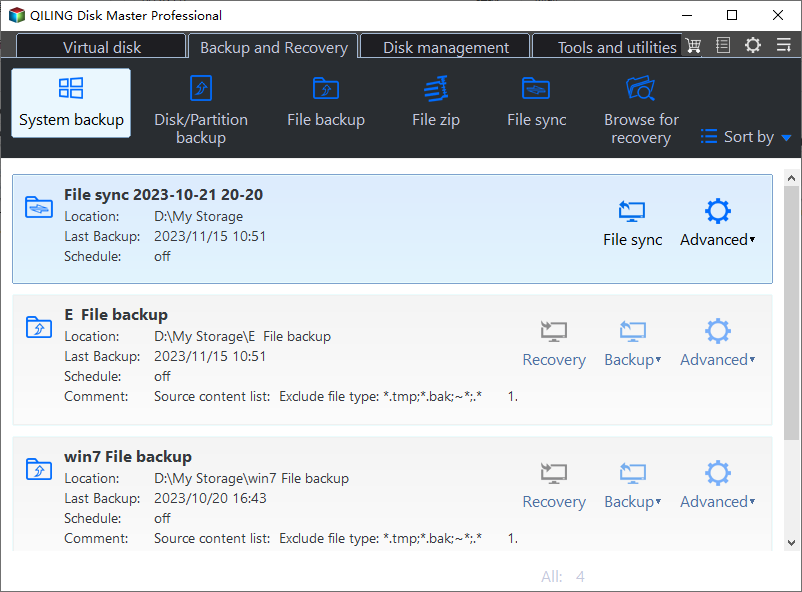
Step 3. Select the source data and backup destination.
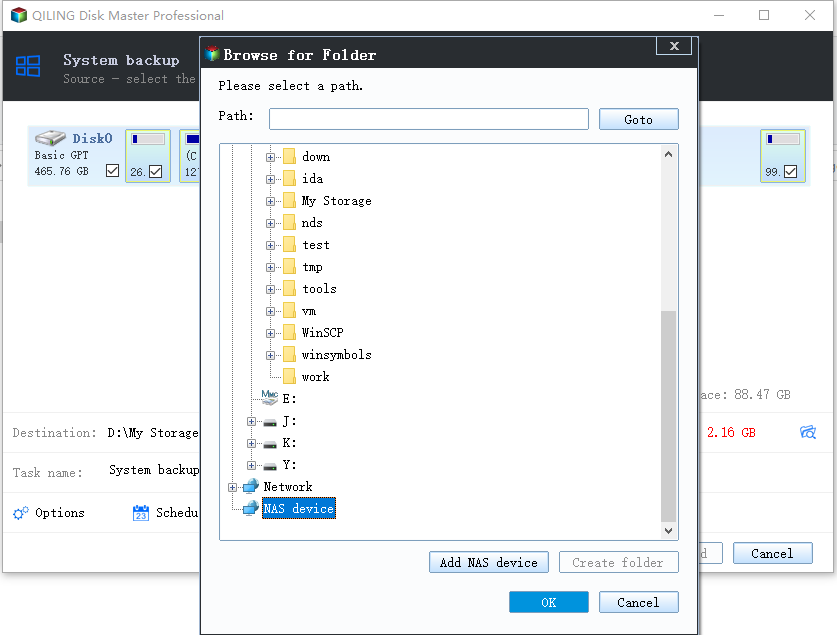
Step 4. Start the backup before changing BitLocker, TPM, or boot settings.
What if you cannot find the recovery key?
BitLocker is designed to prevent access without the key. If you cannot find it, Microsoft, the PC maker, and recovery software cannot decrypt the drive. Keep searching for the key, contact the organization that manages the device, or format the drive and restore files from backup.
Related Articles
-
BitLocker Data Recovery: Recover Data from BitLocker Encrypted Drives
Find practical ways to unlock BitLocker drives, locate a recovery key, and protect encrypted data before formatting. -
Download, Install, Set up Google Backup and Sync Tool
Learn how cloud sync works and how to keep files synchronized between Windows and cloud storage. -
Best Way to Backup Windows 7/8/10/11 to WD My Cloud
Back up Windows files to WD My Cloud and keep important data protected on network storage. -
How to Backup Laptop Windows 10 Safely and Completely
Keep a current laptop backup alongside BitLocker recovery details for encrypted Windows data.
Products
Articles & Tutorials
- Data Recovery
- Data Backup
- File Recovery
- File Backup
- File synchronize
- System Backup and Restore
- Disk and Partition Clone
- Technical articles
- Disk Master Help
- Windows Deleted File and Disk Recovery Tutorials
- Windows File and Data Recovery Tutorials
- More Windows Tutorials for Install, Security, Files, and PC Tips
- Windows Boot, Repair, and Recovery Environment Tutorials
- Windows Backup Tutorials
- Windows Restore Tutorials
- Windows Clone and Migration Tutorials
- Windows Server Backup, Recovery, and Management Tutorials
- Windows Disk, Partition, and Storage Management Tutorials