Recover Partition Table without Data Loss in Windows 11/10
What is a partition table?
A partition table records where partitions start and end on a disk. If it is damaged, Windows may show partitions as unallocated, ask to initialize the disk, or fail to boot. MBR and GPT store this information differently, but both can cause serious access problems when corrupted.

Before recovering the partition table
- Do not initialize, format, or create new volumes on the affected disk.
- Take a screenshot of Disk Management for reference.
- Back up recoverable files before writing changes to the disk.
Situation 1. Partition exists but has no drive letter
Step 1. Open Disk Management.
Step 2. Right-click the partition without a letter.
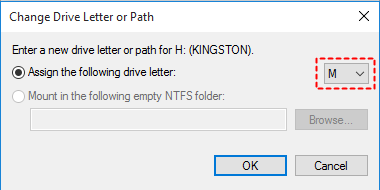
Step 3. Choose Change Drive Letter and Paths.
Step 4. Add a new letter and check whether the files appear.
Situation 2. Partition becomes unallocated
If the old partition is shown as unallocated, do not create a new volume or format the space. Recover files first, then rebuild the partition only after the important data is saved elsewhere.
 Deep Data Recovery
Deep Data Recovery can scan unallocated disk space for lost partitions and files before you rebuild the partition table.
Step 1. Launch Deep Data Recovery and choose the physical disk that contains the unallocated space. Do not select or create a new volume on that disk.

Step 2. Start a full scan so the program can search the unallocated area for lost partitions, folder structures, and deleted files.
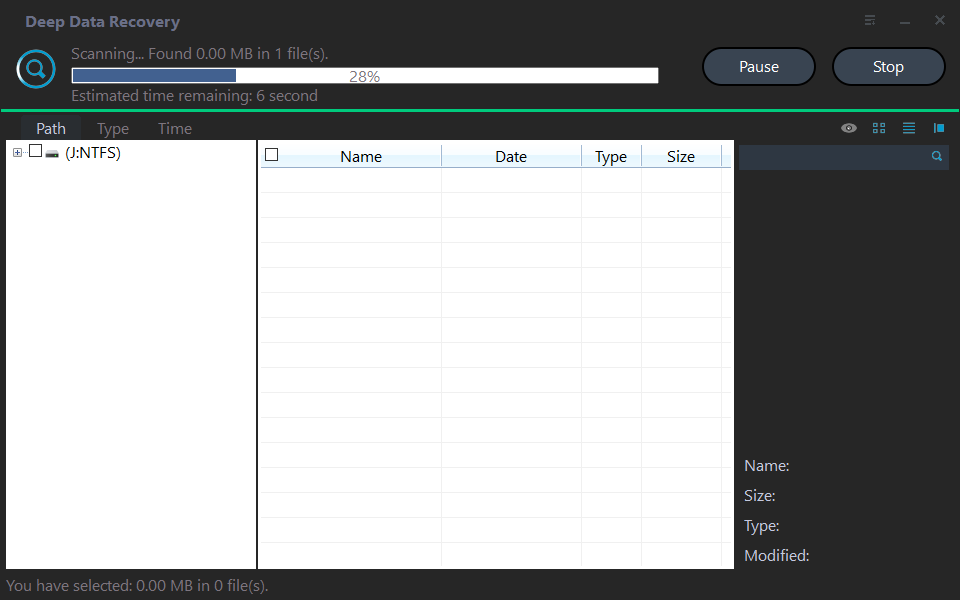
Step 3. After the scan, use the folder tree, file type filter, or search box to locate the files you need. Preview recoverable files when possible before selecting them.

Step 4. Recover the selected files to another internal disk, external drive, or network location. Do not save recovered files back to the unallocated disk until the partition table problem is fixed.
Situation 3. Disk says not initialized
Do not click Initialize if data matters. Try another cable, port, and computer. Then check Device Manager and Disk Management. If the disk is healthy but the partition table is missing, recover files before initializing.
Situation 4. Windows cannot boot after partition table damage
Step 1. Boot from Windows installation media.
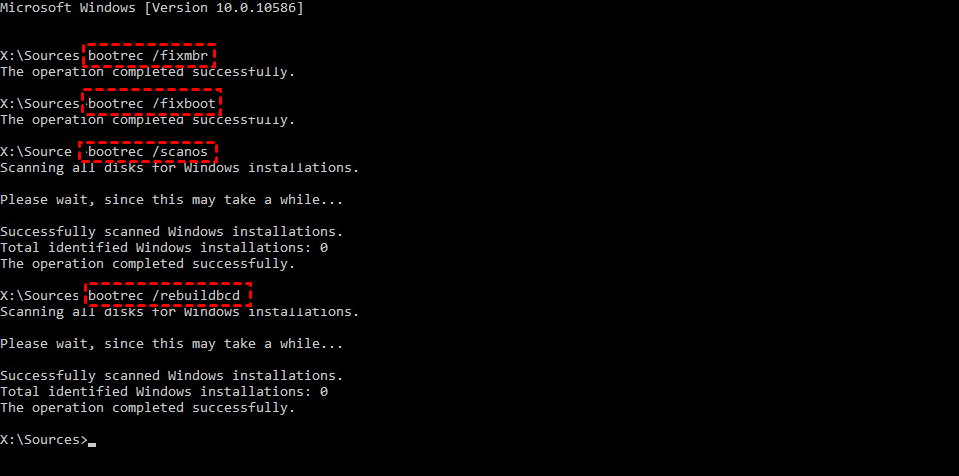
Step 2. Open Repair your computer > Command Prompt.
Step 3. Use bootrec /fixmbr, bootrec /fixboot, and bcdboot C:\Windows only when the Windows partition is intact.
Step 4. If the partition is missing, recover data first.
Conclusion
Partition table recovery should be handled carefully because every write operation may make recovery harder. Recover files first, then rebuild or recreate partitions.
Related Articles
-
Accidentally Deleted Recovery Partition? Fixed!
Learn how to handle deleted partitions and protect files before rebuilding partition structures. -
How to Recover a Deleted/Lost Partition on External Hard Drive
Recover missing partitions from external hard drives and avoid formatting before file recovery. -
Recover Data from RAW Drive Free
Restore files from RAW or inaccessible drives before repairing the file system.
Products
Articles & Tutorials
- Data Recovery
- Data Backup
- File Recovery
- File Backup
- File synchronize
- System Backup and Restore
- Disk and Partition Clone
- Technical articles
- Disk Master Help
- Windows Deleted File and Disk Recovery Tutorials
- Windows File and Data Recovery Tutorials
- More Windows Tutorials for Install, Security, Files, and PC Tips
- Windows Boot, Repair, and Recovery Environment Tutorials
- Windows Backup Tutorials
- Windows Restore Tutorials
- Windows Clone and Migration Tutorials
- Windows Server Backup, Recovery, and Management Tutorials
- Windows Disk, Partition, and Storage Management Tutorials