Qiling Disk Master vs. AOMEI Partition Assistant
Qiling Disk Master and AOMEI Partition Assistant both help Windows users manage partitions, copy disks, and prepare drives for an upgrade. The better choice depends less on a feature checklist than on whether you also need backup and recovery workflows in the same application.
What each tool is for
Qiling Disk Master combines partition work with disk, system, and file backup; disk and partition cloning; restore; bootable media; and common disk maintenance tasks. It suits a Windows PC where one utility should cover a drive replacement as well as an independent backup plan.
AOMEI Partition Assistant focuses on partition and disk management. Its official feature list includes creating, resizing, moving, merging, formatting, cloning, converting, and recovering partitions. Some advanced functions depend on the selected edition, so check the edition table before starting a system-disk job.
Practical comparison
| Need | Qiling Disk Master | AOMEI Partition Assistant |
|---|---|---|
| Resize or reorganize partitions | Use Resize/Move, merge, create, format, or convert tools. | Use its partition-management tools and wizards. |
| Replace a data drive | Disk or partition clone can copy the selected data. | Disk or partition copy is available; edition limits apply. |
| Protect the old drive first | Backup and restore are available in the same program. | Use a separate backup product or your existing backup method. |
| Work outside normal Windows startup | Create bootable media before making risky disk changes. | Bootable-media availability depends on the edition and workflow. |
Neither product makes a clone a substitute for backup. A clone is useful for moving to a replacement disk; a versioned backup is better for recovering an older file after an accidental change.
How to choose
Choose Qiling Disk Master when you want to back up the existing PC, clone to a new disk, and keep a restore path in one Windows workflow. Choose AOMEI Partition Assistant when its partition-focused interface and edition features match a specific resize, conversion, or migration task. For either tool, confirm that the target disk is large enough for the used data and identify the correct source disk before proceeding.
Try disk cloning safely with Qiling Disk Master
Step 1. Connect the new disk and back up files that cannot be replaced. In Disk Management, confirm the source and destination by capacity so you do not select the wrong drive.
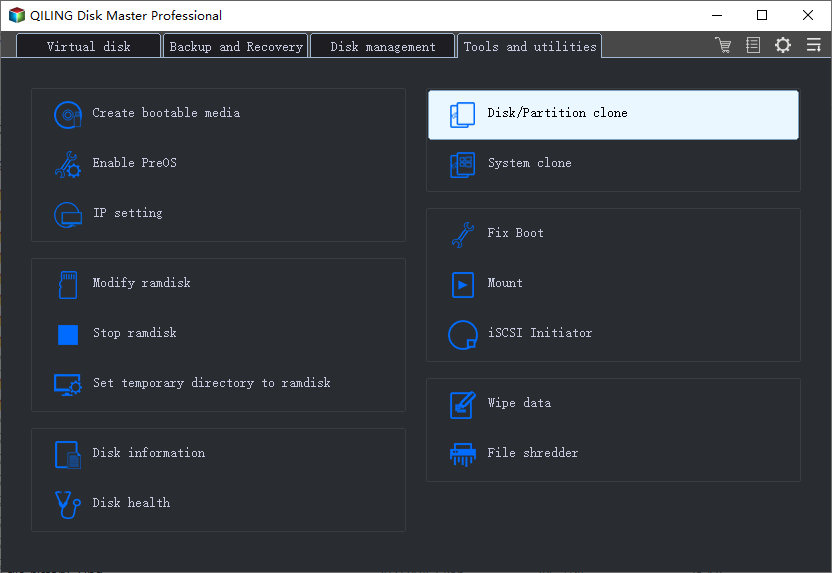
Step 2. Open Qiling Disk Master, select Clone, then choose Disk Clone for a whole drive or Partition Clone for one data volume.
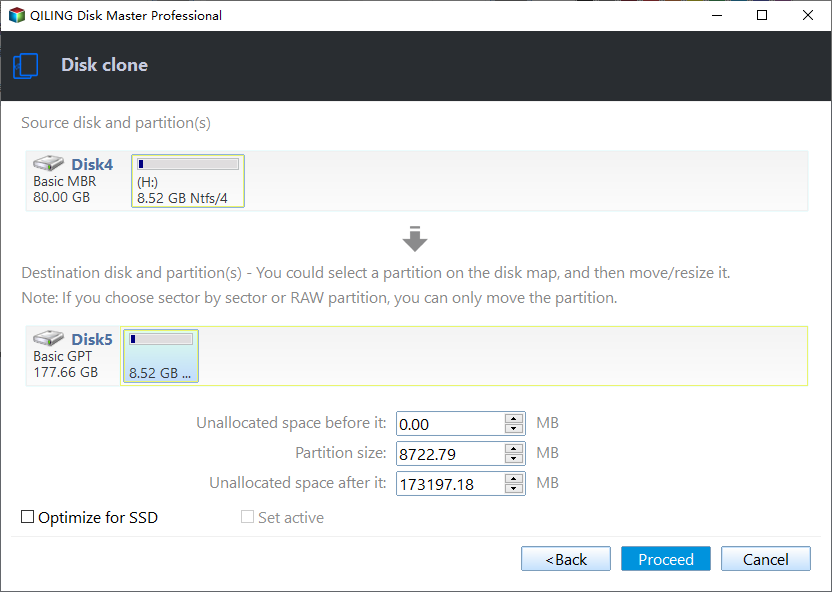
Step 3. Select the old disk as the source and the new disk as the destination. Review the warning that destination data will be overwritten, then adjust the copied partition size only when required.
Step 4. Check the pending operation and click Proceed. After the clone, test the new disk before removing or repurposing the old one.
Related Articles
- Backup vs. Clone
Understand when a restorable backup is safer than a disk clone for your next change. - Clone a Disk to a Different-Size Drive
Prepare a destination disk and copy data safely when the new drive has a different capacity.
Products
Articles & Tutorials
- Data Recovery
- Data Backup
- File Recovery
- File Backup
- File synchronize
- System Backup and Restore
- Disk and Partition Clone
- Technical articles
- Disk Master Help
- Windows Deleted File and Disk Recovery Tutorials
- Windows File and Data Recovery Tutorials
- More Windows Tutorials for Install, Security, Files, and PC Tips
- Windows Boot, Repair, and Recovery Environment Tutorials
- Windows Backup Tutorials
- Windows Restore Tutorials
- Windows Clone and Migration Tutorials
- Windows Server Backup, Recovery, and Management Tutorials
- Windows Disk, Partition, and Storage Management Tutorials