Qiling Disk Master vs. MiniTool Partition Wizard
Qiling Disk Master and MiniTool Partition Wizard are Windows disk utilities for resizing partitions, managing disk layouts, and copying storage. Both offer broader features in paid editions, so compare the exact edition before relying on migration, recovery, or boot-media tools.
Where the tools overlap
Both programs can manage common partition tasks, copy disks, convert disk styles in supported situations, and help prepare a replacement SSD. MiniTool also offers disk-analysis and recovery features in selected editions. Qiling Disk Master adds integrated backup and restore choices, which are useful when a partition operation should be reversible.
Which workflow fits
Use Qiling Disk Master when you want one program to create a backup, alter the layout, clone the disk, and restore if the change does not work as expected. Use MiniTool Partition Wizard when its edition includes the specific partition, recovery, benchmark, or cleanup function you need. A feature being visible in a comparison table does not mean it is included in every free edition.
For either tool, stop if the source drive is failing. Recover or back up readable data first; repeated resizing or cloning can add stress to an unstable disk.
Clone a disk with a recovery path
Step 1. Save important files to separate storage. If the disk is encrypted, keep its recovery information outside both disks.
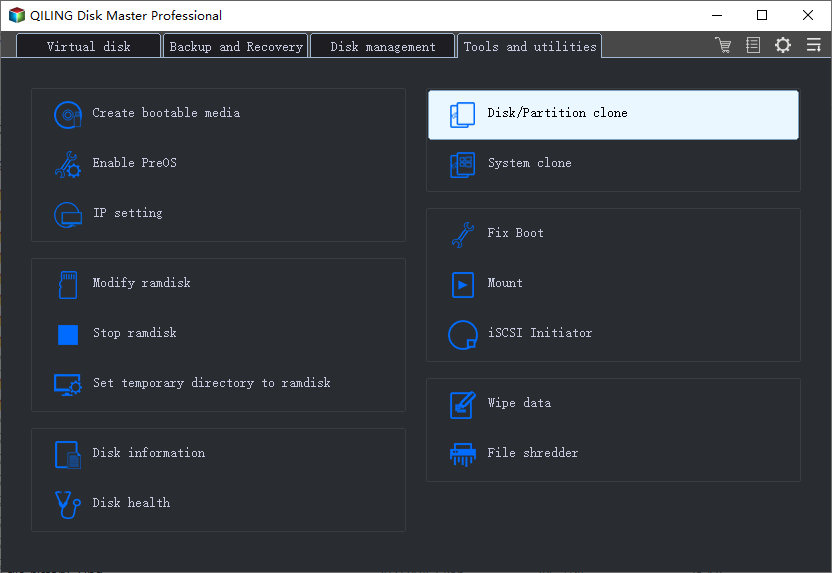
Step 2. Attach the new disk, then in Qiling Disk Master choose Clone and select Disk Clone.
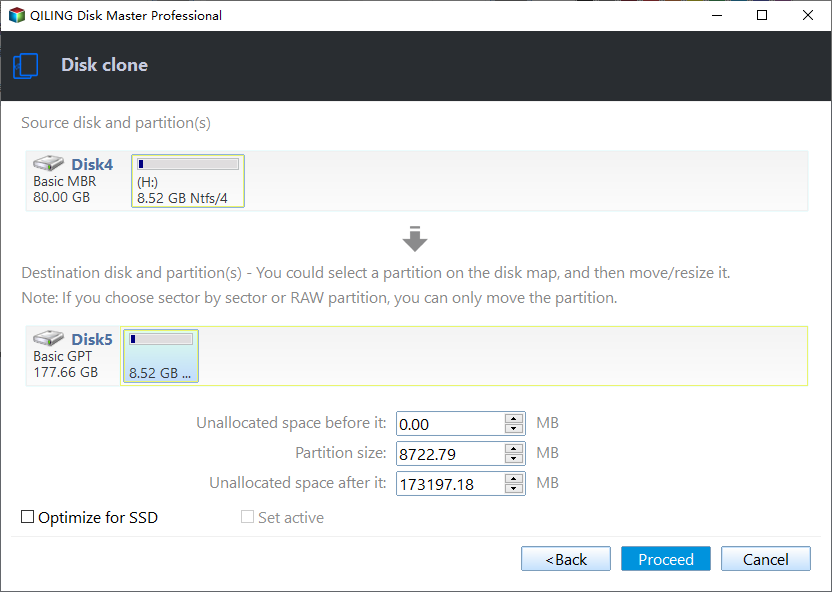
Step 3. Select the old disk and new disk by capacity and model. Confirm that the destination can be erased, then review the partition sizes before continuing.
Step 4. Click Proceed. Test the replacement disk before formatting the old one or using it for other storage.
Related Articles
- Backup vs. Clone
Compare a point-in-time disk copy with a backup strategy that can preserve multiple file versions. - Clone an SSD to a Larger SSD
Prepare the new SSD and verify the copied Windows system before retiring the original disk.
Products
Articles & Tutorials
- Data Recovery
- Data Backup
- File Recovery
- File Backup
- File synchronize
- System Backup and Restore
- Disk and Partition Clone
- Technical articles
- Disk Master Help
- Windows Deleted File and Disk Recovery Tutorials
- Windows File and Data Recovery Tutorials
- More Windows Tutorials for Install, Security, Files, and PC Tips
- Windows Boot, Repair, and Recovery Environment Tutorials
- Windows Backup Tutorials
- Windows Restore Tutorials
- Windows Clone and Migration Tutorials
- Windows Server Backup, Recovery, and Management Tutorials
- Windows Disk, Partition, and Storage Management Tutorials