Best SSD to Larger SSD Cloning: Guide & SSD Comparison
Quick Navigation:
- Error: Clone to Larger SSD Showing Wrong Space
- Choose A Right SSD: Top SSDs Comparison
- Best SSD Cloning Software for Windows 11/10 - Qiling Disk Master
- How to Safely Clone System Disk to Larger SSD Step by Step
- Important: Tips on SSD Cloning
- Conclusion
Error: Clone to Larger SSD Showing Wrong Space
Encountering an issue while attempting to clone my 256 GB SSD to a larger 1 TB SSD has left me puzzled. Despite having the new disk visible in Disk Management, the disk cloning software displayed a message stating,
"Not enough space on the target disk. To make sure the boot ability of the target disk, please delete partitions on there first."
Following the instructions, I deleted the existing partitions, but to my dismay, the newly cloned 1 TB SSD only showed a capacity of 256 GB, and the backup disk reached its maximum capacity.
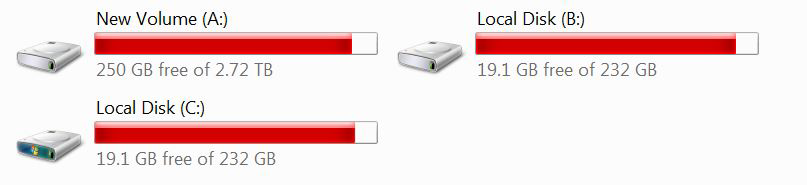
When a newly cloned 1 TB SSD only displays 256 GB of available space, mirroring the capacity of the old SSD, there are two possible reasons for this discrepancy. Firstly, the cloning process may not have completed successfully, resulting in the new SSD only being populated with data from the old SSD's first 256 GB.
- Selecting the "Sector by sector clone" option during cloning results in an exact replication of all sectors, mirroring the size of the old disk, which can be inefficient when cloning to a larger disk.
- Unallocated space: To free up space on a seemingly full disk, open the Run box by pressing Win + R, enter "diskmgmt.msc," and navigate to Disk Management. There, you'll likely find unallocated space at the end of the disk that can be used to create new partitions or allocate it to existing ones using a free partition tool.
Solid-Solid-state drives (SSDs) outshine traditional hard disk drives (HDDs) with their superior performance, weighing less, running quieter, and consuming less power, making them a top pick for Windows OS installations.
To ensure a successful and comprehensive cloning process when upgrading to a larger disk, it is recommended to use professional SSD cloning software, which offers advanced features and avoids limitations associated with simple sector-by-sector cloning.
Choose A Right SSD: Top SSDs Comparison
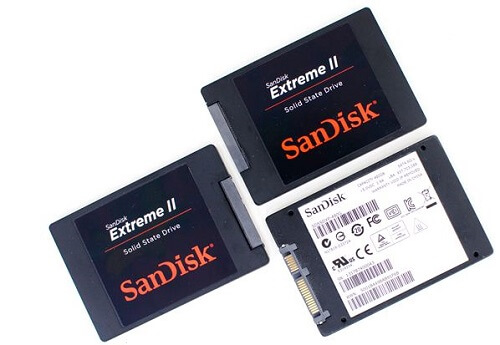
When cloning the boot SSD to a larger one, it's essential to consider the performance of the new SSD. To help with this, here's a comparison chat of popular SSDs, allowing you to make an informed decision.
| SSD Model | Capacity | Speed | Reliability | Endurance | Power Efficiency | Data Security |
| Samsung 970 EVO Plus | 250GB, 500GB, 1TB, 2TB, 4TB | Read up to 3,500MB/s, Write up to 3,300MB/s | High | Up to 1,200TBW | Low power consumption | Hardware encryption support |
| WD Blue 3D NAND | 250GB, 500GB, 1TB, 2TB, 4TB | Read up to 560MB/s, Write up to 530MB/s | High | Up to 600TBW | Energy-efficient | No hardware encryption |
| Crucial MX500 | 250GB, 500GB, 1TB, 2TB | Read up to 560MB/s, Write up to 510MB/s | High | Up to 700TBW | Power-efficient | Hardware encryption support |
| Kingston A2000 | 250GB, 500GB, 1TB, 2TB | Read up to 2,200MB/s, Write up to 2,000MB/s | Medium | Up to 600TBW | Energy-efficient | No hardware encryption |
| SanDisk Extreme Pro | 250GB, 500GB, 1TB, 2TB | Read up to 3,400MB/s, Write up to 2,800MB/s | High | Up to 600TBW | Power-efficient | No hardware encryption |
It's recommended to have a 250GB or higher capacity SSD for cloning, providing enough space for the OS, apps, and future updates, as well as user files and data storage.
As you consider upgrading to a larger SSD, efficient data migration and a seamless transition are crucial. Advanced cloning software can simplify the cloning process, providing a smooth experience during the upgrade.
Best SSD Cloning Software for Windows 11/10 - Qiling Disk Master
To ensure a smooth and hassle-The use of reliable cloning software such as Qiling Disk Master Professional is crucial in a free process, allowing you to easily clone your existing drive to a larger SSD, preserving all your data, settings, and applications.
💛 Beginner-friendly interface. The software simplifies the cloning process, making it easy and accessible for users. It allows for a straightforward navigation and initiation of the cloning process, eliminating confusion and effort.
💛 Intelligent cloning. The system is intelligent enough to clone only the used space on the source disk to the target SSD, thereby optimizing storage utilization and preventing unnecessary data duplication.
💛 Boot disk cloning. Clone a Windows SSD to a larger SSD, preserving bootability and ensuring a smooth transition with no additional setup required.
💛 MBR/GPT disk cloning support. Cloning disks between MBR and GPT partition styles allows for compatibility and a smooth cloning process, making it possible to transfer data between different partition styles.
💛 4K partition alignment. This tool ensures that partitions on the target SSD are properly aligned, which optimizes performance and maximizes the potential of the SSD.
💛 VSS technology. The cloning process runs smoothly in the background, enabling users to keep working on their computer without any disruption.
💛 Widely compatible. The mentioned popular SSDs are supported, and the device is compatible with NVMe and M.2 interfaces, working seamlessly on the latest Windows 11.
Qiling Disk Master Professional offers a reliable and efficient solution for cloning hard drives, making it an effortless and seamless experience for users looking to upgrade their SSD to a larger one.
How to Safely Clone System Disk to Larger SSD Step by Step
1. Preparation
- Connect the target SSD to your computer properly, and ensure it can be detected by the system.
- Backup important files before overwriting the target SSD.
2. Clone SSD to SSD with Qiling Disk Master
Below will be a step-by-step guide on how to clone smaller SSD to bigger SSD on Windows 10.
Step 1. Install and run Qiling Disk Master Professional on your computer.
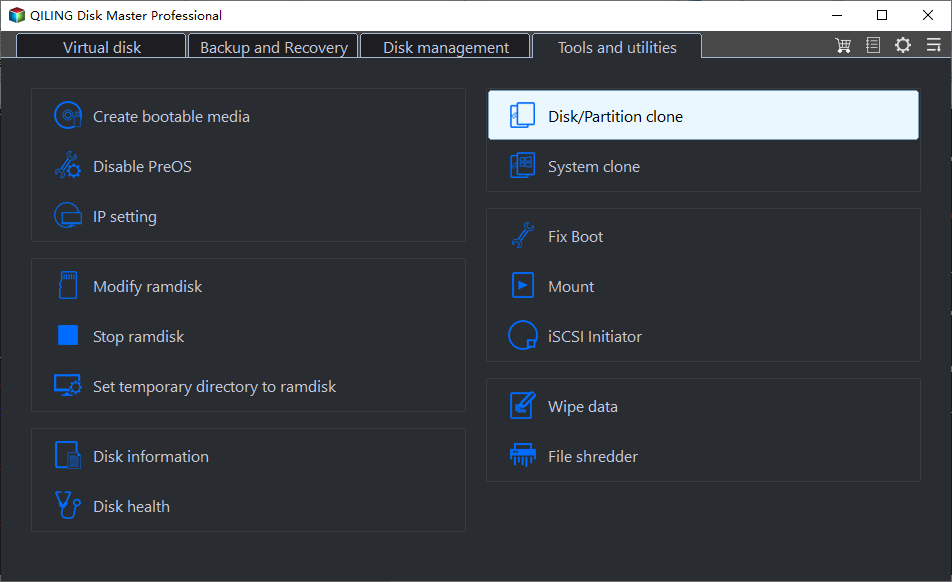
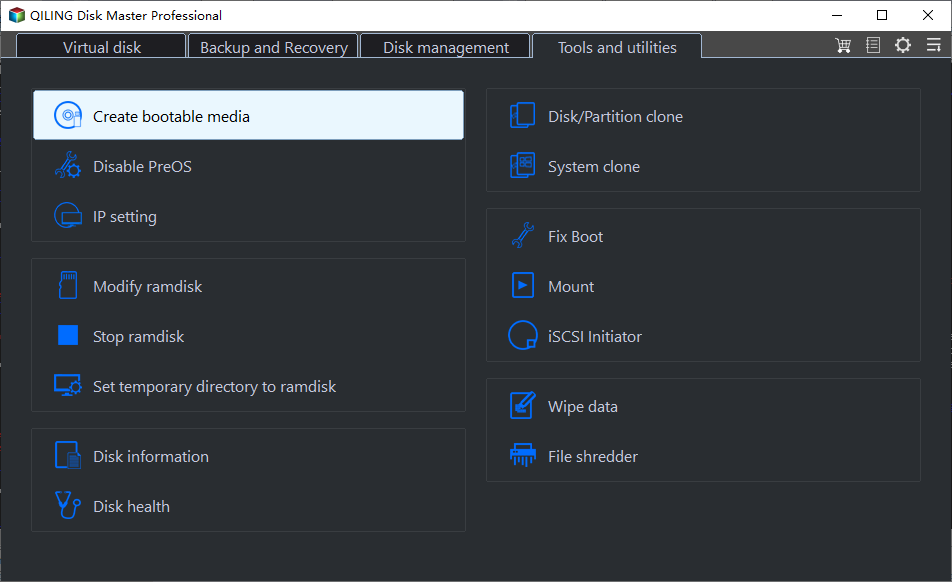
Step 2. Select "Disk Clone" under Tools tab.
Step 3. Click on the smaller SSD to select it as the source disk, and click on "Next".
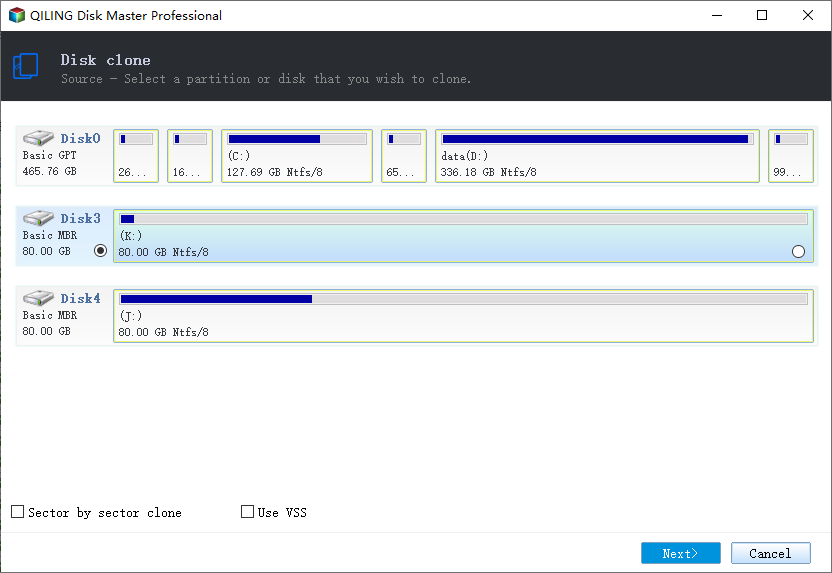
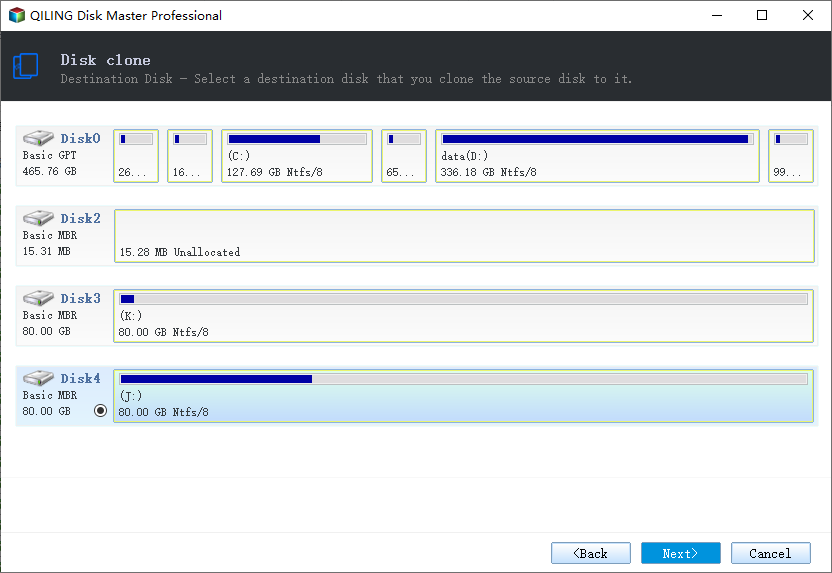
Step 4. Select on the larger SSD to set it as the destination disk, and click "Next".
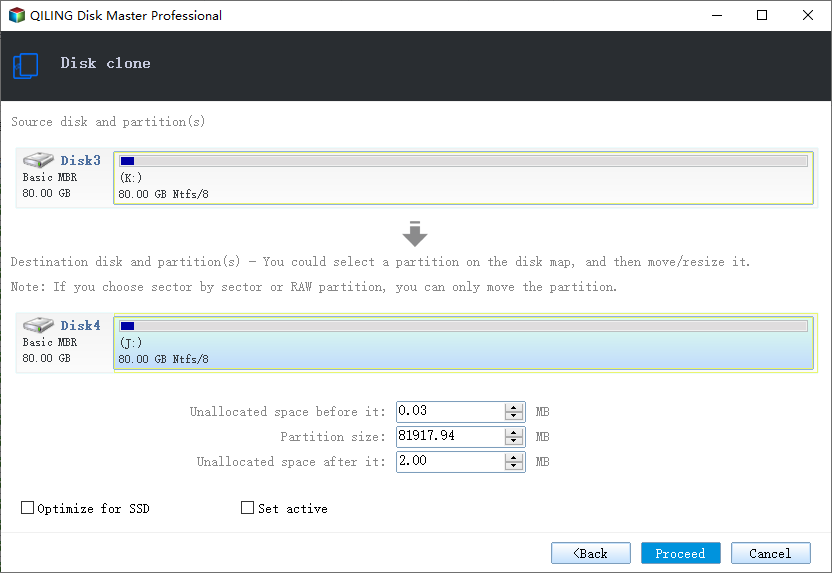
Step 5. Enable "Optimize for SSD" to SSD Alignmen for optimal performance, then click "Proceed" to initiate the SSD cloning process.
Step 6. Once cloning is finished, shut down your computer, disconnect the original SSD, connect the cloned SSD, and ensure it's properly recognized by your computer.
To clone a system disk, first, ensure that the source and target SSDs are properly connected to the computer. Next, use a reliable cloning software, such as Qiling Disk Master, to create a bit-for-bit copy of the source SSD. Be sure to select the correct source and target drives in the cloning software and choose the correct cloning mode (e.
- ★New feature
- Qiling Disk Master's software is constantly improved and refined, with a new feature called "Create Portable Version". This feature allows users to create a portable version of the software, making it easier to clone disks, back up and restore files, and synchronize files across multiple computers without the need for installation.
Important: Tips on SSD Cloning
Here are some important precautions to take during the SSD cloning process: make sure to back up your data, disconnect all external devices, and ensure the target SSD is compatible with your system. Additionally, it's a good idea to clone the SSD in a safe environment, such as a test machine, to avoid any potential issues with your main system.
- Choose a compatible SSD: Choose a larger SSD that matches your system's interface (e.g., SATA, PCIe, M.
- Assess your storage needs: Evaluate your data requirements to determine the necessary capacity for your new SSD, taking into account current and future storage needs to ensure sufficient space for data, applications, and growth.
- Organize and clean up data: Before cloning, remove unnecessary files and organize data on your existing SSD to optimize storage usage and improve system performance.
- Take a backup: Before cloning a computer, prioritize creating a reliable backup of critical files and folders using a trusted backup solution to safeguard against any unforeseen data loss during the cloning process.
- Post-cloning adjustments: After cloning, update system drivers, adjust partition sizes if needed, and verify the boot settings in the BIOS to ensure a seamless transition and proper functioning of the cloned SSD.
Conclusion
Cloning an SSD to a larger one in Windows 11/10 can be a straightforward process with the right software, making it simple and efficient. Additionally, selecting the right SSD is crucial for future use, ensuring a seamless transition and optimal performance.
Qiling Disk Master Professional is a reliable SSD cloning solution that offers practical features, making it suitable for cloning M.2 SSDs to larger M.2 SSDs.
Related Articles
- [Get the Answer!] Can I Safely Clone an HDD to an SSHD?
Description: Have you been stuck by a question like - (Easiest Way) How to Clone 2.5 SSD to M.2 with Best SSD Cloning Software
This guide explains (Easiest Way) How to Clone 2.5 SSD to M.2 with Best SSD Cloning Software with clear steps, key checks, and practical tips. - How to Clone Your Desktop Computer | Easiest Method
Cloning a desktop computer can be useful while upgrading your drives from HDD to SSD or when you are changing your desktop computer. Read the article to learn more. - How to Clone Hard Drive Using Command Prompt for Windows 11/10/8/7
Learn how to Clone Hard Drive Using Command Prompt for Windows 11/10/8/7 with clear steps, key checks, and practical tips. - Migrate Windows Server 2016 to SSD without Reinstalling
You will learn the best Windows Server migration software - Qiling Disk Master Server and how to migrate Windows Server 2016 to SSD by cloning. No need to reinstall system, programs and settings. - How to Mirror the Boot Drive in Windows Server 2016?
Learn how to Mirror the Boot Drive in Windows Server 2016 with clear steps, key checks, and practical tips.
Products
Articles & Tutorials
- Data Recovery
- Data Backup
- File Recovery
- File Backup
- File synchronize
- System Backup and Restore
- Disk and Partition Clone
- Technical articles
- Disk Master Help
- Windows Deleted File and Disk Recovery Tutorials
- Windows File and Data Recovery Tutorials
- More Windows Tutorials for Install, Security, Files, and PC Tips
- Windows Boot, Repair, and Recovery Environment Tutorials
- Windows Backup Tutorials
- Windows Restore Tutorials
- Windows Clone and Migration Tutorials
- Windows Server Backup, Recovery, and Management Tutorials
- Windows Disk, Partition, and Storage Management Tutorials