Fixed: Cloned Hard Drive Unallocated Space Left on SSD/HDD
The issue: cloned hard drive unallocated space left
Disk cloning has become increasingly popular among computer users. It involves copying all data from one hard drive to another, including the operating system, applications, and user files. The cloned drive maintains the same partition style and file system as the original, allowing it to be used as a direct replacement. This process is often necessary in situations where a new drive is needed, such as when a hard drive fails or needs to be upgraded.
- To upgrade a smaller drive to a larger drive when the current drive is running out of space, you can clone the existing drive to the new larger drive, then swap the drives. This process ensures that all data and programs remain intact during the upgrade.
- Upgrading an HDD to an SSD can greatly enhance your computer's performance, reduce noise and power consumption, and provide a more efficient and reliable storage solution.
- To prepare for an emergency, create a spare disk that contains all the data from the current system disk. This way, if the current disk fails, you can quickly switch to the spare disk and continue working without losing any data.
Unfortunately, some users have reported that when cloning a smaller drive to a larger drive, the cloned drive contains unallocated space, which cannot be used to store data. This means that the storage space is not enlarged as expected, rendering the cloning process to a larger disk pointless.
"Hi everyone,
Yes, you can add the unallocated space to your C: drive. This process is called expanding the partition or resizing the disk. You can use built-in Windows tools like Disk Management or third-party software like Qiling Partition Master to achieve this. Be cautious when resizing partitions, as it can lead to data loss if not done correctly. Make sure to back up your important files before making any changes. If you're not comfortable with the process, consider seeking help from a professional."
- How to deal with unallocated space after cloning via Disk Management
- Potent cloning software to clone disks without unallocated space left
How to deal with unallocated space after cloning via Disk Management
To address unallocated space after cloning a hard drive, use Windows' built-in Disk Management tool. For instance, after cloning disk 0 to disk 1, you may find 92.68GB of unallocated space on disk 1.

To expand a hard drive partition after cloning, start by booting your system from a live Linux environment or a Windows installation media. Connect the cloned hard drive to your system and ensure it's detected by the operating system.
1. To access Disk Management, right-click on "This PC" and select "Manage." From the pop-up window, click on "Disk Management" on the left panel.
2. To extend a partition, right-click on the partition you want to extend and select the "Extend Volume" option. This will launch the Extend Volume Wizard, which will guide you through the process of expanding the partition to its maximum size.
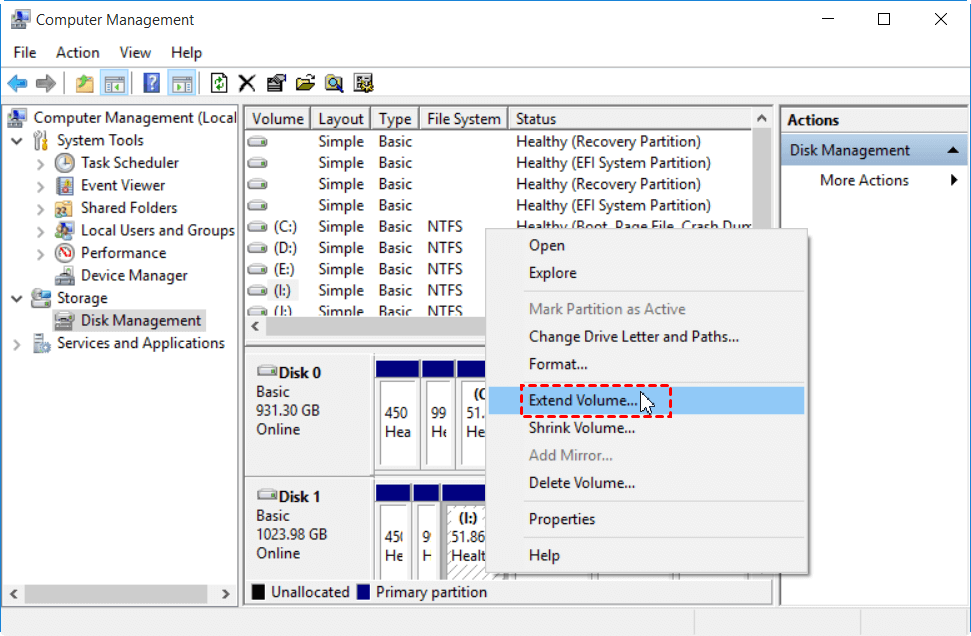
3. If you extend a partition into non-contiguous unallocated space, you may be prompted to convert the basic disk to a dynamic disk. If unsure, learn more about whether to convert to a dynamic disk.
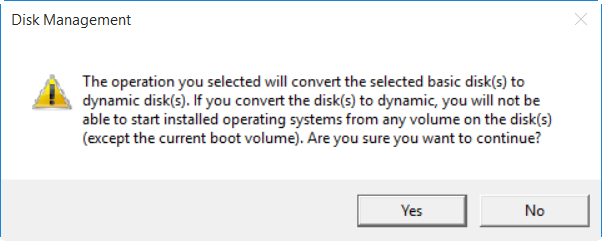
Tip: You can only extend logical drives and boot or system volumes into contiguous space, and only if the disk can be upgraded to a dynamic disk. For other volumes, you can extend into non-contiguous space, but the disk will need to be converted to dynamic.
Potent cloning software to clone disks without unallocated space left
To solve the issue of unallocated space on an SSD/HDD after cloning, you can use a disk cloning software that can handle unallocated space during the cloning process. Qiling Disk Master Professional is a tool that can assist with this issue.
★ With the inbuilt clone feature, you can clone only the operating system, an entire disk, or specific partitions.
★ If you're cloning hard drives with different sizes, you can adjust the partition size on the destination disk during the cloning process.
★ If the two disks are the same size, you can use a sector-by-sector clone to make a 1:1 copy.
To clone a larger drive using Qiling Disk Master, first, ensure the source drive is larger than the target drive. Then, open Qiling Disk Master and select the source drive as the source disk and the target drive as the target disk.
Step 1. Connect the target drive to your computer, ensure it's detected, and backup any files on the target drive if necessary, as all data will be deleted during the cloning process.
Step 2. Download, install and launch Qiling Disk Master. Click "Clone" on the left pane and select "Disk Clone" to proceed.

Step 3. Select the current hard drive as the source disk and click "Next".

Step 4. Connect an external drive to your PC and select it as the destination disk in the Windows 10 Settings app. Click "Next" to proceed with the process.

Step 5. To edit partitions, click on the "Edit partitions" button in the Operation Summary page, and then select from the two available options.
The program will automatically add unallocated space to all existing partitions.
To manually adjust partition size, click on each partition and resize it by dragging the side bar.
Tip: If you're cloning a disk to another with a different partition style, such as cloning a GPT disk to an MBR disk, check "Convert the destination disk from MBR to GPT" to ensure the partition styles match.
Step 6. Click on "Proceed" to execute the operation.

Notes:
- To boot from the cloned drive after cloning, simply change the boot order in your BIOS settings to prioritize the cloned drive, or replace the original drive with the cloned drive. If the drives have different partition types (one Master Boot Record (MBR) and one GUID Partition Table (GPT)), you may need to change the boot mode in your BIOS to boot from the cloned drive.
- If you're cloning a disk to an SSD, you can enable "SSD Alignment" before proceeding, which can enhance the reading and writing speed on the destination SSD.
Conclusion
To fix the issue of "cloned hard drive unallocated space left", you can either use Disk Management to extend volumes with unallocated space or use advanced disk cloning software like Qiling Disk Master that can handle unallocated space during the cloning process, eliminating the need to worry about it afterwards. This makes cloning hard drives a much smoother and hassle-free process.
Qiling Disk Master can be used as backup & restore software, allowing users to backup multiple drives at once and restore Windows backups to another computer.
Related Articles
- Cloned Hard Drive Shows Wrong Size - Quick Fix Once For All
- How to Clone and Resize Hard Drive in Windows (Different Size)
- How to Clone A Hard Drive with Multiple Partitions
- How to Remove Bing from Chrome
If you keep having Bing hijack your browser and want to remove Bing from Chrome, read this article. Learn all the methods to remove bing from Chrome, such as removing Bing from a search engine, uninstalling suspicious extensions, etc. - Super Easy | How to Transfer Data from One SD Card to Another
Learn how to transfer data from one SD card to another safely. Copy files, clone SD cards, and move data to a larger card without losing files. - How to Transfer Data/Files from One SSD to Another Without Losing Data
Transferring data from one SSD to another on Windows 11/10/8/7 can be easily done with the help of Qiling Disk Copy, a user-friendly SSD cloning software that makes the process a breeze.
Products
Articles & Tutorials
- Data Recovery
- Data Backup
- File Recovery
- File Backup
- File synchronize
- System Backup and Restore
- Disk and Partition Clone
- Technical articles
- Disk Master Help
- Windows Deleted File and Disk Recovery Tutorials
- Windows File and Data Recovery Tutorials
- More Windows Tutorials for Install, Security, Files, and PC Tips
- Windows Boot, Repair, and Recovery Environment Tutorials
- Windows Backup Tutorials
- Windows Restore Tutorials
- Windows Clone and Migration Tutorials
- Windows Server Backup, Recovery, and Management Tutorials
- Windows Disk, Partition, and Storage Management Tutorials