How to Clone and Resize Hard Drive in Windows (Different Size)
Quick Navigation:
- Need to Resize Hard Drive during Cloning
- Complete Software to Clone and Expand Hard Drive
- How to Clone Hard Drive and Resize Partitions Step by Step
- Verdict
Need to Resize Hard Drive during Cloning
You can clone your 500GB Windows hard drive to the 1TB new drive and then resize the partitions on the destination to fit the larger drive. After cloning, you can use disk management tools (like Disk Management in Windows or a third-party tool like Qiling Disk Master) to resize the partitions and utilize the full 1TB capacity. This way, you can avoid having the extra unallocated space at the end of the disk.
Cloning a hard drive to another HDD or SSD is a cost-effective way to upgrade your computer's disk, improving performance in Windows, by saving time and effort compared to reinstalling Windows and programs.
Cloning a hard drive with a different size is a common situation, especially when cloning a smaller drive to a larger one. In such cases, you may need to resize the disk to utilize the full capacity of the target drive, as cloning typically overwrites the original disk's partitions to the target disk, leaving some space unallocated and capacity wasted.
To clone a larger drive to a smaller drive, you can use a cloning tool that supports resizing partitions. This will allow you to clone the larger drive to the smaller drive, and then resize the partitions on the smaller drive to fit. This can be done using a tool like Qiling Disk Master.
Complete Software to Clone and Expand Hard Drive
Unfortunately, Windows lacks a built-in clone feature, forcing users to rely on third-party software for direct disk copy or system migration. However, not all such software meets the cloning needs perfectly, often lacking features like adjusting partition size during cloning or being user-friendly.
Qiling Disk Master Professional is a reliable and comprehensive cloning software that allows for easy cloning and resizing of hard drives, including secure boot functionality.
📑The software runs in an intelligent-sector mode by default, which only copies used sectors, allowing users to clone a larger drive to a smaller one, as long as the target drive has sufficient capacity for extant data.
📑After selecting the source and target disks, a summary interface appears, offering multiple choices for resizing the partition on the target drive. By clicking on "Edit Partitions," users can select from options such as resizing, reformatting, or even creating a new partition on the target drive. This interface provides a clear and concise way to manage the target drive's partition structure.
>> Copy without resizing partitions
>> Add unused space to all partitions
>> Manually adjust partition size
>> Convert the partition style of the target disk
📑The software also performs 4K alignment for SSDs when cloning a hard drive to an SSD.
To try the cloning function, click the download button below to install the tool.
*It works on Windows 11, 10, 8, 7, XP, Vista (all editions). If you are running Windows Server, try Server edition.
How to Clone Hard Drive and Resize Partitions Step by Step
Connect the target disk to your computer correctly and make sure it can be detected. Backup the disk in advance if necessary, as it will be overwritten during the cloning process.
1. Launch Qiling Disk Master, click Disk Clone under the Clone tab.

2. Select the source disk you'd like to clone from and click Next.

3. Click on the destination disk you'd like to clone to and then click Next.

Tips: Qiling Disk Master allows cloning up to 3 partitions at a time from GPT to MBR, and supports merging partitions without data loss if there are more than 3 partitions on the source GPT disk.
4. At the Operation Summary page, click Edit Partitions in the lower-left corner.

You will receive a prompt reminding you that the partition will be overwritten or deleted. Click OK to continue or Cancel to back up important data first.
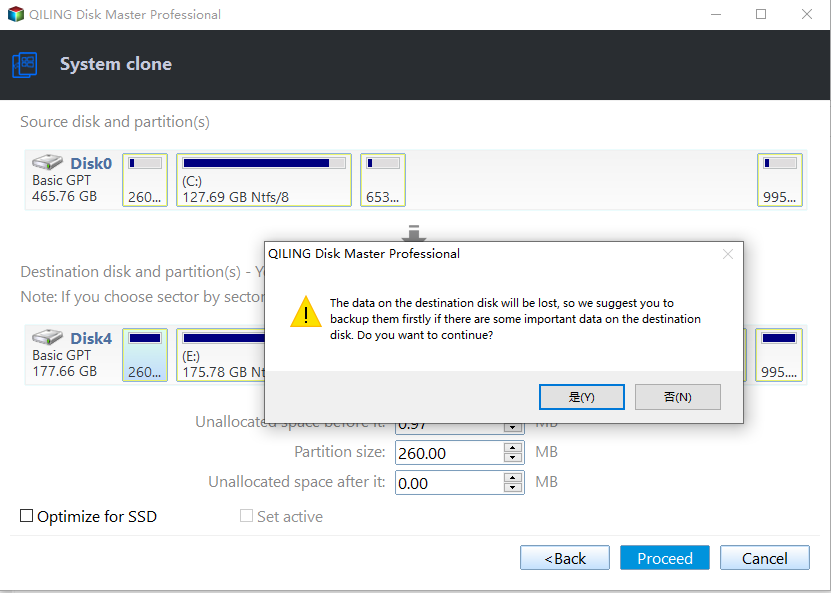
5. Make sure everything is OK and click Proceed, wait for it to complete.
After cloning a system disk, you can either change the boot order to prioritize the cloned drive or simply replace the old drive with the cloned disk. This allows you to boot directly from the cloned drive.
✍Notes:
- Enabling the "Sector by sector clone" option will disable the "Edit Partitions" feature.
- If you clone your operating system to a solid-state drive (SSD), tick the "SSD Alignment" option to enhance the reading and writing speed of your system.
- When cloning a large drive to a smaller drive, the "Copy without resizing partitions" option in the "Edit Partitions" section becomes unavailable.
Verdict
Qiling Disk Master Professional allows for easy cloning and resizing of hard drives in Windows, enabling the cloning of large drives to smaller ones or vice versa, while also resizing partitions to desired sizes. It also facilitates the cloning of boot drives to SSDs while keeping files on HDDs and assists in cloning dynamic volumes.
After cloning, it is recommended to keep Qiling Disk Master installed as a safeguard for your computer. To further protect your data, create backup tasks, including system, disk, and file backups, to ensure your crucial and sensitive information is safely preserved.
Related Articles
- A Professional ADATA SSD Clone Software: Qiling Disk Master
- How to Clone Hard Drive to SSD in Windows 10?
- Freeware to Clone Hard Drives with Bad Sectors (Bootable)
- Clone Hard Drive with Different Size | Easy & Free
- How to Clone BitLocker Encrypted Hard Drive [Proven Way]
To clone BitLocker drive in Windows 11/10/8/7, you can use Qiling Disk Master. - How to Clone Failing Hard Drive in Windows 11, 10, 8, 7?
Learn how to Clone Failing Hard Drive in Windows 11, 10, 8, 7 with clear steps, key checks, and practical tips.
Products
Articles & Tutorials
- Data Recovery
- Data Backup
- File Recovery
- File Backup
- File synchronize
- System Backup and Restore
- Disk and Partition Clone
- Technical articles
- Disk Master Help
- Windows Deleted File and Disk Recovery Tutorials
- Windows File and Data Recovery Tutorials
- More Windows Tutorials for Install, Security, Files, and PC Tips
- Windows Boot, Repair, and Recovery Environment Tutorials
- Windows Backup Tutorials
- Windows Restore Tutorials
- Windows Clone and Migration Tutorials
- Windows Server Backup, Recovery, and Management Tutorials
- Windows Disk, Partition, and Storage Management Tutorials